
What’s worth knowing in the Squarespace world.
For designers, developers, and people building businesses around Squarespace.
How to Add Animations to Your Squarespace Site
Animations can make a Squarespace site feel more polished, interactive, and alive.
But they can also make a site feel busy, distracting, or slow if they are used without restraint.
The goal is not to animate everything.
The goal is to use motion to guide attention.
A good animation helps someone notice an important button, understand a transition, explore a gallery, or feel more movement inside the brand. A bad animation gets in the way.
Below are some of the best ways to add animations to a Squarespace site, from native Squarespace settings to no-code plugins and simple CSS effects.
Start With Squarespace’s Built-In Animations
Before you add a plugin, check what Squarespace already gives you.
Squarespace includes built-in site-wide animations that can add subtle movement across your site. Depending on your template and settings, you can use effects like fade, scale, slide, clip, and flex-style animations.
This is the best place to start if you only want a light layer of motion.
Built-in Squarespace animations are useful when you want:
- Simple entrance animations
- A more polished scrolling experience
- Subtle movement without installing anything
- A quick visual upgrade
- Animation that feels native to the platform
If you want deeper control, more dramatic effects, animated text, hover reveals, background motion, or custom transitions, that is where plugins and custom code come in.
Read Squarespace’s guide to site-wide animations
1. Spark Plugin
Spark Plugin is one of the easiest ways to add animations and visual effects to a Squarespace site without writing code.
It includes a library of design, marketing, navigation, and animation customizations. You can use it for hover effects, scroll animations, animated backgrounds, word loops, number counters, animated announcement bars, and other visual upgrades.
Use Spark if you want:
- Hover animations
- Scroll animations
- Animated text effects
- Number counters
- Animated announcement bars
- Background animations
- Moving logo carousels
- A no-code visual interface
Spark is best for site owners and designers who want a lot of animation options in one tool.
It is especially useful when you want small interactive details across a site rather than one single custom effect.
Best for: designers, small business sites, landing pages, portfolios, and brands that want a more polished interactive feel.
Spark Word Loop Example
Word loop animations can make a headline feel more dynamic by rotating through key words or phrases.
This works well in hero sections, landing pages, service pages, and campaign pages where you want to emphasize multiple benefits without rewriting the whole headline.
Spark Hover Reveal Example
Hover reveal effects are useful for portfolios, galleries, product grids, team sections, and card-based layouts.
The visitor hovers over an image or element, and extra text or visual detail appears. It keeps the layout clean while still giving people more information when they ask for it.
2. SquareKicker
SquareKicker is a powerful no-code design extension for Squarespace.
It is not only for animations. It gives you deeper control over layout, spacing, styling, sections, buttons, images, text, and responsive behavior. But its animation tools are a big reason designers use it.
You can create scroll-triggered effects, hover animations, horizontal scrolling sections, section sliders, sticky elements, and more advanced visual layouts.
Use SquareKicker if you want:
- Scroll-based animations
- Hover effects
- Horizontal scroll sections
- Section sliders
- Sticky sections
- More design control without code
- Custom layouts that go beyond native Squarespace
SquareKicker is best when animation is part of a larger custom design system.
If you only need one small animation, it may be more than you need. But if you want to make a Squarespace site feel much more custom, it is one of the strongest options.
Best for: Squarespace designers, agencies, portfolio sites, landing pages, and custom client builds.
SquareKicker Text Reveal Example
Text reveal effects can make cards, images, or portfolio items more interactive.
They are useful when you want the page to stay visually clean at first glance, then reveal more information when someone engages with a section.
SquareKicker Horizontal Scrolling Example
Horizontal scrolling sections can make a long page feel more editorial and immersive.
This can work well for timelines, portfolios, case studies, process sections, featured collections, or any layout where you want the visitor to move through a sequence.
SquareKicker Animated Buttons Example
Button animations are small, but they can make a site feel more responsive.
A button that shifts, lifts, changes, or responds on hover can help reinforce that it is clickable. Just keep the effect subtle enough that it does not distract from the call to action.
3. Ghost Plugins

Ghost Plugins is a large library of Squarespace plugins, templates, components, and copy-paste code solutions.
This is a good option if you do not need a full design suite. Instead of paying for one big tool, you can pick a specific animation or visual effect and add it to your site.
Ghost is especially useful for small enhancements.
Use Ghost Plugins if you want:
- One-off animation effects
- Free Squarespace code snippets
- Small visual upgrades
- Copy-and-paste components
- Simple effects without a large plugin suite
This is the best fit when you know exactly what you need.
For example, if you only want animated links, a hover effect, a moving button, or one small design enhancement, Ghost may be a better fit than installing a larger design extension.
Best for: DIY site owners, designers who want quick snippets, and people who only need one specific effect.
4. Animated Text Effects

Text animations can work well when you want a headline or key phrase to feel more dynamic.
Common examples include:
- Rotating words
- Typing effects
- Text reveals
- Highlight animations
- Sliding headlines
- Fading phrases
- Animated counters
These effects can be useful on hero sections, sales pages, portfolio intros, and landing pages.
But text animation needs restraint.
If the headline is hard to read, the animation is working against the page.
Use text animation when it helps clarify or emphasize the message. Avoid it when it distracts from the message.
Best for: hero sections, landing pages, launch pages, personal brands, and marketing sites.
5. Hover Animations

Hover animations are one of the simplest ways to make a site feel more interactive.
A button can slightly grow. A card can lift. An image can reveal text. A link can underline in a more interesting way.
These are small details, but they make the site feel more responsive.
Use hover animations for:
- Buttons
- Product cards
- Portfolio items
- Blog cards
- Image galleries
- Team cards
- Navigation links
- Featured resources
The main limitation is mobile. Hover effects are designed for mouse interaction, so they do not always translate the same way on phones.
That does not mean you should avoid them. Just make sure the site still works well without the hover state.
Best for: desktop polish, portfolio grids, product grids, buttons, and card-based layouts.
Image Block Hover Example

A zoom-in image hover can help portfolio images, product images, or featured resources feel more clickable.
Just keep it subtle. A small zoom feels polished. A dramatic zoom can feel distracting.
6. Animated Announcement Bars and Buttons

Announcement bars and buttons are good places to use animation because they are already designed to draw attention.
An animated announcement bar can work well for:
- Sales
- Launches
- Event reminders
- Shipping deadlines
- Product drops
- Newsletter calls to action
The key is to make the movement helpful, not annoying.
If the animation makes the message harder to read, simplify it.
Animated Header Button Example

Animated buttons can help important calls to action stand out, especially in the site header or hero section.
This works best when you have one primary action you want visitors to take.
Button Hover Movement Example

A small movement on hover gives the visitor a sense that the button is active and clickable.
This is one of the safest animation types because it only appears when someone interacts with the element.
7. Animated Page Transitions
Page transitions create a smoother experience when visitors move from one page to another.
Instead of the page changing abruptly, the transition adds a fade, slide, reveal, overlay, or loading-style animation.
This can make a Squarespace site feel more polished, especially for portfolios, creative studios, photographers, event sites, and brands that want a more cinematic experience.
Use page transitions if you want:
- Smooth movement between pages
- A more app-like browsing experience
- A polished portfolio feel
- A branded loading or transition effect
- A subtle moment of motion between page loads
Code & Tonic has an Animated Page Transitions plugin for Squarespace. Square Refresh also has a Page Transition plugin.
Best for: portfolios, creative studios, personal brands, agencies, photographers, and high-touch service businesses.
View Code & Tonic Page Transitions
View Square Refresh Page Transition
8. Scroll Animations
Scroll animations trigger as the visitor moves down the page.
They can help a long page feel more alive by introducing sections gradually instead of showing everything at once.
Common scroll animations include:
- Fade up
- Slide in
- Scale in
- Image reveals
- Parallax-style movement
- Horizontal scroll sections
- Sticky sections
- Progress-based movement
Scroll animations are powerful, but they are also easy to overuse.
A good rule: use scroll animations to create rhythm, not noise.
If every single block flies in from a different direction, the page can feel exhausting. Simple fades and subtle movement usually age better.
Best for: landing pages, portfolios, service pages, long sales pages, and visual storytelling.
9. Animated Backgrounds
Animated backgrounds can add energy to a section without requiring the visitor to interact.
You might use:
- Animated gradients
- Moving shapes
- Floating elements
- Subtle video backgrounds
- Background texture movement
- Animated image masks
These can work well in hero sections, announcement areas, launch pages, or brand moments.
But be careful with readability.
If the background is moving behind important text, the text still needs to be easy to read. Motion should support the section, not fight with it.
Best for: hero sections, landing pages, launch pages, creative sites, and brands with a strong visual identity.
10. Simple CSS Animations
You do not always need a plugin.
Some animations can be added with a small amount of CSS.
For example, you can make a button grow slightly on hover:
.sqs-button-element--primary {
  transition: transform 0.3s ease;
}

.sqs-button-element--primary:hover {
  transform: scale(1.05);
}
This kind of simple effect is useful because it is lightweight and easy to understand.
You can also use CSS for:
- Button hover effects
- Image hover zooms
- Link underline animations
- Pulsing icons
- Floating elements
- Simple fades
- Rotating shapes
CSS is best when you only need one or two specific effects and do not want to install a full plugin.
Best for: simple hover effects, lightweight animations, designers comfortable with code, and small custom touches.
When Not to Use Animations
Animations are not always the answer.
Do not add animations just because the site feels plain.
First ask:
- Does this help the visitor notice something important?
- Does this make the page easier to understand?
- Does this support the brand?
- Does this make the interaction feel clearer?
- Does this slow the site down?
- Does this make the mobile experience worse?
Animation should create focus.
If it creates confusion, remove it.
Quick Tips for Better Squarespace Animations
- Use fewer animations than you think you need.
- Keep important text readable.
- Test everything on mobile.
- Avoid animations that delay access to content.
- Use the same motion style across the site.
- Do not animate every section differently.
- Respect users who prefer reduced motion where possible.
- Keep the page fast.
The best animation often feels invisible. It makes the site feel smoother without calling too much attention to itself.
Final Takeaway
Squarespace sites do not have to feel flat.
With the right plugins, visual tools, and code snippets, you can add movement, polish, and interaction to your site.
Use Spark Plugin if you want a broad no-code animation toolkit.
Use SquareKicker if you want deeper design control and more advanced visual layouts.
Use Ghost Plugins if you want small copy-paste effects.
Use a page transition plugin if you want the whole site to feel smoother between pages.
Use CSS if you only need a simple custom effect.
But whatever you choose, remember this:
The animation should serve the page.
Not the other way around.
Want More Squarespace Plugins?
Browse more tools for improving your Squarespace site’s design, navigation, ecommerce experience, galleries, product pages, and blog layout.
Squarespace Animation FAQs
Can you add animations to Squarespace?
Yes. You can add animations to Squarespace using built-in settings, third-party plugins, custom CSS, JavaScript, or design extensions like Spark Plugin and SquareKicker.
What is the easiest way to add animations to Squarespace?
The easiest way is to use Squarespace’s built-in site-wide animations or a no-code plugin like Spark Plugin or SquareKicker. These let you add hover effects, scroll animations, text animations, and other visual effects without writing custom code.
Can I add scroll animations to Squarespace?
Yes. You can add scroll animations with plugins like Spark Plugin or SquareKicker, or with custom code libraries if you are comfortable working with code.
Can I add hover animations to Squarespace buttons?
Yes. You can add hover animations to buttons with CSS or with a no-code plugin. A simple CSS hover effect can make buttons scale, lift, fade, or change style when someone hovers over them.
Are animations bad for website performance?
Animations can hurt performance if they are heavy, excessive, or poorly implemented. Simple CSS animations and well-optimized plugin effects are usually fine. Always test your site on mobile.
Should every Squarespace site use animations?
No. Some sites work better with very little motion. Use animations when they support the message, guide attention, or improve the user experience.
What are the best Squarespace animation plugins?
Some of the strongest options are Spark Plugin, SquareKicker, Ghost Plugins, Code & Tonic page transitions, and Square Refresh page transitions. The best one depends on whether you need a full design toolkit, a single effect, or a site-wide transition.
Squarespace Directory Plugins and Solutions: What Actually Works
Need to build a directory on Squarespace?
You might be listing local businesses, members, sponsors, job openings, real estate listings, service providers, locations, alumni, resources, or portfolio entries.
The tricky part is that Squarespace does not have one built-in “directory” feature that handles search, filters, submissions, maps, member profiles, and payments all in one place.
But there are still several ways to build a directory on Squarespace.
The right choice depends on what kind of directory you are building.
A simple curated directory can usually be built with native Squarespace pages and collections. A member directory may need a membership platform like Raklet. A location directory may be better as a store locator or map widget. A job board may need a job board widget. A large searchable directory may need filtering, a database, or a dedicated third-party tool.
This guide breaks down the main options so you can choose the cleanest route.
If you are looking for more general add-ons, start with our Squarespace plugins or browse our Squarespace tutorials.
First: what kind of directory are you building?
Before choosing a plugin, define the directory.
A Squarespace directory could mean:
a list of businesses
a member directory
a team directory
a job board
a real estate listing page
a resource library
a store locator
a vendor directory
a sponsor directory
a portfolio directory
a searchable map
a paid membership directory
a private directory for members only
Those are not the same project.
A simple sponsor directory might only need a clean grid of logos and links. A business directory may need categories, locations, search, and maps. A member directory may need people to log in and update their own profiles. A job board may need applications. A real estate directory may need structured fields, photos, pricing, filters, and frequent updates.
So the real question is not “what is the best Squarespace directory plugin?”
The better question is:
What does this directory need to do?
Option 1: Build a simple directory with native Squarespace pages
If your directory is small and manually managed, start with Squarespace itself.
You can create directory entries using:
blog posts
portfolio items
product pages
standard pages
collection pages
summary blocks
categories and tags
search blocks
list sections
For example, a simple business directory could be built as a blog collection. Each business gets its own post. Categories can represent industries. Tags can represent locations, specialties, or listing types. Then you can use summary blocks to display entries on different pages.
This keeps the content inside Squarespace, which is helpful for SEO and long-term editing.
Use this option if:
the directory is small
you or your team will manually update entries
each entry should have its own indexable page
you do not need advanced filtering
users do not need to submit or edit their own profiles
the directory is more editorial than database-driven
This approach works well for:
sponsor directories
recommended vendors
curated resource lists
portfolio directories
small team directories
local guides
simple business lists
internal “best of” pages
The limitation is scalability.
Native Squarespace can handle content, categories, and search, but it is not a full directory database. If you need advanced filtering, front-end submissions, map search, account editing, or hundreds of structured entries, you will probably outgrow the native approach.
Option 2: Use Squarespace collections with a filtering plugin
If you want entries to stay inside Squarespace but need better filtering, look at a Squarespace-native filtering plugin.
One popular option in the Squarespace ecosystem is Universal Filter by SquareWebsites.
The idea is simple: your directory entries live in Squarespace collections, and the plugin adds more advanced search, filters, and sorting on top.
This is useful because your content still belongs to your Squarespace site. Each entry can still be a real page. You are not only embedding an external widget that search engines may not treat the same way.
Use this option if:
you want the directory content to stay in Squarespace
you need category, tag, or field-based filtering
you want entries to be SEO-friendly
you are comfortable with some setup
you do not need users to log in and edit their own listings
This approach works well for:
resource libraries
portfolios
product-style directories
searchable blog collections
vendor lists
location pages
service provider directories
searchable case study libraries
The main tradeoff is setup.
A filtering plugin can be powerful, but you still need to structure your Squarespace content carefully. Your categories, tags, titles, excerpts, thumbnails, and entry pages need to be organized before filtering will feel clean.
Option 3: Use a membership platform like Raklet
If your directory is tied to members, profiles, dues, events, or community management, you may need more than a Squarespace plugin.
Raklet is a membership and community platform with directory features. Its directory feature is built around member information, custom directories, filters, and searchable results. It also includes related membership features like CRM, payments, events, email, and community tools.
This is the better direction when the directory is not just a public list. It is part of a larger membership system.
Use this option if:
members need profiles
members need to log in
members need to update their own information
the organization collects dues or payments
the directory is connected to events, email, or community features
you need more than a static list on a Squarespace page
This approach works well for:
associations
alumni networks
nonprofits
professional organizations
clubs
communities
paid membership directories
private member portals
The tradeoff is complexity.
Raklet may be overkill if all you need is a simple public list. But if you need membership management plus a directory, using a dedicated membership platform can be cleaner than trying to force Squarespace to do everything.
Option 4: Use a job board widget
If your “directory” is really a job board, use a job board tool.
A job board has different needs than a regular directory. You may need job categories, application links, filtering, role details, company information, and a clean way for applicants to apply.
Elfsight Job Board is one option. It lets you create a job listing widget with categories, application forms, and filtering options, then embed it on your website.
Raklet Job Board is another option if the job board is tied to a membership community or professional network.
Use this option if:
you are posting jobs
applicants need to browse and apply
listings change often
you want a no-code setup
you do not need each job post to be a native Squarespace page
This approach works well for:
career pages
association job boards
community job listings
niche hiring boards
school or alumni opportunity pages
professional networks
The main tradeoff is SEO and ownership.
With an embedded widget, the content may be managed outside Squarespace. That can be convenient, but if organic search is important for every job listing, you need to think carefully about whether those listings should live as real Squarespace pages instead.
Option 5: Use a store locator or map widget
If your directory is based on physical locations, branches, service areas, offices, or pickup points, a store locator may be a better fit than a traditional directory.
Elfsight Store Locator lets you create searchable location listings with maps, location cards, directions, and business details.
This is useful because location directories need a different interface. People are not only browsing names. They are trying to find the nearest place, understand hours, get directions, or click through to a location page.
Use this option if:
the directory is location-based
users need maps or directions
entries are physical places
you need location cards
you want search by place or address
you need a quick no-code embed
This approach works well for:
store locators
office directories
branch directories
service locations
pickup points
dealer locators
franchise locations
event locations
The main tradeoff is that the location data lives in the widget provider’s system, not as native Squarespace pages.
That may be fine for a location finder. But if each location needs to rank in search, you may also want individual Squarespace location pages.
Option 6: Use an embeddable database or no-code app
For larger directories, a database-backed tool may be a better route.
This could mean using a tool like Airtable, Softr, Noloco, Stacker, Glide, or another no-code database app, then linking to it or embedding part of it on Squarespace.
This is usually a better fit when the directory has a lot of structured data.
For example:
name
category
location
website
contact person
image
tags
price range
availability
profile status
featured listing status
submission date
Use this option if:
the directory has many entries
the data changes often
you need admin workflows
you need approvals
you need structured fields
you need user submissions
you need something closer to a small app
This approach works well for:
large business directories
marketplace-style directories
real estate listings
school directories
grant/resource databases
community resource hubs
startup or member databases
The tradeoff is that you are building a system beside Squarespace, not fully inside Squarespace.
That can be the right choice. Just be clear about it.
Squarespace becomes the marketing site, while the directory lives in a connected database tool.
Option 7: Use a general widget builder
Some directory needs are better handled by general no-code widget platforms like Elfsight or Common Ninja.
These platforms offer many embeddable tools. Depending on the exact use case, you may not need a dedicated “directory” widget. You may need a portfolio widget, team showcase, store locator, job board, Google Maps widget, table, cards layout, or searchable list.
Use this option if:
you want a no-code embed
you need something quick
the directory does not need native Squarespace pages
you are okay managing content in another dashboard
you need a specific widget like a map, job board, or team section
This approach works well for:
simple staff directories
job listings
location finders
portfolio grids
sponsor sections
basic listings
event/resource widgets
The tradeoff is that external widgets can create styling, performance, SEO, and long-term maintenance questions.
They are convenient, but they are still third-party systems.
What about Community Box?
The older version of this article mentioned Community Box as a directory option.
I would not lead with it unless you can verify the current product page, pricing, and support status.
If you already have a working Community Box link and the product is still active, it may belong in this article as a no-code directory option. But if the URL is hard to find or the product has changed, I would remove it rather than send readers to something uncertain.
A directory guide should be especially careful about recommending tools that may not be maintained.
What about Elfsight and Common Ninja?
Elfsight and Common Ninja can be useful, but they should be positioned correctly.
They are not necessarily the best answer for every directory.
They are best when you want a widget you can configure elsewhere and embed into Squarespace.
That can work well for:
job boards
store locators
map-based directories
team showcases
portfolio-style listings
small resource widgets
simple no-code layouts
They are less ideal when:
every listing needs its own SEO-friendly Squarespace page
you need full control over the directory structure
you want all content managed inside Squarespace
you need deep membership permissions
users need to submit and manage profiles inside your own system
Use them when speed and simplicity matter more than native content ownership.
Quick chooser
If you need a simple curated directory, use native Squarespace collections.
If you need a searchable Squarespace-native directory, use collections plus a filtering plugin.
If you need a member directory with profiles and payments, use Raklet or another membership platform.
If you need a job board, use a job board widget or a membership platform with job board features.
If you need a map or location directory, use a store locator or map widget.
If you need a large database with submissions and approvals, use an external database/no-code app.
If you need something fast and embedded, use a widget platform like Elfsight or Common Ninja.
What should a good Squarespace directory include?
A useful directory usually needs more than names and links.
Depending on the use case, each listing may need:
title or name
short description
category
location
image or logo
website link
contact information
profile page
tags
map location
submission date
featured status
call-to-action button
The more fields you need, the more likely you are to need a structured system.
A small curated list can live in Squarespace.
A large searchable directory may need something more powerful.
Think about who updates the directory
This is one of the most important questions.
Who will keep the directory current?
If you are updating it yourself, Squarespace collections may be enough.
If members need to update their own profiles, you need a membership platform or directory tool.
If businesses need to submit listings, you need a form and approval workflow.
If listings expire, you need a way to manage dates and status.
If people pay to be listed, you need payments, permissions, and renewal logic.
The update process matters as much as the front-end design.
A beautiful directory that no one can maintain will become stale quickly.
Think about SEO before you choose the tool
If the directory needs to rank in Google, be careful with embeds.
Native Squarespace entries are usually better for SEO because each entry can be a real page with its own title, URL, description, content, and internal links.
Embedded widgets may be easier to manage, but the listing content may not behave the same way as native site content.
That does not mean embeds are bad.
A store locator widget or job board widget may be exactly what you need.
But if organic search is a major goal, ask:
Does each listing need its own indexable page?
Will Google be able to read the listing content?
Can I control page titles and meta descriptions?
Can I create internal links to important listings?
Can I add custom content around the directory?
Do I need location pages or category pages?
For SEO-heavy directories, a native collection approach or database-backed system with indexable pages may be better than a simple embed.
Think about filtering before you build
Filtering is where most directory projects get complicated.
A directory with 10 entries may not need filters.
A directory with 50 entries probably does.
A directory with 500 entries definitely does.
Common filters include:
category
location
service type
industry
availability
price range
membership level
featured status
language
audience served
tags
Before choosing a plugin, list the filters you actually need.
Then ask whether those filters need to be managed in Squarespace, in a widget, in a membership platform, or in a database.
The best Squarespace directory solution depends on the job
There is no single best Squarespace directory plugin.
There is only the best fit for the kind of directory you are building.
For a small curated directory, keep it native.
For advanced filtering on Squarespace content, use a filtering plugin.
For member profiles and payments, use a membership platform like Raklet.
For job listings, use a job board tool.
For location-based listings, use a store locator.
For large structured data, use a database or no-code app.
The mistake is choosing the tool before defining the directory.
Start with the directory’s job.
Then choose the simplest system that can do that job without making the site harder to maintain.

Our Favorite Squarespace Plugins, Apps and Extensions (Summer 2026)
Looking for Squarespace plugins? Start here. Each of these plugins add functionality that isn’t already built into the platform. Features like copying content from site to site, embedding Google reviews and making your Squarespace multilingual.
Every year, we survey our newsletter subscribers and Double Your Squarespace Facebook community to find out which plugins they’re using, loving, and recommending the most. This post is updated with their latest picks for summer 2025.
As one of the web’s longest-running Squarespace resources, we don’t just list plugins—we test them in real-world client projects, check for compatibility with the latest versions (7.1 and Fluid Engine), and prioritize speed, functionality, and ease of use.
Whether you're designing your first site or optimizing your hundredth, these are the tools serious Squarespace users swear by.

What It Does: Add fully customizable pop-ups to your Squarespace site to promote offers, collect leads, upsell products, or display any type of content—text, images, videos, forms, and more.
Why You Need It: Pop-ups are one of the most effective tools for increasing conversions, but native Squarespace options are limited. Lightbox Anything gives you total control over how and when your message appears—whether it’s an email opt-in, a limited-time promo, or a post-purchase upsell. With exit-intent, click, scroll, and timed triggers, this plugin helps you connect with visitors at the right moment.
Features: Mobile-friendly design, multiple trigger types, seamless integration with email platforms, and works with Squarespace 7.0, 7.1, and Fluid Engine.
Pricing: $59 (Business license available).
Testimonial: “The Lightbox Anything Plugin was a game-changer for my eCommerce site. My client loved how we could provide detailed product info without cluttering the page!” – Vic H., Web Designer

What It Does: Add a beautifully designed sidebar to your Squarespace site, perfect for navigation, showcasing content, or highlighting calls-to-action.
Why You Need It: A sidebar acts as your website's personal guide, helping visitors navigate with ease while promoting key areas of your site. From boosting newsletter signups to highlighting popular products, the Sidebar Plugin is a must-have for any well-organized, user-friendly website.
Features: Customizable layout, responsive design, and easy integration with Squarespace templates.
Pricing: $59
Testimonial: "I’ve used this plugin for several clients. It’s easy to set up and adds so much functionality to their sites!" – Jamie L., Developer
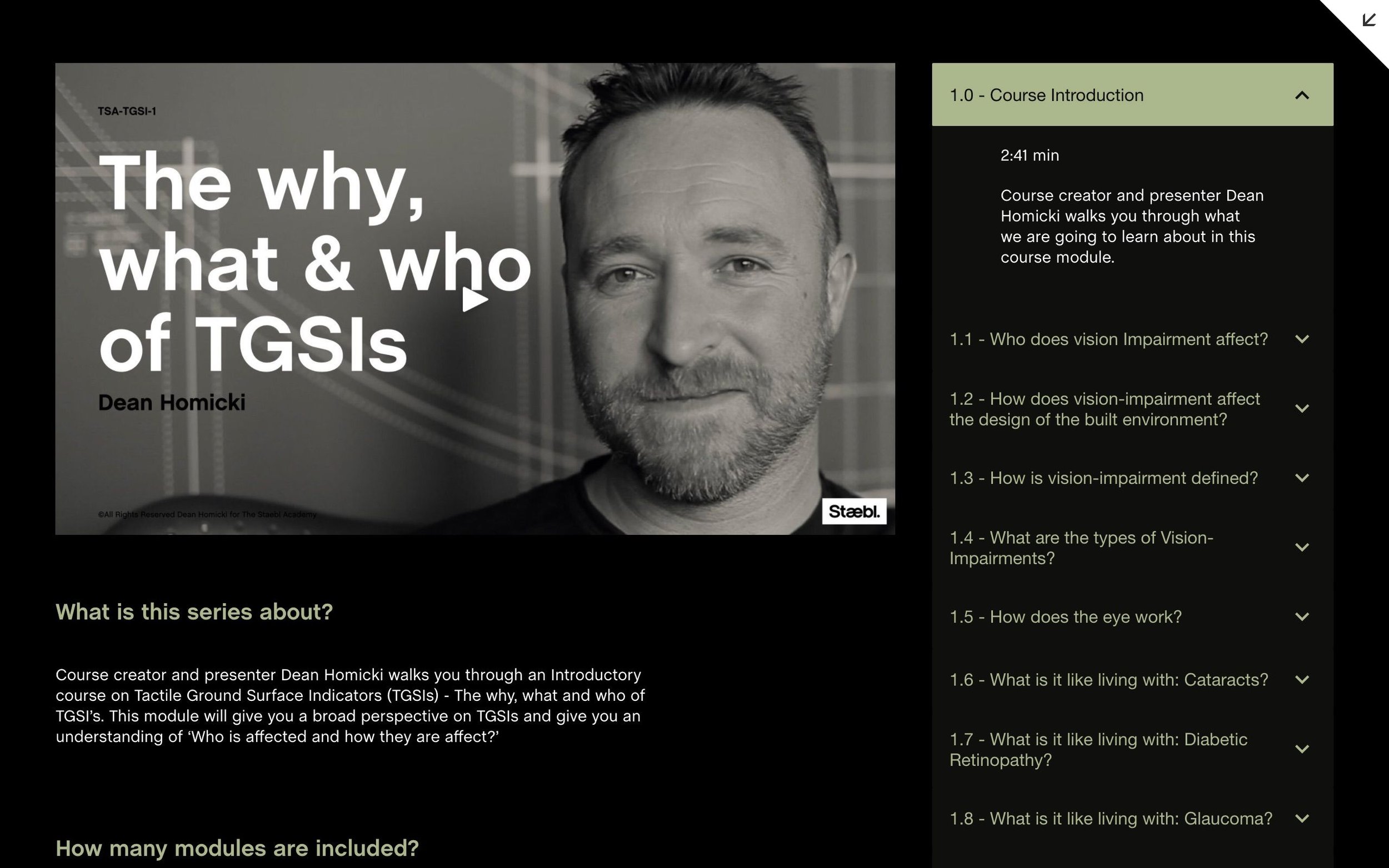
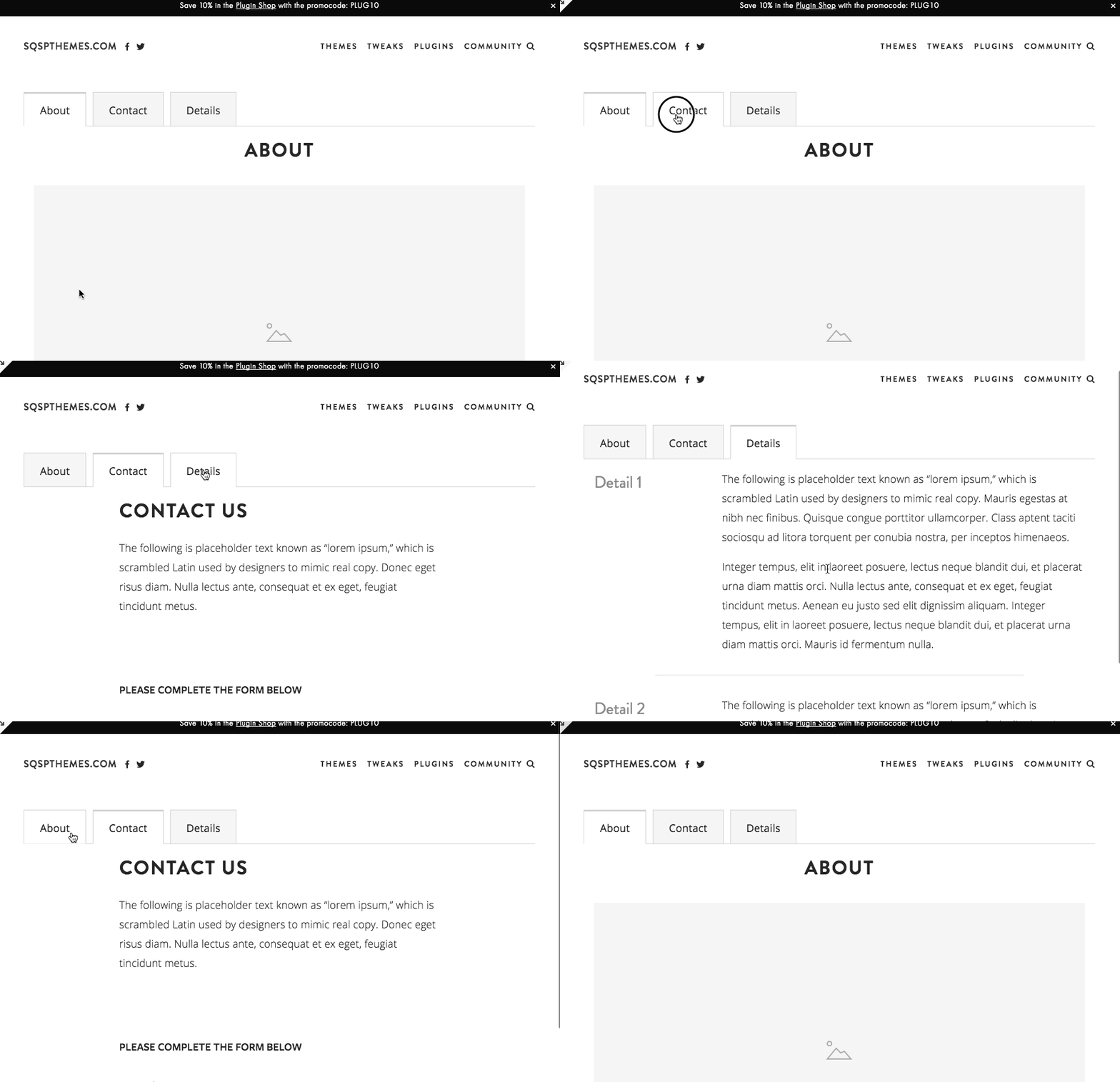
What It Does: Streamline your site’s layout by organizing content into collapsible, user-friendly tabs. Ideal for FAQs, product information, or any content-heavy page.
Why You Need It: Cluttered pages drive visitors away. With Accordion Tabs, you can present essential information in a clean, accessible way, letting users quickly find what they’re looking for without endless scrolling.
Features: Smooth animations, fully customizable styles, and seamless Squarespace integration.
Pricing: $59
Testimonial: "The Accordion Tabs Plugin made my client’s service page so much cleaner. Visitors can now browse through sections without being overwhelmed!" – Sarah M., Web Designer

Why I Use It: When you’ve got tons of content—blog categories, shop sections, or portfolio items—a regular top nav can feel cramped. Easy Mega Menu solves that.
✅ Use It For:
E-commerce stores with multiple product categories.
Large blogs that need subtopics.
Portfolio sites showcasing lots of client work.
💡 Pro Tip: Keep your mega menu organized with clear headings so visitors aren’t overwhelmed.
🛠 Best For: Content-heavy websites.
💰 Pricing: Varies; typically around $59
👎 Watch Out For: Too many menu items can still be confusing—use it wisely..
Alternatives:
Mega Menu Plugin from Will Myers
4. Squarewebsites Chrome Extension
What it does: Copy content between sites, migrate from 7.0 to 7.1, batch editing tools
Why it works: Saves hours of manual work for agencies and power users
Price: Subscription-based
Best for: Agencies, designers managing multiple sites
The reality: If you manage multiple Squarespace sites, this extension is worth its weight in gold. The content copying alone saves massive time.

What It Does: Upgrade Squarespace’s built-in search with faster, smarter, and more customizable functionality.
Why You Need It: A powerful search tool improves user experience by helping visitors quickly find what they need. This is essential for content-heavy or product-driven sites.
Features: Search result customization, speed optimization, and seamless Squarespace integration.
Pricing: $49

What It Does: The Universal Filter Plugin allows you to add powerful filtering and sorting capabilities to your Squarespace site. Customize filters for products, blogs, galleries, and events to help visitors find exactly what they’re looking for.
Why You Need It: Transform how users interact with your site by offering advanced search and filtering options. Whether you’re running an eCommerce store, a blog, or a portfolio, this plugin improves navigation and user satisfaction. You can see what this looks like in our template directory.
7. Make your Squarespace multilingual with Weglot

What It Does: Translate your Squarespace site into multiple languages with ease, expanding your global reach.
Why You Need It: Language barriers shouldn’t stop you from connecting with a worldwide audience. Weglot makes it easy to provide a seamless multilingual experience, improving accessibility and attracting more customers.
Features: Automatic translations, manual editing, and real-time updates.

Why is this a must-have? Because real-time connection builds trust and converts visitors into customers. Live chat lets you answer questions instantly, resolve concerns, and provide personalized support – leading to more sales and happier customers.
Want more options? 8 Best Squarespace Live Chat Plugins
9. Memberspace Membership Plugin

Why is this a must-have? Memberspace unlocks the power of recurring revenue and community building. Memberspace offers advanced features for gated content, subscription tiers, member management, and seamless integration with your Squarespace site. If you're serious about creating a membership business, this is your go-to tool.
10. Squarespace Animations with Spark
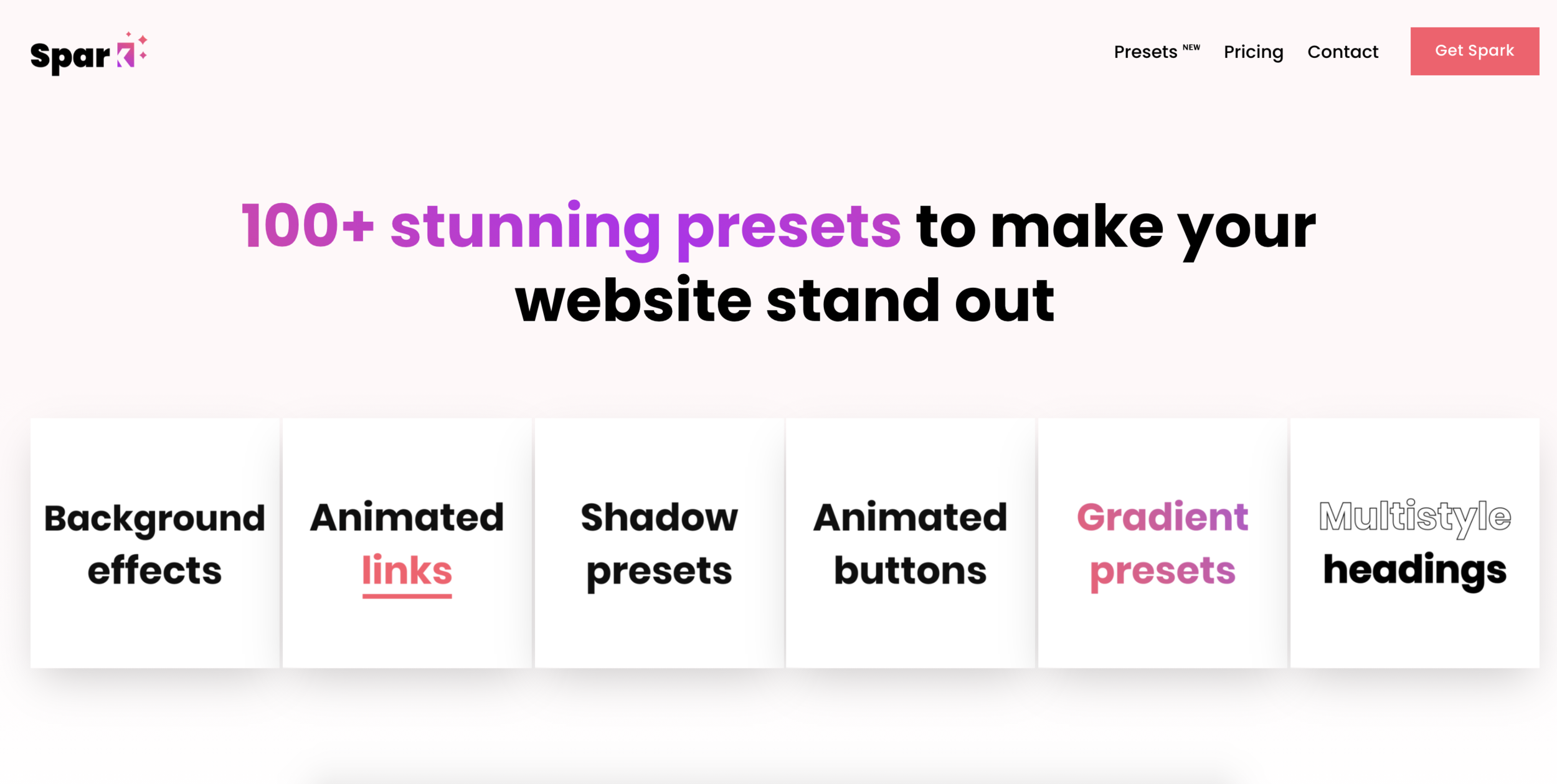
Why is this a must-have? Subtle animations add polish and elevate your website's design. Spark lets you easily add scroll effects, fades, and other eye-catching animations without wrestling with complex code, making your site stand out from the crowd.
11. SquareKicker Design Extension

Why is this a must-have? Because sometimes you need professional-level design control without learning to code. SquareKicker gives you 80+ design tools to customize virtually everything on your Squarespace site—hover effects, animations, custom styling, and advanced layouts that go way beyond what Squarespace offers natively.
Whether you're a designer working on client sites or a business owner who wants complete creative control, SquareKicker transforms what's possible with Squarespace. The best part? Changes stay on your site forever, even if you cancel your subscription.
Pricing: Solo ($12/month), Creator ($23/month), Designer ($39/month)
Perfect for: Professional designers, agencies, anyone wanting advanced customization
12. Convertkit Commerce Integration

Why is this a must-have? Because email marketing drives sales. Convertkit's deep integration with Squarespace lets you automate personalized campaigns based on purchase behavior, turning customers into loyal fans.
13. SuperJack Order Export for Squarespace

Why is this a must-have? Because your order data is valuable! SuperJack unlocks the ability to export and sync your Squarespace orders with Google Sheets or other tools. Analyze trends, gain deeper insights, and streamline your operations.
14. Squarespace Testimonial Slider Plugins
Why is this a must-have? Because social proof builds credibility. Testimonials sliders put your happy customer stories front and center, showcasing their positive experiences and subtly encouraging others to buy.


The slider you see above is from Sqspthemes and is really flexible.
You can see some of the options you can customize below.

15. Squarespace SEO Plugin: SEOSpace
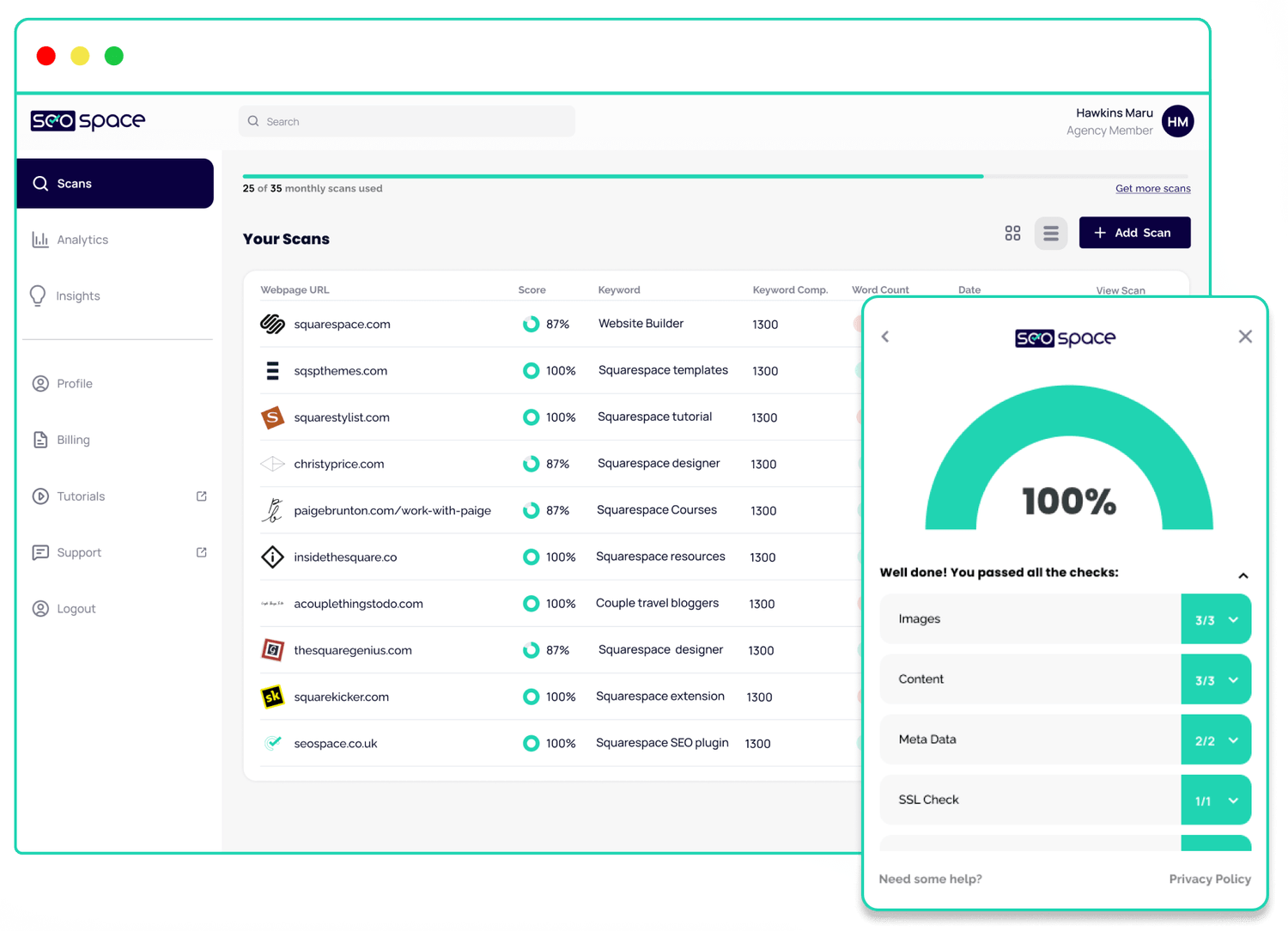
Why is this a must-have? Because being found online is essential. SEOSpace is your SEO co-pilot, guiding you with actionable steps, traffic light checklists, and competitor insights. Achieve higher search rankings and attract more of your ideal audience.

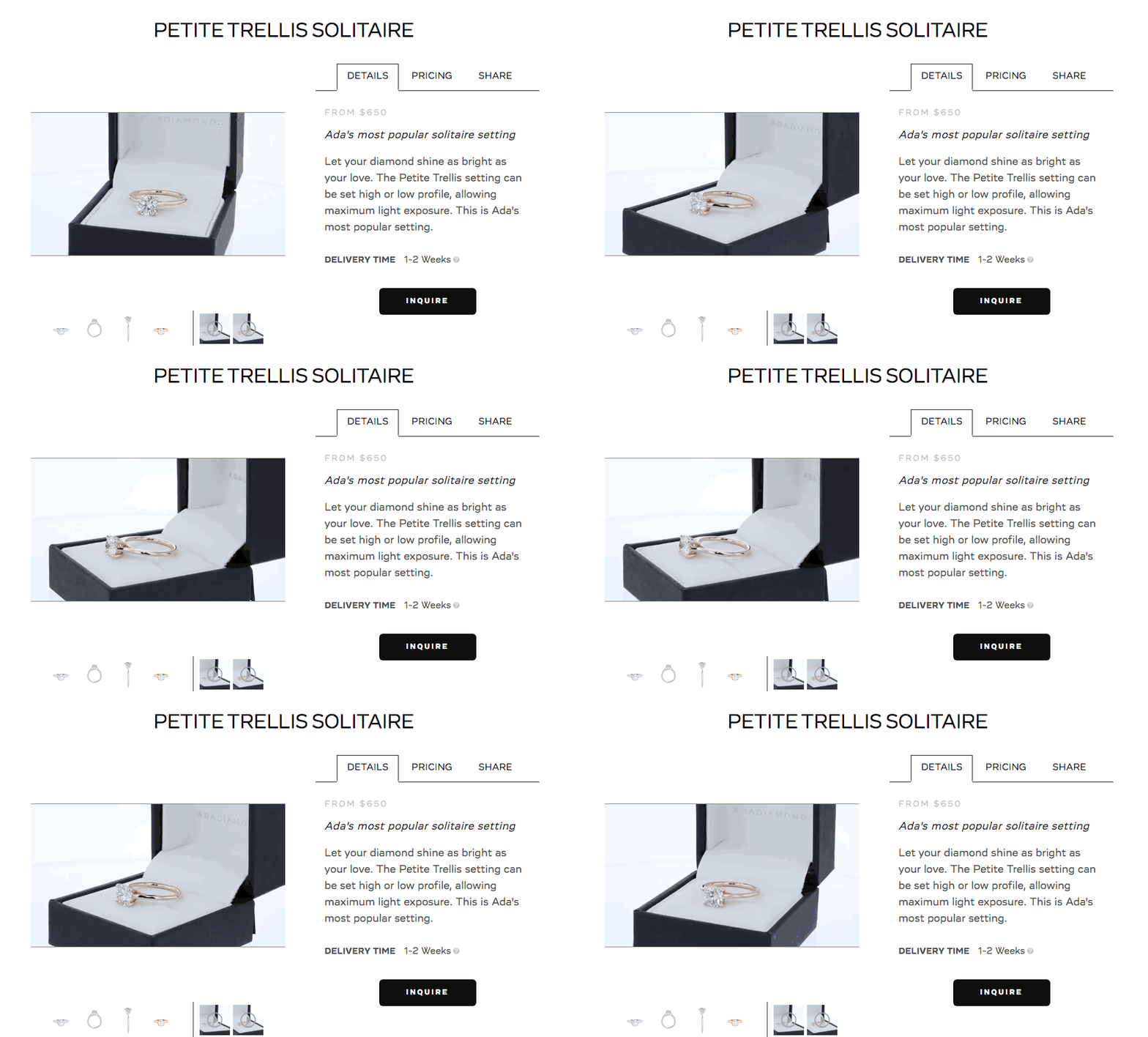
Why is this a must-have? Because product pages need to be informative but not cluttered. This plugin organizes detailed product descriptions into a collapsible accordion format, making it easier for shoppers to find what they need without endless scrolling.

Why is this a must-have? Because it streamlines your vacation rental business. Manage bookings, accept secure payments, and automate guest communications – all directly within your Squarespace site. Save time and deliver a seamless experience for your guests.

Why is this a must-have? Because online reviews are today's word-of-mouth. Wiremo seamlessly collects customer reviews, lets you respond quickly, and showcases your best testimonials in style. Build trust and drive buying decisions with authentic social proof.

Why is this a must-have? Because it leverages the power of established platforms. Displaying your Google and Facebook reviews directly on your Squarespace site reinforces your credibility and lets potential customers see what others are saying about your business.
Check it out from Elfsight.

Why is this a must-have? Because a strong affiliate program can supercharge your marketing. Peachs makes it easy to track affiliate sales, manage commissions, and incentivize your advocates to promote your products or services.
If you’re curious about other options, check out the best affiliate programs for Squarespace.

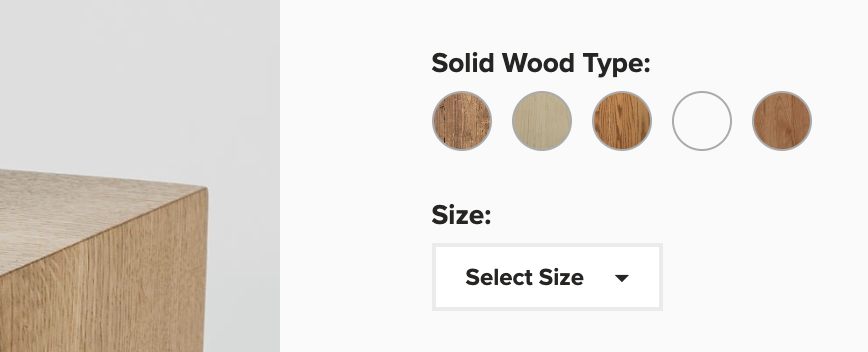
Why is this a must-have? Because visual clarity sells products. Color swatches give shoppers a better sense of your product variations, making their choices easier and helping to reduce returns due to unexpected color differences.

Why is this a must-have? Because a frictionless checkout is key to higher conversions. A slide-out cart lets customers easily review their order on the fly, encouraging them to complete the purchase without interrupting their browsing experience.

Why is this a must-have? Because videos explain and excite better than static images. Showcase your products in action with videos in your image gallery, providing a more comprehensive understanding and boosting buyer confidence.
24. Synced Blocks Plugin
Why is this a must-have? It streamlines content management by letting you update reusable content in one central location. Enjoy seamless updates across your site using Squarespace's intuitive block editor. Plus, it displays content directly on the page, boosting SEO visibility.

Reusable content across Squarespace
Interested in More?
Check Out Our Store for Premium Squarespace Plugins
Join Our Newsletter for the Latest Updates & Discounts
Contact Us if you need help installing or customizing any plugin
Looking for more Plugins?











Squarespace Plugin FAQs
1. Are these plugins compatible with Squarespace 7.1?
Most of them are! Always double-check the developer’s note or contact them if unsure.
2. How do I install a Squarespace plugin?
In most cases, you paste a code snippet into Settings > Advanced > Code Injection or use Squarespace Extensions. Check the plugin’s specific instructions.
3. Can I get free Squarespace plugins?
Absolutely—some are free or have free trials. Check resources like Ghost Plugins or Elfsight for free widgets. Use “free squarespace plugins” in your search to see what’s currently available.
4. How do I choose the right plugin?
Focus on your site goals: design enhancements, e-commerce features, SEO, or user experience. Read reviews, test demos, or consult expert communities.
5. Will adding lots of plugins slow down my site?
Potentially, yes. Always weigh functionality vs. performance. Use only what you need, optimize images, and keep an eye on loading speeds (use Google PageSpeed Insights).
✅ Squarespace 7.0 and 7.1 compatible • ✅ All templates supported • ✅ Mobile responsive
⚠️ Requires Squarespace Business Plan or higher for full functionality.
💡 Personal Plan users can use the alternative markdown method. See FAQ below.
Add a Lightbox Popup to Squarespace
Lightbox Anything lets you open custom content in a popup from buttons, images, text links, galleries, and more.
Use it for forms, videos, team bios, product details, portfolios, promos, gated content, upsells, galleries, and custom page sections — without sending visitors to another page.
Click to View Demo →
Want to see the setup process first?
▶️ Click to Watch Setup Video