
How to Add Animations to Your Squarespace Site
Animations can make a Squarespace site feel more polished, interactive, and alive.
But they can also make a site feel busy, distracting, or slow if they are used without restraint.
The goal is not to animate everything.
The goal is to use motion to guide attention.
A good animation helps someone notice an important button, understand a transition, explore a gallery, or feel more movement inside the brand. A bad animation gets in the way.
Below are some of the best ways to add animations to a Squarespace site, from native Squarespace settings to no-code plugins and simple CSS effects.
Start With Squarespace’s Built-In Animations
Before you add a plugin, check what Squarespace already gives you.
Squarespace includes built-in site-wide animations that can add subtle movement across your site. Depending on your template and settings, you can use effects like fade, scale, slide, clip, and flex-style animations.
This is the best place to start if you only want a light layer of motion.
Built-in Squarespace animations are useful when you want:
- Simple entrance animations
- A more polished scrolling experience
- Subtle movement without installing anything
- A quick visual upgrade
- Animation that feels native to the platform
If you want deeper control, more dramatic effects, animated text, hover reveals, background motion, or custom transitions, that is where plugins and custom code come in.
Read Squarespace’s guide to site-wide animations
1. Spark Plugin
Spark Plugin is one of the easiest ways to add animations and visual effects to a Squarespace site without writing code.
It includes a library of design, marketing, navigation, and animation customizations. You can use it for hover effects, scroll animations, animated backgrounds, word loops, number counters, animated announcement bars, and other visual upgrades.
Use Spark if you want:
- Hover animations
- Scroll animations
- Animated text effects
- Number counters
- Animated announcement bars
- Background animations
- Moving logo carousels
- A no-code visual interface
Spark is best for site owners and designers who want a lot of animation options in one tool.
It is especially useful when you want small interactive details across a site rather than one single custom effect.
Best for: designers, small business sites, landing pages, portfolios, and brands that want a more polished interactive feel.
Spark Word Loop Example
Word loop animations can make a headline feel more dynamic by rotating through key words or phrases.
This works well in hero sections, landing pages, service pages, and campaign pages where you want to emphasize multiple benefits without rewriting the whole headline.
Spark Hover Reveal Example
Hover reveal effects are useful for portfolios, galleries, product grids, team sections, and card-based layouts.
The visitor hovers over an image or element, and extra text or visual detail appears. It keeps the layout clean while still giving people more information when they ask for it.
2. SquareKicker
SquareKicker is a powerful no-code design extension for Squarespace.
It is not only for animations. It gives you deeper control over layout, spacing, styling, sections, buttons, images, text, and responsive behavior. But its animation tools are a big reason designers use it.
You can create scroll-triggered effects, hover animations, horizontal scrolling sections, section sliders, sticky elements, and more advanced visual layouts.
Use SquareKicker if you want:
- Scroll-based animations
- Hover effects
- Horizontal scroll sections
- Section sliders
- Sticky sections
- More design control without code
- Custom layouts that go beyond native Squarespace
SquareKicker is best when animation is part of a larger custom design system.
If you only need one small animation, it may be more than you need. But if you want to make a Squarespace site feel much more custom, it is one of the strongest options.
Best for: Squarespace designers, agencies, portfolio sites, landing pages, and custom client builds.
SquareKicker Text Reveal Example
Text reveal effects can make cards, images, or portfolio items more interactive.
They are useful when you want the page to stay visually clean at first glance, then reveal more information when someone engages with a section.
SquareKicker Horizontal Scrolling Example
Horizontal scrolling sections can make a long page feel more editorial and immersive.
This can work well for timelines, portfolios, case studies, process sections, featured collections, or any layout where you want the visitor to move through a sequence.
SquareKicker Animated Buttons Example
Button animations are small, but they can make a site feel more responsive.
A button that shifts, lifts, changes, or responds on hover can help reinforce that it is clickable. Just keep the effect subtle enough that it does not distract from the call to action.
3. Ghost Plugins

Ghost Plugins is a large library of Squarespace plugins, templates, components, and copy-paste code solutions.
This is a good option if you do not need a full design suite. Instead of paying for one big tool, you can pick a specific animation or visual effect and add it to your site.
Ghost is especially useful for small enhancements.
Use Ghost Plugins if you want:
- One-off animation effects
- Free Squarespace code snippets
- Small visual upgrades
- Copy-and-paste components
- Simple effects without a large plugin suite
This is the best fit when you know exactly what you need.
For example, if you only want animated links, a hover effect, a moving button, or one small design enhancement, Ghost may be a better fit than installing a larger design extension.
Best for: DIY site owners, designers who want quick snippets, and people who only need one specific effect.
4. Animated Text Effects

Text animations can work well when you want a headline or key phrase to feel more dynamic.
Common examples include:
- Rotating words
- Typing effects
- Text reveals
- Highlight animations
- Sliding headlines
- Fading phrases
- Animated counters
These effects can be useful on hero sections, sales pages, portfolio intros, and landing pages.
But text animation needs restraint.
If the headline is hard to read, the animation is working against the page.
Use text animation when it helps clarify or emphasize the message. Avoid it when it distracts from the message.
Best for: hero sections, landing pages, launch pages, personal brands, and marketing sites.
5. Hover Animations
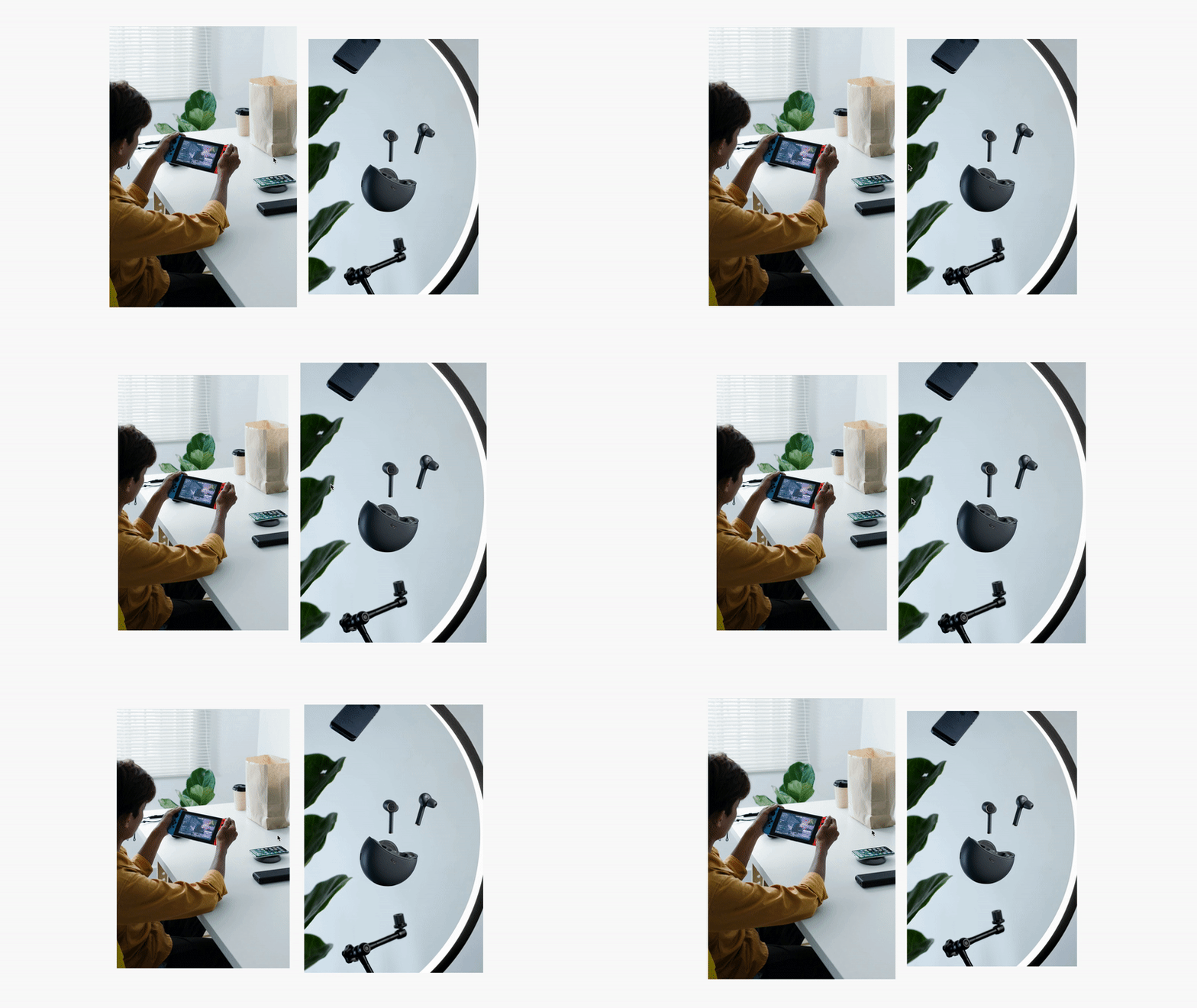
Hover animations are one of the simplest ways to make a site feel more interactive.
A button can slightly grow. A card can lift. An image can reveal text. A link can underline in a more interesting way.
These are small details, but they make the site feel more responsive.
Use hover animations for:
- Buttons
- Product cards
- Portfolio items
- Blog cards
- Image galleries
- Team cards
- Navigation links
- Featured resources
The main limitation is mobile. Hover effects are designed for mouse interaction, so they do not always translate the same way on phones.
That does not mean you should avoid them. Just make sure the site still works well without the hover state.
Best for: desktop polish, portfolio grids, product grids, buttons, and card-based layouts.
Image Block Hover Example

A zoom-in image hover can help portfolio images, product images, or featured resources feel more clickable.
Just keep it subtle. A small zoom feels polished. A dramatic zoom can feel distracting.
6. Animated Announcement Bars and Buttons

Announcement bars and buttons are good places to use animation because they are already designed to draw attention.
An animated announcement bar can work well for:
- Sales
- Launches
- Event reminders
- Shipping deadlines
- Product drops
- Newsletter calls to action
The key is to make the movement helpful, not annoying.
If the animation makes the message harder to read, simplify it.
Animated Header Button Example

Animated buttons can help important calls to action stand out, especially in the site header or hero section.
This works best when you have one primary action you want visitors to take.
Button Hover Movement Example
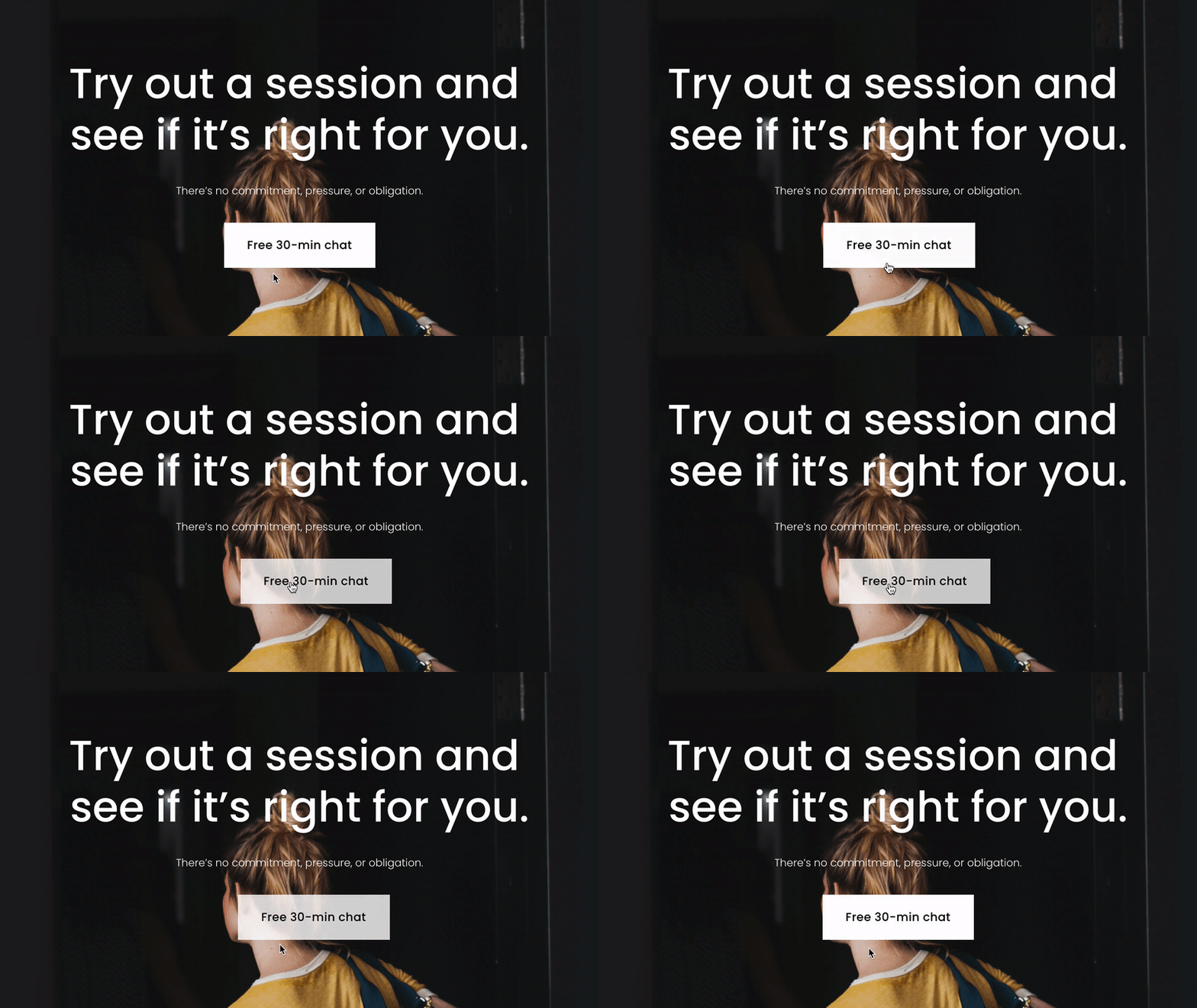
A small movement on hover gives the visitor a sense that the button is active and clickable.
This is one of the safest animation types because it only appears when someone interacts with the element.
7. Animated Page Transitions
Page transitions create a smoother experience when visitors move from one page to another.
Instead of the page changing abruptly, the transition adds a fade, slide, reveal, overlay, or loading-style animation.
This can make a Squarespace site feel more polished, especially for portfolios, creative studios, photographers, event sites, and brands that want a more cinematic experience.
Use page transitions if you want:
- Smooth movement between pages
- A more app-like browsing experience
- A polished portfolio feel
- A branded loading or transition effect
- A subtle moment of motion between page loads
Code & Tonic has an Animated Page Transitions plugin for Squarespace. Square Refresh also has a Page Transition plugin.
Best for: portfolios, creative studios, personal brands, agencies, photographers, and high-touch service businesses.
View Code & Tonic Page Transitions
View Square Refresh Page Transition
8. Scroll Animations
Scroll animations trigger as the visitor moves down the page.
They can help a long page feel more alive by introducing sections gradually instead of showing everything at once.
Common scroll animations include:
- Fade up
- Slide in
- Scale in
- Image reveals
- Parallax-style movement
- Horizontal scroll sections
- Sticky sections
- Progress-based movement
Scroll animations are powerful, but they are also easy to overuse.
A good rule: use scroll animations to create rhythm, not noise.
If every single block flies in from a different direction, the page can feel exhausting. Simple fades and subtle movement usually age better.
Best for: landing pages, portfolios, service pages, long sales pages, and visual storytelling.
9. Animated Backgrounds
Animated backgrounds can add energy to a section without requiring the visitor to interact.
You might use:
- Animated gradients
- Moving shapes
- Floating elements
- Subtle video backgrounds
- Background texture movement
- Animated image masks
These can work well in hero sections, announcement areas, launch pages, or brand moments.
But be careful with readability.
If the background is moving behind important text, the text still needs to be easy to read. Motion should support the section, not fight with it.
Best for: hero sections, landing pages, launch pages, creative sites, and brands with a strong visual identity.
10. Simple CSS Animations
You do not always need a plugin.
Some animations can be added with a small amount of CSS.
For example, you can make a button grow slightly on hover:
.sqs-button-element--primary {
  transition: transform 0.3s ease;
}

.sqs-button-element--primary:hover {
  transform: scale(1.05);
}
This kind of simple effect is useful because it is lightweight and easy to understand.
You can also use CSS for:
- Button hover effects
- Image hover zooms
- Link underline animations
- Pulsing icons
- Floating elements
- Simple fades
- Rotating shapes
CSS is best when you only need one or two specific effects and do not want to install a full plugin.
Best for: simple hover effects, lightweight animations, designers comfortable with code, and small custom touches.
When Not to Use Animations
Animations are not always the answer.
Do not add animations just because the site feels plain.
First ask:
- Does this help the visitor notice something important?
- Does this make the page easier to understand?
- Does this support the brand?
- Does this make the interaction feel clearer?
- Does this slow the site down?
- Does this make the mobile experience worse?
Animation should create focus.
If it creates confusion, remove it.
Quick Tips for Better Squarespace Animations
- Use fewer animations than you think you need.
- Keep important text readable.
- Test everything on mobile.
- Avoid animations that delay access to content.
- Use the same motion style across the site.
- Do not animate every section differently.
- Respect users who prefer reduced motion where possible.
- Keep the page fast.
The best animation often feels invisible. It makes the site feel smoother without calling too much attention to itself.
Final Takeaway
Squarespace sites do not have to feel flat.
With the right plugins, visual tools, and code snippets, you can add movement, polish, and interaction to your site.
Use Spark Plugin if you want a broad no-code animation toolkit.
Use SquareKicker if you want deeper design control and more advanced visual layouts.
Use Ghost Plugins if you want small copy-paste effects.
Use a page transition plugin if you want the whole site to feel smoother between pages.
Use CSS if you only need a simple custom effect.
But whatever you choose, remember this:
The animation should serve the page.
Not the other way around.
Want More Squarespace Plugins?
Browse more tools for improving your Squarespace site’s design, navigation, ecommerce experience, galleries, product pages, and blog layout.
Squarespace Animation FAQs
Can you add animations to Squarespace?
Yes. You can add animations to Squarespace using built-in settings, third-party plugins, custom CSS, JavaScript, or design extensions like Spark Plugin and SquareKicker.
What is the easiest way to add animations to Squarespace?
The easiest way is to use Squarespace’s built-in site-wide animations or a no-code plugin like Spark Plugin or SquareKicker. These let you add hover effects, scroll animations, text animations, and other visual effects without writing custom code.
Can I add scroll animations to Squarespace?
Yes. You can add scroll animations with plugins like Spark Plugin or SquareKicker, or with custom code libraries if you are comfortable working with code.
Can I add hover animations to Squarespace buttons?
Yes. You can add hover animations to buttons with CSS or with a no-code plugin. A simple CSS hover effect can make buttons scale, lift, fade, or change style when someone hovers over them.
Are animations bad for website performance?
Animations can hurt performance if they are heavy, excessive, or poorly implemented. Simple CSS animations and well-optimized plugin effects are usually fine. Always test your site on mobile.
Should every Squarespace site use animations?
No. Some sites work better with very little motion. Use animations when they support the message, guide attention, or improve the user experience.
What are the best Squarespace animation plugins?
Some of the strongest options are Spark Plugin, SquareKicker, Ghost Plugins, Code & Tonic page transitions, and Square Refresh page transitions. The best one depends on whether you need a full design toolkit, a single effect, or a site-wide transition.