
What’s worth knowing in the Squarespace world.
For designers, developers, and people building businesses around Squarespace.
How to Optimize Your Squarespace Product Page for More Sales
Your product page has one job:
Help the right person feel confident enough to buy.
That does not mean adding every possible popup, banner, review widget, countdown timer, and upsell you can find. A good product page removes friction. It answers the questions your customer already has. It shows the product clearly. It makes the next step obvious.
Squarespace gives you a solid product page foundation, especially if you are selling physical products, digital products, services, subscriptions, or gift cards. But depending on what you sell, the default product page may not be enough.
Some stores need better product images. Some need clearer variant selection. Some need product videos. Some need size charts, FAQs, reviews, low-stock notices, or related products.
This guide walks through the best ways to optimize a Squarespace product page for more sales, starting with the native Squarespace features and then showing you where plugins can help.
1. Start With the Product Page Basics
Before adding plugins or custom code, make sure the basics are doing their job.
Your product page should clearly answer:
- What is this?
- Who is it for?
- What does it include?
- What makes it different?
- What size, color, material, or version should I choose?
- When will I get it?
- Can I return it?
- Is it in stock?
- Can I trust this store?
A lot of product pages lose sales because the page looks nice but leaves too many questions unanswered.
If someone has to email you before they can feel confident buying, the product page is not doing enough work yet.
2. Use Better Product Images
Product images carry a lot of the sales conversation.
Customers want to see what they are buying. That sounds obvious, but many Squarespace stores still rely on one or two product photos when they need five or six.
Use images that show:
- The full product
- Close-up details
- Scale
- Texture
- Packaging
- The product in use
- Each color or variant
- What comes in the box
If you sell apparel, accessories, home goods, art, skincare, food, jewelry, or anything with a visual component, your images need to do more than show the product. They need to help the customer imagine ownership.
Squarespace lets you add multiple images to a product and set a featured image. You can also add images for individual product variants, which is especially useful when you sell different colors, patterns, sizes, or styles.
Read Squarespace’s product image guide
3. Add Product Videos
If photos show the product, video helps people understand it.
A short product video can show movement, texture, size, fit, process, assembly, packaging, or use. This is especially useful if the product has a detail that is hard to communicate in photos.
You can use product videos for:
- Product demos
- Unboxing videos
- Fit checks
- Before-and-after examples
- How it works
- Customer testimonials
- Behind-the-scenes making process
- Styling examples
Squarespace lets you add additional content to product pages through the Additional Info section. That means you can place extra blocks below the main product information, including videos, text, images, FAQs, and more.
But if you want the video to appear directly inside the main product image gallery area, use the Squarespace Product Gallery Video Plugin.
That plugin is useful when the video should feel like part of the product media, not just an extra block further down the page.
4. Make Product Variants Easy to Understand
If you sell products with variants, your product page needs to make those choices obvious.
Squarespace supports product variants for physical and service products. You can use variants for options like size, color, style, material, or format.
Read Squarespace’s product variants guide
The problem is that variant dropdowns are not always the clearest way to show visual choices.
If someone is choosing between “Sand,” “Clay,” “Forest,” and “Midnight,” a dropdown may not be enough. A color swatch or image swatch can help them understand the options immediately.

Use the Product Color/Image Swatch Variant Plugin if you want to replace plain variant dropdowns with visual swatches.
This is especially useful for:
- Clothing
- Fabric
- Jewelry
- Prints
- Wallpaper
- Home decor
- Beauty products
- Anything with color, texture, pattern, or material choices
The easier it is to choose the right variant, the less hesitation there is before adding to cart.
5. Sync Variant Images Properly
Squarespace supports variant images, but some stores need a stronger variant image experience.
For example, if a customer selects “Blue,” the product image should clearly change to the blue version. If they click a product image, the selected variant should also make sense. The buying experience should feel connected.
When product images and variant selections feel disconnected, customers can lose confidence. They may wonder if they are choosing the right item.
Use the Sync Product Variant Images Plugin if you want more control over how product images and variants work together.
This is useful when you want to:
- Change product images based on selected options
- Make variant image behavior feel more intuitive
- Group thumbnails by option
- Improve Quick View behavior
- Help customers confirm they selected the right version
Variant confusion is one of those small product page issues that can quietly hurt conversion.
6. Write Product Descriptions That Actually Sell
A product description should not just describe the product.
It should help the customer understand why the product matters.
A weak product description says:
Handmade ceramic mug. Available in blue and white.
A stronger product description explains the use, the feel, the detail, the care, and the reason someone would want this one over another one.

A good product description usually includes:
- What the product is
- Who it is for
- What makes it different
- Important materials or specs
- Size or fit details
- How to use it
- What is included
- Care instructions
- Shipping or fulfillment notes
- Any important limitations
Do not make the customer hunt for basic details.
If someone needs to know the size, say the size. If the color varies slightly, say that. If it is made to order, say that. If it takes two weeks to ship, say that.
Clear copy is not just better for conversion. It also helps with search.
7. Add FAQs to the Product Page
FAQs are one of the easiest ways to improve a product page.
They let you answer objections before someone leaves the page.

Common product page FAQ topics include:
- Shipping time
- Returns
- Sizing
- Materials
- Care instructions
- Compatibility
- Ingredients
- Customization
- Delivery area
- Digital download access
- Subscription billing
- Gift options
A good FAQ section saves support time and helps buyers feel more confident.
You can add FAQs in the Additional Info section of your product page. For simple stores, that may be enough.
If you want a cleaner, more compact page, you can also use a lightbox or accordion-style layout so customers can open the details they need without scrolling through a wall of text.
For size charts, shipping details, ingredient lists, or longer explanations, the Lightbox Anything Plugin can help you open extra product information in a popup without sending the customer to another page.
8. Show Reviews and Social Proof
Reviews help customers borrow confidence from people who already bought.
Squarespace now has native customer reviews for physical, download, service, and subscription products. After reviews are enabled, customers can receive an automatic review request email after fulfillment, then leave a rating and written review.
Read Squarespace’s customer reviews guide

For most Squarespace stores, start with the native review feature.
You may still want a third-party review platform if you need more advanced review collection, photo reviews, syndicated reviews, custom display control, or integrations with other marketing tools.
But the old advice that you need a separate review widget just to show reviews on Squarespace is no longer true for most stores.
Start native. Add more only if you need more.
9. Use Low-Stock Messaging Carefully
Scarcity can help, but only when it is honest.
If you sell limited-edition products, one-of-a-kind items, handmade goods, event-based products, seasonal releases, or small-batch inventory, it can help to show when inventory is low.
Squarespace has a native limited availability label feature that can show when an item is low in stock.
Read Squarespace’s limited availability label guide

That may be enough if you simply want to flag that an item is limited.
Use the Squarespace Show Inventory Plugin if you want to display the exact quantity left in stock for a selected variant.
That is useful when the number itself matters.
- Only 2 left
- 3 spots remaining
- 5 prints available
- Last one in this size
The goal is not to manipulate people. The goal is to give real buying context.
If there really are only two left, the customer should know.
10. Enable Product Waitlists
A sold-out product page should not be a dead end.
If a product is out of stock, give interested shoppers a way to hear when it returns.
Squarespace has a native product waitlist feature that lets customers submit their email address on sold-out product detail pages.
Read Squarespace’s product waitlist guide
This is especially useful if you restock products, sell seasonal items, run product drops, or want to measure demand before producing more inventory.
A waitlist turns a missed sale into a future customer signal.
11. Add Related Products
A good product page should help shoppers continue browsing.
Squarespace has a native related products feature that can display related items at the bottom of product detail pages based on categories or tags.
Read Squarespace’s related products guide
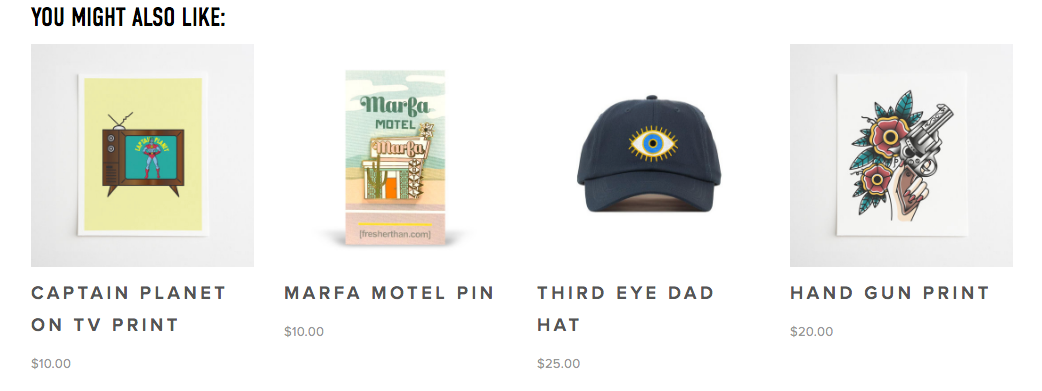
Use this when you want to help customers discover similar products.
For example:
- More items in the same collection
- Similar styles
- Related colors
- Other products in the same category
- Products that pair well together
If the native related products feature gives you enough control, use it.
If you want more customization, use the Squarespace Related Posts and Products Plugin. This can be useful when you want more control over related content behavior, display style, randomization, category/tag filtering, or blog/product relationships.
12. Use Product Add-Ons for Upsells
Sometimes the best upsell is not a popup. It is a relevant add-on at the right moment.
Squarespace has a product add-ons feature that lets you show complementary products on a product detail page.
Read Squarespace’s product add-ons guide
This is useful for:
- Frames for art prints
- Gift wrapping
- Accessories
- Refills
- Care kits
- Bonus downloads
- Matching items
- Service upgrades
The key is relevance.
Do not add random products just to increase cart value. Add products that make the main purchase better.
13. Add a Size Chart, Guide, or Comparison in a Lightbox
Some product information is important, but too much of it can clutter the page.
A size chart is a perfect example. It matters when the customer needs it, but not everyone needs to see the full chart immediately.
A lightbox lets you show supporting information in a popup.
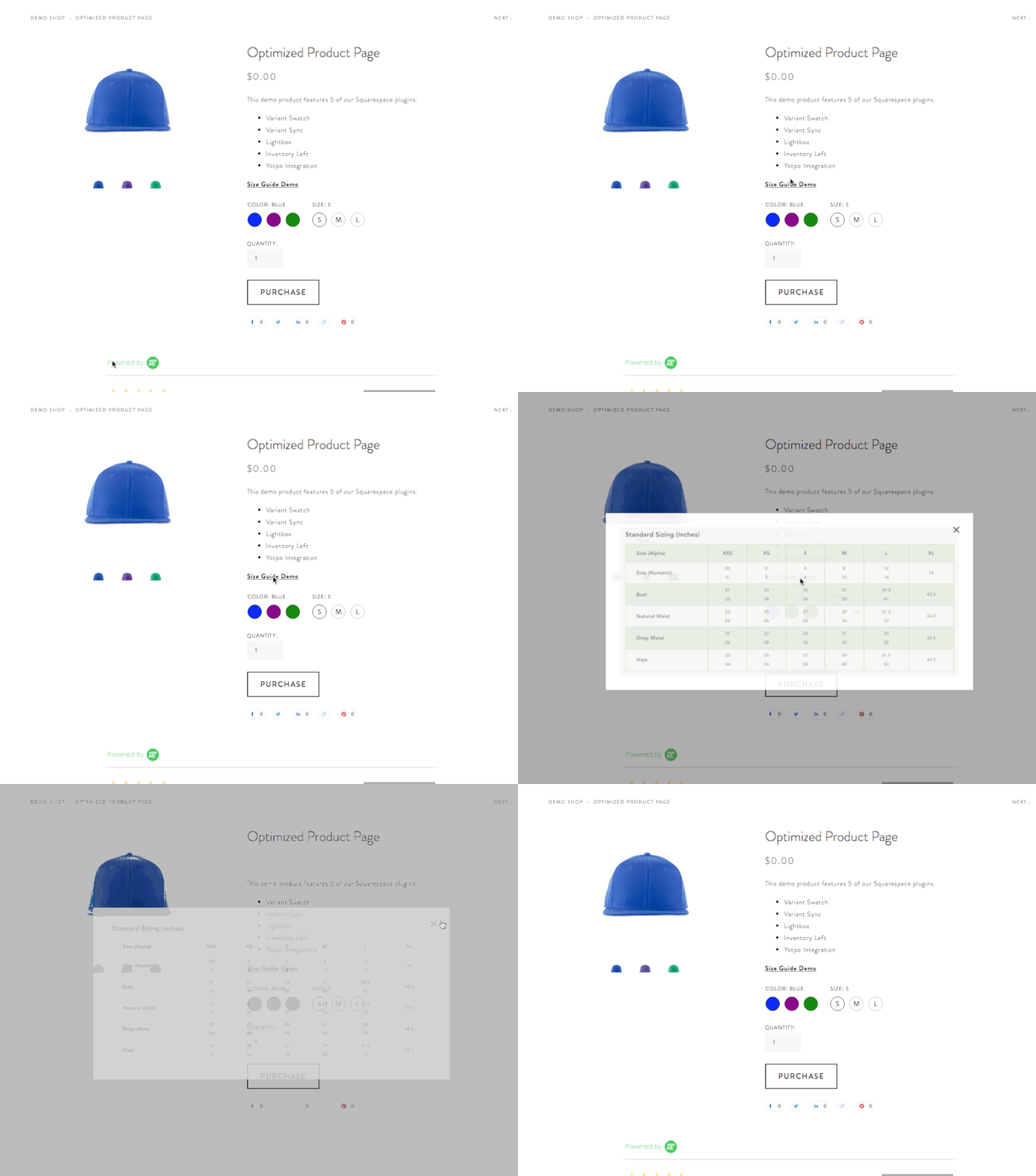
You can use a lightbox for:
- Size charts
- Shipping details
- Product comparison tables
- Ingredient lists
- Care instructions
- Fit guides
- Customization instructions
- Warranty details
- Product demos
- Lead capture forms
Use the Lightbox Anything Plugin when you want to open custom content from a button, text link, image, or other trigger.
This is one of the cleanest ways to keep a product page focused while still giving customers the details they need.
14. Make Shipping, Returns, and Delivery Clear
Many customers do not abandon a product because they dislike the product.
They abandon because something feels uncertain.
Shipping and returns are two of the biggest uncertainty points.
Your product page should make these things easy to find:
- Shipping cost or shipping estimate
- Processing time
- Delivery region
- Return policy
- Exchange policy
- Made-to-order timelines
- Local pickup options
- Digital delivery instructions
- Subscription billing details
Do not bury the information customers need to feel safe.
Even a short line near the add-to-cart area can help:
Ships in 2–3 business days.
Free returns within 30 days.
Made to order. Please allow 10 business days before shipping.
Digital download available immediately after checkout.
The more specific you can be, the better.
15. Use Urgency Without Cheapening the Page
Urgency can work, but it needs to be real.
Good urgency comes from an actual constraint:
- Sale ends Friday
- Ships today if ordered before 2pm
- Registration closes tonight
- Limited edition of 50
- Only 3 left in stock
- Product drop opens at noon
- Holiday shipping cutoff is December 12

Bad urgency feels fake.
Use Squarespace’s announcement bar, product sale pricing, product drops, low-stock labels, or waitlists when the timing or availability actually matters.
If you use a countdown timer, make sure it is tied to a real event.
A countdown timer can be useful for:
- Product launches
- Limited-time sales
- Registration windows
- Holiday shipping deadlines
- Event-based offers
- Product drops
But it should support the buying decision, not create pressure for the sake of pressure.
16. Improve the Mobile Product Page
Most customers will probably see your product page on a phone.
That means your mobile product page needs special attention.
Check:
- Can customers see the product clearly?
- Is the product title easy to read?
- Is the price visible?
- Are variant choices easy to tap?
- Is the add-to-cart button easy to find?
- Do images load quickly?
- Is the description too long before key details appear?
- Are reviews easy to scan?
- Are shipping and return details visible?
- Do popups or chat widgets block the checkout path?
Do not only review the desktop version.
Open the product page on your phone and try to buy the product like a real customer. The issues will show themselves quickly.
17. Use Live Chat Only If You Can Respond
Live chat can increase customer conversations, but only if someone is actually there to respond.
If you add live chat and ignore it, the experience gets worse.

Live chat is useful when customers commonly ask questions before buying, especially for:
- Higher-priced products
- Custom products
- Services
- Digital products with setup questions
- Technical products
- Products with fit, sizing, or compatibility concerns
A simple chat prompt can help:
Questions before you order? Ask us here.
Or:
Need help choosing a size? Send us a message.
Just make sure you have the capacity to answer.
18. Optimize Product SEO
A product page can convert better and bring in more traffic when the SEO basics are handled.
For each important product, review:
- Product title
- Product URL
- Product description
- SEO title
- SEO description
- Image alt text
- Social sharing image
- Categories and tags
Squarespace lets you edit SEO and URL settings for products. You can also add product-specific SEO descriptions.
Read Squarespace’s SEO description guide
Do not stuff keywords into the page. Write clear, specific product copy that uses the words your customer would naturally use.
For example, “linen table runner” is more useful than “beautiful artisan decor piece” if that is what someone is actually searching for.
19. Keep the Product Page Focused
A product page should not feel like a junk drawer.
Every element should help the customer make a better decision.
Before adding something, ask:
Does this help the customer understand, trust, choose, or buy?
If the answer is no, leave it out.
A strong product page usually includes:
- Clear product name
- Strong images
- Helpful variant choices
- Good product description
- Price
- Add-to-cart button
- Shipping and return clarity
- Reviews or proof
- FAQs
- Related products or add-ons
- SEO details
That is enough for most stores.
The goal is not more stuff. The goal is less hesitation.
Best Squarespace Product Page Plugins
If you want to improve your product pages beyond the native Squarespace options, these plugins are worth looking at:
- Squarespace Product Gallery Video Plugin — add video directly into the main product gallery area.
- Sync Product Variant Images Plugin — improve how product images and selected variants work together.
- Product Color/Image Swatch Variant Plugin — replace plain variant dropdowns with color or image swatches.
- Squarespace Show Inventory Plugin — display exact quantity left in stock for products or variants.
- Lightbox Anything Plugin — open size charts, guides, forms, videos, and product details in a popup.
- Squarespace Related Posts and Products Plugin — show related content with more control over display and filtering.
You can also view all Squarespace plugins here:
Final Takeaway
Before you spend more money driving traffic to your Squarespace store, make sure your product pages are ready to convert.
A better product page does not just look nicer. It answers better questions. It shows the product more clearly. It reduces doubt. It helps the customer choose the right option. It makes buying feel easier.
Start with the native Squarespace commerce features.
Then add plugins where you need more control, better presentation, or a smoother customer experience.
If your product page helps people understand, trust, and act, it is doing its job.
Squarespace Product Page Optimization FAQs
How do I optimize a Squarespace product page?
Start with clear product images, a helpful product description, easy variant selection, shipping and return details, reviews, FAQs, and related products. Then add plugins or customizations where the default Squarespace product page does not give you enough control.
Can I add product videos to Squarespace?
Yes. You can add videos in the Additional Info section of a product page using blocks. If you want video inside the main product gallery area, use the Squarespace Product Gallery Video Plugin.
Does Squarespace support product reviews?
Yes. Squarespace has native customer reviews for physical, download, service, and subscription products. You can enable customer review request emails and display reviews on product detail pages.
Can I show related products in Squarespace?
Yes. Squarespace has a native related products feature that displays related items on product detail pages based on categories or tags. If you need more display control, use the Squarespace Related Posts and Products Plugin.
Can I show low-stock messages on Squarespace?
Yes. Squarespace has native limited availability labels. If you want to show the exact quantity left in stock for a product or selected variant, use the Squarespace Show Inventory Plugin.
Can I add color swatches to Squarespace products?
Squarespace product variants can handle options like color and size, but if you want visual color or image swatches instead of plain dropdown-style selections, use the Product Color/Image Swatch Variant Plugin.
Can I add a size chart to a Squarespace product page?
Yes. You can add a size chart in the product description or Additional Info section. If you want the size chart to open in a popup, use the Lightbox Anything Plugin.
What should every product page include?
Every product page should include clear images, price, product description, variant options if needed, add-to-cart button, shipping details, return policy, reviews or trust signals, and answers to common questions.
How to Add a Pricing Table to Squarespace
If you sell services, memberships, packages, courses, retainers, or subscriptions, a pricing table can make your offer much easier to understand.
Instead of making visitors read through paragraphs of pricing details, a pricing table lets them compare options at a glance.
That matters because most people are not only looking for the price. They are trying to answer a few quick questions:
Which option is right for me?
What do I get?
What is the difference between each plan?
Where do I click next?
Squarespace does not have one perfect “pricing table” block that works for every use case. But there are several ways to add one, depending on how polished, editable, and interactive you need it to be.
You can build a simple pricing table with native Squarespace sections. You can embed a third-party pricing widget. Or you can use a section library like Kleemt if you want a more designed pricing table without building the layout from scratch.
Option 1: Build a simple pricing table manually in Squarespace
The simplest option is to build your pricing table directly inside Squarespace using sections, columns, text blocks, buttons, and shape/image blocks.
This works best when you have two or three offers.
For example, you might create three side-by-side pricing cards:
Starter
$500
Good for small projects
Includes X, Y, and Z
Button: Book a Call
Growth
$1,500
Good for more complete projects
Includes X, Y, Z, and more
Button: Book a Call
Premium
$3,500
Good for full-service support
Includes everything above plus strategy
Button: Apply Now
This route is nice because everything stays inside Squarespace. You can edit the plan names, prices, descriptions, and buttons without touching code or relying on another platform.
The downside is that it can take some fiddling to make the columns look polished. If one plan has more text than another, the cards may not line up evenly. You also need to check mobile carefully, because columns often stack differently on smaller screens.
Use this option if:
you only need a simple pricing section
you want to keep everything native to Squarespace
you do not need toggles, animations, or advanced comparison features
you want the section to be easy for a client or team member to edit
This is the most practical starting point for a basic Squarespace pricing table.
Option 2: Use a third-party pricing table widget
Another option is to use a third-party widget tool like Elfsight Pricing Table or Common Ninja Pricing Tables.
These tools let you build the pricing table in an external editor, then embed it into Squarespace with a Code Block or Embed Block.
A widget can be useful if you need features like:
pre-designed pricing table templates
column, grid, or table layouts
recommended-plan ribbons
highlighted offers
buttons for each plan
no-code design controls
future edits from a dashboard
The biggest advantage is that you do not have to build the pricing table manually inside Squarespace. You create the table in the widget editor, copy the embed code, paste it into your Squarespace page, and publish.
The tradeoff is that you are now relying on another platform. Free plans may include branding, view limits, or feature limits. Paid plans may be worth it if the widget solves a real business problem, but it is still another tool to manage.
Use this option if:
you want a no-code editor
you need a more structured pricing table
your pricing changes often
you want plan highlights or ribbons
you do not mind using an external widget
you want something faster than building the layout manually
This can be a strong option for SaaS-style pricing, memberships, coaching packages, courses, or tiered offers.
Option 3: Use Kleemt’s Pricing Table section
If you want a pricing table that feels more designed without building the layout yourself, Kleemt is worth looking at.
Kleemt is a Squarespace section and block library. After setup, you can add custom sections directly inside Squarespace, including a Pricing Table section.
This makes it different from a generic external widget. The goal is not only to display pricing information. The goal is to make the section feel like it belongs inside a more polished Squarespace page.
Use a section like this when you want the pricing table to feel more premium than a basic text-and-button layout, but you do not want to custom-code the entire thing.
This is especially useful for:
service packages
creative retainers
memberships
courses
coaching offers
productized services
agency packages
comparison sections on landing pages
A pricing table is not just a design element. It is a decision-making section. The visitor is comparing value, not just price.
That means the section should make the differences between your offers easy to understand.
Use this option if:
you want a more polished pricing section
you are already comfortable working in Squarespace
you want something faster than custom design work
you want the pricing table to sit alongside other custom sections
you are building a more interactive or premium-feeling page
Kleemt is especially useful if you are improving more than one part of the page. For example, you might pair a Pricing Table with testimonials, logo rows, image galleries, countdowns, timelines, expandable lists, or social proof blocks.
Option 4: Use an image-based pricing table
You can also design a pricing table in Canva, Figma, Photoshop, or another design tool, export it as an image, and upload it to Squarespace.
This is usually not the best option.
It may look fine visually, but it creates problems.
Text inside an image is harder to edit. It may not be accessible to screen readers. It can be blurry on some screens. It does not respond as cleanly on mobile. And if your pricing changes, you have to go back to the design file, export a new image, and re-upload it.
Use this option only if:
the pricing table is temporary
the pricing table is mostly decorative
the real pricing details are also written in text elsewhere
you need a quick placeholder while building the real section
For most websites, use live text instead.
What about custom code?
You can create a pricing table with custom HTML, CSS, and JavaScript.
But for most Squarespace users, that is not the most realistic option.
Custom code can work well if you are a developer or if you are building a highly specific layout. But it also means future edits may require editing code. That can become annoying if prices, plan names, features, or buttons change often.
For most people, the better choices are:
build a simple version natively in Squarespace
use a no-code widget like Elfsight or Common Ninja
use a designed section from a library like Kleemt
Custom code is possible, but it is usually not the first route I would recommend for a pricing table.
What should a good pricing table include?
A good pricing table should make the offer easier to choose.
At minimum, each plan should include:
plan name
price
short description
key features or deliverables
who the plan is best for
call-to-action button
If you have one option you want people to choose most often, make that clear.
You can label it:
Most Popular
Best Value
Recommended
Best for Growing Teams
Best for Most Clients
Do not overdo it. One highlighted plan is helpful. Three highlighted plans defeats the purpose.
Keep the pricing table simple
The most common pricing table mistake is trying to say everything.
A pricing table is not the place to explain every policy, edge case, add-on, and exception.
It should help someone choose the next step.
If you need to explain more, add a short FAQ underneath the pricing section.
Useful FAQ questions might include:
What happens after I book?
Can I customize a package?
Do you offer payment plans?
What is not included?
How soon can we start?
What happens if I need more support?
That keeps the pricing table clean while still answering the questions that affect the buying decision.
Which option should you use?
If you want the simplest route, build the pricing cards manually in Squarespace.
If you want a no-code editor with templates and plan highlights, use a widget like Elfsight or Common Ninja.
If you want a polished Squarespace section that feels more designed, use a section library like Kleemt.
If you are building a serious sales page, do not think of the pricing table as decoration.
Think of it as the moment where the visitor decides whether your offer makes sense.
The clearer that section is, the easier the next step becomes.
Related Squarespace resources
If you are improving a sales page or service page, these may help too:
Best Free Squarespace Plugins, Snippets, and Add-Ons
Squarespace does not have a WordPress-style plugin marketplace.
That does not mean you are stuck with only the built-in settings.
A lot of the best Squarespace enhancements come from small plugins, code snippets, browser extensions, and embeddable tools made specifically for Squarespace users. Some change how your site looks. Some improve the shopping experience. Some help with SEO. Some make it easier to add features Squarespace does not handle natively.
The key is knowing the difference between a useful plugin and a random script you pasted into your site because someone said it was free.
Free is great. Broken, bloated, or outdated is not.
Below are some of the best free Squarespace plugins, snippets, and add-ons worth knowing about.
If you want a larger collection of paid plugins for common Squarespace limitations, you can also browse our Squarespace plugins. If you are looking for tutorials and code walkthroughs, start with our Squarespace tutorials.
What counts as a Squarespace plugin?
In Squarespace, the word “plugin” usually means one of a few things:
a copy-and-paste code snippet
a small CSS or JavaScript enhancement
a third-party widget embedded with code
a browser extension that helps you manage or improve your site
an official Squarespace Extension that connects Squarespace to another service
That is different from WordPress, where plugins are installed inside a dedicated plugin system.
So for this list, I am using “plugin” in the practical Squarespace sense: tools that extend what Squarespace can do.
1. Ghost Plugins Free Library
Ghost Plugins has one of the most useful free Squarespace plugin libraries around. The library includes copy-and-paste components and code solutions for things like buttons, navigation, announcement bars, mobile menus, cursors, image styles, blog links, and small design details.
This is a good place to start if you want to make a Squarespace site feel more custom without buying a full premium plugin.
Best for:
design tweaks
button styles
header and navigation details
announcement bar styling
small visual effects
copy-and-paste enhancements
Watch out for:
Do not install ten snippets at once. Add one, test it, and keep notes on where you added the code.
Good first pick:
Try a small visual improvement first, like a button style, mobile menu tweak, or text highlight. Those are easier to test than site-wide behavior changes.
2. SF Digital Free Squarespace Plugins
SF Digital has a strong collection of free Squarespace plugins and tools, especially for ecommerce and practical UX problems.
Some of the free plugins listed include:
mobile product category dropdown
PDP accordion
lead time messages
product image aspect ratio fixes
mobile call-to-action footer
social icon brand colors
order status page message
fractional quantities
clickable navigation dropdowns
animated nav underline
product title line breaks
add cart text
clickable list items
in-app browser notice
quick exit button
stacked product images on mobile
This is one of the better free resources because the plugins solve specific Squarespace problems instead of only adding visual flourishes.
Best for:
ecommerce stores
product pages
mobile shopping improvements
navigation tweaks
small conversion improvements
practical UX fixes
Watch out for:
Some ecommerce plugins touch important parts of the buying experience. Test on desktop and mobile before sending traffic to the page.
Good first pick:
If you run a store, start with something simple like product image aspect ratio, mobile CTA, product title line breaks, or add cart text.
3. Squarespell Free Squarespace Plugins
Squarespell has a mix of paid and free Squarespace plugins. The free ones I found include:
These are more front-end experience plugins. They are useful when you want a page to feel more interactive without building the effect yourself.
Best for:
landing pages
sales pages
lead magnet pages
launch pages
portfolio pages
small interactive effects
Watch out for:
Animated effects should support the message on the page. Do not add motion just because it is available.
Good first pick:
The copy-to-clipboard plugin could be useful for coupon codes, discount codes, event codes, short URLs, or shareable snippets.
4. SquareWebsites Free / $0 Plugins
SquareWebsites is better known for premium plugins like filtering, tables, maps, lazy loading, and cart tools, but there are also $0 options listed in the plugin library.
The free options I found include:
Social Tabs Plugin
Recent Comments Widget
These are narrower use cases, but they are still worth knowing about if they match a specific need.
Best for:
blogs
social links
comment-driven sites
sites that want to surface recent discussion or activity
Watch out for:
Check compatibility and setup requirements before installing. Some plugin pages are built for specific Squarespace structures or versions.
Good first pick:
Use the Recent Comments Widget if comments are actually part of your content strategy. If your blog does not get comments, skip it.
5. SEOSpace Free SEO Plugin
SEOSpace is a Squarespace-focused SEO plugin and Chrome extension. It helps scan Squarespace pages and gives you practical SEO tasks to work through.
The free plan includes access to the Chrome extension and a limited site audit, which makes it useful for quick checks before publishing or updating important pages.
Best for:
SEO audits
page titles
meta descriptions
alt text
basic on-page SEO cleanup
checking live Squarespace pages
Watch out for:
SEO tools can tell you what to fix, but they cannot replace clear positioning, useful content, and strong pages.
Good first pick:
Run your homepage, top service page, and best blog posts through SEOSpace before making more complicated SEO changes.
Related internal link:
If you are improving your site for search and conversion, pair an SEO pass with your core feature pages and plugin pages, especially if you use tools from the SQSPThemes plugin library.
6. Kwame / SquareSkills
Kwame from SquareSkills has been building custom Squarespace plugins and tools. One specific tool he shared was an Automatic Website Trial Renewer for Squarespace on Gumroad.
Before publishing this one as a “free plugin,” I would double-check the current Gumroad price and whether Kwame wants it positioned publicly as free. Based on the email trail, you had a private free code, but that does not always mean the product is publicly free for everyone.
Best for:
Squarespace pros
designers managing multiple trial sites
agencies that spin up client drafts
workflow automation around Squarespace builds
Watch out for:
Because this touches account or trial workflow, make sure the current version still works and that the use case is clearly explained before recommending it broadly.
Good first pick:
List this as a “worth checking” plugin or “free with code / ask Kwame” unless you confirm the public price.
Suggested phrasing:
“Kwame at SquareSkills has also shared Squarespace workflow tools through Gumroad, including an automatic trial renewal helper. Check the current product page to confirm availability and pricing before installing.”
7. SQSPThemes Free Squarespace Tutorials
Not every useful Squarespace enhancement needs to be a downloadable plugin.
The SQSPThemes Squarespace tutorials library includes free walkthroughs for common Squarespace problems, including popups, lightboxes, galleries, product image behavior, countdown timers, background video controls, product swatches, mega menus, related posts, and more.
Some tutorials point toward premium plugins, but the tutorial library is still useful if you are trying to understand what is possible before buying or installing anything.
Best for:
learning what a feature requires
deciding whether you need a plugin
comparing native Squarespace options against custom code
understanding common Squarespace limitations
Useful internal links:
Watch out for:
Some features are simple tutorials. Others are better handled with a maintained plugin. If the feature affects your store, navigation, forms, or revenue, lean toward a tested plugin.
Good first pick:
Start with the tutorial that matches the problem you already have. Do not browse plugins just to find something to install.
8. Free Product Reviews Option from SQSPThemes / Wiremo
The SQSPThemes plugin page includes a $0 product review option connected to Wiremo.
If you run a Squarespace store, reviews can help customers feel more confident before buying. This is especially useful for stores with products that need social proof, buyer photos, star ratings, or customer feedback.
Best for:
ecommerce stores
product reviews
social proof
improving product page trust
Watch out for:
Review tools often depend on a third-party service. Check the current free plan limits, branding, and whether the review display matches your store design.
Good first pick:
Try it on one product category before rolling it out across a full store.
9. Elfsight Instagram Feed
Elfsight’s Instagram Feed widget is not a Squarespace-native plugin, but it works like one for many users. You create the feed in Elfsight, copy the embed code, and paste it into Squarespace.
It is useful if you want more control over your Instagram feed layout than Squarespace gives you natively.
Best for:
Instagram feeds
visual portfolios
social proof
active brands with strong social content
creators and service providers
Watch out for:
Free widget plans often come with limits or branding. Also, Instagram widgets depend on third-party APIs, so they can change over time.
Good first pick:
Use it on a social proof section, press page, portfolio page, or about page. Do not put a heavy social widget on every page unless it is important.
10. POWR Plugin Library
POWR offers a library of no-code website plugins and has a free sign-up option. These tools are not Squarespace-specific in the same way Ghost or SF Digital plugins are, but they can be embedded into Squarespace.
The most relevant POWR tools for Squarespace users are usually forms, galleries, popups, reviews, countdowns, banners, and other embedded widgets.
Best for:
advanced forms
popups
countdowns
banners
small no-code widgets
lead capture
Watch out for:
Free plans usually have limits. You may also see POWR branding depending on the widget and plan.
Good first pick:
Use POWR when the built-in Squarespace block does not go far enough, especially for forms or small conversion widgets.
11. Mailchimp Pop-Up
Mailchimp appears in the official Squarespace Extensions library. If you already use Mailchimp, you can create a subscriber pop-up or signup form and connect it to your Squarespace site.
This is useful if you want to collect newsletter subscribers without paying for a separate pop-up tool.
Best for:
newsletter signups
free downloads
launch lists
simple email capture
audience building
Watch out for:
Pop-ups can hurt the visitor experience if they appear too quickly or too often. Keep the offer clear and the frequency reasonable.
Good first pick:
Use a simple newsletter pop-up with one clear promise. Avoid generic “join my newsletter” language.
12. Weglot Free Plan
Weglot is a translation tool that also appears in the official Squarespace Extensions library. It can help you add multilingual functionality to a Squarespace site without manually duplicating every page.
The free plan is limited, but it can work for a very small site or a test of one additional language.
Best for:
small multilingual sites
testing a second language
landing pages
international audiences
proof-of-concept translation
Watch out for:
The free plan has a word limit. Machine translation should still be reviewed by someone fluent in the language.
Good first pick:
Translate your homepage and one key landing page first. Do not try to translate a full blog archive on a free plan.
13. Printful Squarespace Extension
Printful is listed in the official Squarespace Extensions library for print-on-demand products.
This is not a design plugin. It is more of an ecommerce extension. But it belongs in the broader “free add-ons” conversation because it lets you connect a print-on-demand workflow to a Squarespace store without carrying inventory upfront.
Best for:
merch
apparel
print-on-demand
creators testing product ideas
small shops that do not want inventory risk
Watch out for:
The extension may be free to connect, but the products are not free to fulfill. Margins, shipping time, and product quality still matter.
Good first pick:
Test one or two products before building a whole store around print-on-demand.
14. Judge.me Product Reviews
The official Squarespace Extensions library lists Judge.me as a product review option.
For ecommerce sites, reviews are one of the more useful plugin-like additions because they can improve trust right where buyers are making decisions.
Best for:
product reviews
ecommerce trust
customer photos
star ratings
social proof
Watch out for:
Check whether the Squarespace integration supports the specific review features you need. Not every review feature available on other platforms will necessarily work the same way on Squarespace.
Good first pick:
Use reviews on your best-selling products first.
15. Free Custom CSS Snippets
Some of the best free Squarespace plugins are not products at all. They are CSS snippets.
A few lines of CSS can adjust spacing, hide elements, change mobile styles, style buttons, improve blog layouts, or make default Squarespace blocks look more custom.
Best for:
button styling
spacing fixes
mobile tweaks
typography refinements
image effects
hiding or restyling elements
Watch out for:
Bad CSS can make a site harder to maintain. Keep a note above each snippet explaining what it does.
Good first pick:
Use CSS for small visual changes. Do not try to rebuild your whole site with custom CSS.
16. Free JavaScript Snippets
JavaScript snippets can add lightweight interaction to Squarespace.
Examples include accordions, lightboxes, smooth scrolling, custom buttons, announcement behavior, copy-to-clipboard functions, or small interface improvements.
Best for:
small interactions
interface behavior
buttons
lightboxes
accordions
custom UI moments
Watch out for:
JavaScript can conflict with other scripts. If you add multiple JavaScript snippets and something breaks, troubleshooting can get annoying fast.
Good first pick:
Use JavaScript only when the interaction matters. If the feature is purely decorative, CSS may be safer.
17. Native Squarespace Features You May Not Need a Plugin For
Before adding any plugin, check whether Squarespace already does what you need.
Many users reach for third-party plugins before fully using native Squarespace blocks, settings, and extensions.
Squarespace already includes or supports:
galleries
forms
buttons
announcement bars
product blocks
email campaigns
video embeds
basic analytics
social links
scheduling
member areas
basic ecommerce features
official extensions
Best for:
simple site features
low-maintenance builds
client sites
sites that need to stay easy to update
Watch out for:
Native features are usually easier to maintain, but they may not give you the exact design or behavior you want.
Good first pick:
Use native Squarespace features first when they solve the problem cleanly enough.
How to choose the right free Squarespace plugin
Free plugins are tempting because there is no upfront cost.
But every plugin still has a cost.
It can affect performance. It can add maintenance. It can create conflicts. It can make the site harder for a client to update later.
Before adding any free Squarespace plugin, ask:
Does this solve a real problem?
Is it made for Squarespace?
Does it work with Squarespace 7.1?
Does it require site-wide code injection?
Can I remove it cleanly later?
Will it slow down the site?
Will my client understand how to use it?
Is there a native Squarespace feature that already does this?
Is this still being maintained?
Does this affect checkout, forms, navigation, or anything tied to revenue?
The best free plugin is not the one with the flashiest effect.
It is the one that solves one clear problem without making the rest of the site harder to manage.
Free does not mean risk-free
Free Squarespace plugins can be genuinely useful.
They can help you add polish, improve SEO, collect leads, enhance ecommerce, and solve small design problems without hiring a developer for every change.
But the best approach is simple: add one thing at a time.
Install the plugin. Test the page. Check mobile. Check speed. Check forms, buttons, cart behavior, and anything tied to revenue or leads. Then document what you added and where you added it.
That way, your site gets better without turning into a pile of mystery code.
Start with the smallest plugin that solves the clearest problem. That is usually the one worth keeping.
Quick shortlist
If you only want a few places to start, use this order:
Ghost Plugins Free Library for design snippets and copy-paste components.
SF Digital Free Plugins for ecommerce and practical Squarespace UX fixes.
Squarespell for free interactive plugins like rotating words, copy-to-clipboard, and countdown timers.
SEOSpace for free Squarespace SEO checks.
SQSPThemes Plugins when you need a maintained premium plugin for a common Squarespace limitation.