
What’s worth knowing in the Squarespace world.
For designers, developers, and people building businesses around Squarespace.

Our Favorite Squarespace Plugins, Apps and Extensions (Summer 2026)
Looking for Squarespace plugins? Start here. Each of these plugins add functionality that isn’t already built into the platform. Features like copying content from site to site, embedding Google reviews and making your Squarespace multilingual.
Every year, we survey our newsletter subscribers and Double Your Squarespace Facebook community to find out which plugins they’re using, loving, and recommending the most. This post is updated with their latest picks for summer 2025.
As one of the web’s longest-running Squarespace resources, we don’t just list plugins—we test them in real-world client projects, check for compatibility with the latest versions (7.1 and Fluid Engine), and prioritize speed, functionality, and ease of use.
Whether you're designing your first site or optimizing your hundredth, these are the tools serious Squarespace users swear by.

What It Does: Add fully customizable pop-ups to your Squarespace site to promote offers, collect leads, upsell products, or display any type of content—text, images, videos, forms, and more.
Why You Need It: Pop-ups are one of the most effective tools for increasing conversions, but native Squarespace options are limited. Lightbox Anything gives you total control over how and when your message appears—whether it’s an email opt-in, a limited-time promo, or a post-purchase upsell. With exit-intent, click, scroll, and timed triggers, this plugin helps you connect with visitors at the right moment.
Features: Mobile-friendly design, multiple trigger types, seamless integration with email platforms, and works with Squarespace 7.0, 7.1, and Fluid Engine.
Pricing: $59 (Business license available).
Testimonial: “The Lightbox Anything Plugin was a game-changer for my eCommerce site. My client loved how we could provide detailed product info without cluttering the page!” – Vic H., Web Designer

What It Does: Add a beautifully designed sidebar to your Squarespace site, perfect for navigation, showcasing content, or highlighting calls-to-action.
Why You Need It: A sidebar acts as your website's personal guide, helping visitors navigate with ease while promoting key areas of your site. From boosting newsletter signups to highlighting popular products, the Sidebar Plugin is a must-have for any well-organized, user-friendly website.
Features: Customizable layout, responsive design, and easy integration with Squarespace templates.
Pricing: $59
Testimonial: "I’ve used this plugin for several clients. It’s easy to set up and adds so much functionality to their sites!" – Jamie L., Developer

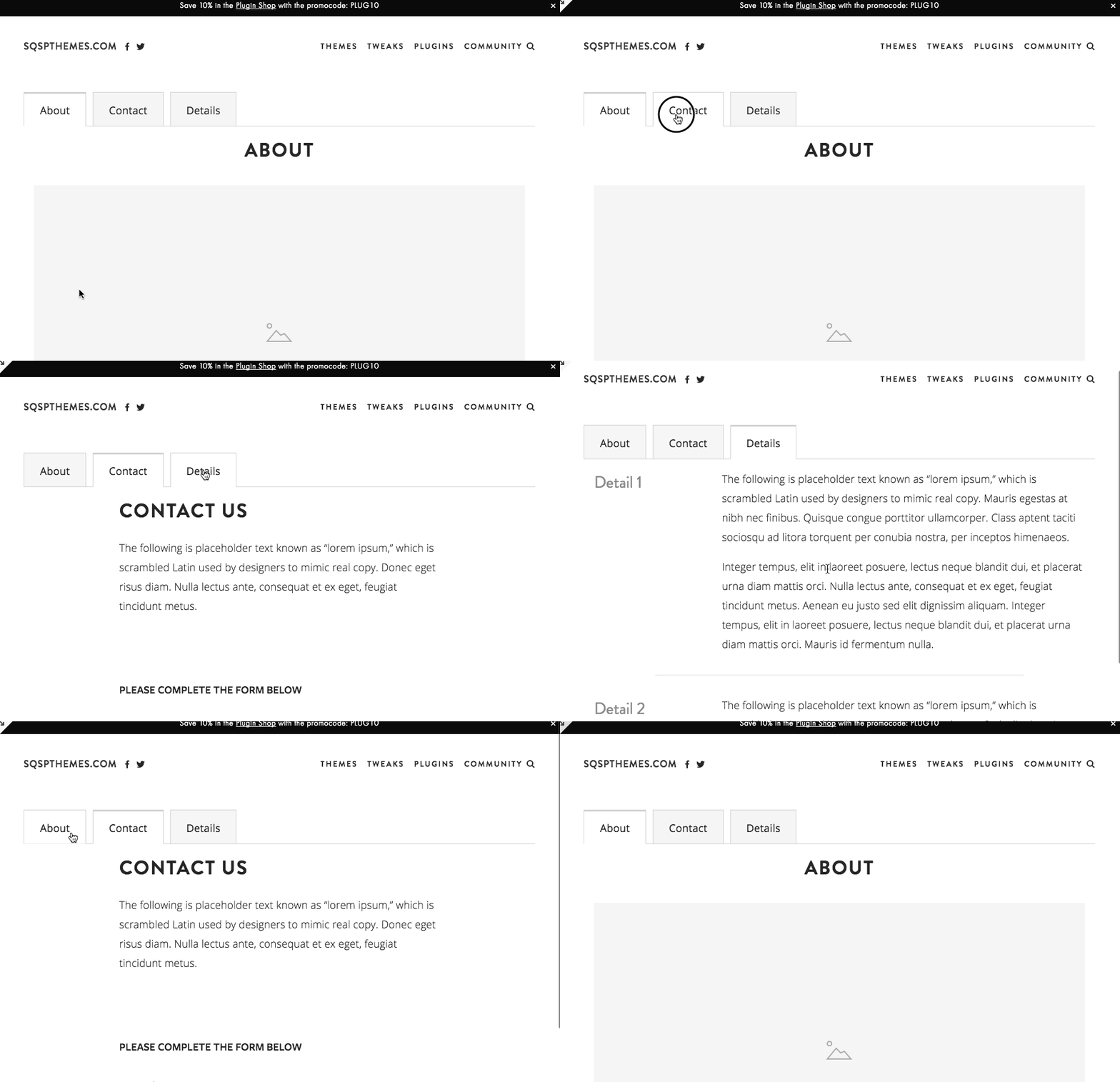
What It Does: Streamline your site’s layout by organizing content into collapsible, user-friendly tabs. Ideal for FAQs, product information, or any content-heavy page.
Why You Need It: Cluttered pages drive visitors away. With Accordion Tabs, you can present essential information in a clean, accessible way, letting users quickly find what they’re looking for without endless scrolling.
Features: Smooth animations, fully customizable styles, and seamless Squarespace integration.
Pricing: $59
Testimonial: "The Accordion Tabs Plugin made my client’s service page so much cleaner. Visitors can now browse through sections without being overwhelmed!" – Sarah M., Web Designer

Why I Use It: When you’ve got tons of content—blog categories, shop sections, or portfolio items—a regular top nav can feel cramped. Easy Mega Menu solves that.
✅ Use It For:
E-commerce stores with multiple product categories.
Large blogs that need subtopics.
Portfolio sites showcasing lots of client work.
💡 Pro Tip: Keep your mega menu organized with clear headings so visitors aren’t overwhelmed.
🛠 Best For: Content-heavy websites.
💰 Pricing: Varies; typically around $59
👎 Watch Out For: Too many menu items can still be confusing—use it wisely..
Alternatives:
Mega Menu Plugin from Will Myers
4. Squarewebsites Chrome Extension
What it does: Copy content between sites, migrate from 7.0 to 7.1, batch editing tools
Why it works: Saves hours of manual work for agencies and power users
Price: Subscription-based
Best for: Agencies, designers managing multiple sites
The reality: If you manage multiple Squarespace sites, this extension is worth its weight in gold. The content copying alone saves massive time.

What It Does: Upgrade Squarespace’s built-in search with faster, smarter, and more customizable functionality.
Why You Need It: A powerful search tool improves user experience by helping visitors quickly find what they need. This is essential for content-heavy or product-driven sites.
Features: Search result customization, speed optimization, and seamless Squarespace integration.
Pricing: $49

What It Does: The Universal Filter Plugin allows you to add powerful filtering and sorting capabilities to your Squarespace site. Customize filters for products, blogs, galleries, and events to help visitors find exactly what they’re looking for.
Why You Need It: Transform how users interact with your site by offering advanced search and filtering options. Whether you’re running an eCommerce store, a blog, or a portfolio, this plugin improves navigation and user satisfaction. You can see what this looks like in our template directory.
7. Make your Squarespace multilingual with Weglot

What It Does: Translate your Squarespace site into multiple languages with ease, expanding your global reach.
Why You Need It: Language barriers shouldn’t stop you from connecting with a worldwide audience. Weglot makes it easy to provide a seamless multilingual experience, improving accessibility and attracting more customers.
Features: Automatic translations, manual editing, and real-time updates.

Why is this a must-have? Because real-time connection builds trust and converts visitors into customers. Live chat lets you answer questions instantly, resolve concerns, and provide personalized support – leading to more sales and happier customers.
Want more options? 8 Best Squarespace Live Chat Plugins
9. Memberspace Membership Plugin

Why is this a must-have? Memberspace unlocks the power of recurring revenue and community building. Memberspace offers advanced features for gated content, subscription tiers, member management, and seamless integration with your Squarespace site. If you're serious about creating a membership business, this is your go-to tool.
10. Squarespace Animations with Spark
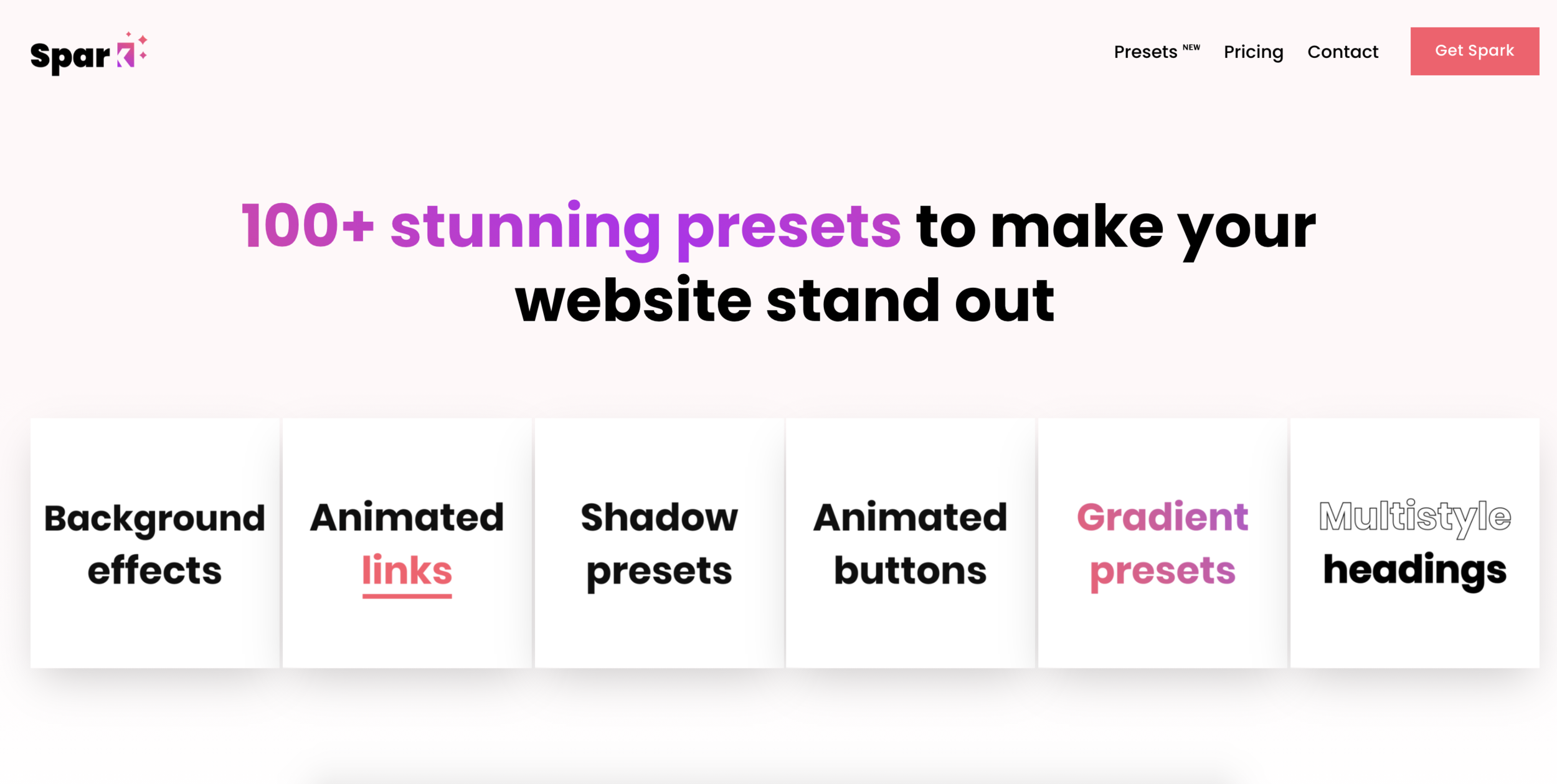
Why is this a must-have? Subtle animations add polish and elevate your website's design. Spark lets you easily add scroll effects, fades, and other eye-catching animations without wrestling with complex code, making your site stand out from the crowd.
11. SquareKicker Design Extension

Why is this a must-have? Because sometimes you need professional-level design control without learning to code. SquareKicker gives you 80+ design tools to customize virtually everything on your Squarespace site—hover effects, animations, custom styling, and advanced layouts that go way beyond what Squarespace offers natively.
Whether you're a designer working on client sites or a business owner who wants complete creative control, SquareKicker transforms what's possible with Squarespace. The best part? Changes stay on your site forever, even if you cancel your subscription.
Pricing: Solo ($12/month), Creator ($23/month), Designer ($39/month)
Perfect for: Professional designers, agencies, anyone wanting advanced customization
12. Convertkit Commerce Integration

Why is this a must-have? Because email marketing drives sales. Convertkit's deep integration with Squarespace lets you automate personalized campaigns based on purchase behavior, turning customers into loyal fans.
13. SuperJack Order Export for Squarespace

Why is this a must-have? Because your order data is valuable! SuperJack unlocks the ability to export and sync your Squarespace orders with Google Sheets or other tools. Analyze trends, gain deeper insights, and streamline your operations.
14. Squarespace Testimonial Slider Plugins
Why is this a must-have? Because social proof builds credibility. Testimonials sliders put your happy customer stories front and center, showcasing their positive experiences and subtly encouraging others to buy.


The slider you see above is from Sqspthemes and is really flexible.
You can see some of the options you can customize below.

15. Squarespace SEO Plugin: SEOSpace
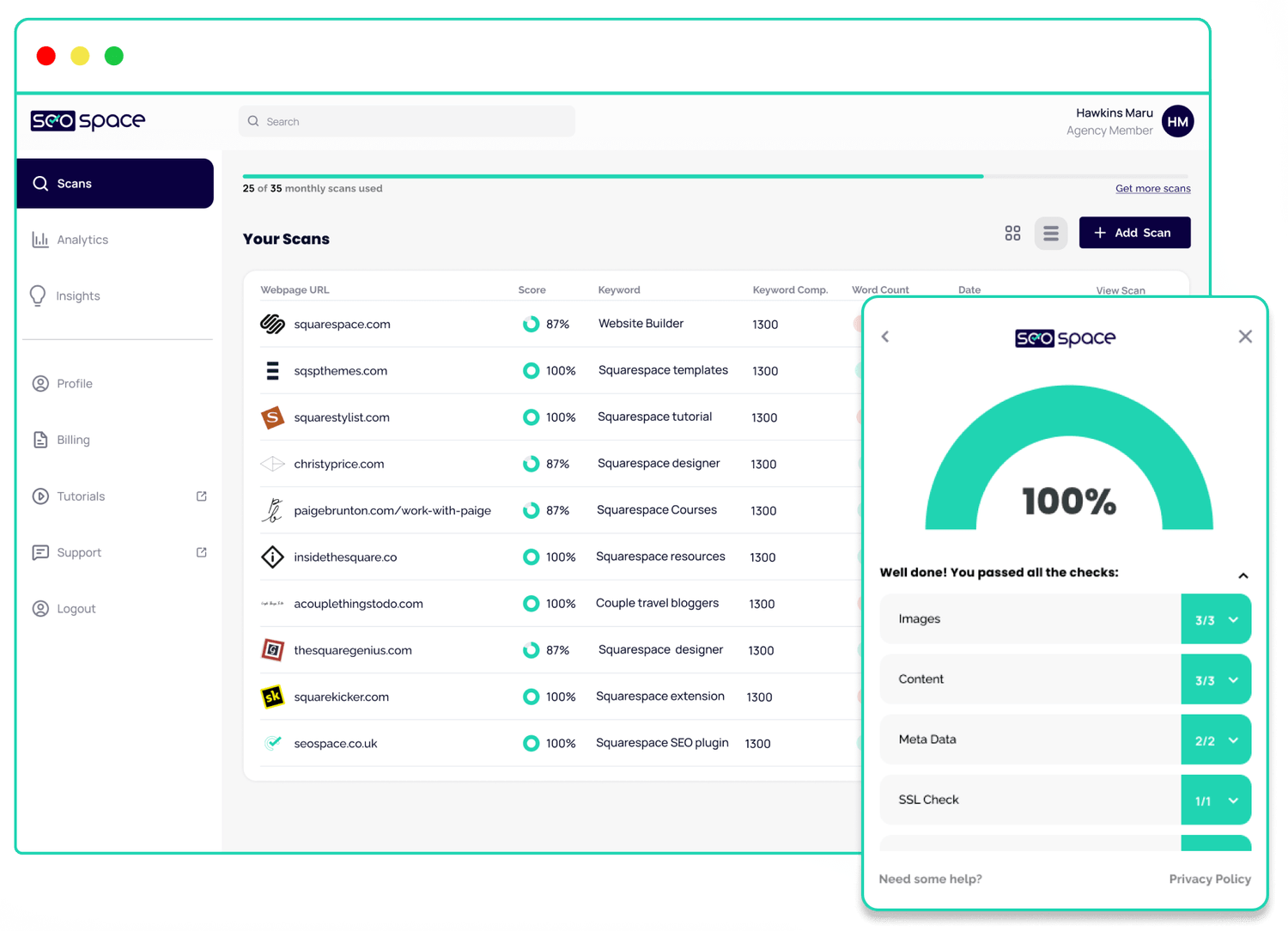
Why is this a must-have? Because being found online is essential. SEOSpace is your SEO co-pilot, guiding you with actionable steps, traffic light checklists, and competitor insights. Achieve higher search rankings and attract more of your ideal audience.

Why is this a must-have? Because product pages need to be informative but not cluttered. This plugin organizes detailed product descriptions into a collapsible accordion format, making it easier for shoppers to find what they need without endless scrolling.

Why is this a must-have? Because it streamlines your vacation rental business. Manage bookings, accept secure payments, and automate guest communications – all directly within your Squarespace site. Save time and deliver a seamless experience for your guests.

Why is this a must-have? Because online reviews are today's word-of-mouth. Wiremo seamlessly collects customer reviews, lets you respond quickly, and showcases your best testimonials in style. Build trust and drive buying decisions with authentic social proof.

Why is this a must-have? Because it leverages the power of established platforms. Displaying your Google and Facebook reviews directly on your Squarespace site reinforces your credibility and lets potential customers see what others are saying about your business.
Check it out from Elfsight.

Why is this a must-have? Because a strong affiliate program can supercharge your marketing. Peachs makes it easy to track affiliate sales, manage commissions, and incentivize your advocates to promote your products or services.
If you’re curious about other options, check out the best affiliate programs for Squarespace.

Why is this a must-have? Because visual clarity sells products. Color swatches give shoppers a better sense of your product variations, making their choices easier and helping to reduce returns due to unexpected color differences.

Why is this a must-have? Because a frictionless checkout is key to higher conversions. A slide-out cart lets customers easily review their order on the fly, encouraging them to complete the purchase without interrupting their browsing experience.

Why is this a must-have? Because videos explain and excite better than static images. Showcase your products in action with videos in your image gallery, providing a more comprehensive understanding and boosting buyer confidence.
24. Synced Blocks Plugin
Why is this a must-have? It streamlines content management by letting you update reusable content in one central location. Enjoy seamless updates across your site using Squarespace's intuitive block editor. Plus, it displays content directly on the page, boosting SEO visibility.

Reusable content across Squarespace
Interested in More?
Check Out Our Store for Premium Squarespace Plugins
Join Our Newsletter for the Latest Updates & Discounts
Contact Us if you need help installing or customizing any plugin
Looking for more Plugins?










Squarespace Plugin FAQs
1. Are these plugins compatible with Squarespace 7.1?
Most of them are! Always double-check the developer’s note or contact them if unsure.
2. How do I install a Squarespace plugin?
In most cases, you paste a code snippet into Settings > Advanced > Code Injection or use Squarespace Extensions. Check the plugin’s specific instructions.
3. Can I get free Squarespace plugins?
Absolutely—some are free or have free trials. Check resources like Ghost Plugins or Elfsight for free widgets. Use “free squarespace plugins” in your search to see what’s currently available.
4. How do I choose the right plugin?
Focus on your site goals: design enhancements, e-commerce features, SEO, or user experience. Read reviews, test demos, or consult expert communities.
5. Will adding lots of plugins slow down my site?
Potentially, yes. Always weigh functionality vs. performance. Use only what you need, optimize images, and keep an eye on loading speeds (use Google PageSpeed Insights).
How to Optimize Your Squarespace Product Page for More Sales
Your product page has one job:
Help the right person feel confident enough to buy.
That does not mean adding every possible popup, banner, review widget, countdown timer, and upsell you can find. A good product page removes friction. It answers the questions your customer already has. It shows the product clearly. It makes the next step obvious.
Squarespace gives you a solid product page foundation, especially if you are selling physical products, digital products, services, subscriptions, or gift cards. But depending on what you sell, the default product page may not be enough.
Some stores need better product images. Some need clearer variant selection. Some need product videos. Some need size charts, FAQs, reviews, low-stock notices, or related products.
This guide walks through the best ways to optimize a Squarespace product page for more sales, starting with the native Squarespace features and then showing you where plugins can help.
1. Start With the Product Page Basics
Before adding plugins or custom code, make sure the basics are doing their job.
Your product page should clearly answer:
- What is this?
- Who is it for?
- What does it include?
- What makes it different?
- What size, color, material, or version should I choose?
- When will I get it?
- Can I return it?
- Is it in stock?
- Can I trust this store?
A lot of product pages lose sales because the page looks nice but leaves too many questions unanswered.
If someone has to email you before they can feel confident buying, the product page is not doing enough work yet.
2. Use Better Product Images
Product images carry a lot of the sales conversation.
Customers want to see what they are buying. That sounds obvious, but many Squarespace stores still rely on one or two product photos when they need five or six.
Use images that show:
- The full product
- Close-up details
- Scale
- Texture
- Packaging
- The product in use
- Each color or variant
- What comes in the box
If you sell apparel, accessories, home goods, art, skincare, food, jewelry, or anything with a visual component, your images need to do more than show the product. They need to help the customer imagine ownership.
Squarespace lets you add multiple images to a product and set a featured image. You can also add images for individual product variants, which is especially useful when you sell different colors, patterns, sizes, or styles.
Read Squarespace’s product image guide
3. Add Product Videos
If photos show the product, video helps people understand it.
A short product video can show movement, texture, size, fit, process, assembly, packaging, or use. This is especially useful if the product has a detail that is hard to communicate in photos.
You can use product videos for:
- Product demos
- Unboxing videos
- Fit checks
- Before-and-after examples
- How it works
- Customer testimonials
- Behind-the-scenes making process
- Styling examples
Squarespace lets you add additional content to product pages through the Additional Info section. That means you can place extra blocks below the main product information, including videos, text, images, FAQs, and more.
But if you want the video to appear directly inside the main product image gallery area, use the Squarespace Product Gallery Video Plugin.
That plugin is useful when the video should feel like part of the product media, not just an extra block further down the page.
4. Make Product Variants Easy to Understand
If you sell products with variants, your product page needs to make those choices obvious.
Squarespace supports product variants for physical and service products. You can use variants for options like size, color, style, material, or format.
Read Squarespace’s product variants guide
The problem is that variant dropdowns are not always the clearest way to show visual choices.
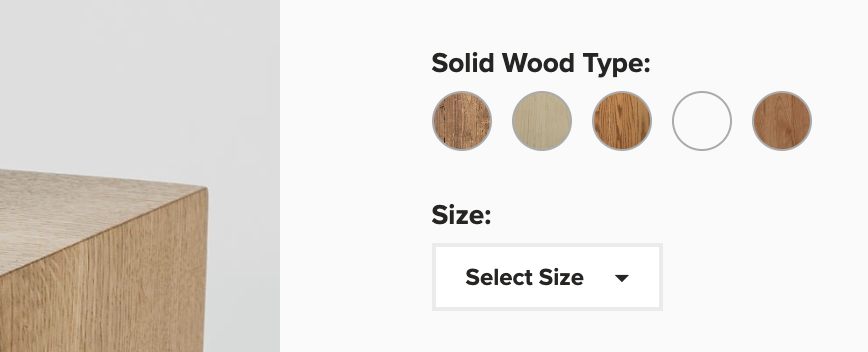
If someone is choosing between “Sand,” “Clay,” “Forest,” and “Midnight,” a dropdown may not be enough. A color swatch or image swatch can help them understand the options immediately.

Use the Product Color/Image Swatch Variant Plugin if you want to replace plain variant dropdowns with visual swatches.
This is especially useful for:
- Clothing
- Fabric
- Jewelry
- Prints
- Wallpaper
- Home decor
- Beauty products
- Anything with color, texture, pattern, or material choices
The easier it is to choose the right variant, the less hesitation there is before adding to cart.
5. Sync Variant Images Properly
Squarespace supports variant images, but some stores need a stronger variant image experience.
For example, if a customer selects “Blue,” the product image should clearly change to the blue version. If they click a product image, the selected variant should also make sense. The buying experience should feel connected.
When product images and variant selections feel disconnected, customers can lose confidence. They may wonder if they are choosing the right item.
Use the Sync Product Variant Images Plugin if you want more control over how product images and variants work together.
This is useful when you want to:
- Change product images based on selected options
- Make variant image behavior feel more intuitive
- Group thumbnails by option
- Improve Quick View behavior
- Help customers confirm they selected the right version
Variant confusion is one of those small product page issues that can quietly hurt conversion.
6. Write Product Descriptions That Actually Sell
A product description should not just describe the product.
It should help the customer understand why the product matters.
A weak product description says:
Handmade ceramic mug. Available in blue and white.
A stronger product description explains the use, the feel, the detail, the care, and the reason someone would want this one over another one.

A good product description usually includes:
- What the product is
- Who it is for
- What makes it different
- Important materials or specs
- Size or fit details
- How to use it
- What is included
- Care instructions
- Shipping or fulfillment notes
- Any important limitations
Do not make the customer hunt for basic details.
If someone needs to know the size, say the size. If the color varies slightly, say that. If it is made to order, say that. If it takes two weeks to ship, say that.
Clear copy is not just better for conversion. It also helps with search.
7. Add FAQs to the Product Page
FAQs are one of the easiest ways to improve a product page.
They let you answer objections before someone leaves the page.

Common product page FAQ topics include:
- Shipping time
- Returns
- Sizing
- Materials
- Care instructions
- Compatibility
- Ingredients
- Customization
- Delivery area
- Digital download access
- Subscription billing
- Gift options
A good FAQ section saves support time and helps buyers feel more confident.
You can add FAQs in the Additional Info section of your product page. For simple stores, that may be enough.
If you want a cleaner, more compact page, you can also use a lightbox or accordion-style layout so customers can open the details they need without scrolling through a wall of text.
For size charts, shipping details, ingredient lists, or longer explanations, the Lightbox Anything Plugin can help you open extra product information in a popup without sending the customer to another page.
8. Show Reviews and Social Proof
Reviews help customers borrow confidence from people who already bought.
Squarespace now has native customer reviews for physical, download, service, and subscription products. After reviews are enabled, customers can receive an automatic review request email after fulfillment, then leave a rating and written review.
Read Squarespace’s customer reviews guide

For most Squarespace stores, start with the native review feature.
You may still want a third-party review platform if you need more advanced review collection, photo reviews, syndicated reviews, custom display control, or integrations with other marketing tools.
But the old advice that you need a separate review widget just to show reviews on Squarespace is no longer true for most stores.
Start native. Add more only if you need more.
9. Use Low-Stock Messaging Carefully
Scarcity can help, but only when it is honest.
If you sell limited-edition products, one-of-a-kind items, handmade goods, event-based products, seasonal releases, or small-batch inventory, it can help to show when inventory is low.
Squarespace has a native limited availability label feature that can show when an item is low in stock.
Read Squarespace’s limited availability label guide

That may be enough if you simply want to flag that an item is limited.
Use the Squarespace Show Inventory Plugin if you want to display the exact quantity left in stock for a selected variant.
That is useful when the number itself matters.
- Only 2 left
- 3 spots remaining
- 5 prints available
- Last one in this size
The goal is not to manipulate people. The goal is to give real buying context.
If there really are only two left, the customer should know.
10. Enable Product Waitlists
A sold-out product page should not be a dead end.
If a product is out of stock, give interested shoppers a way to hear when it returns.
Squarespace has a native product waitlist feature that lets customers submit their email address on sold-out product detail pages.
Read Squarespace’s product waitlist guide
This is especially useful if you restock products, sell seasonal items, run product drops, or want to measure demand before producing more inventory.
A waitlist turns a missed sale into a future customer signal.
11. Add Related Products
A good product page should help shoppers continue browsing.
Squarespace has a native related products feature that can display related items at the bottom of product detail pages based on categories or tags.
Read Squarespace’s related products guide
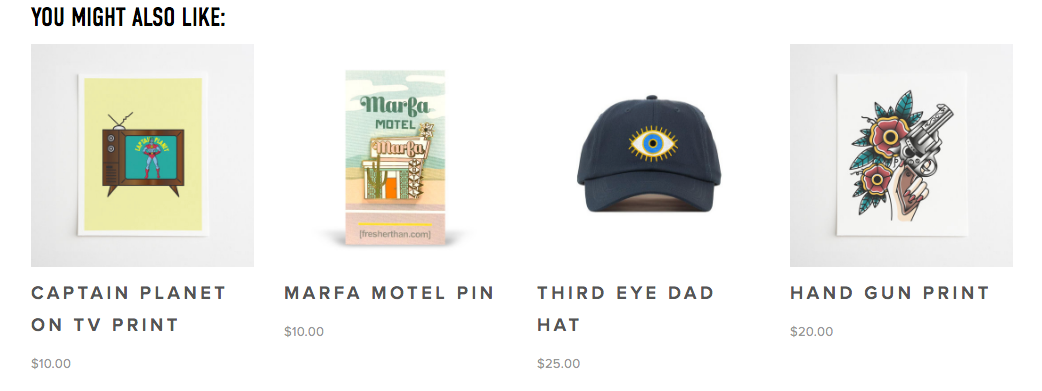
Use this when you want to help customers discover similar products.
For example:
- More items in the same collection
- Similar styles
- Related colors
- Other products in the same category
- Products that pair well together
If the native related products feature gives you enough control, use it.
If you want more customization, use the Squarespace Related Posts and Products Plugin. This can be useful when you want more control over related content behavior, display style, randomization, category/tag filtering, or blog/product relationships.
12. Use Product Add-Ons for Upsells
Sometimes the best upsell is not a popup. It is a relevant add-on at the right moment.
Squarespace has a product add-ons feature that lets you show complementary products on a product detail page.
Read Squarespace’s product add-ons guide
This is useful for:
- Frames for art prints
- Gift wrapping
- Accessories
- Refills
- Care kits
- Bonus downloads
- Matching items
- Service upgrades
The key is relevance.
Do not add random products just to increase cart value. Add products that make the main purchase better.
13. Add a Size Chart, Guide, or Comparison in a Lightbox
Some product information is important, but too much of it can clutter the page.
A size chart is a perfect example. It matters when the customer needs it, but not everyone needs to see the full chart immediately.
A lightbox lets you show supporting information in a popup.
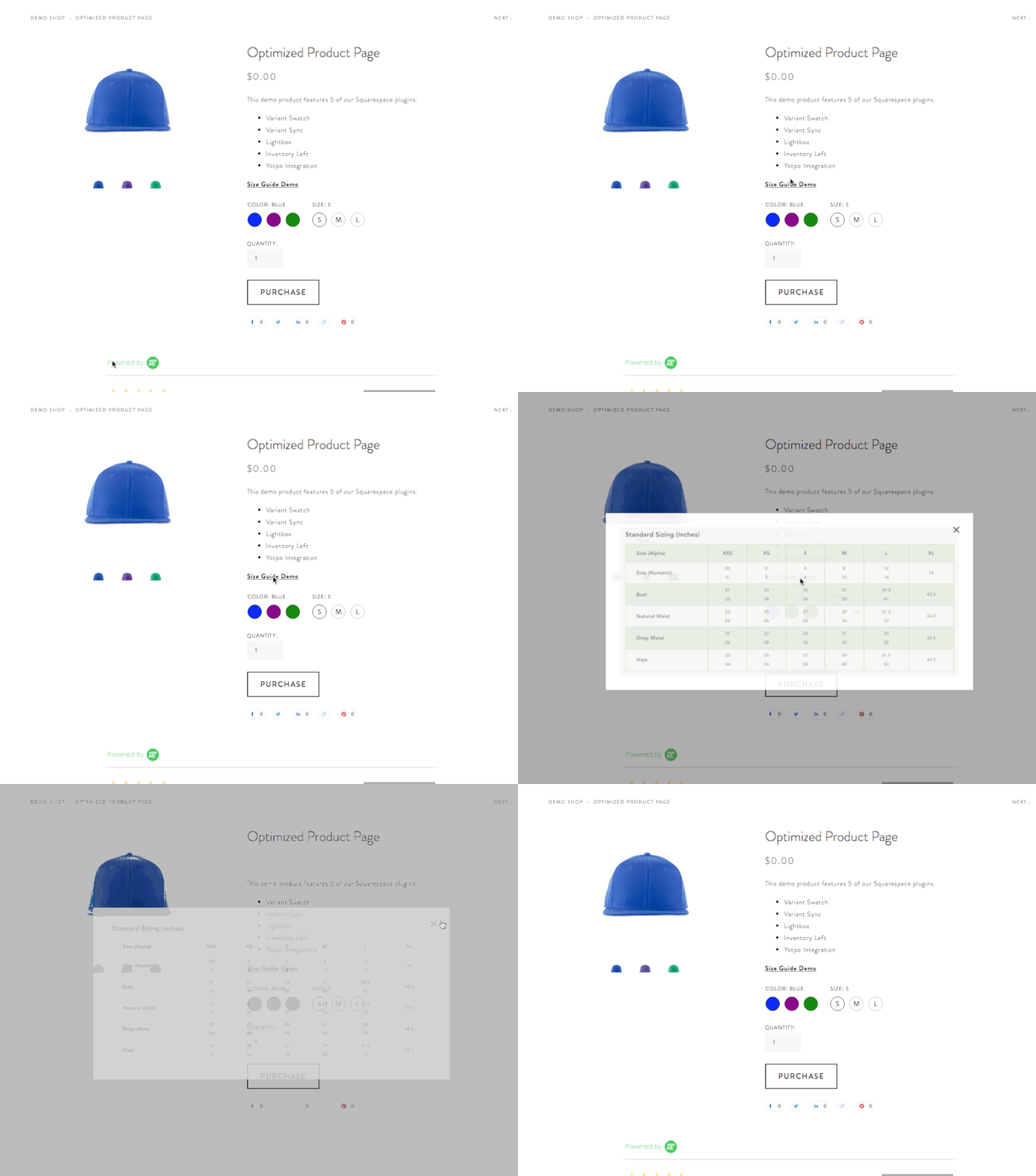
You can use a lightbox for:
- Size charts
- Shipping details
- Product comparison tables
- Ingredient lists
- Care instructions
- Fit guides
- Customization instructions
- Warranty details
- Product demos
- Lead capture forms
Use the Lightbox Anything Plugin when you want to open custom content from a button, text link, image, or other trigger.
This is one of the cleanest ways to keep a product page focused while still giving customers the details they need.
14. Make Shipping, Returns, and Delivery Clear
Many customers do not abandon a product because they dislike the product.
They abandon because something feels uncertain.
Shipping and returns are two of the biggest uncertainty points.
Your product page should make these things easy to find:
- Shipping cost or shipping estimate
- Processing time
- Delivery region
- Return policy
- Exchange policy
- Made-to-order timelines
- Local pickup options
- Digital delivery instructions
- Subscription billing details
Do not bury the information customers need to feel safe.
Even a short line near the add-to-cart area can help:
Ships in 2–3 business days.
Free returns within 30 days.
Made to order. Please allow 10 business days before shipping.
Digital download available immediately after checkout.
The more specific you can be, the better.
15. Use Urgency Without Cheapening the Page
Urgency can work, but it needs to be real.
Good urgency comes from an actual constraint:
- Sale ends Friday
- Ships today if ordered before 2pm
- Registration closes tonight
- Limited edition of 50
- Only 3 left in stock
- Product drop opens at noon
- Holiday shipping cutoff is December 12

Bad urgency feels fake.
Use Squarespace’s announcement bar, product sale pricing, product drops, low-stock labels, or waitlists when the timing or availability actually matters.
If you use a countdown timer, make sure it is tied to a real event.
A countdown timer can be useful for:
- Product launches
- Limited-time sales
- Registration windows
- Holiday shipping deadlines
- Event-based offers
- Product drops
But it should support the buying decision, not create pressure for the sake of pressure.
16. Improve the Mobile Product Page
Most customers will probably see your product page on a phone.
That means your mobile product page needs special attention.
Check:
- Can customers see the product clearly?
- Is the product title easy to read?
- Is the price visible?
- Are variant choices easy to tap?
- Is the add-to-cart button easy to find?
- Do images load quickly?
- Is the description too long before key details appear?
- Are reviews easy to scan?
- Are shipping and return details visible?
- Do popups or chat widgets block the checkout path?
Do not only review the desktop version.
Open the product page on your phone and try to buy the product like a real customer. The issues will show themselves quickly.
17. Use Live Chat Only If You Can Respond
Live chat can increase customer conversations, but only if someone is actually there to respond.
If you add live chat and ignore it, the experience gets worse.

Live chat is useful when customers commonly ask questions before buying, especially for:
- Higher-priced products
- Custom products
- Services
- Digital products with setup questions
- Technical products
- Products with fit, sizing, or compatibility concerns
A simple chat prompt can help:
Questions before you order? Ask us here.
Or:
Need help choosing a size? Send us a message.
Just make sure you have the capacity to answer.
18. Optimize Product SEO
A product page can convert better and bring in more traffic when the SEO basics are handled.
For each important product, review:
- Product title
- Product URL
- Product description
- SEO title
- SEO description
- Image alt text
- Social sharing image
- Categories and tags
Squarespace lets you edit SEO and URL settings for products. You can also add product-specific SEO descriptions.
Read Squarespace’s SEO description guide
Do not stuff keywords into the page. Write clear, specific product copy that uses the words your customer would naturally use.
For example, “linen table runner” is more useful than “beautiful artisan decor piece” if that is what someone is actually searching for.
19. Keep the Product Page Focused
A product page should not feel like a junk drawer.
Every element should help the customer make a better decision.
Before adding something, ask:
Does this help the customer understand, trust, choose, or buy?
If the answer is no, leave it out.
A strong product page usually includes:
- Clear product name
- Strong images
- Helpful variant choices
- Good product description
- Price
- Add-to-cart button
- Shipping and return clarity
- Reviews or proof
- FAQs
- Related products or add-ons
- SEO details
That is enough for most stores.
The goal is not more stuff. The goal is less hesitation.
Best Squarespace Product Page Plugins
If you want to improve your product pages beyond the native Squarespace options, these plugins are worth looking at:
- Squarespace Product Gallery Video Plugin — add video directly into the main product gallery area.
- Sync Product Variant Images Plugin — improve how product images and selected variants work together.
- Product Color/Image Swatch Variant Plugin — replace plain variant dropdowns with color or image swatches.
- Squarespace Show Inventory Plugin — display exact quantity left in stock for products or variants.
- Lightbox Anything Plugin — open size charts, guides, forms, videos, and product details in a popup.
- Squarespace Related Posts and Products Plugin — show related content with more control over display and filtering.
You can also view all Squarespace plugins here:
Final Takeaway
Before you spend more money driving traffic to your Squarespace store, make sure your product pages are ready to convert.
A better product page does not just look nicer. It answers better questions. It shows the product more clearly. It reduces doubt. It helps the customer choose the right option. It makes buying feel easier.
Start with the native Squarespace commerce features.
Then add plugins where you need more control, better presentation, or a smoother customer experience.
If your product page helps people understand, trust, and act, it is doing its job.
Squarespace Product Page Optimization FAQs
How do I optimize a Squarespace product page?
Start with clear product images, a helpful product description, easy variant selection, shipping and return details, reviews, FAQs, and related products. Then add plugins or customizations where the default Squarespace product page does not give you enough control.
Can I add product videos to Squarespace?
Yes. You can add videos in the Additional Info section of a product page using blocks. If you want video inside the main product gallery area, use the Squarespace Product Gallery Video Plugin.
Does Squarespace support product reviews?
Yes. Squarespace has native customer reviews for physical, download, service, and subscription products. You can enable customer review request emails and display reviews on product detail pages.
Can I show related products in Squarespace?
Yes. Squarespace has a native related products feature that displays related items on product detail pages based on categories or tags. If you need more display control, use the Squarespace Related Posts and Products Plugin.
Can I show low-stock messages on Squarespace?
Yes. Squarespace has native limited availability labels. If you want to show the exact quantity left in stock for a product or selected variant, use the Squarespace Show Inventory Plugin.
Can I add color swatches to Squarespace products?
Squarespace product variants can handle options like color and size, but if you want visual color or image swatches instead of plain dropdown-style selections, use the Product Color/Image Swatch Variant Plugin.
Can I add a size chart to a Squarespace product page?
Yes. You can add a size chart in the product description or Additional Info section. If you want the size chart to open in a popup, use the Lightbox Anything Plugin.
What should every product page include?
Every product page should include clear images, price, product description, variant options if needed, add-to-cart button, shipping details, return policy, reviews or trust signals, and answers to common questions.
How to Add a Pricing Table to Squarespace
If you sell services, memberships, packages, courses, retainers, or subscriptions, a pricing table can make your offer much easier to understand.
Instead of making visitors read through paragraphs of pricing details, a pricing table lets them compare options at a glance.
That matters because most people are not only looking for the price. They are trying to answer a few quick questions:
Which option is right for me?
What do I get?
What is the difference between each plan?
Where do I click next?
Squarespace does not have one perfect “pricing table” block that works for every use case. But there are several ways to add one, depending on how polished, editable, and interactive you need it to be.
You can build a simple pricing table with native Squarespace sections. You can embed a third-party pricing widget. Or you can use a section library like Kleemt if you want a more designed pricing table without building the layout from scratch.
Option 1: Build a simple pricing table manually in Squarespace
The simplest option is to build your pricing table directly inside Squarespace using sections, columns, text blocks, buttons, and shape/image blocks.
This works best when you have two or three offers.
For example, you might create three side-by-side pricing cards:
Starter
$500
Good for small projects
Includes X, Y, and Z
Button: Book a Call
Growth
$1,500
Good for more complete projects
Includes X, Y, Z, and more
Button: Book a Call
Premium
$3,500
Good for full-service support
Includes everything above plus strategy
Button: Apply Now
This route is nice because everything stays inside Squarespace. You can edit the plan names, prices, descriptions, and buttons without touching code or relying on another platform.
The downside is that it can take some fiddling to make the columns look polished. If one plan has more text than another, the cards may not line up evenly. You also need to check mobile carefully, because columns often stack differently on smaller screens.
Use this option if:
you only need a simple pricing section
you want to keep everything native to Squarespace
you do not need toggles, animations, or advanced comparison features
you want the section to be easy for a client or team member to edit
This is the most practical starting point for a basic Squarespace pricing table.
Option 2: Use a third-party pricing table widget
Another option is to use a third-party widget tool like Elfsight Pricing Table or Common Ninja Pricing Tables.
These tools let you build the pricing table in an external editor, then embed it into Squarespace with a Code Block or Embed Block.
A widget can be useful if you need features like:
pre-designed pricing table templates
column, grid, or table layouts
recommended-plan ribbons
highlighted offers
buttons for each plan
no-code design controls
future edits from a dashboard
The biggest advantage is that you do not have to build the pricing table manually inside Squarespace. You create the table in the widget editor, copy the embed code, paste it into your Squarespace page, and publish.
The tradeoff is that you are now relying on another platform. Free plans may include branding, view limits, or feature limits. Paid plans may be worth it if the widget solves a real business problem, but it is still another tool to manage.
Use this option if:
you want a no-code editor
you need a more structured pricing table
your pricing changes often
you want plan highlights or ribbons
you do not mind using an external widget
you want something faster than building the layout manually
This can be a strong option for SaaS-style pricing, memberships, coaching packages, courses, or tiered offers.
Option 3: Use Kleemt’s Pricing Table section
If you want a pricing table that feels more designed without building the layout yourself, Kleemt is worth looking at.
Kleemt is a Squarespace section and block library. After setup, you can add custom sections directly inside Squarespace, including a Pricing Table section.
This makes it different from a generic external widget. The goal is not only to display pricing information. The goal is to make the section feel like it belongs inside a more polished Squarespace page.
Use a section like this when you want the pricing table to feel more premium than a basic text-and-button layout, but you do not want to custom-code the entire thing.
This is especially useful for:
service packages
creative retainers
memberships
courses
coaching offers
productized services
agency packages
comparison sections on landing pages
A pricing table is not just a design element. It is a decision-making section. The visitor is comparing value, not just price.
That means the section should make the differences between your offers easy to understand.
Use this option if:
you want a more polished pricing section
you are already comfortable working in Squarespace
you want something faster than custom design work
you want the pricing table to sit alongside other custom sections
you are building a more interactive or premium-feeling page
Kleemt is especially useful if you are improving more than one part of the page. For example, you might pair a Pricing Table with testimonials, logo rows, image galleries, countdowns, timelines, expandable lists, or social proof blocks.
Option 4: Use an image-based pricing table
You can also design a pricing table in Canva, Figma, Photoshop, or another design tool, export it as an image, and upload it to Squarespace.
This is usually not the best option.
It may look fine visually, but it creates problems.
Text inside an image is harder to edit. It may not be accessible to screen readers. It can be blurry on some screens. It does not respond as cleanly on mobile. And if your pricing changes, you have to go back to the design file, export a new image, and re-upload it.
Use this option only if:
the pricing table is temporary
the pricing table is mostly decorative
the real pricing details are also written in text elsewhere
you need a quick placeholder while building the real section
For most websites, use live text instead.
What about custom code?
You can create a pricing table with custom HTML, CSS, and JavaScript.
But for most Squarespace users, that is not the most realistic option.
Custom code can work well if you are a developer or if you are building a highly specific layout. But it also means future edits may require editing code. That can become annoying if prices, plan names, features, or buttons change often.
For most people, the better choices are:
build a simple version natively in Squarespace
use a no-code widget like Elfsight or Common Ninja
use a designed section from a library like Kleemt
Custom code is possible, but it is usually not the first route I would recommend for a pricing table.
What should a good pricing table include?
A good pricing table should make the offer easier to choose.
At minimum, each plan should include:
plan name
price
short description
key features or deliverables
who the plan is best for
call-to-action button
If you have one option you want people to choose most often, make that clear.
You can label it:
Most Popular
Best Value
Recommended
Best for Growing Teams
Best for Most Clients
Do not overdo it. One highlighted plan is helpful. Three highlighted plans defeats the purpose.
Keep the pricing table simple
The most common pricing table mistake is trying to say everything.
A pricing table is not the place to explain every policy, edge case, add-on, and exception.
It should help someone choose the next step.
If you need to explain more, add a short FAQ underneath the pricing section.
Useful FAQ questions might include:
What happens after I book?
Can I customize a package?
Do you offer payment plans?
What is not included?
How soon can we start?
What happens if I need more support?
That keeps the pricing table clean while still answering the questions that affect the buying decision.
Which option should you use?
If you want the simplest route, build the pricing cards manually in Squarespace.
If you want a no-code editor with templates and plan highlights, use a widget like Elfsight or Common Ninja.
If you want a polished Squarespace section that feels more designed, use a section library like Kleemt.
If you are building a serious sales page, do not think of the pricing table as decoration.
Think of it as the moment where the visitor decides whether your offer makes sense.
The clearer that section is, the easier the next step becomes.
Related Squarespace resources
If you are improving a sales page or service page, these may help too:
✅ Squarespace 7.0 and 7.1 compatible • ✅ All templates supported • ✅ Mobile responsive
⚠️ Requires Squarespace Business Plan or higher for full functionality.
💡 Personal Plan users can use the alternative markdown method. See FAQ below.
Add a Lightbox Popup to Squarespace
Lightbox Anything lets you open custom content in a popup from buttons, images, text links, galleries, and more.
Use it for forms, videos, team bios, product details, portfolios, promos, gated content, upsells, galleries, and custom page sections — without sending visitors to another page.
Click to View Demo →
Want to see the setup process first?
▶️ Click to Watch Setup Video