
How to Optimize Your Squarespace Product Page for More Sales
Your product page has one job:
Help the right person feel confident enough to buy.
That does not mean adding every possible popup, banner, review widget, countdown timer, and upsell you can find. A good product page removes friction. It answers the questions your customer already has. It shows the product clearly. It makes the next step obvious.
Squarespace gives you a solid product page foundation, especially if you are selling physical products, digital products, services, subscriptions, or gift cards. But depending on what you sell, the default product page may not be enough.
Some stores need better product images. Some need clearer variant selection. Some need product videos. Some need size charts, FAQs, reviews, low-stock notices, or related products.
This guide walks through the best ways to optimize a Squarespace product page for more sales, starting with the native Squarespace features and then showing you where plugins can help.
1. Start With the Product Page Basics
Before adding plugins or custom code, make sure the basics are doing their job.
Your product page should clearly answer:
- What is this?
- Who is it for?
- What does it include?
- What makes it different?
- What size, color, material, or version should I choose?
- When will I get it?
- Can I return it?
- Is it in stock?
- Can I trust this store?
A lot of product pages lose sales because the page looks nice but leaves too many questions unanswered.
If someone has to email you before they can feel confident buying, the product page is not doing enough work yet.
2. Use Better Product Images
Product images carry a lot of the sales conversation.
Customers want to see what they are buying. That sounds obvious, but many Squarespace stores still rely on one or two product photos when they need five or six.
Use images that show:
- The full product
- Close-up details
- Scale
- Texture
- Packaging
- The product in use
- Each color or variant
- What comes in the box
If you sell apparel, accessories, home goods, art, skincare, food, jewelry, or anything with a visual component, your images need to do more than show the product. They need to help the customer imagine ownership.
Squarespace lets you add multiple images to a product and set a featured image. You can also add images for individual product variants, which is especially useful when you sell different colors, patterns, sizes, or styles.
Read Squarespace’s product image guide
3. Add Product Videos
If photos show the product, video helps people understand it.
A short product video can show movement, texture, size, fit, process, assembly, packaging, or use. This is especially useful if the product has a detail that is hard to communicate in photos.
You can use product videos for:
- Product demos
- Unboxing videos
- Fit checks
- Before-and-after examples
- How it works
- Customer testimonials
- Behind-the-scenes making process
- Styling examples
Squarespace lets you add additional content to product pages through the Additional Info section. That means you can place extra blocks below the main product information, including videos, text, images, FAQs, and more.
But if you want the video to appear directly inside the main product image gallery area, use the Squarespace Product Gallery Video Plugin.
That plugin is useful when the video should feel like part of the product media, not just an extra block further down the page.
4. Make Product Variants Easy to Understand
If you sell products with variants, your product page needs to make those choices obvious.
Squarespace supports product variants for physical and service products. You can use variants for options like size, color, style, material, or format.
Read Squarespace’s product variants guide
The problem is that variant dropdowns are not always the clearest way to show visual choices.
If someone is choosing between “Sand,” “Clay,” “Forest,” and “Midnight,” a dropdown may not be enough. A color swatch or image swatch can help them understand the options immediately.

Use the Product Color/Image Swatch Variant Plugin if you want to replace plain variant dropdowns with visual swatches.
This is especially useful for:
- Clothing
- Fabric
- Jewelry
- Prints
- Wallpaper
- Home decor
- Beauty products
- Anything with color, texture, pattern, or material choices
The easier it is to choose the right variant, the less hesitation there is before adding to cart.
5. Sync Variant Images Properly
Squarespace supports variant images, but some stores need a stronger variant image experience.
For example, if a customer selects “Blue,” the product image should clearly change to the blue version. If they click a product image, the selected variant should also make sense. The buying experience should feel connected.
When product images and variant selections feel disconnected, customers can lose confidence. They may wonder if they are choosing the right item.
Use the Sync Product Variant Images Plugin if you want more control over how product images and variants work together.
This is useful when you want to:
- Change product images based on selected options
- Make variant image behavior feel more intuitive
- Group thumbnails by option
- Improve Quick View behavior
- Help customers confirm they selected the right version
Variant confusion is one of those small product page issues that can quietly hurt conversion.
6. Write Product Descriptions That Actually Sell
A product description should not just describe the product.
It should help the customer understand why the product matters.
A weak product description says:
Handmade ceramic mug. Available in blue and white.
A stronger product description explains the use, the feel, the detail, the care, and the reason someone would want this one over another one.

A good product description usually includes:
- What the product is
- Who it is for
- What makes it different
- Important materials or specs
- Size or fit details
- How to use it
- What is included
- Care instructions
- Shipping or fulfillment notes
- Any important limitations
Do not make the customer hunt for basic details.
If someone needs to know the size, say the size. If the color varies slightly, say that. If it is made to order, say that. If it takes two weeks to ship, say that.
Clear copy is not just better for conversion. It also helps with search.
7. Add FAQs to the Product Page
FAQs are one of the easiest ways to improve a product page.
They let you answer objections before someone leaves the page.

Common product page FAQ topics include:
- Shipping time
- Returns
- Sizing
- Materials
- Care instructions
- Compatibility
- Ingredients
- Customization
- Delivery area
- Digital download access
- Subscription billing
- Gift options
A good FAQ section saves support time and helps buyers feel more confident.
You can add FAQs in the Additional Info section of your product page. For simple stores, that may be enough.
If you want a cleaner, more compact page, you can also use a lightbox or accordion-style layout so customers can open the details they need without scrolling through a wall of text.
For size charts, shipping details, ingredient lists, or longer explanations, the Lightbox Anything Plugin can help you open extra product information in a popup without sending the customer to another page.
8. Show Reviews and Social Proof
Reviews help customers borrow confidence from people who already bought.
Squarespace now has native customer reviews for physical, download, service, and subscription products. After reviews are enabled, customers can receive an automatic review request email after fulfillment, then leave a rating and written review.
Read Squarespace’s customer reviews guide
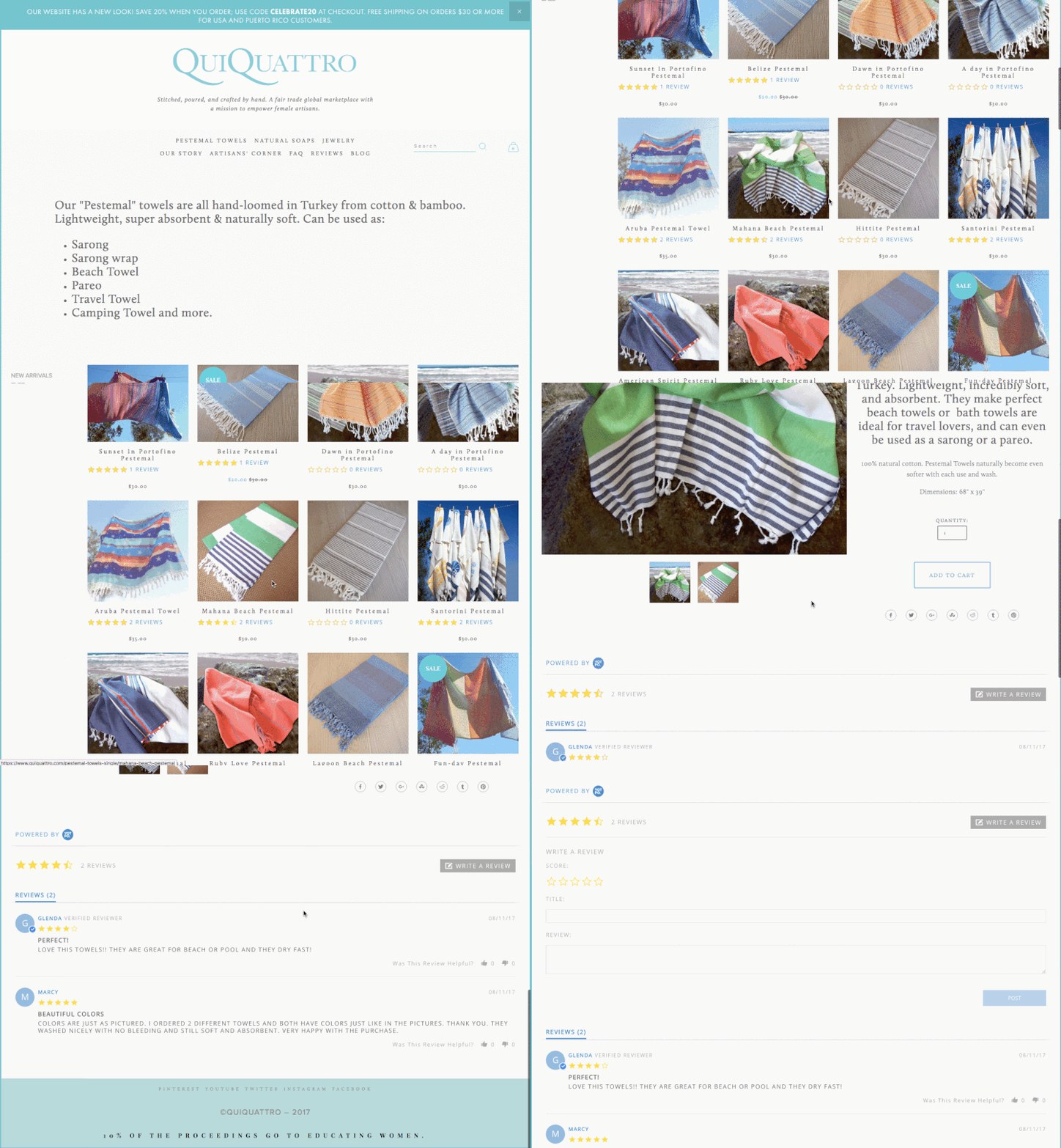
For most Squarespace stores, start with the native review feature.
You may still want a third-party review platform if you need more advanced review collection, photo reviews, syndicated reviews, custom display control, or integrations with other marketing tools.
But the old advice that you need a separate review widget just to show reviews on Squarespace is no longer true for most stores.
Start native. Add more only if you need more.
9. Use Low-Stock Messaging Carefully
Scarcity can help, but only when it is honest.
If you sell limited-edition products, one-of-a-kind items, handmade goods, event-based products, seasonal releases, or small-batch inventory, it can help to show when inventory is low.
Squarespace has a native limited availability label feature that can show when an item is low in stock.
Read Squarespace’s limited availability label guide

That may be enough if you simply want to flag that an item is limited.
Use the Squarespace Show Inventory Plugin if you want to display the exact quantity left in stock for a selected variant.
That is useful when the number itself matters.
- Only 2 left
- 3 spots remaining
- 5 prints available
- Last one in this size
The goal is not to manipulate people. The goal is to give real buying context.
If there really are only two left, the customer should know.
10. Enable Product Waitlists
A sold-out product page should not be a dead end.
If a product is out of stock, give interested shoppers a way to hear when it returns.
Squarespace has a native product waitlist feature that lets customers submit their email address on sold-out product detail pages.
Read Squarespace’s product waitlist guide
This is especially useful if you restock products, sell seasonal items, run product drops, or want to measure demand before producing more inventory.
A waitlist turns a missed sale into a future customer signal.
11. Add Related Products
A good product page should help shoppers continue browsing.
Squarespace has a native related products feature that can display related items at the bottom of product detail pages based on categories or tags.
Read Squarespace’s related products guide
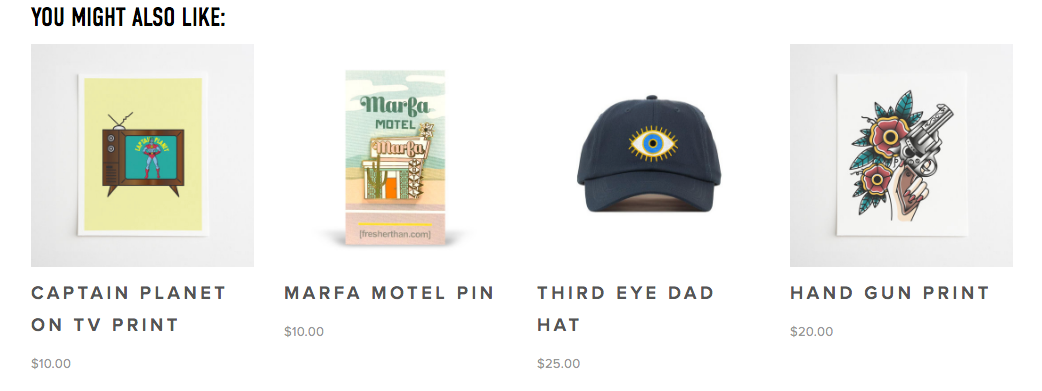
Use this when you want to help customers discover similar products.
For example:
- More items in the same collection
- Similar styles
- Related colors
- Other products in the same category
- Products that pair well together
If the native related products feature gives you enough control, use it.
If you want more customization, use the Squarespace Related Posts and Products Plugin. This can be useful when you want more control over related content behavior, display style, randomization, category/tag filtering, or blog/product relationships.
12. Use Product Add-Ons for Upsells
Sometimes the best upsell is not a popup. It is a relevant add-on at the right moment.
Squarespace has a product add-ons feature that lets you show complementary products on a product detail page.
Read Squarespace’s product add-ons guide
This is useful for:
- Frames for art prints
- Gift wrapping
- Accessories
- Refills
- Care kits
- Bonus downloads
- Matching items
- Service upgrades
The key is relevance.
Do not add random products just to increase cart value. Add products that make the main purchase better.
13. Add a Size Chart, Guide, or Comparison in a Lightbox
Some product information is important, but too much of it can clutter the page.
A size chart is a perfect example. It matters when the customer needs it, but not everyone needs to see the full chart immediately.
A lightbox lets you show supporting information in a popup.
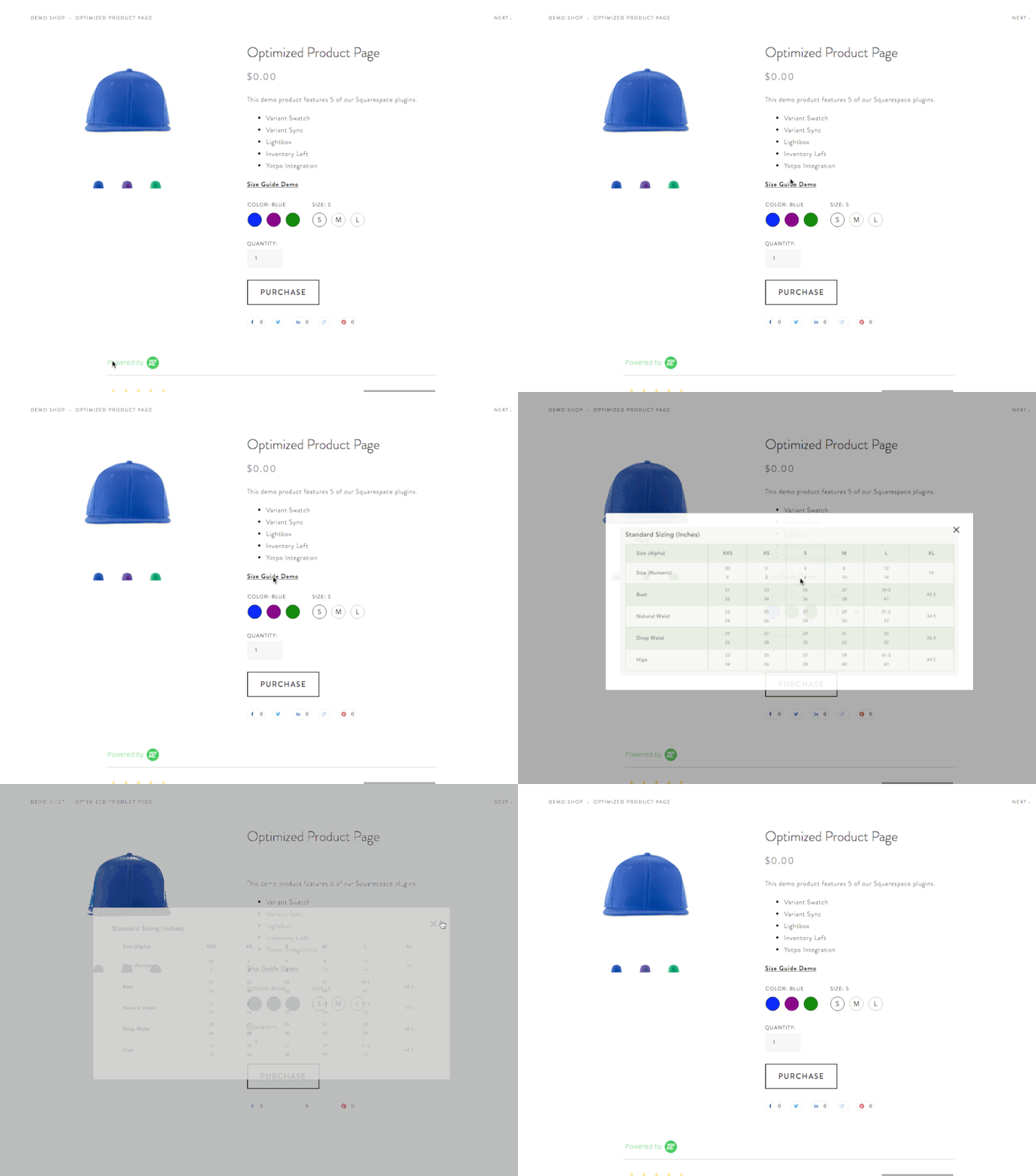
You can use a lightbox for:
- Size charts
- Shipping details
- Product comparison tables
- Ingredient lists
- Care instructions
- Fit guides
- Customization instructions
- Warranty details
- Product demos
- Lead capture forms
Use the Lightbox Anything Plugin when you want to open custom content from a button, text link, image, or other trigger.
This is one of the cleanest ways to keep a product page focused while still giving customers the details they need.
14. Make Shipping, Returns, and Delivery Clear
Many customers do not abandon a product because they dislike the product.
They abandon because something feels uncertain.
Shipping and returns are two of the biggest uncertainty points.
Your product page should make these things easy to find:
- Shipping cost or shipping estimate
- Processing time
- Delivery region
- Return policy
- Exchange policy
- Made-to-order timelines
- Local pickup options
- Digital delivery instructions
- Subscription billing details
Do not bury the information customers need to feel safe.
Even a short line near the add-to-cart area can help:
Ships in 2–3 business days.
Free returns within 30 days.
Made to order. Please allow 10 business days before shipping.
Digital download available immediately after checkout.
The more specific you can be, the better.
15. Use Urgency Without Cheapening the Page
Urgency can work, but it needs to be real.
Good urgency comes from an actual constraint:
- Sale ends Friday
- Ships today if ordered before 2pm
- Registration closes tonight
- Limited edition of 50
- Only 3 left in stock
- Product drop opens at noon
- Holiday shipping cutoff is December 12
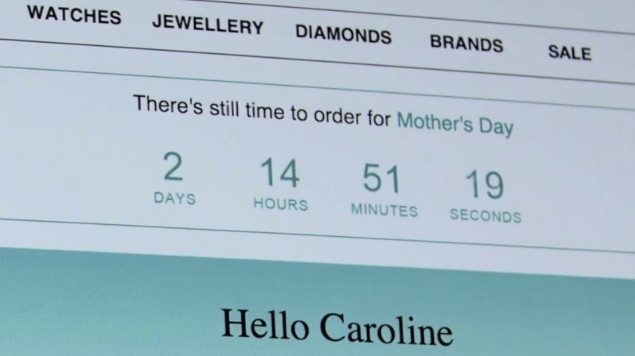
Bad urgency feels fake.
Use Squarespace’s announcement bar, product sale pricing, product drops, low-stock labels, or waitlists when the timing or availability actually matters.
If you use a countdown timer, make sure it is tied to a real event.
A countdown timer can be useful for:
- Product launches
- Limited-time sales
- Registration windows
- Holiday shipping deadlines
- Event-based offers
- Product drops
But it should support the buying decision, not create pressure for the sake of pressure.
16. Improve the Mobile Product Page
Most customers will probably see your product page on a phone.
That means your mobile product page needs special attention.
Check:
- Can customers see the product clearly?
- Is the product title easy to read?
- Is the price visible?
- Are variant choices easy to tap?
- Is the add-to-cart button easy to find?
- Do images load quickly?
- Is the description too long before key details appear?
- Are reviews easy to scan?
- Are shipping and return details visible?
- Do popups or chat widgets block the checkout path?
Do not only review the desktop version.
Open the product page on your phone and try to buy the product like a real customer. The issues will show themselves quickly.
17. Use Live Chat Only If You Can Respond
Live chat can increase customer conversations, but only if someone is actually there to respond.
If you add live chat and ignore it, the experience gets worse.

Live chat is useful when customers commonly ask questions before buying, especially for:
- Higher-priced products
- Custom products
- Services
- Digital products with setup questions
- Technical products
- Products with fit, sizing, or compatibility concerns
A simple chat prompt can help:
Questions before you order? Ask us here.
Or:
Need help choosing a size? Send us a message.
Just make sure you have the capacity to answer.
18. Optimize Product SEO
A product page can convert better and bring in more traffic when the SEO basics are handled.
For each important product, review:
- Product title
- Product URL
- Product description
- SEO title
- SEO description
- Image alt text
- Social sharing image
- Categories and tags
Squarespace lets you edit SEO and URL settings for products. You can also add product-specific SEO descriptions.
Read Squarespace’s SEO description guide
Do not stuff keywords into the page. Write clear, specific product copy that uses the words your customer would naturally use.
For example, “linen table runner” is more useful than “beautiful artisan decor piece” if that is what someone is actually searching for.
19. Keep the Product Page Focused
A product page should not feel like a junk drawer.
Every element should help the customer make a better decision.
Before adding something, ask:
Does this help the customer understand, trust, choose, or buy?
If the answer is no, leave it out.
A strong product page usually includes:
- Clear product name
- Strong images
- Helpful variant choices
- Good product description
- Price
- Add-to-cart button
- Shipping and return clarity
- Reviews or proof
- FAQs
- Related products or add-ons
- SEO details
That is enough for most stores.
The goal is not more stuff. The goal is less hesitation.
Best Squarespace Product Page Plugins
If you want to improve your product pages beyond the native Squarespace options, these plugins are worth looking at:
- Squarespace Product Gallery Video Plugin — add video directly into the main product gallery area.
- Sync Product Variant Images Plugin — improve how product images and selected variants work together.
- Product Color/Image Swatch Variant Plugin — replace plain variant dropdowns with color or image swatches.
- Squarespace Show Inventory Plugin — display exact quantity left in stock for products or variants.
- Lightbox Anything Plugin — open size charts, guides, forms, videos, and product details in a popup.
- Squarespace Related Posts and Products Plugin — show related content with more control over display and filtering.
You can also view all Squarespace plugins here:
Final Takeaway
Before you spend more money driving traffic to your Squarespace store, make sure your product pages are ready to convert.
A better product page does not just look nicer. It answers better questions. It shows the product more clearly. It reduces doubt. It helps the customer choose the right option. It makes buying feel easier.
Start with the native Squarespace commerce features.
Then add plugins where you need more control, better presentation, or a smoother customer experience.
If your product page helps people understand, trust, and act, it is doing its job.
Squarespace Product Page Optimization FAQs
How do I optimize a Squarespace product page?
Start with clear product images, a helpful product description, easy variant selection, shipping and return details, reviews, FAQs, and related products. Then add plugins or customizations where the default Squarespace product page does not give you enough control.
Can I add product videos to Squarespace?
Yes. You can add videos in the Additional Info section of a product page using blocks. If you want video inside the main product gallery area, use the Squarespace Product Gallery Video Plugin.
Does Squarespace support product reviews?
Yes. Squarespace has native customer reviews for physical, download, service, and subscription products. You can enable customer review request emails and display reviews on product detail pages.
Can I show related products in Squarespace?
Yes. Squarespace has a native related products feature that displays related items on product detail pages based on categories or tags. If you need more display control, use the Squarespace Related Posts and Products Plugin.
Can I show low-stock messages on Squarespace?
Yes. Squarespace has native limited availability labels. If you want to show the exact quantity left in stock for a product or selected variant, use the Squarespace Show Inventory Plugin.
Can I add color swatches to Squarespace products?
Squarespace product variants can handle options like color and size, but if you want visual color or image swatches instead of plain dropdown-style selections, use the Product Color/Image Swatch Variant Plugin.
Can I add a size chart to a Squarespace product page?
Yes. You can add a size chart in the product description or Additional Info section. If you want the size chart to open in a popup, use the Lightbox Anything Plugin.
What should every product page include?
Every product page should include clear images, price, product description, variant options if needed, add-to-cart button, shipping details, return policy, reviews or trust signals, and answers to common questions.