
What’s worth knowing in the Squarespace world.
For designers, developers, and people building businesses around Squarespace.

Huge List of Squarespace Hacks and Tweaks (With Links and Examples)

Squarespace is a powerful little platform. Most of the power of that platform, however, comes from the fact that it’s mostly preconfigured and ready to go. A newcomer to web design can have a site up and running, fully functional, in a matter of a couple of hours.
That said, many intermediate-to-advanced webmasters may want to get more out of the platform than it typically allows. There are several ways to do this, and I’ve compiled as many of them as I can find. These hacks, tweaks, plugins, and other customizations are all possible within the Squarespace framework but may require a little custom coding. Thankfully, it’s all pretty easy.
Let’s get started!
Squarespace SEO Hacks
First up, let’s start with a series of relatively simple SEO hacks and tweaks you can use. These are small tweaks you can set up that help with how Google views your site, how users view it, and how it’s used. They don’t make a huge difference, but they do have an effect, and it can’t hurt to use them.
Testimonial Slider
Part of modern SEO is social proof, and social proof can go a long way towards boosting trust and engagement with your site.
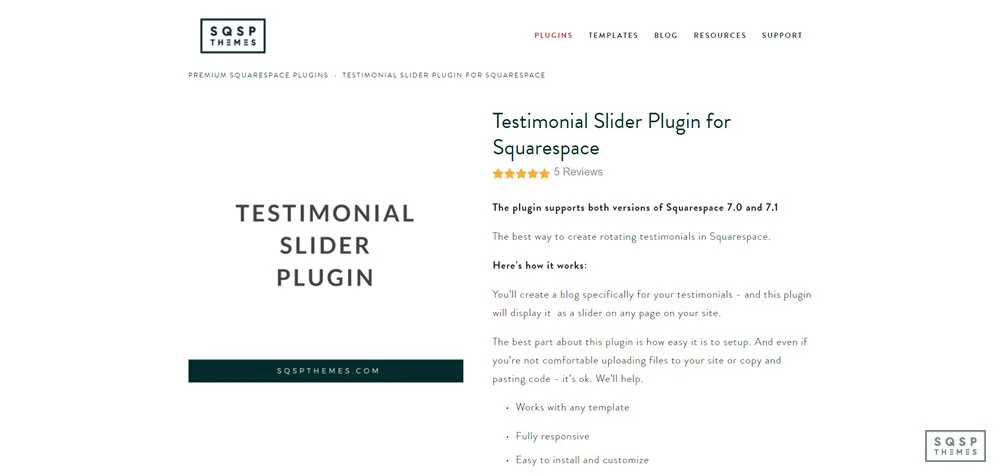
A key element of social proof is testimonials, and this plugin gives you a great way to display a bunch of them in a slider, quickly and easily.
Automatically NoFollow Affiliate Links
This guide gives you step-by-step instructions for adding link attributes to individual links or entire classes of links.

Specifically, it’s aimed at adding nofollow attributes to affiliate links and cloaking them, which can be useful for both SEO and usability.
Custom 404 Page
Whenever a user lands on your site on a page that doesn’t exist, they end up on a 404 page.

These are less than exciting, and often drive users away. Customizing your 404 pages allows you to engage them and help them find what they were looking for, and this guide tells you how.
Squarespace Blog Enhancements
The Squarespace blog is, by default, quite powerful and feature-rich. It’s not perfect, though, so here are a few things you can do to improve its look, feel, and functionality.
Facebook Comments
The default comments system for any blog is usually less than stellar; this plugin allows you to embed Facebook Comments into your blog instead.

Facebook comments have one primary advantage: most everyone is already logged in.
Font Tweaks
Squarespace allows you to use virtually any font in the Google Fonts library, and a broad selection from Adobe Fonts, but you need to set up an integration to get them to work.

This is a guide on how to do that.
Fixed Announcement Bar
Squarespace allows you to create a top-of-page announcement bar, but once the user scrolls down the page, that bar disappears.

This is a simple tweak to get it to stay fixed to the top of the page, sticking with the user as they scroll.
Squarespace User Experience Tweaks
There’s no perfect user experience. Tastes in web design, trends, and activity changes every year. There are, however, quite a few things you can tweak or implement to make the user experience better. I’ve accumulated quite a few of these over the years, and this list represents my favorite and most effective tweaks.
Squarespace Sidebar Plugin
This is a plugin that allows you to create a sidebar of content to display on any page on your site.

It’s a clever use of embedding content from one page to another, works with both 7.0 and 7.1, and is super easy to install, theme, and customize.
Accordion Tabs
Ever seen a site with an FAQ or directory that has headings visible, but collapses the content under those headings until you click on them?

That’s an accordion interface, and this plugin allows you to create and configure your own, with zero programming knowledge necessary.
Table of Contents Links
Many blogs, my own included, use a table of contents for each post. You can click on a link in the sidebar and jump directly to the relevant point in the blog post.

This requires using internal anchor links for the page, and my guide explains how to implement them quickly and easily.
RSS as Summary
Many blogs have a “related posts” section, and Squarespace allows you to configure one in the summary block. However, this only works for preconfigured collections you set up.

This plugin adds the ability to set an RSS feed – from your site or other sites like Medium, Feedburner, and Wix – to broaden your content embeds.
Countdown Timer
This is a simple plugin to add a countdown timer to your site.

It’s useful for stirring up FOMO for a limited-time offer, generating interest about an upcoming event, and counting down to a new product launch.
Masonry-Style Gallery
The default gallery layout for images in Squarespace is a grid, but that can look a little lifeless, particularly with images of varying heights.

This plugin converts galleries into masonry-style fit-to-space layouts, which are much better for varied images.
Gallery Dot Navigation
Any time you have a gallery of images that slide from one to the next, it’s a good idea to give users an indication of where they are in the slideshow, and how many images are in the gallery.

This adds dots for each, highlighting the one the user is on.
Gallery Image Counter
Similar to dot navigation, this adds a simple count of images in a gallery, with a number for the one the user is on, like 4/12.

Simple and easy.
Squarespace eCommerce Boosters
If you’re trying to sell something through Squarespace – and aren’t we all? – this is a critical section for you. Enhancing your product pages, your conversion process, and your handling of various side issues is crucial for a robust and fully-featured storefront. These are some of my favorite tweaks and most effective hacks.
Lightbox Anything
This is a plugin that allows you to create a pop-up lightbox with any information you want, which can display in response to a click.

Display sizing charts, product specifications, a product upsell, or anything else you can think of, quickly and easily.
Sync Product Variant Images
Maintaining a consistent appearance across all of your storefront is hugely important for appearing professional, which is a trust signal and helps increase conversions.

Squarespace eCommerce, by default, handles some of this, but this plugin enhances that functionality.
Members-Only Area
Giving members of your community – or just paying customers – exclusive access to content or products is a great way to encourage conversions.

Setting up a members-only area can be a bit tricky, though, so I produced a video guide on how to do it.
Waiting Lists
If you have a limited quantity of a given product and it sells out, what are your users going to do?
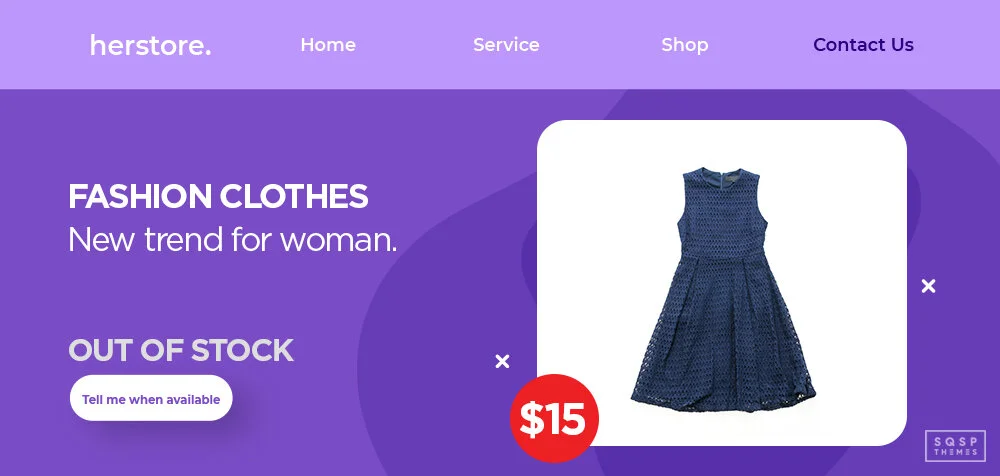
This code allows them to add themselves to a waitlist for a notification when the product is back in stock.
Product Color Swatch Variants
Many eCommerce stores use colored/patterned dots to allow you to preview a product in different colors and designs.

This plugin lets you do the same thing with Squarespace. All you need to do is set the right hex codes.
Inventory Indicator

If you have a limited inventory, and want to use that limitation as FOMO to encourage conversions, this plugin allows you to add that display to your product pages.
Squarespace Service Integrations
Squarespace is powerful, but it can’t do everything. This section is relatively small and only represents a handful of things you can do with Squarespace integrations, but it’s some of the most effective hacks I’ve used over the years.
Yotpo Reviews
Yotpo is one of the most powerful systems out there for eCommerce, but there’s only so much you can do with it in Squarespace.

One of the best options is to use Yotpo reviews as embeds on your product pages, but it takes forever to add these manually. This plugin does it automatically for you.
Parabola
A simple utility for automation, Parabola allows you to do nice things like export orders into a Google Sheet.

It’s easy to use, so I gave it a look and made a video about how it works.
Mailchimp and Google Analytics
Email and newsletter management is best done with a tool like Mailchimp, but you may want to do more advanced tracking into how well your newsletters convert.

This guide helps you set up Google Analytics tracking for Mailchimp-managed newsletters.
Alternative Payment Gateways
By default, Squarespace only allows you to use PayPal and Stripe to process payments. This is fine for many merchants, but if you’re in a high-risk category, those gateways won’t work with you.

Rather than risk having your access cut off with no notice, use this guide to set up an alternative payment gateway.
Additional Hacks and Tweaks
Unfortunately, I can’t cover every single thing you can do with Squarespace in a single article. Rather than try, here are a bunch of my favorite resources that you can use to discover other hacks, tweaks, and clever little uses of tools Squarespace allows.
40+ Tips and Tricks from My Billie Designs – This is a great post with a ton of tips and tricks, gathered from ten experts in Squarespace as a platform. Some of them are covered above, like creating a blog sidebar, customizing your 404 pages, or creating a members-only area on your site. Others are basic tweaks, like customizing your favicon and using summary blocks. A few are more unique tips. Check it out!
20 Squarespace Hacks from Cinnamon Wolfe – Cinnamon is a pro blogger and an expert in Squarespace. She offers a bunch of useful hacks here, including:
- Using the ESC key to log into your site.
- Disabling right-click to protect your assets.
- Customizing your site footer (and removing the “Powered by Squarespace” notice)
- Tweaking comment functionality.
Some of her tweaks are pretty simple “this is how you use Squarespace” tips, while others are advanced features. You’ll probably learn something new by reading through it!
50 Must-Have Plugins and Tweaks from SQSP Themes – Hey, that’s me! This is another directory of useful plugins, hacks, and tweaks I wrote a while back. There’s a little overlap here – it’s an older post and this one covers some of the same plugins – but there’s a lot of unique value in the older post as well. Take a look, and let me know which one is your favorite.
30+ Tips and Tricks from Productive and Free – Productive and Free is a blog by Tet, a productivity coach. Most of the tips and tricks on this list exist to help you tweak your site, publish content, and optimize your website’s SEO quickly and productively. Get ready for a crash course in basic and intermediate Squarespace features; you’ll probably find something you didn’t know about before.
127 Examples of Sites Using Squarespace – This isn’t a tips and tricks article. Rather, it’s a list of examples of high-quality websites built using Squarespace. I like it because it’s a great way to see what other people are doing, what kinds of custom features they’re implementing, and what design styles they’ve put into practice. In particular, it can give you inspiration for cool things you can do on your site, which you can then look up how to implement.
6 Advanced Tweaks to Increase Conversions – This post, from Sophia Ojha, isn’t nearly as long or in-depth as some of the others above. It is, however, laser-focused on tweaks you can make to your site to increase conversion rates across the board. Implementing these will give you some idea of how even little details can affect user conversion rates.
Your Favorites
That’s it for me; what about you? Do you have any favorite tweaks, hacks, tips, plugins, or integrations I missed, but which you consider essential?
I’d love it if you left me your favorites in the comments. I’m always learning and growing as a Squarespace dev, and I can’t do that if I’m not learning from folks like you. Thanks in advance!

Squarespace Email Templates for your Newsletter
If you’re looking to preview Squarespace’s Email Templates, I’ve included some below but you’re better off checking them out by going into site dashboard to Marketing > Email Campaigns > Create > Blast
There are more than 80 to choose from and you can also create your own.
There are templates for
Promoting a product or service
Announcing a sale
Sharing an update
Sending a follow-up
Sharing your content
Writing a note
Asking for support
Saying thanks
I’ve used several email marketing services over the years, including Mailchimp, Flodesk and ConvertKit and Squarespace Email Campaigns has the best templates I’ve seen.
Here’s what I love about them,
You can apply your site styles instantly. That means the same logo, branding, fonts, and colors used on your site will be reflected in your email template.
You can embed blog posts and products.
Images have several layout styles so you can create something unique.


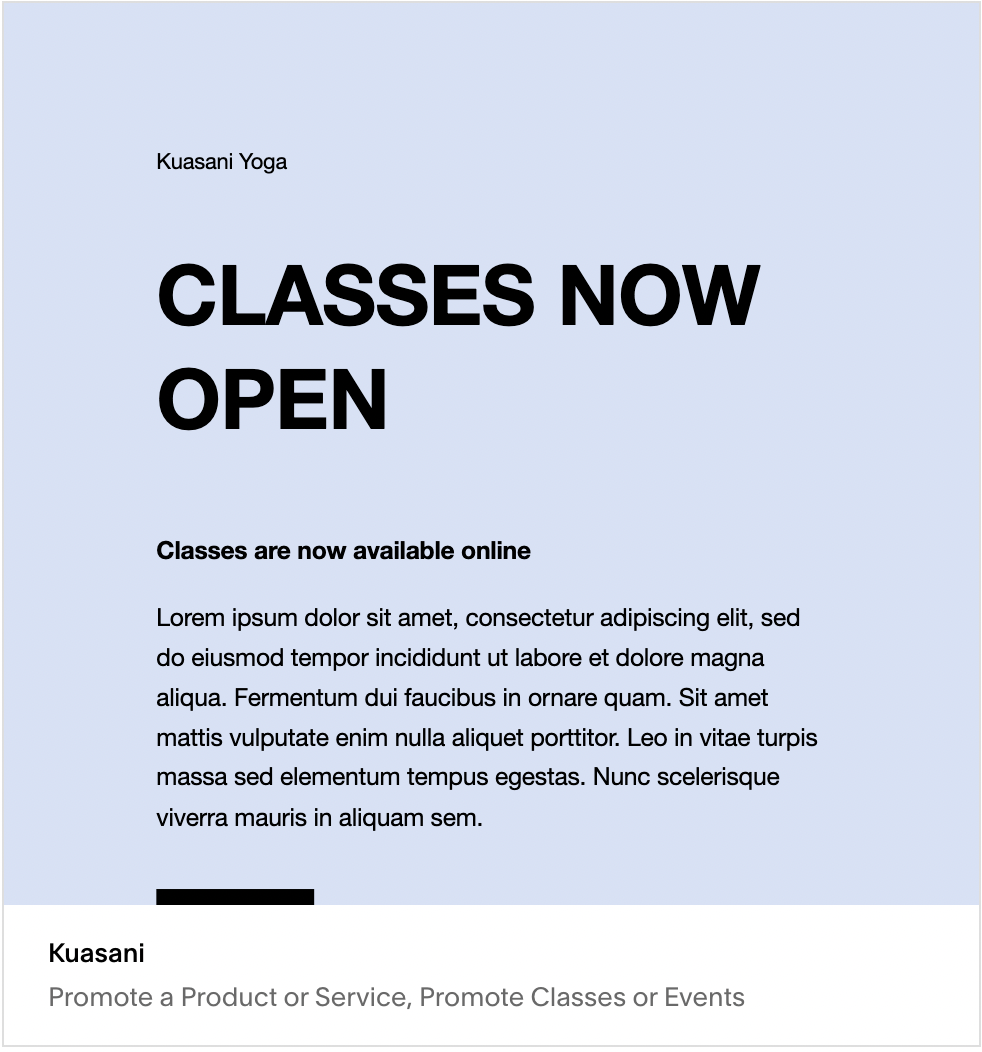
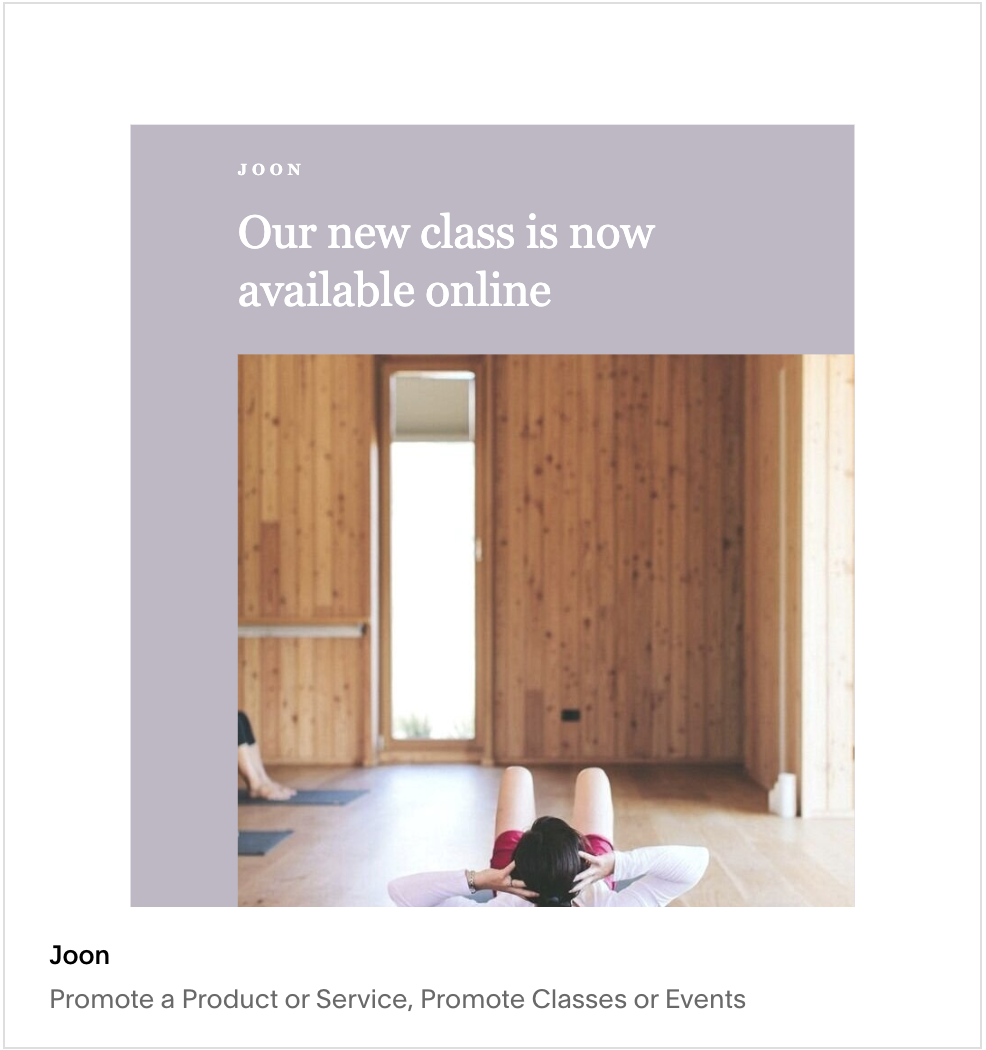
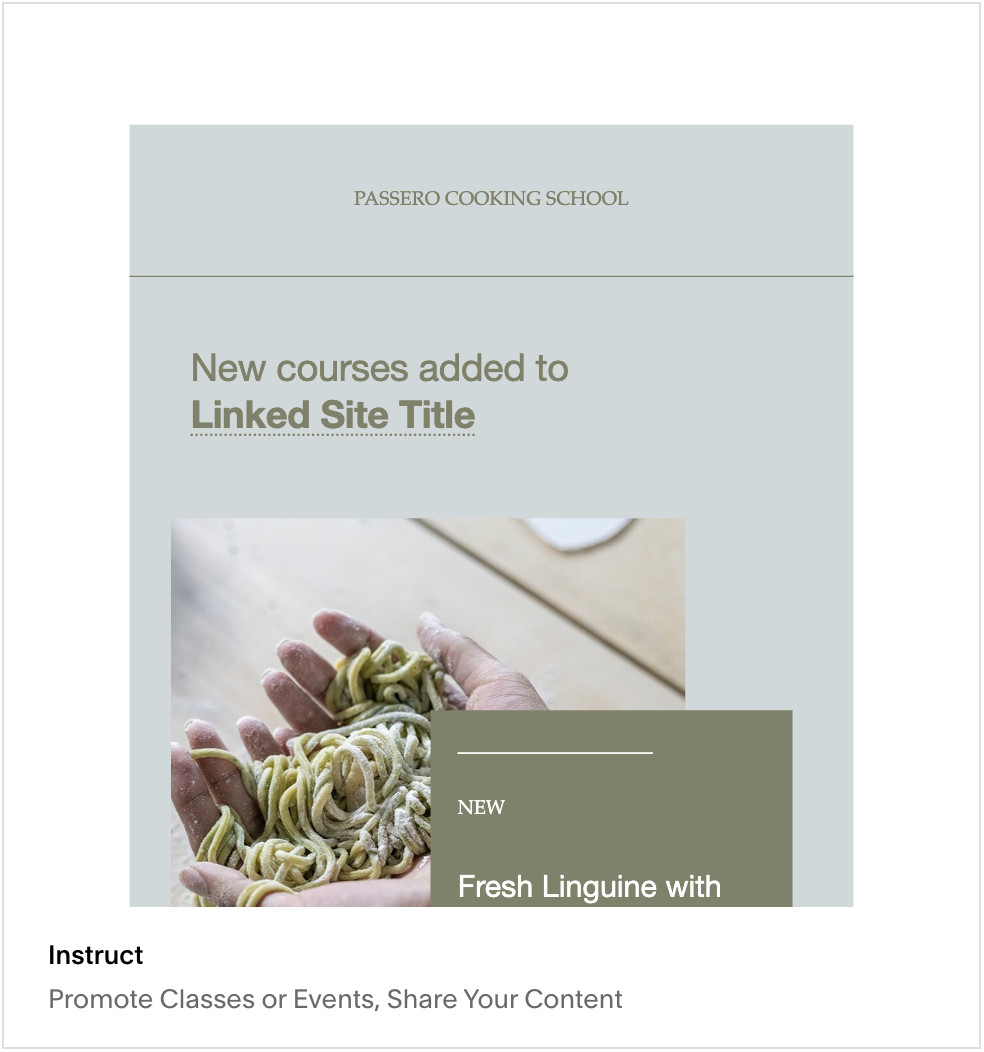
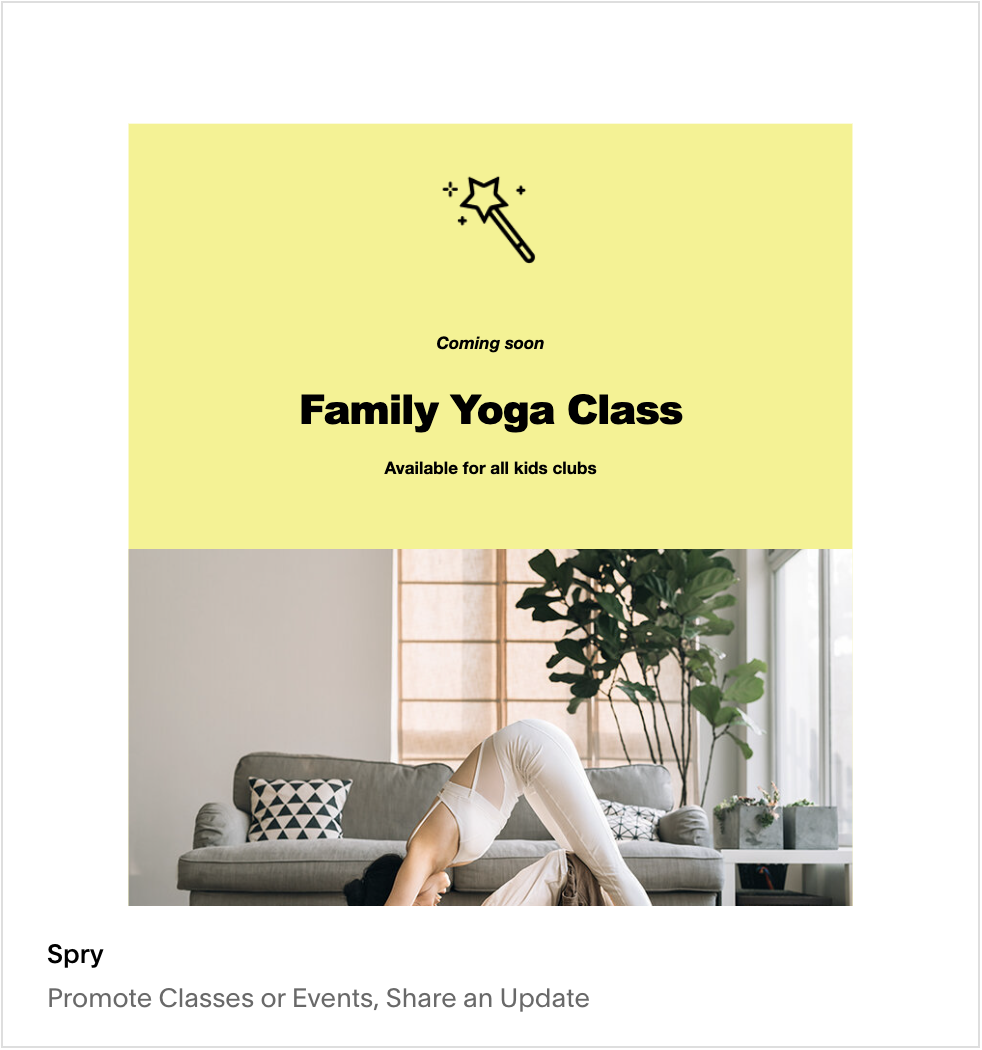
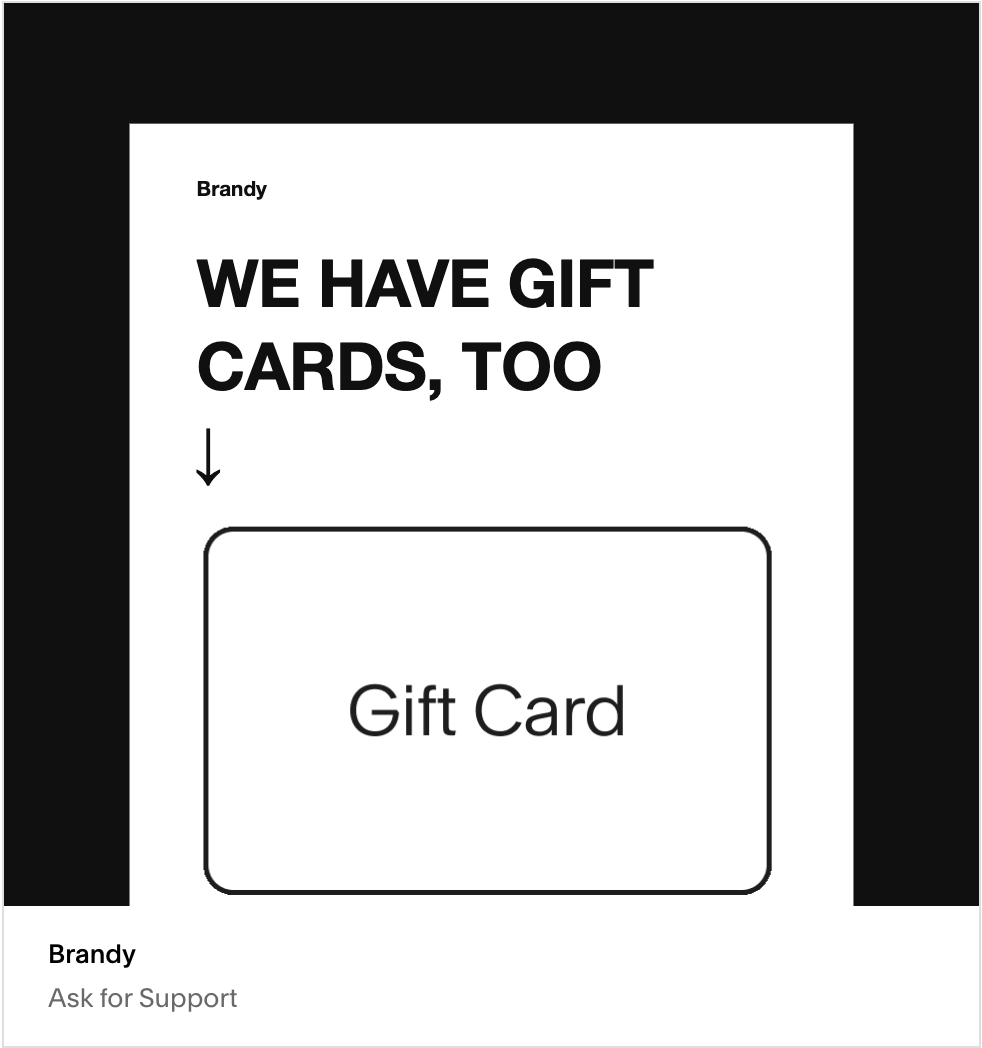
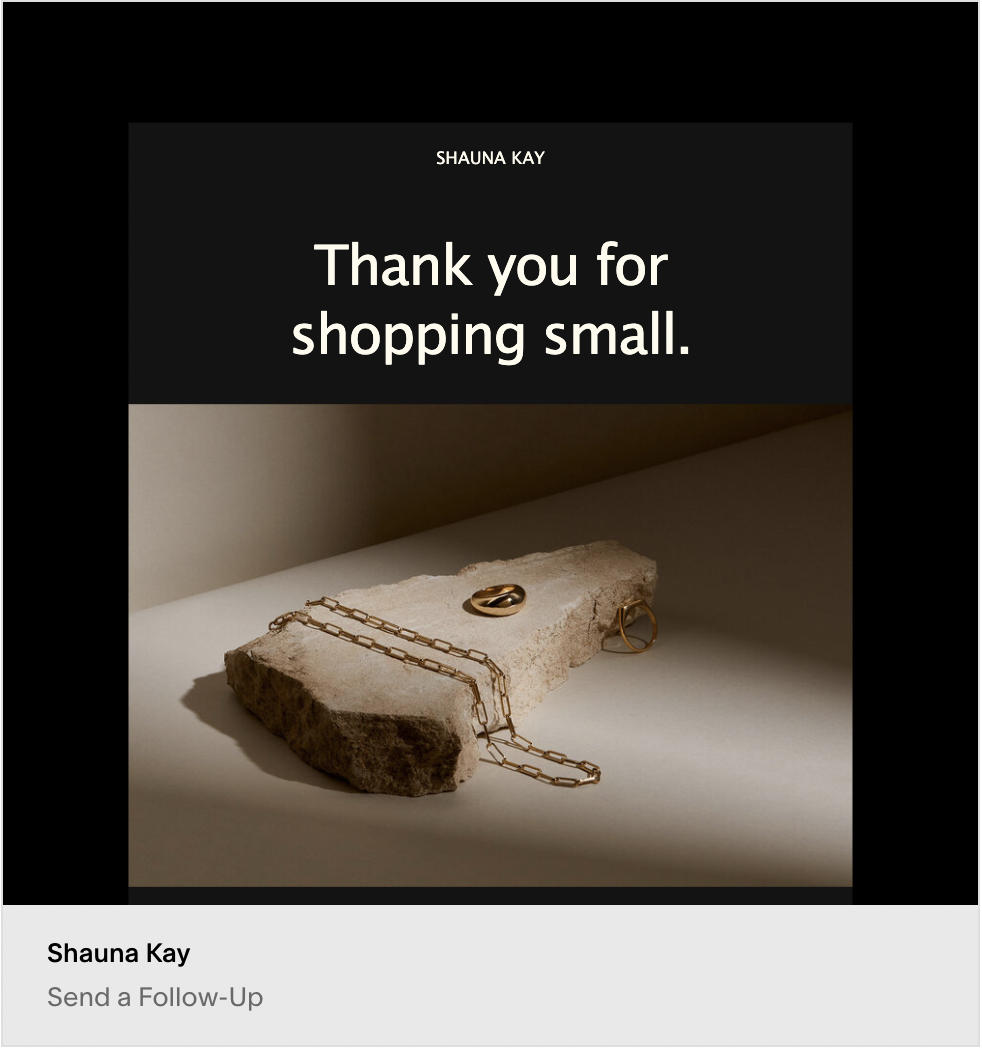
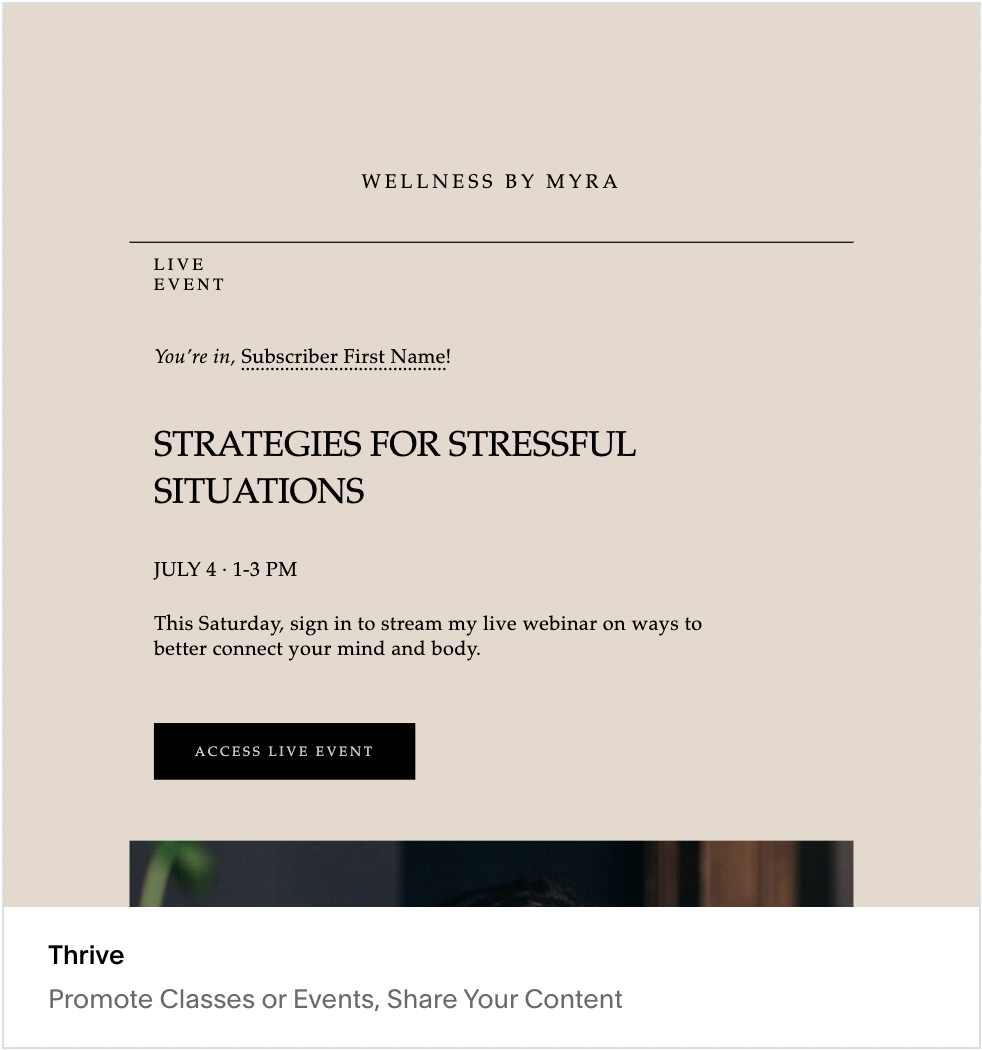

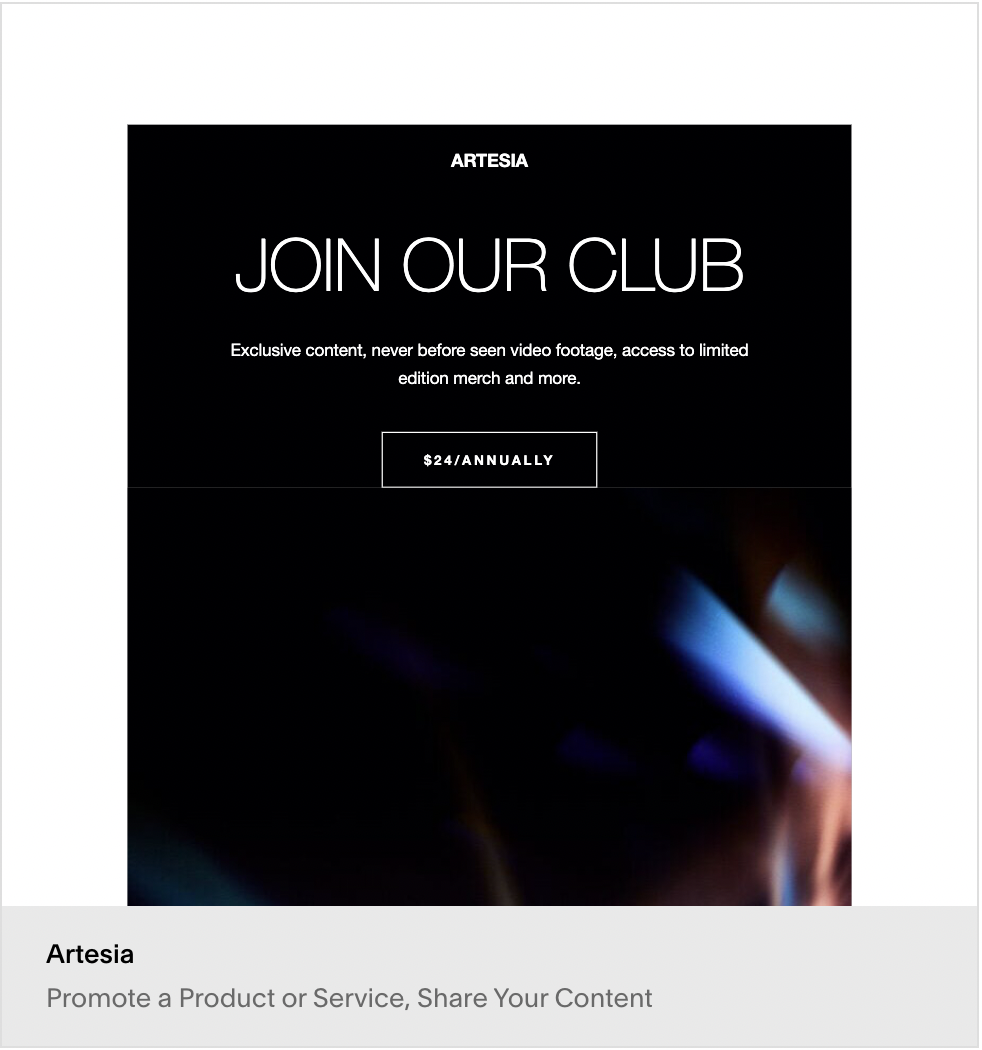
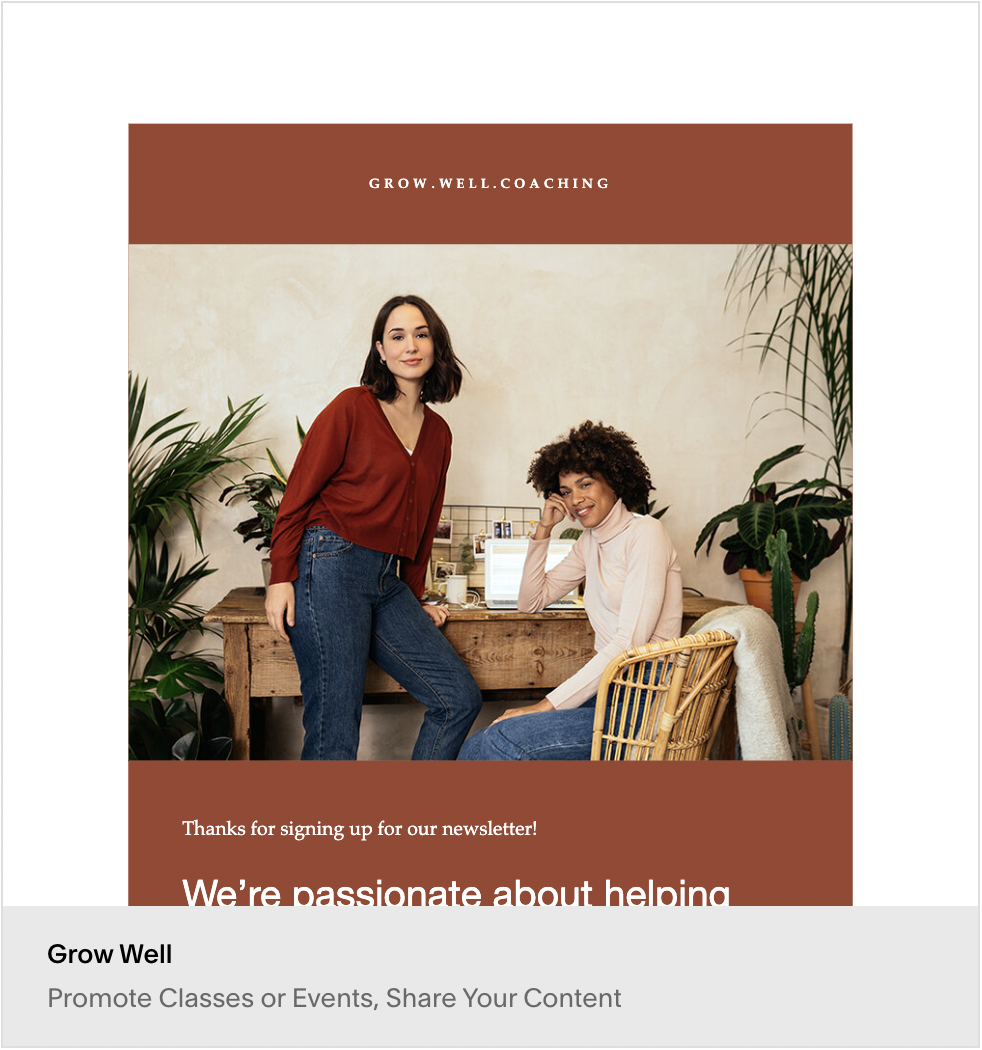
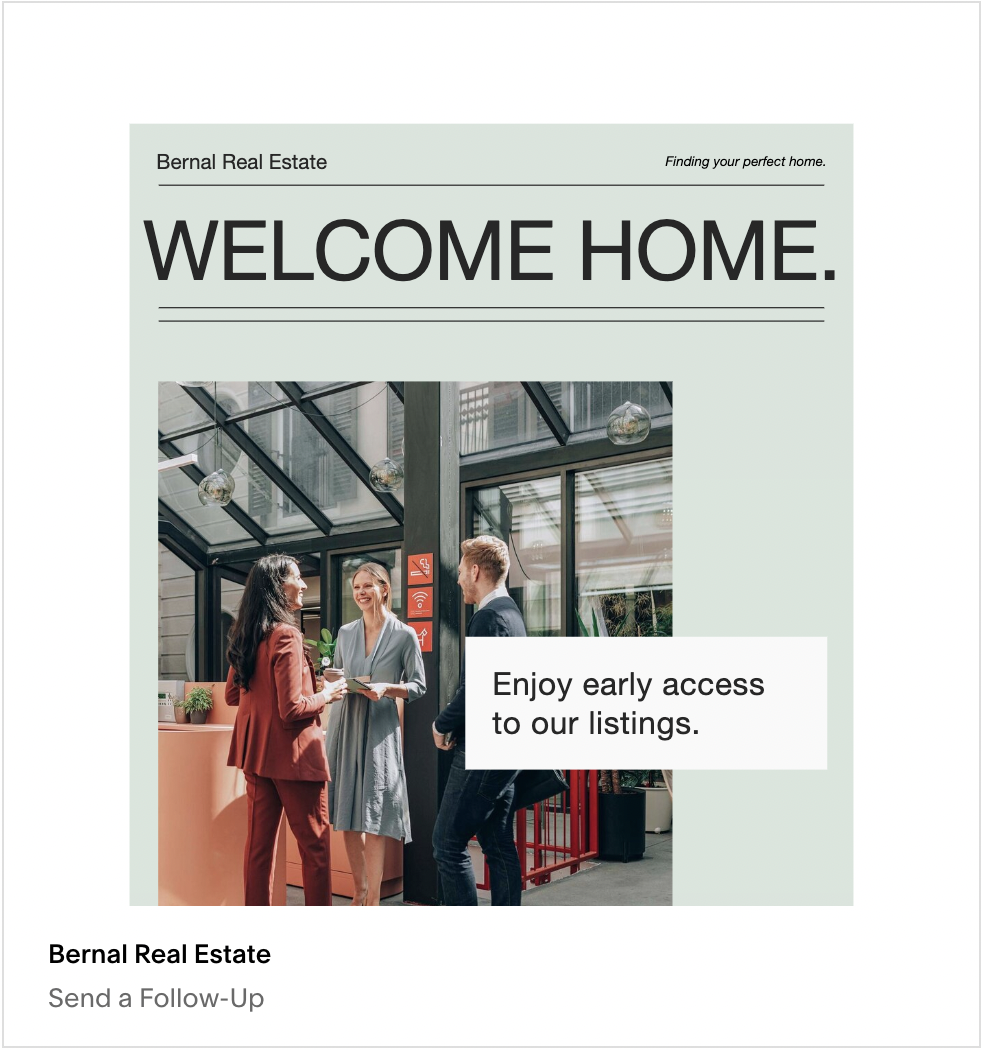
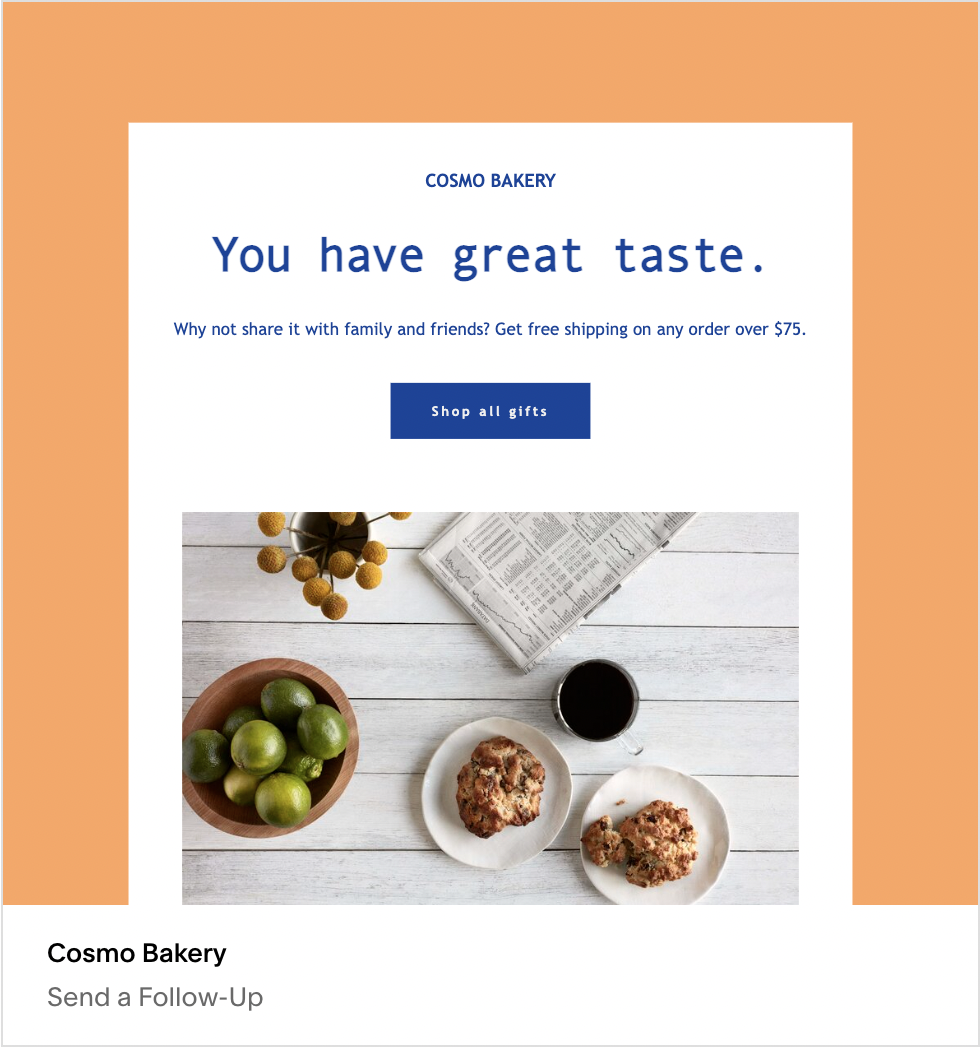
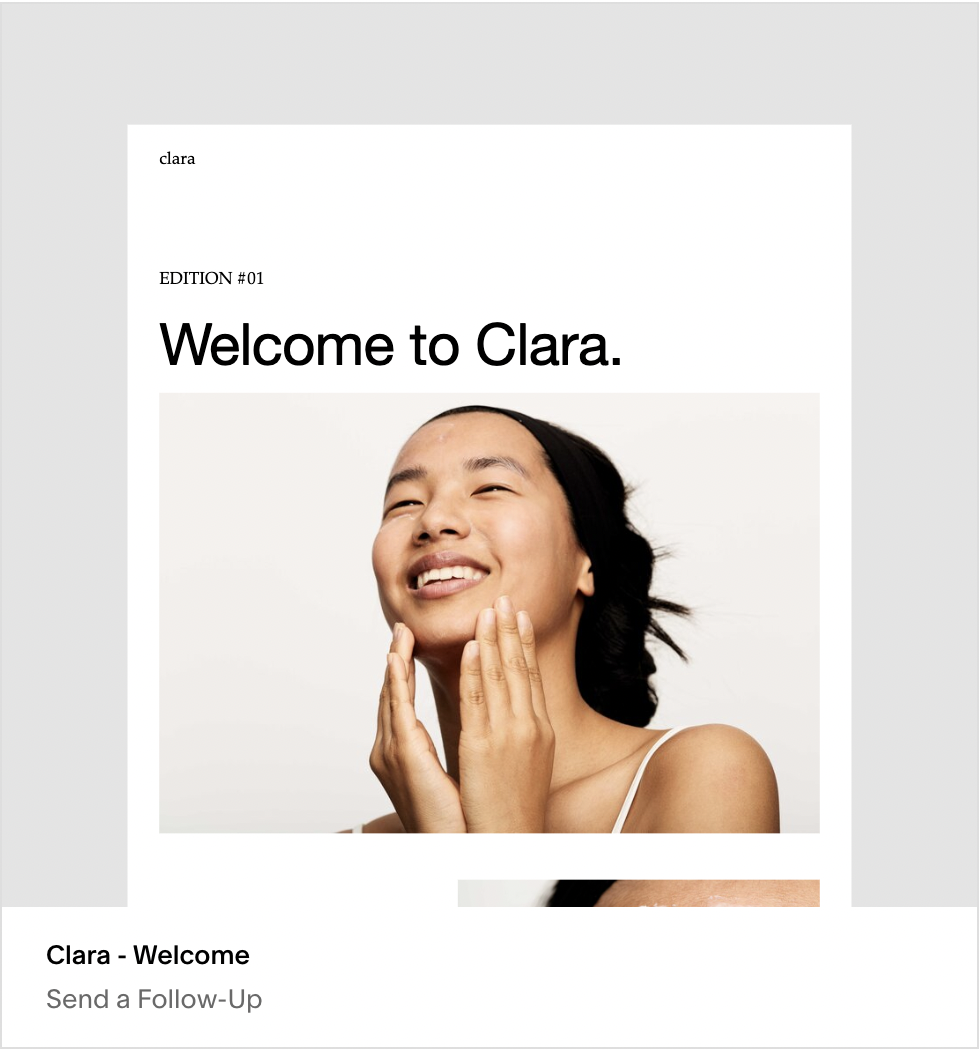
To see more go to Marketing > Email Campaigns > Create > Blast
How to create your own Squarespace Newsletter Template
Start with a blank template
Apply your site style. This should pull in your logo, font and color scheme.
Add the sections most relevant to your newsletter.

How to Find What Squarespace Template a Website is Using
2024 Update: Watch the video Below for the 10-second version
WHy it’s so hard to tell what template a Squarespace site is using
Three factors get in the way of simple identification.
1. The first is that templates are not publicly visible, at least, not on the site itself. You can’t always look at some name in the footer or a sidebar somewhere and identify the template a site is using. Most templates don’t advertise the template name on the front-facing design.
2. Second is the fact that you can expand the functionality of a Squarespace site with plugins and other third-party code. You can’t look at a lightbox and say “alright, it has to be one of the templates with a lightbox” because it could be a different template with a lightbox plugin.
3. The third is that there are third-party templates. A site using a third-party template might not look like other Squarespace sites. Fortunately, this isn’t necessarily an issue, simply because you might not know the site is a Squarespace site, so identifying the template might not be on your agenda.

Just keep that in mind if you’re not satisfied with any of the base Squarespace themes, you can always find a third-party template to buy instead.
The 7.0 And 7.1 Divide
One of the other issues you might run into is the divide between Squarespace sites using 7.0 and the sites using 7.1. When Squarespace released its new version, it changed how its site architecture works.

In 7.0, site owners have to pick a template and build their site based on that template. There are 21 different template families, many with variations within them. If you haven’t chosen a template for your site yet, it’s a simple matter to identify the template a site is using and pick the same one… as long as it’s not discontinued. Several old templates and template families have been discontinued over the years, so you can’t pick one of those to base your site on.
In 7.1, the idea of discrete template families was removed. Instead, there’s just one default architecture. Picking a template is, instead, more like picking a series of elements you want to be preconfigured on your site. You can add and remove those elements as you desire, which gives you much more flexibility. This does, however, make it harder to figure out what theme the site is using.
If the template that you fall in love with was designed for Squarespace 7.0, and your website is on Squarespace 7.1, that could pose an issue for you.
Identifying the Template of a Squarespace Site Manually
To identify the template a Squarespace site is using, you need to find the template ID code. Luckily, this is pretty easy to find.
1. Visit the website you want to check. It helps if you know the site is using Squarespace, but if you’re not sure, it’s pretty easy to tell; if the following steps don’t work, it’s not using Squarespace.
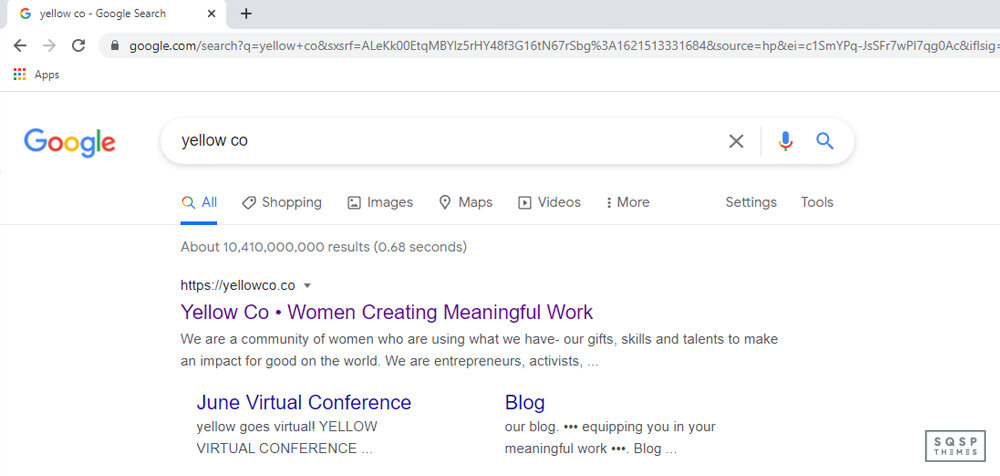
2. View the source code for the page. In Firefox or Chrome, you can right-click on the page and click “View Page Source” or click Tools in the menu bar, then Browser Tools, then Page Source. CTRL+U also works.

3. Use CTRL+F or click Edit – Find In Page, and type in “templateID”. This will search the source code for the templateID parameter, which is part of the Squarespace code base, and identifies which template the site is using. If no such code exists, the site isn’t using Squarespace.

You’re looking for a code string that looks like this:
“templateId”:” 55f0aac0e4b0f0a5b7e0b22e”
That string, the bit that starts with 55, is what you’re looking for.
Incidentally, you can tell whether the site is on 7.0 or 7.1 in the same string. Immediately after the templateID string is a version string. It looks like this:
"templateVersion":"7"
The 7 can also be 7.1, and there is a difference here.
This is cool, but how does it help us? Do you know what “55f0aac0e4b0f0a5b7e0b22e” means? I sure don’t.
What you need is a lookup table, something like this.
On that site, you’ll see a search bar and a list of strings. Copy the templateID and paste it into this search box, and you’ll be given a list of the templates that match that ID code.

Here are a few examples.
Site: www.sqspthemes.com
TemplateID: 55f0aac0e4b0f0a5b7e0b22e
Templates: Mercer, Nueva, Rover, Juke, Hunter, Sonora, Mojave, Heights, Keene, Motto, Hatch, Rally, Foster, Feed, Jaunt, Greenwich, Miller, Wav, West, Aria, Moksha, Maple, Fairfield, Mentor, Cacao, Sofia, Margot, Kin, Royce, Stella, Impact, Blend, Pursuit, Pedro, Vow, Hyde, Martha, Thorne, Brine, Clay
Here we have one of the most common problems: template families. All of the templates listed above are part of the Brine template family. Every site using any one of those templates will have the same ID number, and there’s nothing in the code that lets you identify which one of those templates is the one they’re using.

Site: https://yellowco.co/
TemplateID: 50521cf884aeb45fa5cfdb80
Templates: Montauk, Om, Kent, Julia
Here, we see a less broad template family. There are only four templates in this family, so it’s easier to identify which one is in use, though it still takes some back-and-forth comparisons.

Site: https://kale-seadragon-c93b.squarespace.com/?password=demo
TemplateID: 5c5a519771c10ba3470d8101
Templates: ???
Wait, what?
So, now we’re encountering a new problem. This third site (which is a demo site) is for a paid, third-party theme called Yoga. Since it’s a Squarespace theme, it has a template ID. However, since it’s a 7.1 template, it doesn’t show up in any of the template lookup lists. This is, as far as I can tell, the one code that simply means “7.1” and, since all 7.1 templates are based on the same core code, they all use the same templateID. So, if you see a template ID that matches that one, it’s a 7.1 site. You can verify this with the templateVersion flag right next to it, too.

Unfortunately, this means you can’t tell which variation of 7.1 is in use, or whether or not it’s a third-party template. On the other hand, since all 7.1 templates are the same, just using different modular elements, you can customize your own 7.1 version website to look the same as long as you can identify the elements you want to use.
Looking for a new template?
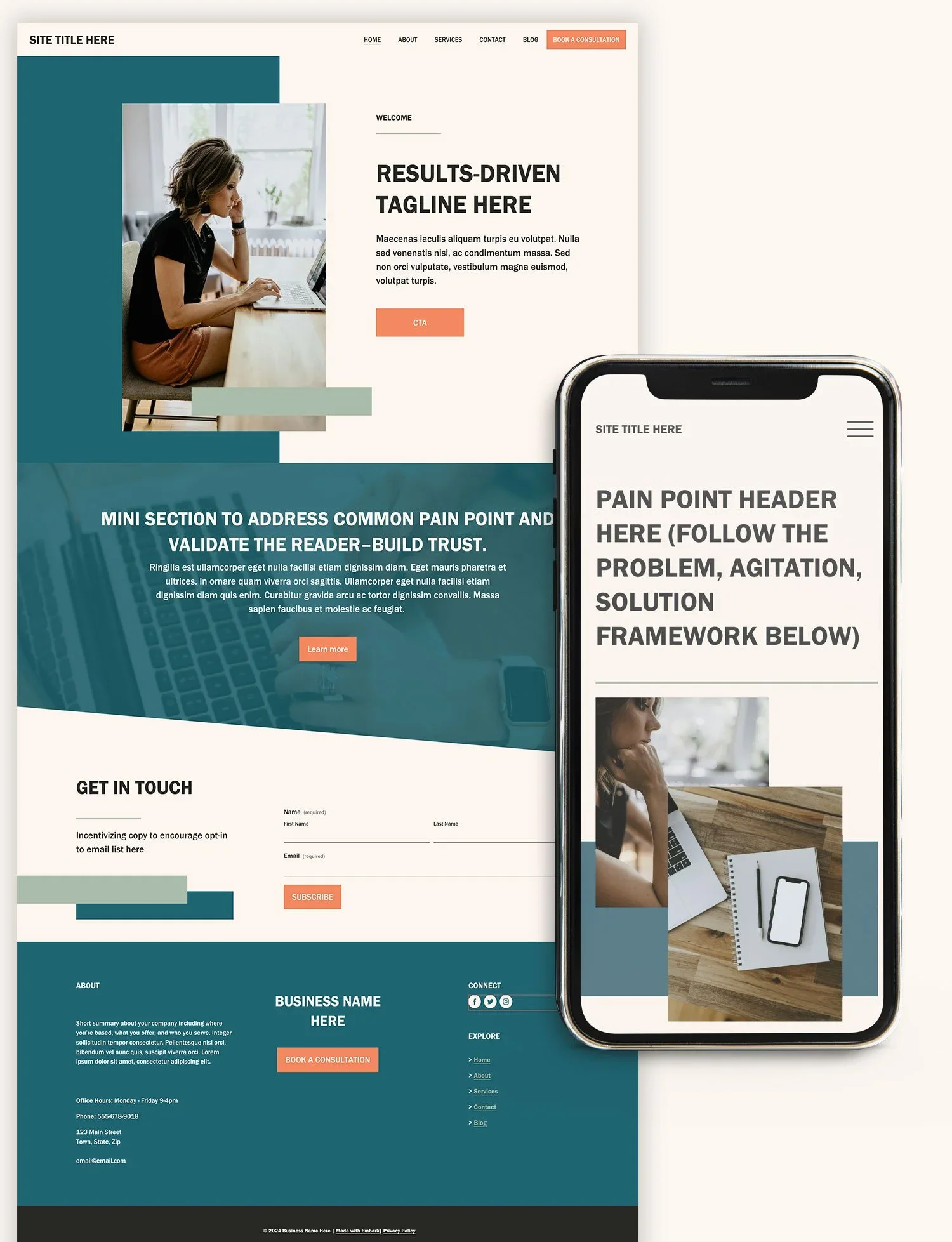
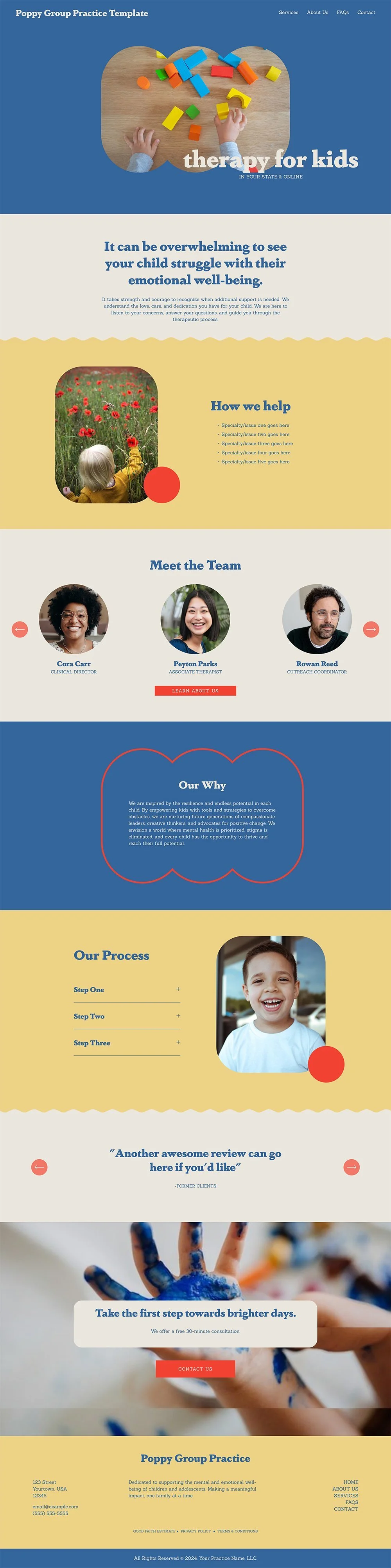
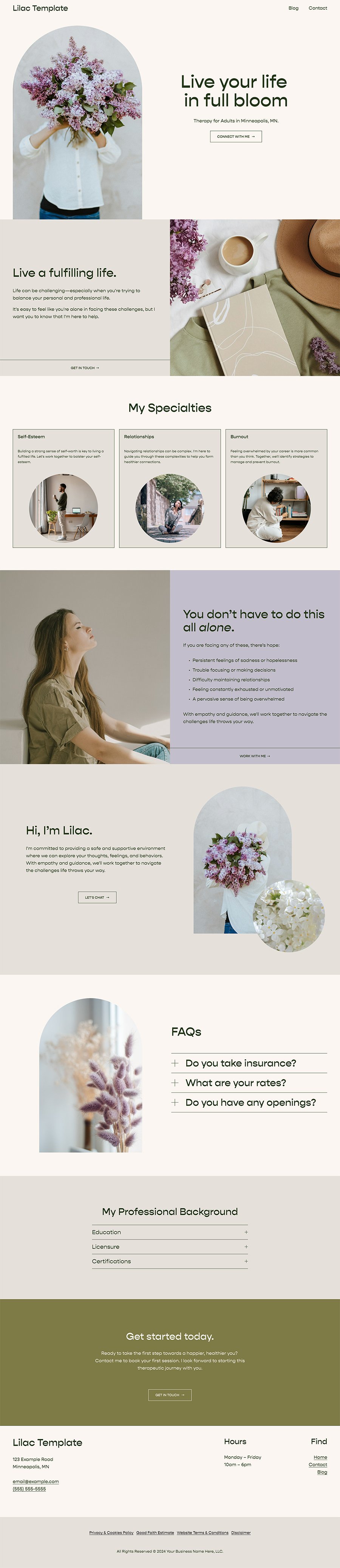
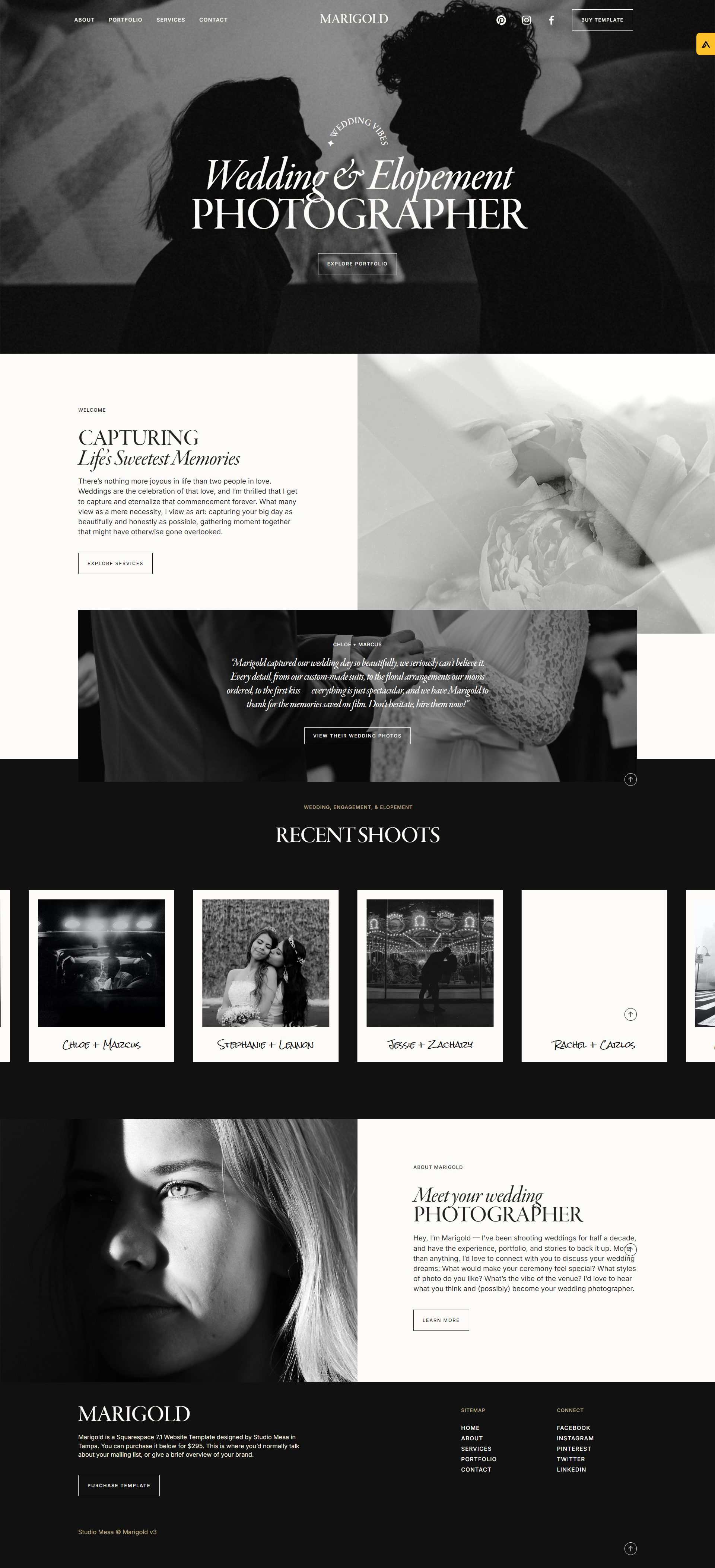
Checkout the latest from our directory














147