
What’s worth knowing in the Squarespace world.
For designers, developers, and people building businesses around Squarespace.

3 ways to Connect Squarespace to ShipStation
Squarespace is a powerful platform for starting up an online business, but it doesn't necessarily handle everything. One of the biggest gaps in coverage for businesses is shipping and fulfillment. As a business owner, you have the option to go with any of a dozen or more different shipping and fulfillment companies, but you have to pick one to run your business through.
One of the best is ShipStation. They're trusted by over 100,000 businesses and with good reason. So, let's take a look at what they offer, and how you can use them with Squarespace.
What Does ShipStation Do?

As I mentioned in the intro, ShipStation is a shipping and order fulfillment company. Their tool offers a wide variety of features to help order fulfillment, well, happen. When a customer orders something from your store, what happens?
Without ShipStation, the order information is delivered to you, and you have to handle it. You have to keep track of the order, you have to pull products, you have to create a shipping label and print it off, you have to package the order and mail it. It's all manual, it all involves a lot of paperwork or working with different spreadsheets and digital systems, and it's generally all a mess.
With ShipStation, all of that is handled for you. When a customer makes an order, that order is referred to your supplier, through one of their 70+ channel integrations. They handle everything that needs to be done between getting an order and shipping a product, with robust controls and reporting available to you. They do:
Order management. You can even set up automated rules to help you with applying actions to certain kinds of orders, based on criteria, performance, and even channel.

Shipping. They gather all of the information necessary to create shipping labels in the fastest and cheapest way, saving you time and money. They can also handle batch processing and printing.

Branding. The ShipStation shipping process can also be branded in various ways, from creating branded shipping labels to offering a custom returns portal to offering a tracking page for items.

Inventory. Anyone who has had to handle inventory manually knows how much of a pain it can be. It's even worse if you're dealing with disparate suppliers or multiple warehouses. ShipStation allows you to manage inventory alerts, view stock levels, and allocate stock easily.

They also have some unique features to go with their Squarespace integration. ShipStation uses Squarespace features including order syncing, customer shipping preference selection, tracking number updates, and Squarespace-based reports.
All of this is highly valuable, of course, so it's no wonder that so many businesses turn to ShipStation for their fulfillment needs. The question is if you're setting up a store on Squarespace, or you're converting from a manual system to ShipStation, how can you integrate the two?
Use Native Integration
The first and easiest option is to simply use native linking between ShipStation and Squarespace. ShipStation is well aware that a large portion of their userbase is on Squarespace, so they have native integration. It's also quite easy to set up. Here are the instructions.
1. Log into your Squarespace account.

2. Log into your ShipStation account. If you don't already have one, you'll need to register one.

3. In Squarespace, click on Commerce, then on Shipping.

4. Scroll down to the section labeled "Connect ShipStation" and click the Connect button.

5. Click Next, since you're already logged into ShipStation. Click Next again.

6. You will be given two pieces of information; your Squarespace Domain and a generated password. Save these.

7. In ShipStation, click on the Settings gear icon.

8. Click Selling Channels, then click Connect a Store or Marketplace.

9. Choose Squarespace from the list.

10. Paste in the Squarespace domain and password from earlier in the process, and click Test Connection.

11. In Squarespace, click Connect to ensure the ShipStation connection goes through.

12. In ShipStation, click Finish to finish adding your Squarespace store to your dashboard.
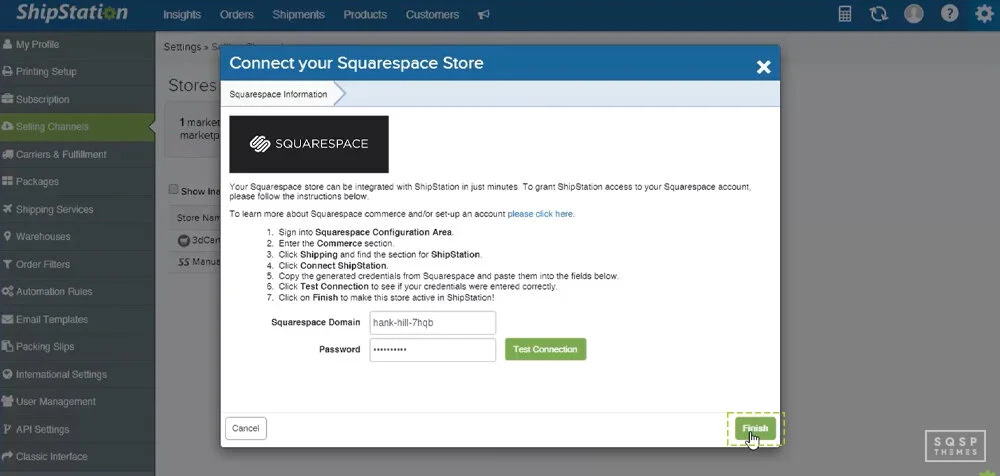
Once you've done all of this, you're ready to go. You can set up whatever rules, fulfillment options, and labels you need to configure. This is all part of using ShipStation; customizing shipping labels, choosing preferential communications channels, and so forth.
You can read more about this process, including watching a video of the connection process, on this page.
Use an eCommerce Plugin
If ShipStation has a default integration with Squarespace, why would you want to use anything else? Well, the truth is, there are several reasons.
First of all, ShipStation might not do everything you want it to do. While they do have a robust set of automation rules and customization options, they are still somewhat limited. Squarespace also only sends so much data to ShipStation via their API, so there's not necessarily an option to use some of your Squarespace information in order fulfillment.
For most small stores, this is fine. You don't need the world's most robust shipping and fulfillment platform when you're selling from one supplier, through one website.
Where things fall apart is if you have multiple sites. Many merchants set up accounts with multiple suppliers, and when you're managing multiple suppliers, you might need a more robust system to handle them. Additionally, some people set up multiple commerce sites in different niches, all selling through the same platforms. ShipStation will require you to configure each of these individually, and it can be a hassle to do all of this through Squarespace.
Using a "middleman" plugin can help a lot with this. For example, you have an option like CartRover.

CartRover is a platform that streamlines the order process. They sit in the middle of the network, aggregating all data feeds and distributing data to different channels as necessary.
So, on one side, you have Squarespace, with one or many different Squarespace sites. You can also use CartRover with various other platforms, such as Shopify. If you're running multiple different stores, they can all feed data into CartRover.
On the other side, you have the fulfillment system. ShipStation is the focus of today's post, but there are dozens if not hundreds of other fulfillment platforms out there, all of which perform similar sets of features. Finding the one you like the most (or using more than others) is part of the challenge of running a business successfully.
The key benefit to this system is that, if you choose to change aspects of your business on one side or another, you don't have to worry about a service interruption. If you change away from ShipStation, CartRover will still be receiving your data and can still forward it on as long as you have orders coming in. You can add integration for your new shipping system and seamlessly transfer over, without interruptions.
The same goes for the site side. Want to change away from Squarespace? I don't know why you would, but if you do, you can, and you will just need to forward data to avoid interruptions. You can read more about this integration here.
Use an Automation Engine
In my mind, if you're going to use a middleman, you might as well go with something more robust. CartRover is great if all you want to do is manage the transferring of eCommerce data from Squarespace to ShipStation, with a little extra thrown in for management and flexibility.
However, CartRover only does so much. They're an automation engine, but not a true automation engine. They're narrowly focused.
True automation engines are just API linkups that allow you to do whatever you want. You can send data through ten different systems automatically with the right configuration of flows. Want to send data to an archive? Want to automatically generate custom reports? Want to handle data in a unique way? Want to inject custom code with API access? You can't do that with Cart Rover or with default integrations.

If you want a more customized solution, you want a real automation engine. Luckily, there are several you can try. Zapier, Automate.io, and IFTTT are all popular options. There are, however, quite a few more out there. Microsoft owns one, for example, as does Adobe. If you have ties to one or another ecosystem already, using their system might be a good idea.
The biggest downside to using an automation engine is that you need to customize everything yourself. A platform like CartRover has all of the business processes you need already configured. With something like Zapier, you need to configure it all yourself.
While this gives you more flexibility, it also means you have to make sure you're covering all the bases. If a user purchases an order of multiple products, will it be bundled properly? If they apply a shipping discount, will the data be forwarded correctly? You need to think through the process carefully.
You're also susceptible to API limitations and limitations on the platform itself. This can be an added expense you don't want to pay, on top of what you're already paying for Squarespace and ShipStation.
Alternatives to ShipStation
ShipStation is a pretty great shipping and fulfillment platform, but it's not the only one. As I've mentioned, there are quite a few others out there.
If the reason you want to use something like CartRover or Zapier is that you want a feature that ShipStation doesn't offer by default, another thing to consider is that maybe a ShipStation alternative does. So, what are some of those alternatives?
Spocket. This is a fulfillment app specifically made for dropshipping. It works with both US and EU suppliers, making it an ideal platform for that particular kind of eCommerce. It helps you get wholesale prices, which is a core business model for many.

ShipBob. This shipping and fulfillment platform is often cited as one of the biggest competitors to ShipStation. It too has Squarespace integration by default. More importantly, it allows you to leverage their network of global warehouses, so there's virtually always going to be two-day shipping no matter where in the world your customers happen to live. It's very convenient and surprisingly cheap for what it is.

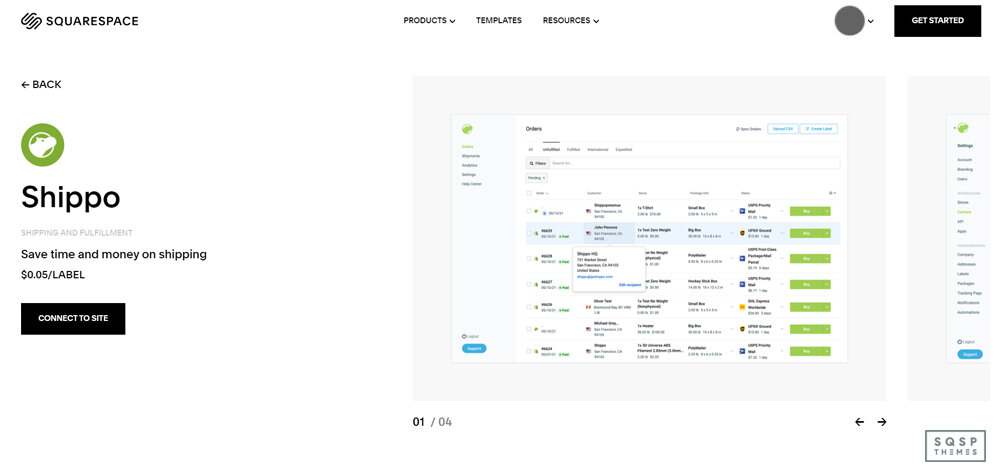
Shippo. What about cases where you want to handle all of the shipping and fulfillment yourself, but you don't like the way Squarespace runs things? Shippo is a simple app that handles generating and printing shipping labels, very cheaply. They can get you discounted shipping rates for all of the major carriers, automatically. The downside is, well, that's all they do.
Order Desk. This is an order management app similar to ShipStation, intending to add more automation to the entire process. They have a rule builder to help you sculpt out a completely automated workflow. They have over 300 integrations with other systems as well, so if you want to add in another data feed the way you might with Zapier, you can do it from one centralized platform. It can work quite well.

Easyship. This is very similar to both Order Desk and ShipStation. It does shipping labels including discounted shipping, it syncs orders and handles returns, and it has worldwide tracking integrated into it.

These are just the shipping and fulfillment apps available to you with Squarespace by default. If you're willing to link a third-party app instead, you have even more options on the table. Pretty much no matter what you want to do with your shipping, you can, if you can find the right app.
Which Option is Best?

So which of these choices is best for you? Well, that depends entirely on your business needs. If you're trying to get a simple system up and running, using the default integration with ShipStation is more than enough. If you want something with more robust features or deeper integration, using a middleman is great. If you want a completely custom setup, Zapier or Automate.io can help. It all depends on what you need and how your business grows over time.
Have you used ShipStation with a Squarespace site before? If so, how did it work out for you? Let me know in the comments below.

How to Set Up Email Newsletter Campaigns on Squarespace Sites

Newsletters are among the best possible forms of marketing you can leverage as a website owner, small business, or blogger. Why?
Well, three reasons.
They’re entirely independent of other platforms. You don’t have to worry about Google’s algorithm dropping your site, Facebook’s algorithm only showing you to 7% of your audience, or any other third-party system getting in the way. Even if your mail manager drops you, you don’t lose your list and import it into another system.
The audience is guaranteed to be interested in you. No one signs up for your email list if they aren’t at least somewhat interested in your business, brand, product, or service. Thus, your mailing list is self-selected to be one of the warmest and most targeted audiences you can get.
They keep your audience warm. Even if your users aren’t opening your emails (which you can strive to fix), simply receiving emails from you reminds them you exist and keeps them thinking about you and the reason they signed up in the first place.
The trick is, you need to do a lot of work to get a newsletter up and running. You need to upgrade your site with opt-in forms, you need to deliver compelling offers, you need to make your newsletter attractive, and you need to manage a newsletter to show on your promises.
Don’t get me wrong, a lot of the work in setting up a newsletter only happens once. It’s a steep up-front cost, followed by a lot of maintenance and optimization. Once you have your opt-in forms up and running, all you need are a few simple tweaks to keep them relevant; you don’t have to go through the whole process again.
So, if you’re running a Squarespace site and you want to get a newsletter up and running, how can you do it?
Let’s dig in.
Managing a Newsletter
You first need to decide what system you want to use to manage your mailing list and newsletter. This is your choice of platform, similar to how you chose Squarespace to build your website. Your newsletter platform determines various essential factors. For example, how often or how many emails you can send in a month, or the maximum size of your mailing list, and the pricing for managing it. Or, as another example, what tools do you have access to when developing your newsletters themselves.

There are many different options out there, so I’m just going to list a few and let you explore yourself. You can always change later; your mailing list is your property, and you can export/import it at any time from any system.
Option 1: Squarespace.
First up, did you know that Squarespace has a built-in email manager? You can use specific content blocks in your website to gather email addresses and manage your list and your newsletter directly through Squarespace.

This strategy has a couple of advantages. First and foremost, since it’s Squarespace, it’s all managed in the same place you manage your website. No third-party logins or connections are required. The newsletter creation tools also function very similarly to your website creation tools, so you’ll instantly be familiar with them.
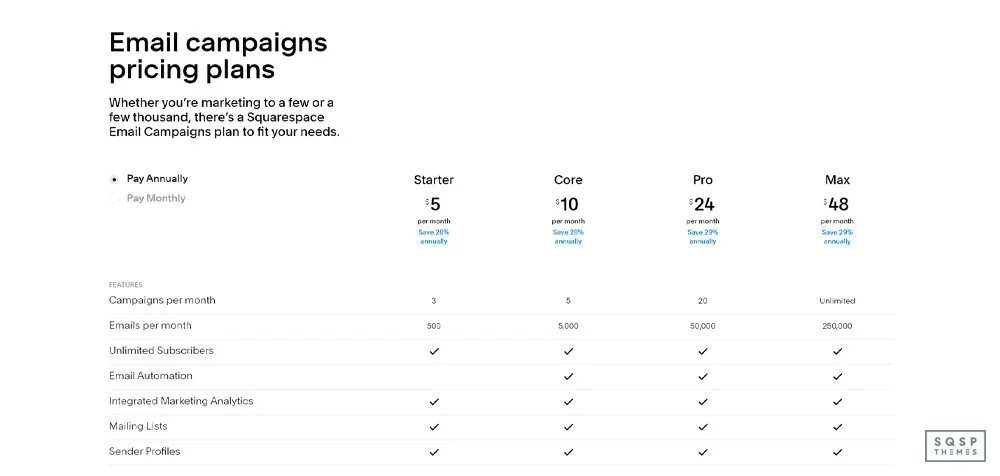
On the other hand, newsletters are a premium feature only available if you purchase an additional email campaign subscription. All paid Squarespace sites have access to a limited trial of email marketing, but if you want to use it seriously, you’ll need to pay that additional fee.
Option 2: Mailchimp.
In the section above, I mentioned that Squarespace has newsletter blocks. These are content blocks that include opt-ins for your mailing list. They’re critically important for building your mailing list. They also can be connected to systems other than just Squarespace Email. You have three options: Squarespace Email, Mailchimp, and Zapier. You can also choose to send email data to Google Drive for use in other systems.
For now, let’s talk about Mailchimp. Mailchimp is one of the most widely recommended beginner email campaign managers, and for a good reason. They have a wealth of features and advanced content available to anyone looking to manage email campaigns. They’re very flexible and have a ton of options. They even have a free plan you can use to try out their system!
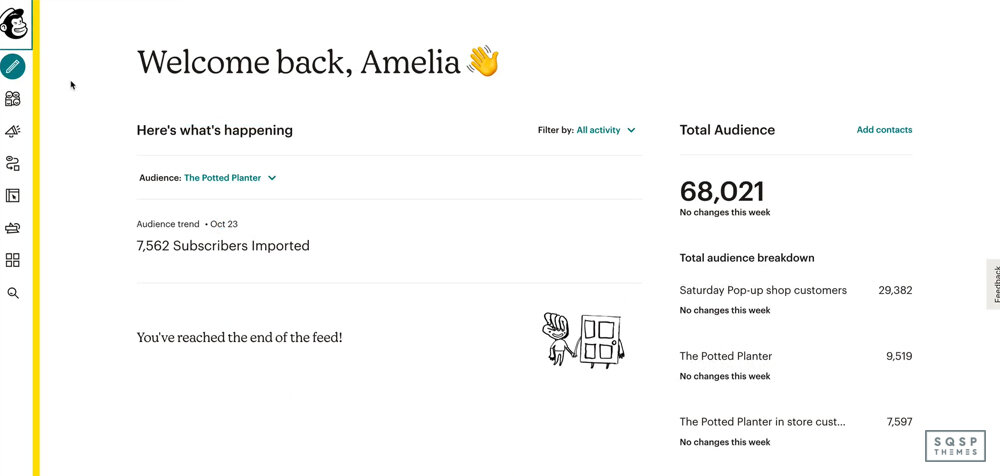
Since Squarespace blocks can link directly to Mailchimp, I like to recommend them as the go-to if you want email managed separately from your Squarespace account. It’s the easiest one to set up, anyways.
Option 3: Zapier Systems.
Zapier is an automation engine.
It’s a system that hooks up APIs that don’t directly connect, working as an intermediary. Using newsletter blocks, you can send data to Zapier, sending it to other email systems that Squarespace doesn’t natively support.

Through Zapier, you can send your email opt-ins to other email management systems, including ActiveCampaign, HubSpot, Constant Contact, and ConvertKit. There are well over 100 different systems you can link with Zapier, so you’ll have to explore them yourself if you want to know for sure.
Option 4: Other Systems.
Suppose you don’t like Zapier and don’t want to use Squarespace or Mailchimp to manage your emails. In that case, you can export data directly to Google Drive and import that data manually into any other system. It’s less automatic and more roundabout, but hey, some people prefer that.

Which option should you use?
Honestly, I say go with Squarespace to start. You can always change later, and Squarespace has the least hassle setting everything up.
What Is a Double Opt-In?
Something I need to touch on before we go too much further is the concept of a double opt-in.
Having your newsletter flagged as spam and automatically filtered by email systems like Outlook and Gmail is one of the worst things that can happen to a marketer. There’s a lot you can do to avoid that happening, but a double opt-in is one of the most important. As you might guess, there are both single opt-in and double opt-ins, so what’s the difference?

A single opt-in means that you have a form on your site that users can put their email address into.
When they do, they are automatically enrolled in your newsletter. It’s quick, easy, hassle-free, and you can deliver content to your audience member immediately. However, it also has no verification, which means you can flood your list with low-quality leads, spam, and users who didn’t use their email to sign up.
A double opt-in, as you might be able to guess, begins the same way. The user puts in their email address to sign up. However, before you can send them messages, you need to get confirmation. Your system sends a confirmation email, and the user signs in and clicks it, adding them to the list. This filters low-quality leads, spam, and typos. However, you have to deal with issues like users failing to confirm their address or the confirmation email being filtered as spam.
Studies generally show that a double opt-in is better for marketing, so that’s what I always recommend.
Setting Up Opt-In Forms
Just having a newsletter system set up does you no good if you don’t harvest emails. Whether it’s a slide-in or pop-up lightbox, or just a newsletter block embedded in your content, you need to have some way for users to give you their email address. That means you need to use forms on your site.

Squarespace has complete documentation for using their newsletter blocks here. This is going to be the bread and butter of your opt-in campaigns on Squarespace. You can use other forms, but none of them are as smooth as these.
You can also make your opt-ins more visually attractive by displaying them in unique ways. For example, if you use a lightbox plugin, you can show your opt-in in a lightbox pop-up. You can also use third-party opt-in forms using a code block. I recommend adding as many call-to-action boxes as you can reasonably support, testing which positions work best, and then pruning out the ones that get no attention.
How to Encourage More Opt-Ins
Once you have your back end set up and tested, you need to get people signing up. So, how do you encourage more sign-ups?

There are a lot of options.
Put your call to action in innovative places. In Squarespace, anywhere you can put a custom code block or a newsletter block is a place you can put a call to action. Mid-content, in a sidebar, in your announcement bar, on a landing page; these are all great options.
Don’t ask for too much. Some custom forms allow you to ask for a bunch of information like name, location, company name, and so on just to sign up. The more fields a user has to fill out, the less likely they will sign up at all.
Gather testimonials about your newsletter. Sometimes all it takes is one or two testimonials from prominent, recognized authority figures in your niche to convince people your newsletter is worthwhile.
Give something away. A coupon, a free trial, an e-book; you have many options for free items to give to people who sign up. Just be aware that this can result in people signing up for the product but never opening your newsletters down the road.
Advertise your newsletter elsewhere. Facebook, Twitter, your email signature, your business cards; anywhere you can showcase a link to a landing page designed to get email opt-ins, the better.
Enroll users who make a purchase. Whether you’re creating a user account or just asking for a contact email, anyone interested enough to make a purchase is interested enough to be on your mailing list.
You can use any of these techniques in conjunction with one another. When your primary goal is to get more sign-ups, it doesn’t matter if you’re coming at a user from all angles; something has to work.
How Often to Send Newsletters
Once you have a mailing list, you have to decide on two things. First, are you doing email blasts or automated campaigns? Second, how often do you send?
So, what’s the difference between a blast and a campaign? Well, a blast goes out to everyone on your mailing list at the same time.

An automated campaign is like a drip campaign that begins when the user signs up and sends at an interval custom to them.
My recommendation?
Use both. When a user signs up for the first time, start a drip campaign for a few weeks or months. When the drip campaign ends, transition them to your regularly scheduled blasts.
How often should you send blasts? That’s up to you. Some companies send them daily, and others do weekly; some even monthly or quarterly. There’s no correct answer here; it depends on how much content you share and how much value you want to deliver. You might find that more frequent emails end up opened more often because people are constantly aware of you and your content. You might find that less frequent messages work better because they’re guaranteed to have more value per message. You need to test to be sure.
Newsletter Housekeeping
A mailing list isn’t fire-and-forget. You need to maintain it, which means taking steps to ensure that you only send messages to people who want them.
The biggest tool you have in your arsenal is seeing when users open your email through mail tracking. Most email systems offer this. When you notice that a user is failing to open any of your messages, you can move them to a triage list. The triage list receives a “hey, we noticed you aren’t opening our messages” email.
Users who open that message can be moved back to your mail list; those who do not can stay on the triage list for 1-2 more attempts before being removed from your list entirely.

The more people who archive/delete/mark your messages as spam without opening them, the more likely systems like Google will start to flag your domain as a spam domain and filter your messages. Avoid this situation as much as you can.
Another thing to watch for is bounced emails. Sometimes an email address is broken, is fake, or is deleted, which causes messages sent to the address to fail.
Remove those emails from your list.
Pruning your list improves your email metrics and helps you reach your audience more accurately.
Overall, the maintenance and growth phase is easy and straightforward, just time-consuming and ongoing. Still, when you realize how many additional sales you get from users on your mailing list, you’ll wonder why you didn’t start one sooner.

A Guide to Social Proof and Trust Badges on Squarespace

When someone lands on your website, how do they know they can trust you? Conversely, when you land on a website, how do you know that you can trust it?
We all know the big retailers and brands. We know that if we purchase from Amazon, or Nike, or Disney, we're going to get what we paid for. There may be issues relating to shipping or the quality of the product, but that's not an issue with trusting the website; it's just the nature of the product.
What about a small business running a website on Squarespace? How do you know whether or not to trust the site? What do you look for?
In general, there are four categories of "things to look for" on a website that indicate it can or cannot be trusted. These are:
Design and structure elements that indicate trust.
User interaction elements that indicate trust.
Trust seals and badges that provide trust from a verified third party.
Statements that proclaim the site is trustworthy.
They can be subtle, or they can be overt. They can be minor elements that only appear on landing or checkout pages or elements at the forefront of the homepage. And, in some cases, they can even backfire. If you say "don't worry, you can trust me" a few too many times; people start to wonder why you're so aggressive about saying it.
These site elements are called social proof. They're ways you inform your audience, via your site design and content, that your brand is trustworthy. Since the internet is packed full of people operating sites, and many of those people are doing it to scam others out of money, it's a minefield. It's no wonder that central authorities like Amazon, eBay, and Etsy have taken over so much commerce; they provide protections, verification, and trust. Of course, the tide is turning, and public opinion on sites like Amazon is shifting away and back to small sellers, but that's just the ebb and flow of commerce.
So, here's our situation.
You're a small business owner, an individual freelancer, or another seller online. You have a Squarespace website (excellent!), and you want it to be more trustworthy, so users feel more confident in shopping with you. How can you do it?
The answer is to implement social proof. The only question is how. Let's go through each of the four categories and cover what you can do to implement them.
Category 1: Design and Structure
Have you ever visited a site, and you've just felt that it was super shady? Sure you have. Who hasn't?
You probably just left, though, rather than looked into why you felt like that. What it comes down to is a combination of a shady offer and the design of the site. It's like spam email; you know an email is a spam message when it's full of typos, filter-avoiding symbol replacements, and too-good-to-be-true claims.

You can boost how trustworthy your site looks and feels with structural and design elements for a website.
A graphical logo. This one is important on Squarespace. The default Squarespace site lets you use a textual element for your "logo," but many sites appear less trustworthy when they don't have a graphical image as a logo. It doesn't necessarily matter how unique the logo is – a simple circled letter or name in a box (like mine) is enough – but it's better than a plaintext brand name up in the corner.
Why? Well, it's one of many signs you'll see on this list of "effort put into the site." Most scam sites online are created with the barest minimum of effort and expense.
The more energy, time, and money it takes to launch a scam site, the worse the returns will be for the scammer, right? So by putting effort into things, you show that you're concerned about something other than profit. A clean and well-built site is one of the most important trust signals.

A robust and modern design
This tip follows from the previous statement. While it's relatively easy to get an excellent, sleek design on Squarespace, having a customized website with care put into it is so much better. For example, using plugins to expand functionality, using a customized theme instead of one of the defaults, and generally customizing the design of your site to be unique are all core signs of trust.

A custom domain name. Using a .squarespace.com URL, or a .blogger.com or .typepad.com or whatever other free services you find is a sign that minimal effort or time is being put into the site.
It's okay for personal blogs, but for a business? If you're not even willing to pay the $15 a year it costs to register a domain name for your brand, how can your customers expect you to provide quality products or services?
Luckily, Squarespace makes it easy to link up a domain name.

SSL implementation
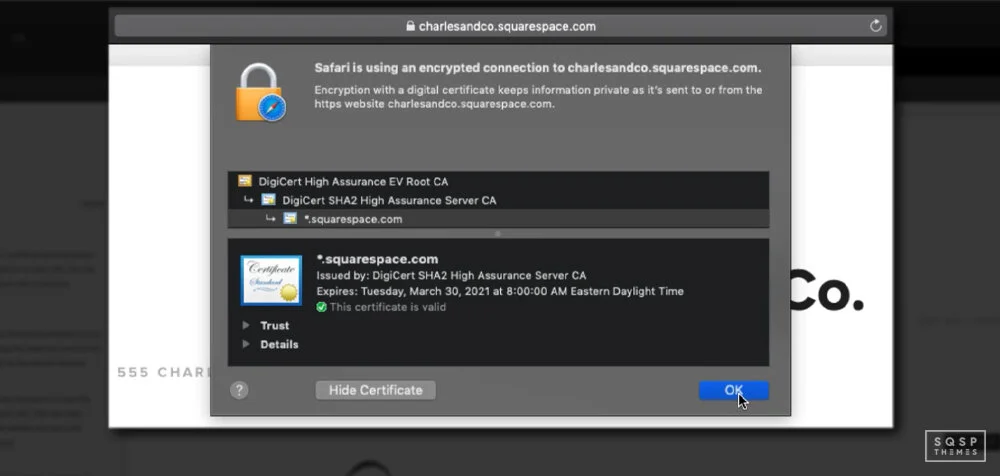
Many different forces are interacting to make SSL a necessity these days. The prevalence of hackers sniffing for data, the increasing concerns about privacy and tracking, the prominence of the green lock in browser windows; all combine to make people more aware of secure websites than ever. Using SSL is just enough of a bar for spammers (and still prevents third parties from stealing your data even if a scammer is on the other end) that it's essential to implement.
Integration with trustworthy services.
This one is a bit more nebulous, and not everyone can do it, but let's say you have an app for sale. If you have buttons that link to the Google Play store and the Apple App store, that's a pretty good sign that you're at least somewhat trustworthy since those services have heavy review processes and are trusted installers for devices. If you link to a raw .apk file, it's much less trustworthy.

Availability of contact information
Another source of trust, and one that users may consciously look for rather than subconsciously note, is how easy it is to contact you if they have a question or an issue. They might look for an About Us page, a privacy policy page, or a contact page.

They might check to see if you have a physical address or just an email address, if you have a phone number, or if you have identifiable information they can use to reach you. You can also implement something like a live chat plugin, which your customers can use to contact you directly. These are resources that your customers will look for as soon as they land on your website.
Category 2: User Interaction
The second category is user interaction signs. These are visible signs that people other than just you are using the site successfully.
Studies have shown that 92% of people will trust a recommendation from a peer, and 70% of people trust recommendations from people they don't even know. That's a pretty powerful incentive to add in user-generated social proof!
There are a few ways you can do this.

Testimonials
Asking for and receiving positive recommendations from your customers in a format you can use (with their name and attribution) is a great way to boost a site's credibility, especially if you have customers who are themselves noteworthy in some way. If I got a shoutout from the CEO of Squarespace, that'd be excellent social proof for me.
Reviews
Typically on product pages rather than dedicated testimonial pages or homepages, reviews are real customers' honest thoughts and experiences. It can sometimes be a pain to solicit these, but they're valuable when you have them.
Company features
You may have seen brands with lists of logos, typically news agencies and industry blogs, where they've been mentioned, linked to, or featured. Big, authoritative sites usually don't recommend scam sites, so this is another form of social proof.
Activity
Plugins like this one create a little pop-up in the corner showing other customers are actively buying what you have for sale. They cheat a little bit (showing within a given period, so it's not precisely real-time), but they're still a useful little tool. As a bonus, this can trigger FOMO (the fear of missing out) and get people on the fence to convert before a time-limited offer or quantity-limited product is gone.

Other signs of user interaction can be beneficial, though in a more roundabout way. For example, you're probably running a blog for your site (and if you're not, you should be), and you likely have a comments section.
If your blog posts are getting comments, even if it's only a few of them on each post, that's a sign that users like and trust you. Just make sure the comments are genuine and are not spam!
Category 3: Trust Badges and Seals
Trust badges and trust seals are tiny graphics you can display on your site showing that you've been verified as trustworthy by a third-party service. A restaurant lists its health department inspection certificate, for example.

On a website, you'll see trust seals from sites like:
BBB: Better Business Bureau accredited business.
Google Verified Customer Reviews
Amazon Best Seller
VeriSign
McAfee Secure
PayPal Verified
TRUSTe Certified
There are dozens if not hundreds of sites that provide these badges. Unfortunately, it's pretty easy to go overboard here in two ways.
The first is by using a third-party service that is not trustworthy. After all, if your only trust seal comes from a company you can pay $5 to get a trust seal from with no review or further inspection – or from a company that no one has ever heard of – it's not a verification. It would be like if I went around and started "inspecting" restaurants and giving them seals of approval. I'm not even a food blogger; my inspection holds no weight. Why would anyone trust me?
The other is by using too many trust seals. Less is more here. You want, at most, four or five badges in strategically placed spots. A PayPal verification and an Amazon Payments verification both on your checkout page are acceptable. A few trust seals on landing pages around an opt-in form are also good. Are you plastering 20+ seals all over your product pages?
That's just going to make anyone skeptical.
There's also the idea that many of these trust seals are embedded images from those third-party sites.
If you don't have an account and verify with the site, they'll take down your image, either by removing your ability to link the picture or filing a DMCA. Of course, that's only worthwhile if the user knows that they should check the image source.
Unfortunately, trust seals, in general, aren't all that valuable. You can use a couple of them, but make sure the issuing authority is trustworthy and doesn't go overboard with it.
Category 4: Statements and Claims
The final form of social proof is the claims you make. Your homepage might say, "Trusted by over 100,000 customers worldwide!" Your product page might have "10,000 verified items sold."
These kinds of claims tell the user what scale of operation they're dealing with.

There are, unfortunately, two problems with this.
The first is that the scale matters. If you're a small business and have fewer than 100 customers, proudly proclaiming "90+ customers served!" isn't going to inspire much trust. This is why many social sharing button plugins would hire the number of shares a post has until it reaches a certain threshold.
The second problem is that, well, there's no verification of this. I could say I have over a million customers, and how would you be able to prove otherwise? Your claims need to be true, accurate, and realistic for your brand's prevalence and exposure. It helps to have third-party verification in the form of mentions and reviews from a wide range of other sites, but that's a whole other issue.
Building Trust
Trust is hard-won and easily lost, so doing everything you can to build up the signs of trust is a good idea, and sooner rather than later. The order of categories above is, roughly, the best way to go about it.

Start with structural, design, and user-based signs of trust, and grow from there. Trust seals can be good when you're starting, but they outlive their usefulness outside of the checkout process, and even then, a good SSL certificate is just as comforting for many people.