
What’s worth knowing in the Squarespace world.
For designers, developers, and people building businesses around Squarespace.

How to Set Expectations with Your Squarespace Clients
Have you defined clear expectations with your Squarespace clients? This is an important first step for any new project. Here’s how you can tackle it:
Starting a new client project is exciting, but success depends on setting clear expectations from the outset. This benefits both you and your client, minimizing surprises and ensuring a smooth experience. Here's how to get it right:
Free download: Simple scope template for Squarespace designers
Define and Communicate Your Services
Be crystal clear about what you do and who you do it for. This means:
Niches are your friends: Specializing attracts better-aligned clients, making expectations easier to manage.
Publish your process: Give clients a step-by-step walkthrough on your website, including what they need to provide.
Set expectations from the beginning
When you define expectations at the beginning of a project, it’s helpful on two levels:
The client knows exactly what is involved with and covered in the project
You can always point back to the initial agreement if the client requests things outside of scope.
There are a few ways to set the scene. To begin, be absolutely clear with the client as to what your service is about. So you create Squarespace websites - what does that mean and who do you make them for?
If you haven’t seen our article, Not “Just Another” Squarespace Agency, we talk about defining your services in the eyes of your customers and standing out from other agencies. Part of that is clearly identifying your services.
Some of the agencies we looked at do this from very early on by publishing their process. Any potential client who arrives at their website can see a step-by-step process laid out. It’s a good idea to specify any involvement from the client too (for example, what they need to provide).
What happens when you don’t set expectations well? “Scope creep” is probably one of the biggest issues for you as a business. This is when you find yourself doing all sorts of “extras” that you hadn’t expected. Suddenly you’re locating graphics when that wasn’t part of what you wanted to offer, for example.
Scope creep can also lead to those projects that drag on with no end in sight. One thing that impacts most website designers is revisions. You might get a client that constantly wants to go back and forth with “can you move this to here” or “could you make this just a bit smaller?” It’s important to put a cap on revisions among your scope because there are people who will do this continuously.
The consequences of scope creep for you as a web designer usually involve reduced profitability on the project. In some cases, you can end up barely making ends meet if the project uses up much more time than the fee justifies.
Of course, we can’t forget what the impact might be on clients! Lack of defined expectations can leave clients deeply unsatisfied. They might feel like their experience was unprofessional or that they didn’t get what they paid for. Too much ambiguity can mean they fill in the gaps in their own minds for what they think should have been included.
Get signed agreements
There are two key documents that every agency or freelancer should use: a contract and a project scope. The contract lays out the bones of the agreement, including things like deadlines, fees, cancellation policy, when payments are due, and an overview of what services include. The project scope adds detail to what is included. You should get both of these signed before starting any work.
A basic format for a web design scope of work includes:
Website project overview: This includes the goals of the website - who is it intended for and what does it need to do?
Outline of the required functionality and workflow. Include the technical requirements, for example “must have a Mindbody integration.”
The targeted schedule of key milestones.
Any provisions or contingencies. For example, list anything that is required from the client in order to proceed and remain on-schedule.
Any exclusions. For example, maybe you don’t source the graphics or the written content.
If you’re worried about the client wanting “extras” later on, it’s a good idea to have a process documented in your scope or contract for “change requests.” This helps to make it clear that extra tasks aren’t included with the agreement and that they will incur an additional fee.
Set up clear communication
Some web designers like to include communication in their agreements. A team-working agreement can set expectations such as when and how you’ll meet together, and how often.
You might include things like preferred communication methods and where any shared documents will be stored. You should also let clients know when they should expect updates from you.
We know a lot of “legal stuff” comes into agreements with clients, but one thing to remember is to try and talk with them on a more “human” level. For example, standard project documents can be loaded with jargon - include a glossary for their understanding. You should also explain any necessary technology that they might not have good knowledge of. People like to feel that they’re in the loop.
Include warm, welcoming messages when they come onboard and remember, they’re human just like you! It can help to realize that we’re often dealing with similar life issues. It’s also reassuring to clients if they hear a voice that says “I get it.”
Seeking to build a great working relationship with your client helps in all areas. It makes conversations about money easier as well as understanding of scope.
4 Client Challenges (and How to Overcome Them)
When you’re thinking about setting expectations, it’s a good idea to anticipate any of the more common issues that web designers come across. This way you can make a plan to include them in your expectations.
You may have experienced some of these already, but just in case you haven’t, here’s our list:
The Indecisive Client
The client who doesn’t know what they want, “but it’s not that.” One thing we would suggest is that you ALWAYS get clients to commit at the beginning of a project to what they want from it. Things like the overall look, layout, and functionality should be communicated before you start any work. To avoid this situation, many successful Squarespace designers use a questionnaire to onboard the client. This way they’re getting them to commit to paper what it is that they want and can make it clear that this forms the basis of what they will work from. It can be helpful to get them to share any websites that they already like.
The "We Just Need A Refresh" Project
The redesign project that doesn’t have clear goals. Sometimes you’ll get clients who want a website refresh because “it’s about time,” but there is no clear direction for doing so. It’s important to establish what it is that they don’t like currently and what their goals are moving forward, first.
The Unrealistic Deadline
The short deadline. This one is totally within your control from the start. It’s important to go into any project knowing what your capabilities are in terms of timeframes. Sometimes you’ll find clients who want a new website by next week. You can often change their minds by explaining what is involved, especially if it’s a situation of “you can either have everything you want on the site, OR you can have it quickly.” Clear communication is usually the remedy!
The "I Want This Awful Thing" Client
The client wants something that you know isn’t the best design choice. Fortunately on Squarespace, the templates are set up to a highly professional standard and may not allow too much room for changes. However, sometimes a color, font, or layout call might leave you cringing. What can you do? Sometimes all you can really do is show them proof. They’re hiring you as a professional, so it’s important to state your professional opinion. You’re covering yourself if you take the time to explain. If you can’t convince them? Well, what else can you do…

Download our simple scope template for Squarespace freelancers here
Final thoughts
If you’re a relatively new Squarespace agency or freelancer, it’s easy to get so excited to get your first clients that things like setting expectations are overlooked. You’ll save yourself and your client a lot of potential angst if you sort it out from the beginning.
Make the clear setting of expectations a key part of your professional process. This benefits you in that you won’t have disagreements over doing “extras” and it benefits the clients by removing any ambiguity.
Sometimes people worry that setting expectations might turn the client off - don’t! Clients expect that of a professional service and most appreciate the transparency. It sets you up for a good relationship and potential referrals later on.
15 Best Squarespace Gallery Plugins for Photographers
Squarespace is an excellent website platform for photographers. The templates are great and the platform is easy to use without any additional plugins. But that’s not why we’re here. These are some of the most popular Squarespace plugins for photographers.
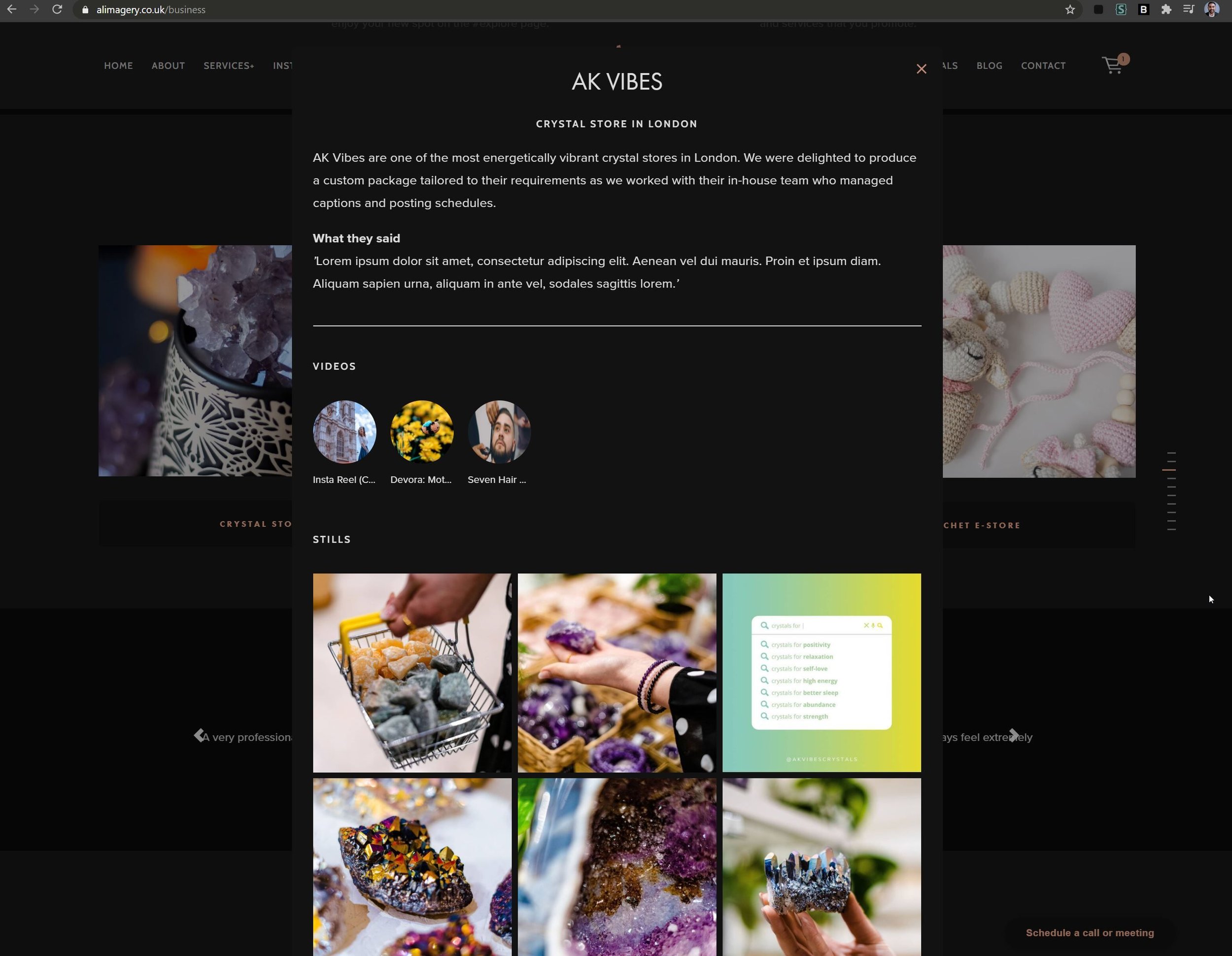
The Lightbox Anything Plugin transforms how you showcase your photography on Squarespace. Create stunning lightbox galleries for easy image browsing, pop up client size charts for seamless product sales, or even embed behind-the-scenes videos right on your portfolio page. With options to customize appearance, organize images, and replace default lightboxes, your website will feel polished and professional. Its user-friendly setup, rave reviews, and $59 price point make the Lightbox Anything Plugin a smart investment for photographers seeking a more dynamic Squarespace experience.
Price: $59

Fight portfolio fatigue with this easy-to-use plugin! Add a dynamic touch to your Squarespace galleries, with images automatically shuffling every time a visitor loads the page. This keeps your best work feeling fresh and engaging, ideal for photographers who regularly update their website. You can customize exactly which galleries randomize, control the initial display, and you can try it out here or here by refreshing the page.
Price: $19

Transform your Squarespace galleries from standard grids to captivating masonry layouts! Ideal for photographers with a diverse portfolio, this plugin creates a dynamic, artistic feel that keeps visitors engaged. Showcase a variety of image sizes and orientations without sacrificing a clean aesthetic. Control which galleries have the masonry style, and get peace of mind knowing our support team is ready to help you achieve the perfect look.
Price: $19
Give your Squarespace galleries an extra touch of professionalism! This subtle image counter lets visitors instantly know the extent of your work, encouraging further exploration. Easily customize its appearance to perfectly match your brand aesthetic. With seamless compatibility and quick setup, it's an effortless way to enhance the user experience on your photography website.

Simplify gallery navigation with sleek dot indicators, offering a visually appealing and user-friendly way to explore images.
Features:
Effortlessly integrate dot navigation into gallery blocks and gallery sections (except list/auto layout sections).
Customize navigation dots with our CSS generator to fit your design.
Works flawlessly across all Squarespace templates.
Installation is straightforward, and you're backed by our top-notch support.
See a demo here

Transform your Squarespace carousels, lists, blog posts, slideshows, and galleries with the Spark Plugin's extensive customization options. Achieve the perfect look for your website with:
Unique Visual Styles: Choose from design-forward options like inset, card, or glassmorphism to make your content stand out.
Image Enhancements: Experiment with diverse image styles, hover effects, clickable indicators, and animated shapes to add visual interest.
Interactive Elements Create a dynamic user experience with hover reveals for text and images, encouraging deeper engagement.
Refined Galleries: Elevate your image displays with pre-designed gallery styles.

Give your Squarespace photography website powerful search and filtering options! Help visitors effortlessly find the exact types of images they're looking for, whether it's by category, tag, or even specific keywords. This plugin works seamlessly with your existing galleries, blog posts, and even product pages (perfect for photographers who sell prints). Easy to set up and customize, it elevates your site's navigation and keeps visitors engaged with your work.
Price: $70

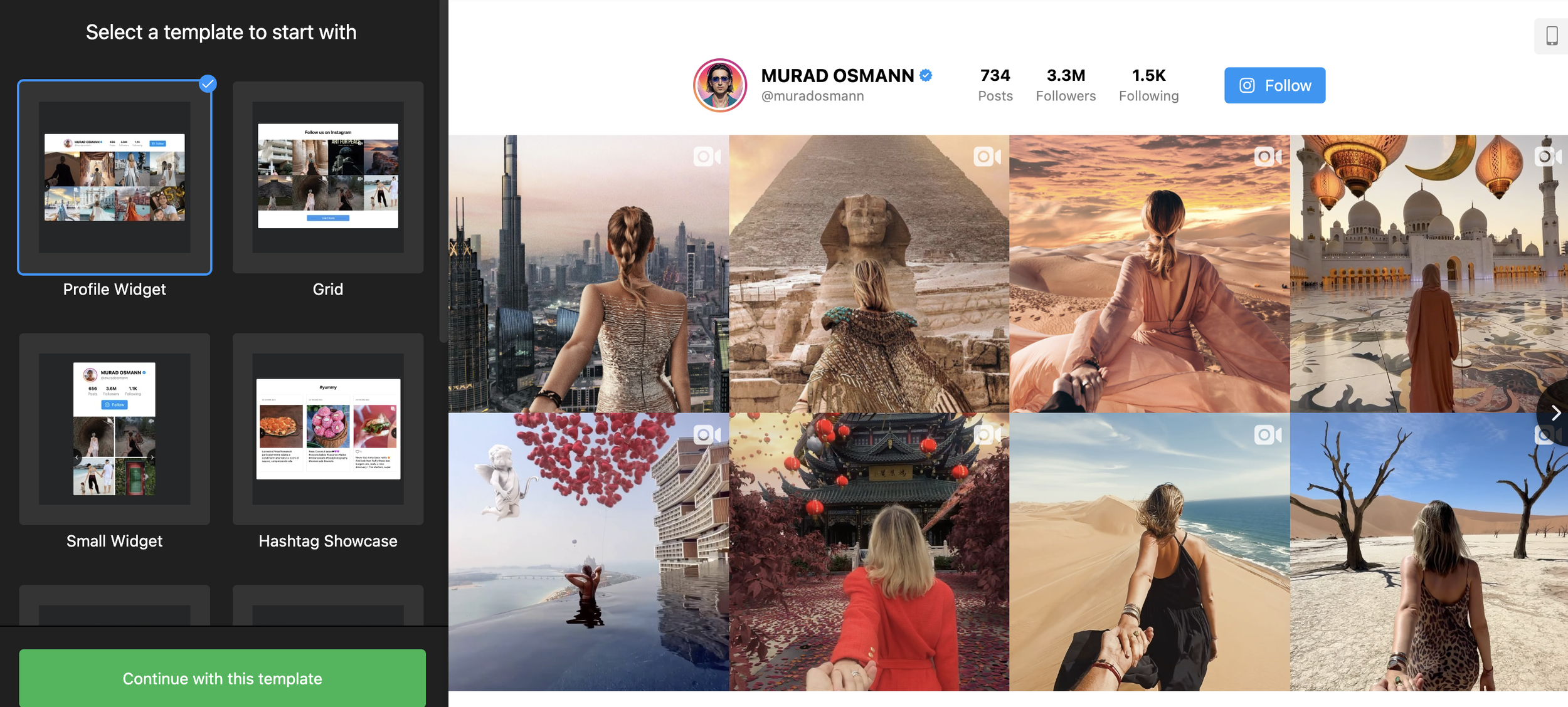
Embed your Instagram feed to:
Expand your portfolio beyond curated website images, showcasing your latest work and creative process.
Build trust with potential clients through social proof (likes, comments, follower count).
Convert website visitors into Instagram followers, increasing your reach and booking potential.

Elfsight widget will help any type of business but works well for photographer because it allows you to showcae your images in ways you otherwise couldn’t.

A simple portfolio widget with different customization options from Elfsight.
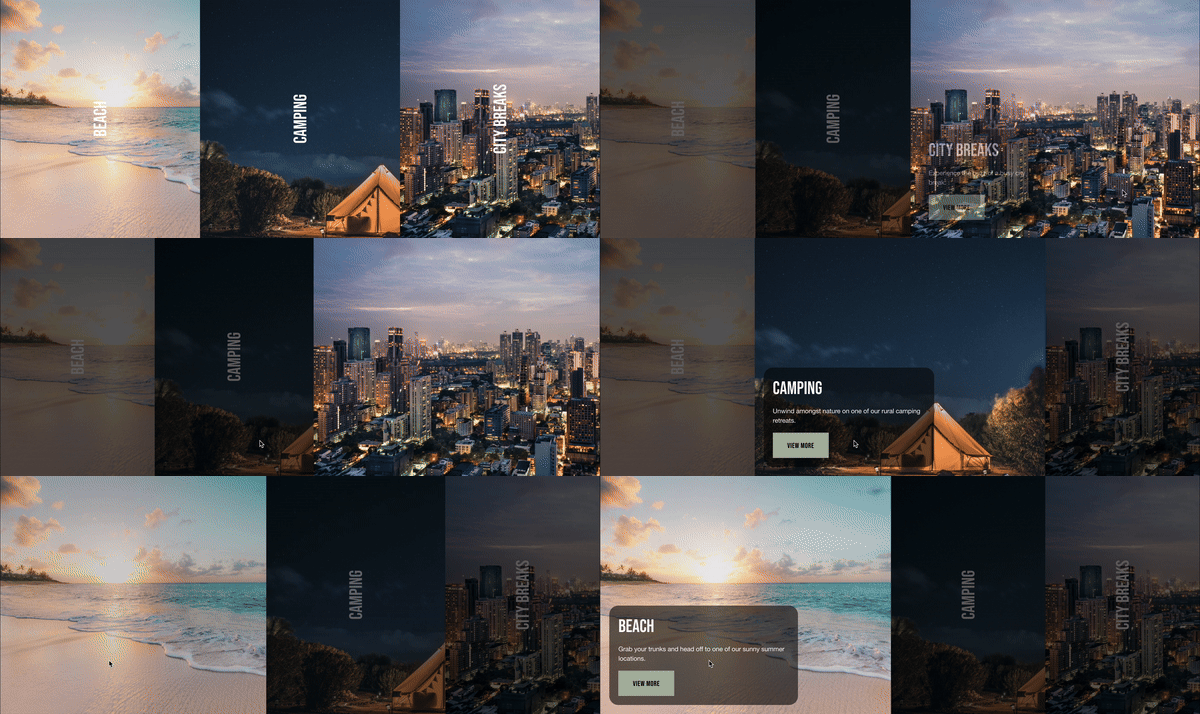
This plugin lets you showcase your blog posts in a unique and engaging way. Perfect for photographers who want to:
Share Behind-the-Scenes Insights: Pair stunning images with the stories behind your shoots.
Create Client Case Studies: Walk potential clients through your process, from concept to final image.
Build Community: Expand on blog posts with additional resources, tutorials, or even client testimonials.
Price: $20
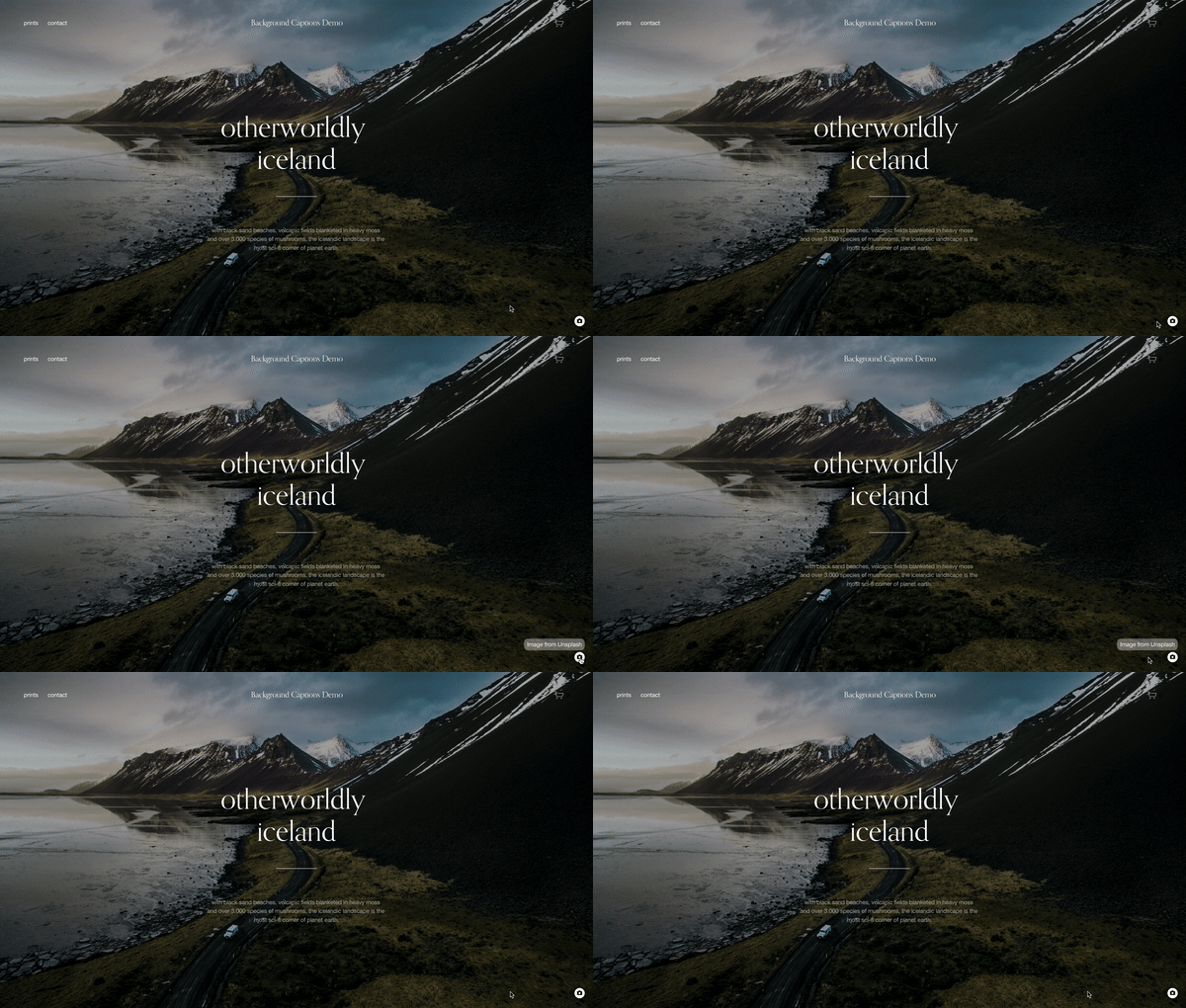
Let your Squarespace background images speak volumes! With this plugin, you can easily add captivating captions that enhance your visual storytelling. Perfect for photographers seeking to:
Elevate Portfolio Pages: Provide titles, locations, or creative inspiration behind your most striking work.
Infuse Branding: Use captions to reinforce your signature style (moody, minimalist, vibrant, etc.)
Offer a Gallery-Like Experience: Guide visitors through a curated selection of background images.
Price: $20

Showcase the intricate details of your photography with this seamless image zoom plugin. Give visitors an immersive experience, letting them explore the textures, compositions, and nuances of your work. Ideal for photographers specializing in:
Product Photography: Highlight craftsmanship and materials for e-commerce success.
Macro or Detail Shots: Draw viewers into the hidden beauty of your images.
Fine Art Photography: Allow potential buyers to appreciate the full artistry of your prints.
Price: $20
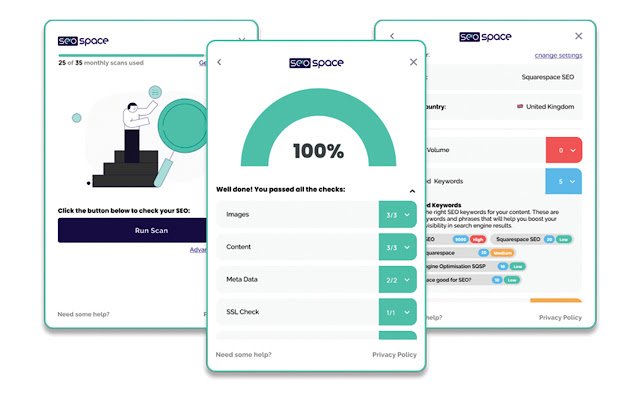
SEOSpace takes the guesswork out of Squarespace SEO. With its intuitive checklist, site-wide audits, and expert guidance, you'll transform your website into a powerful client magnet. Trusted by thousands of creatives, SEOSpace offers the tools to:
Showcase Your Best Work: Optimize image titles, alt text, and metadata to ensure your photos appear prominently in search results.
Enhance Client Experience: Improve site speed, navigation, and mobile responsiveness – factors Google prioritizes and potential clients expect.
Boost Local Visibility: Tailor SEO strategies to attract clients in your area, ideal for location-based photographers.
Save Time and Gain Confidence: No more endless SEO tutorials. SEOSpace provides clear instructions and support tailored to photographers' needs.
15. Before and After Image Slider
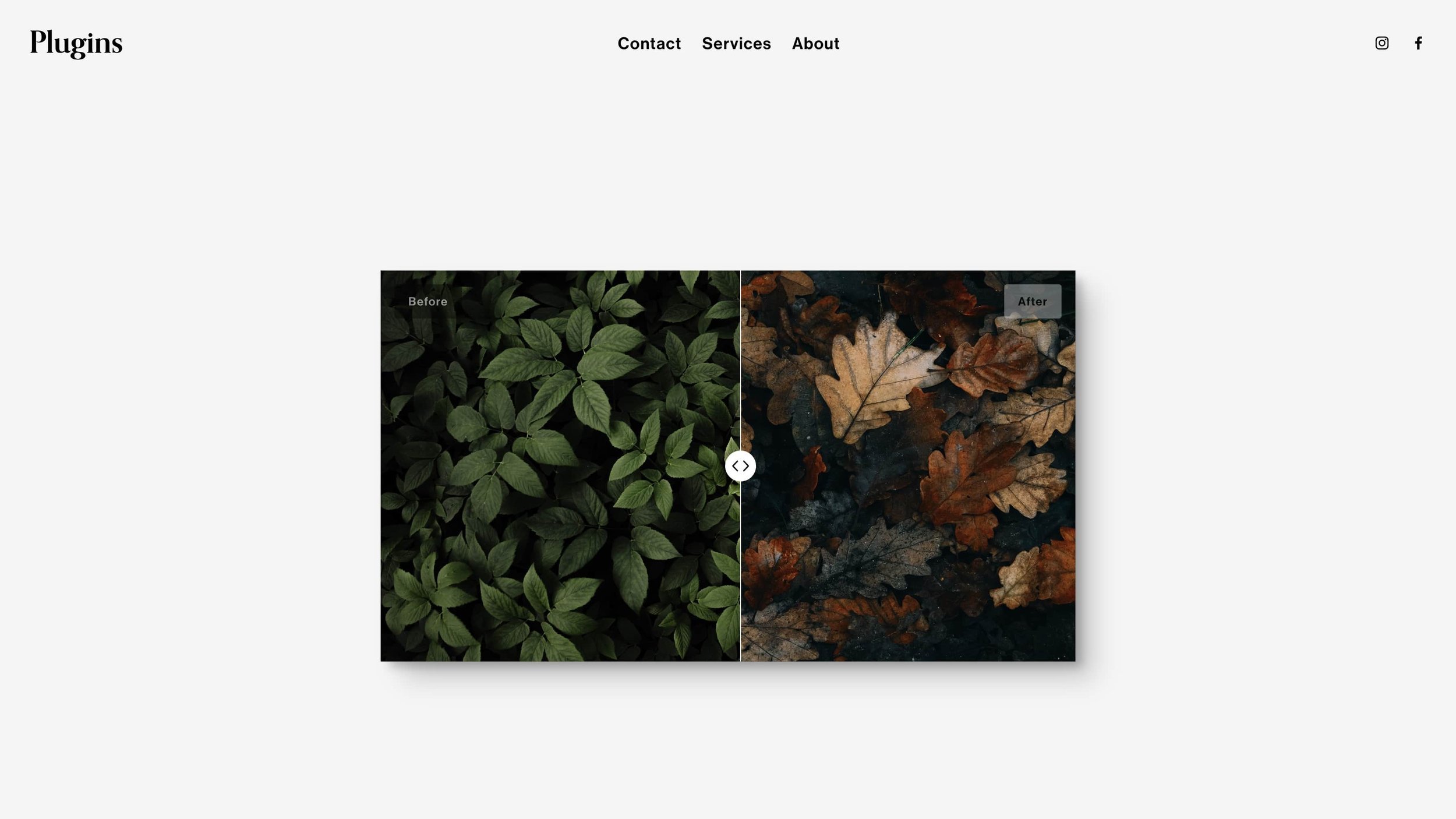
Showcase the transformative power of your photography with this easy-to-use before & after slider! Perfect for retouchers, portrait photographers, or anyone highlighting dramatic changes. Design the slider to seamlessly match your website's aesthetic, creating a polished and professional presentation of your work. No coding needed – let your images speak for themselves!
Price: $20

How to Create a Photo or Video Gallery Using Squarespace

When you use images or videos on your site, do you post them one at a time, or do you want them organized into a gallery?
Galleries can be a great option for a more compact design, and a good way to group multiple images or videos that share a theme or category. You can create slideshow galleries, carousels, and other sorts of galleries for your media on a Squarespace site, you just need to know-how. Luckily, you have me to help.
7.0 Gallery Pages
First up, let's talk about gallery pages. Squarespace 7.0 is more restrictive in design than 7.1, so rather than being able to add a gallery to an existing content page, you need to create a specific gallery page. If you want a gallery embedded in another piece of content, like a blog post, you need to:
Make a gallery page and fill it with your media.
Use a gallery block to pull content from the gallery page and embed it into your primary page.
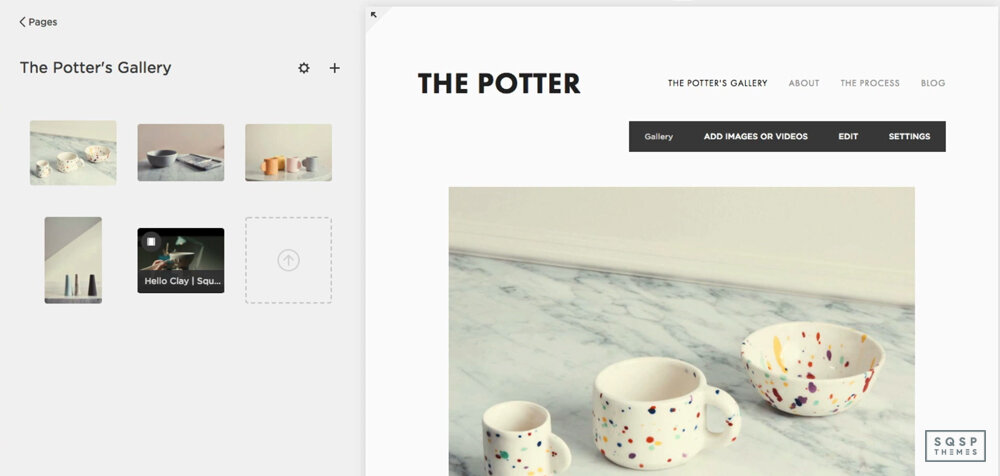
Gallery pages are also somewhat limited. Their design and style come from the parent template, and you're not able to change very much about it without implementing custom code. You can, however, choose whether your gallery will be a grid, slideshow, stacked display, or carousel. You're allowed to have up to 250 pieces of media – photos and videos – in a gallery and can mix photos and videos in the same gallery.

On the plus side, adding a gallery page is easy. Simply log into your dashboard, click on Pages from the Home menu, and then click on Gallery. From there, customize the gallery page just like you would any other Squarespace page.
7.0 and 7.1 Gallery Blocks
Gallery blocks are slightly different from gallery pages. Where a page is a full, well, page on your site, a block is an element that can be used in a page. A gallery block can be used on a page, in a blog post, or on other parts of your website, and it can call its data from a gallery page or can stand alone.
Where you can use a gallery block depends on whether your site is on 7.0 or 7.1.
7.0 sites can put gallery blocks in any content area of their site.
7.1 sites can put gallery blocks anywhere a gallery section isn't supported. This includes blog posts, individual elements, and product infoboxes. Gallery blocks cannot be added to layout pages, collection landing pages, footers, or portfolio sub-pages.
NOV-2024 UPDATE: Beyondspace.studio published a freebie that can bring back Gallery blocks to Squarespace 7.1 sections (Classic and Fluid Engine) including the Existing gallery feature, you can check the detail steps by steps in this post.

To create a gallery block in both 7.1 and 7.0, click on any location where a gallery block can be added. Click to insert a gallery block. On the resulting block, the Content tab allows you to add your images or videos, while the Design tab allows you to customize the style and design of the block.
Which Is Better: Gallery Blocks or Gallery Pages?

Looking at the above, you might be wondering which of the two you should use. Which is better, blocks or pages, and why?
The truth is, they both have pros and cons. A lot depends on what your use case is. So, let's talk about the benefits of each. First up, the benefits of the gallery block:
Gallery blocks are consistent between templates on 7.0 sites. While the broad, general styling can change if you change your template, the format and content of a gallery block will remain if you wanted to make that change.
Gallery blocks are just that: blocks. In a page that can have multiple block types, gallery blocks work seamlessly with other kinds of blocks, like text.
Gallery blocks can be added pretty much anywhere on your site, as long as your template supports adding a block to whichever place you're trying to add it.
Gallery blocks can pull their content from a gallery page. That way, you can embed the same gallery block on several pages and, if you need to change an image in it, can simply change it on the gallery page and have the changes automatically reflected in the gallery blocks.
So what about gallery pages? They have a few benefits of their own.
They may have special features for specific templates on 7.0 sites. For example, Momentum allows full-bleed cropping instead of traditional cropping.
Gallery pages can be added to index pages, just like any other kind of major page type. If you're a media producer who has lots of individual galleries to share, this can be a great tool for a portfolio site.
Gallery pages can be added to summary blocks, the same way other page types can. This can allow for extra metadata and some other convenient features.
That all applies mostly to 7.0 sites. On 7.1 sites, you can't use gallery pages. You can, however, use gallery sections.
What About Gallery Sections?
Gallery sections are sort of like gallery blocks, made for Squarespace 7.1 sites. 7.1 sites can use both blocks and sections.
Gallery sections can be added to any page as part of the page content. They can't be added to areas of your site that don't use sections, such as blog posts or event pages. On those pages, you need to use the gallery block format.

To create a gallery section, your site has to be a 7.1 site. Log in and go to your Home menu, then click on the Pages menu and click +. Click page layouts, and choose Gallery, and choose one of the layouts for the gallery. You can change this later if you want without having to remake the gallery.
This opens up the new section editor. Add your title, press enter, and click edit on the page. From there, you can add images and change the style of the section. Once you're done, save and publish your section.
One of the biggest drawbacks to gallery sections on 7.1, as compared to gallery blocks on 7.0, is that they don't support video, only images. If you want videos in a gallery on a 7.1 site, you need to use gallery blocks, which might mean using a different page type.
Which should you use, between a block and a section, on 7.1?
Sections can only be used in layout pages, landing pages, and portfolio sub-pages. Conversely, blocks can be used in blog posts, event descriptions, and additional product infoboxes.
Gallery sections display just the gallery and cannot have other content added to their section. Gallery blocks display a gallery but can be added alongside other blocks.
Gallery blocks can display as slideshows, grids, carousels, or as stacked images. Gallery sections can be simple, strip, or masonry grids, or simple, full, or reel slideshows. Reels are similar to carousel blocks.
There are also some quirks about clickthroughs, lightbox functionality, and whether or not you can add animations to the gallery.
Keep in mind that you can still add individual images normally, all of the above are only restrictions on galleries.
Squarespace Image Guidelines
Galleries can have some quirks if you're trying to upload images in widely varying aspect ratios or dimensions. This is especially prominent on mobile websites, which can't adjust as easily as desktop sites. Squarespace recommends following their image formatting guidelines, which I've reproduced here.

Only use .jpg, .gif, or .png for images. Unfortunately, webp is not supported.
Try to keep image file sizes small. Especially for galleries, where dozens or more images will load at once, you want to minimize file sizes to speed up load times. The hard limit is 20 MB for a single image file, but Squarespace recommends aiming for under 500 KB.
Restrict what characters you use in file names. Squarespace only supports letters, numbers, underscores, and hyphens. They do not support accented letters, question marks, percents, or ampersands, as they can all cause code errors.
Your cap is 60 megapixels. To calculate your megapixel resolution, calculate the number of pixels across and tall, multiply those numbers by each other, and divide the total by 1 million.
Use RGB colors. CMYK will not display properly.
Generally, you want your images to be between 1,500 and 2,500 pixels wide. Larger images will squish down vertically, while shorter images can be stretched oddly. This varies depending on the size of the container gallery.
Create a descriptive filename. Squarespace uses the filename as alt text if no alt text is otherwise specified. Try to avoid writing a filename that is offensive or incorrect, for that reason. It's best to specify alt text, of course, but if you forget, this works as a backup.
Don't worry about DPI or PPI; these are measurements for print images, not for web images.
Most of this is either going to be done already by your camera or by image processing, but it's worth knowing just in case something is acting weird and you're not sure what it is.
Adding Videos to Galleries
As mentioned above, gallery blocks on both 7.0 and 7.1, as well as gallery pages (but not gallery sections) support video. How, then, can you add videos?
Unfortunately, videos cannot be uploaded directly. You need to go through a third-party video host to upload and host your videos and use the gallery system to embed those videos.

Squarespace directly supports embedding videos from YouTube, Vimeo, Wistia, and Animoto. Other video services, like DailyMotion, can work, though you need to use their provided embed code.
To add video, click on the + in a gallery to add a new piece of media, then choose video. You'll be asked for the URL of the video, or you can click on the custom code option to add embed code from an unsupported site. You can also choose your custom thumbnail to load instead of the full video, for site speed purposes.

If you want a video in a gallery that doesn't support it, your best option is to use some kind of software to convert the video into an animated gif file. This will usually result in a very large file, so you'll want to use other tools to optimize and pare down the gif, depending on the purpose of the file. Note that animated gifs don't carry audio, so this method doesn't work if you want context from audio with your video embed.
Other Styling Options
If you're looking for something a little more unique to make your image galleries stand out from the rest of the people using your template on Squarespace, one option is to buy a third-party custom template. I have several of these on my recommended plugins page.
Masonry Style Squarespace Gallery Plugin – This plugin works for both 7.0 and 7.1 sites, and gives you a simple masonry-style design for your galleries. You can choose to have it apply to all galleries or just specific galleries on your site.

Gallery: Randomize Image Order – This is a simple gallery plugin for both Squarespace 7.0 and 7.1, though it doesn't work on gallery sections. What it does is, well, what the name implies; it randomizes the display order of images in the galleries you use, whenever a visitor loads a page. It can apply to only specific blocks or all blocks and has a bit more configuration available.

Gallery Block Dot Navigation – You know how many sites have small dots beneath a gallery, particularly the ones with an automatic slideshow, to show you which image in the series you're looking at and how many more there are in the gallery? That's what this plugin does; it gives you those dots. It's simple and effective as an add-on to gallery blocks.

Gallery Image Counter – This one is quite similar to the above, in that it adds a simple "1/x" numerical counter to show the user which number image they're on in a gallery, and how large the gallery is. It's more compact than dots and is better for larger galleries.

My plugins aren't the only ones available, but they're the ones I recommend. If you have other ideas, or requests, feel free to let me know!