
What’s worth knowing in the Squarespace world.
For designers, developers, and people building businesses around Squarespace.
Squarespace Fluid Engine - What you need to know!
In this review we’ll look at what the new Fluid Engine editor has to offer, how users are responding and how to use it.
What is Squarespace’s Fluid Engine?
Fluid Engine is Squarespace’s latest layout editor for blocks and page sections. Released July 21st, 2022. Squarespace users can now move, layer, and arrange content blocks on a grid. Fluid Engine also allows you to edit your Mobile view separate from Desktop.
Why the change?
Good question.
According to Anthony Casalena, Squarespace CEO & Founder,
"Fluid Engine improves both the usability and expressibility of our system, making it possible for more of our customers to access a wider variety of designs. Whether you are a professional designer building on Squarespace or just starting out, Fluid Engine helps our customers achieve a variety of fantastic design outcomes without having to resort to custom code."
If you’ve used Squarespace for a long time, you’ve probably gotten used to its quirks. But for a lot of customers, navigating the 12-column-based editor was the biggest hurdle.
You often needed to get creative and use spacer blocks to get your layout how you want it. If you wanted to do anything more complex you needed custom code or plugins.
Other platforms allow you to edit the mobile version of your site and now Squarespace offers the same functionality to its users.
How does Fluid Engine work?
Fluid engine is only available with Squarespace 7.1. It works the same way you’d expect your typical WYSIWYG editor to work. It’s based on a grid system that allows you to drag, drop, overlay and resize elements like you can in Canva.
The grid appears when you drag elements or when you press G on your keyboard.
Fluid Engine does NOT work on the following site elements.
Blog posts
Events
Product descriptions and additional information
Block sections created before Fluid Engine
Squarespace Emails
Mobile App
What’s the difference between Fluid Engine and Classic Editor (Layout Engine)?
Key Features of Fluid Engine
Layer overlapping blocks
Edit mobile layouts independently from desktop layouts
Full bleed sections
Block background colors for text blocks
Images that can fill their container
Images can be aligned in the container
Select multiple images
What’s missing
Image block layouts
Image block animations
Fluid Engine Pro’s and Con’s (Community Reactions)
In lieu of a camera and a microphone, I traveled around the social web to get a sense of how people are feeling about the new Squarespace Fluid Engine Editor.
Who cares? We do. The people who build websites on this platform everyday.
For us it’s a tool that’s become an integral part of our livelihood. We struggle with it, we recommend it to clients, we support it.
Squarespace has been a leading trendsetter in how the web looks and feels and so we’re keen to see how this next evolution with Fluid Engine affects that.
The Biggest Pro
Way less need for custom code.
The Biggest Con
More time on the mobile layout and no tablet view editor.
How to use Squarespace Fluid Engine
How to add a Fluid Engine section
Adding sections hasn’t changed but the default section layouts have been updated.
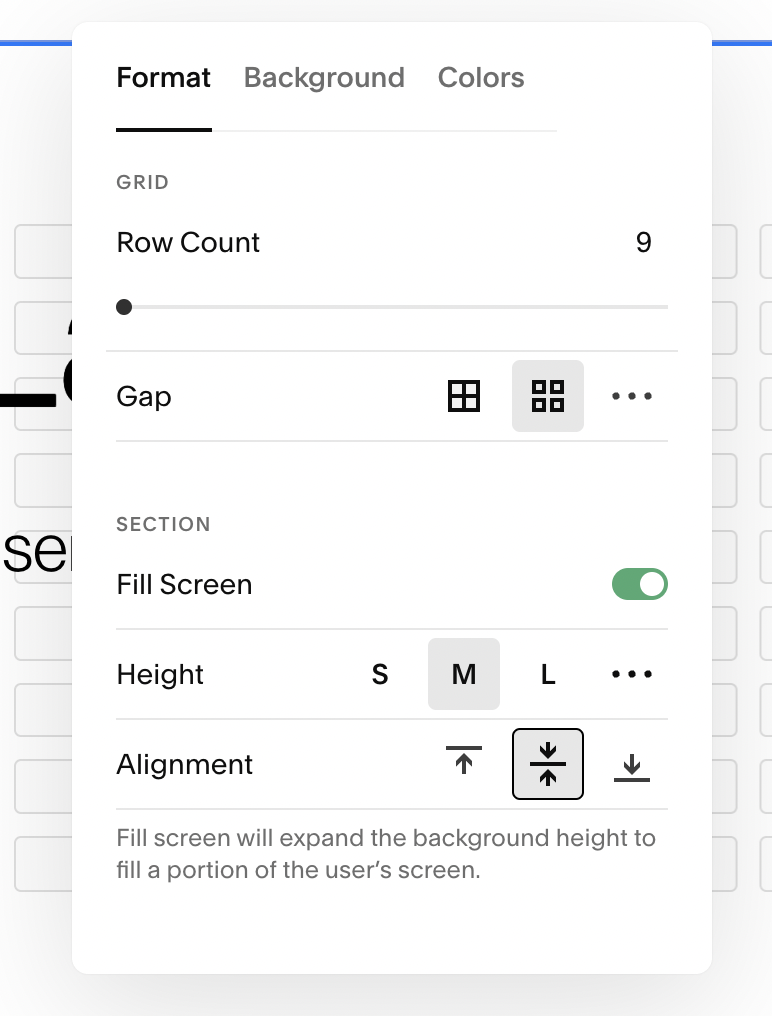
How to edit the grid

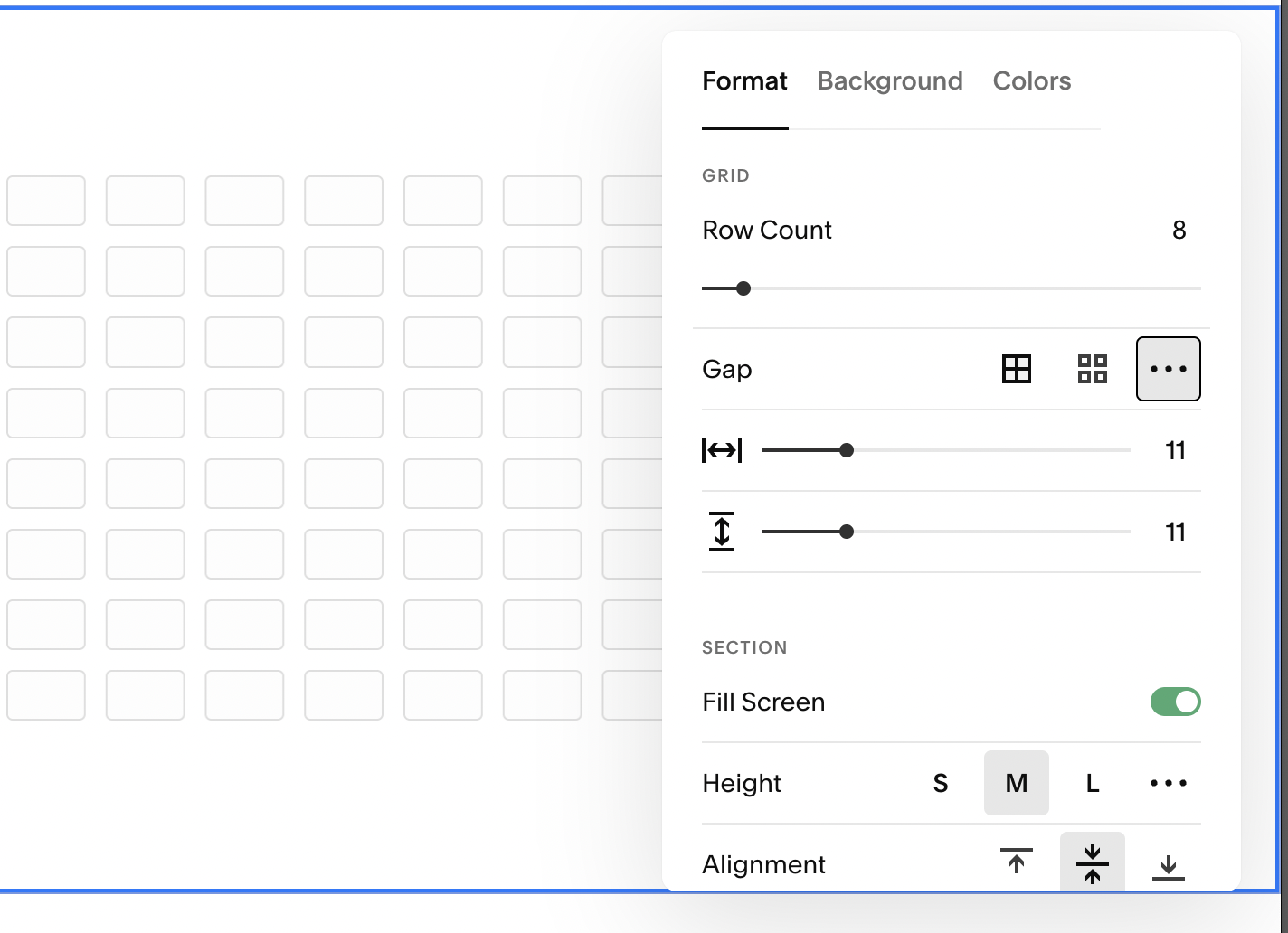
Row Count
Gap
Height
Alignment
Viewport
How to add blocks to Fluid Engine sections
Mouse over to the top left corner of a section and click “+ Add Block”
How to align and overlap blocks
After you move a block to a new place in Fluid Engine, the block's toolbar appears.
To align the content of the block horizontally, vertically, or both within the borders of the block, click the alignment icons in the block's toolbar. Note that image blocks and button blocks set to fill, don't have alignment options.
When blocks overlap, the toolbar displays Move Forward and Move Backward icons, so you can set which block appears on top. When many blocks overlap, you may have to click multiple times to bring the block all the way forward or back.
To help make block content more visible on overlapping blocks, add background colors to certain blocks.
How to move multiple blocks at the same time
Click and drag in the section background to highlight the blocks.
Click one of the blocks and drag. This moves all of the highlighted blocks at the same time, preserving their current layout.
How to add padding to button blocks
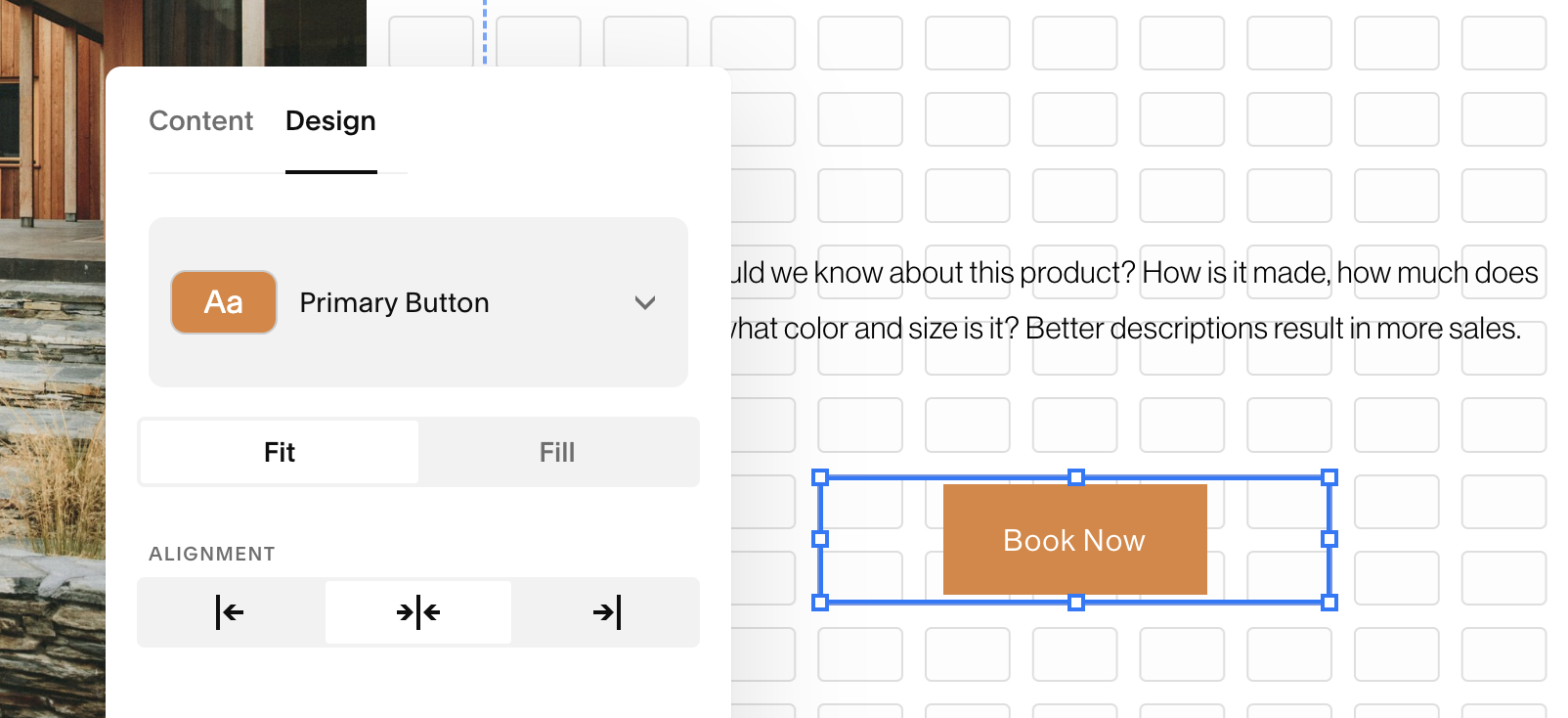

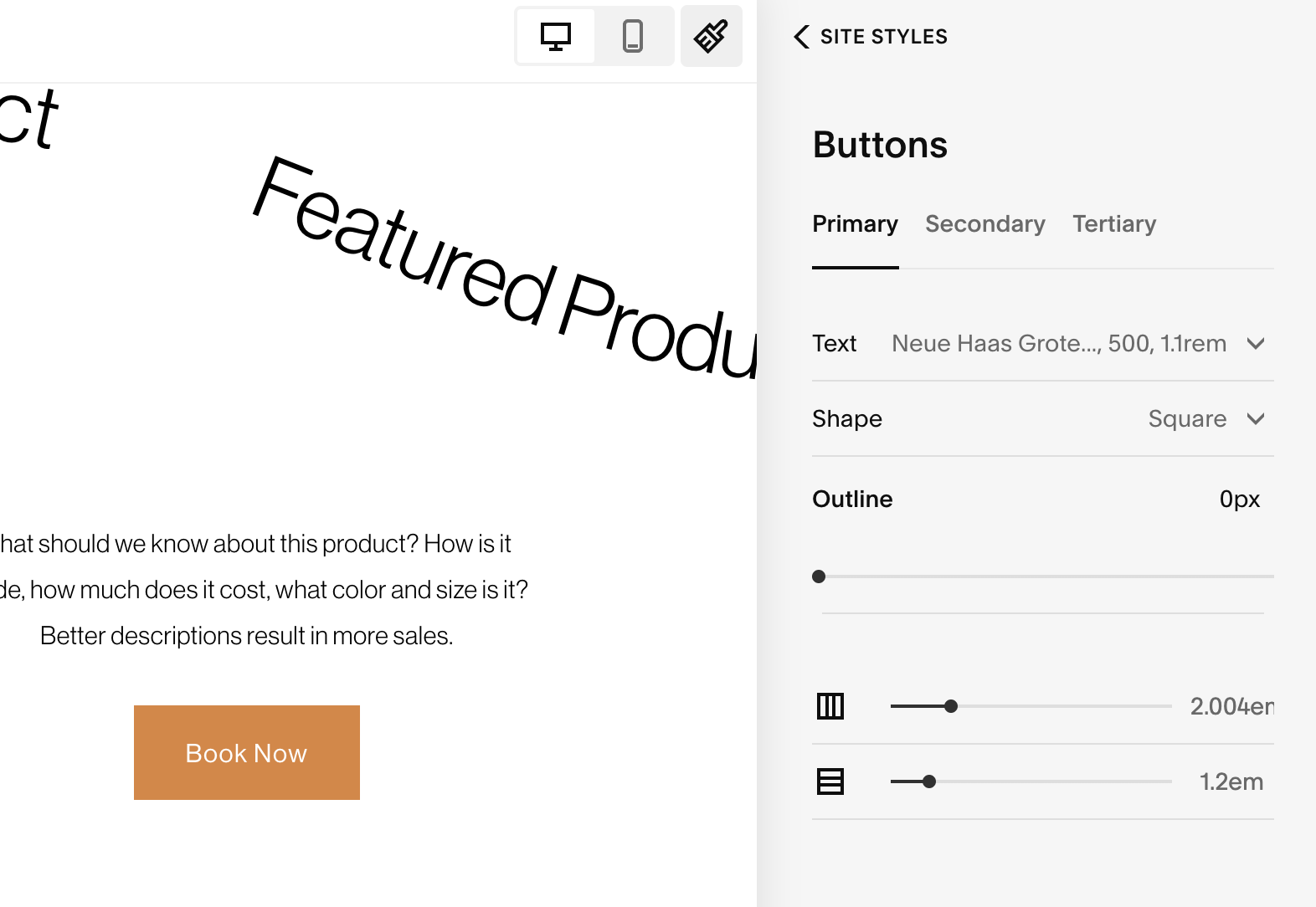
When set to fill the button block styles are the same as the default button styles in the site style settings.
Should I upgrade to Fluid Engine?
Some experts advise waiting for the bugs to be worked out. Others encourage you to jump in and learn. To me it’s whatever you’re comfortable with. Eventually, all Squarespace websites will have Fluid Engine enabled so it’s worth learning and getting used to.
How to upgrade to a classic editor section to Fluid Engine

Navigate to a page section and convert to fluid engine by clicking the Upgrade button in the top left corner.
How do I turn off Fluid Engine?
You can’t turn off Fluid Engine once you’ve upgraded your sections. The only way is to have a Circle Member enable it on your site. However you can keep using existing Classic Editor options, just make sure you don’t click upgrade!
How to keep using the Squarespace Classic Editor

If you’re not ready to use Fluid Engine or you prefer the Classic Editor, there are a few ways to keep using it.
When you add a new page, go to page layouts and scroll down to the bottom of the catalog. You’ll see an option for designs built with the Classic Editor.
You can also get to the same option by adding a page section and scrolling down the section layout menu.
You can also duplicate pages or sections created with Classic Editor.
What happens when you convert a section to Fluid Engine?
You might see a slight shift as the elements adjust to the Fluid Engine grid.
How to edit the your mobile layout
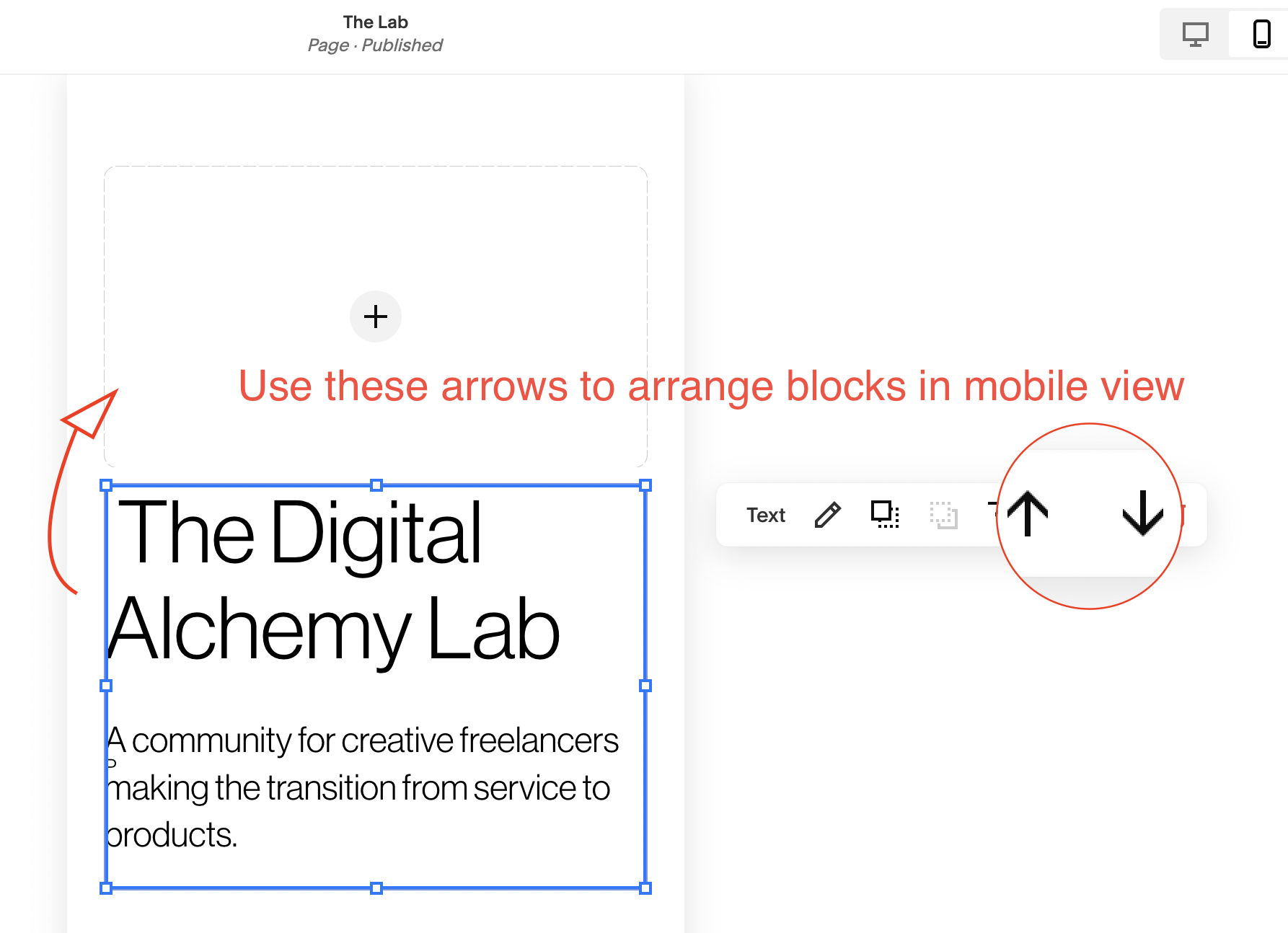
To edit your mobile site, navigate to the mobile icon in the upper right corner of your screen.
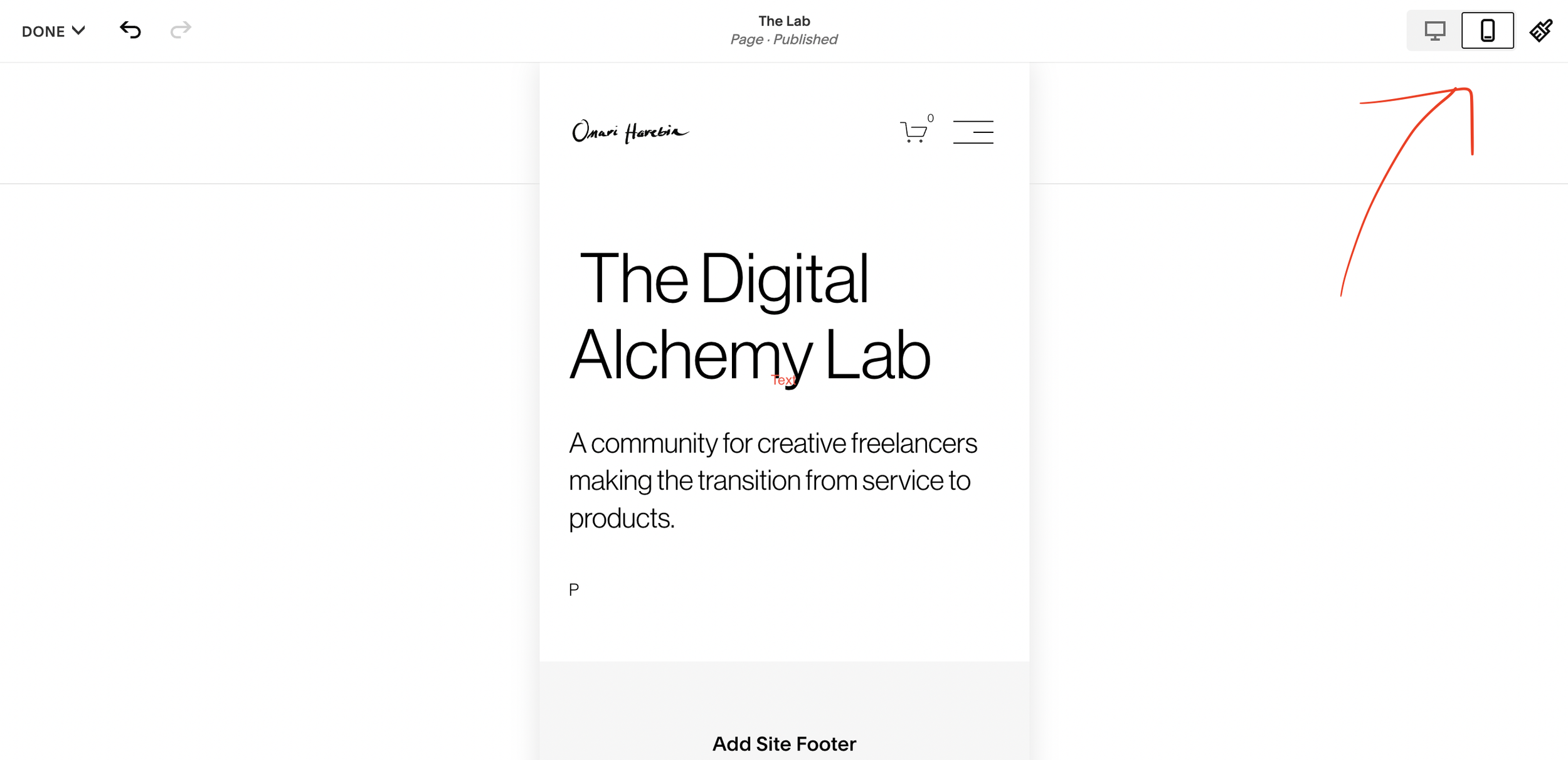
Note: You cannot add blocks in mobile layout mode.
To arrange blocks, click on a block and use the arrows to move them up and down.
How to style Fluid Engine sections
Editing the Section Format
You can change the format of the grid. This includes the gaps, number of rows, and padding around the section.
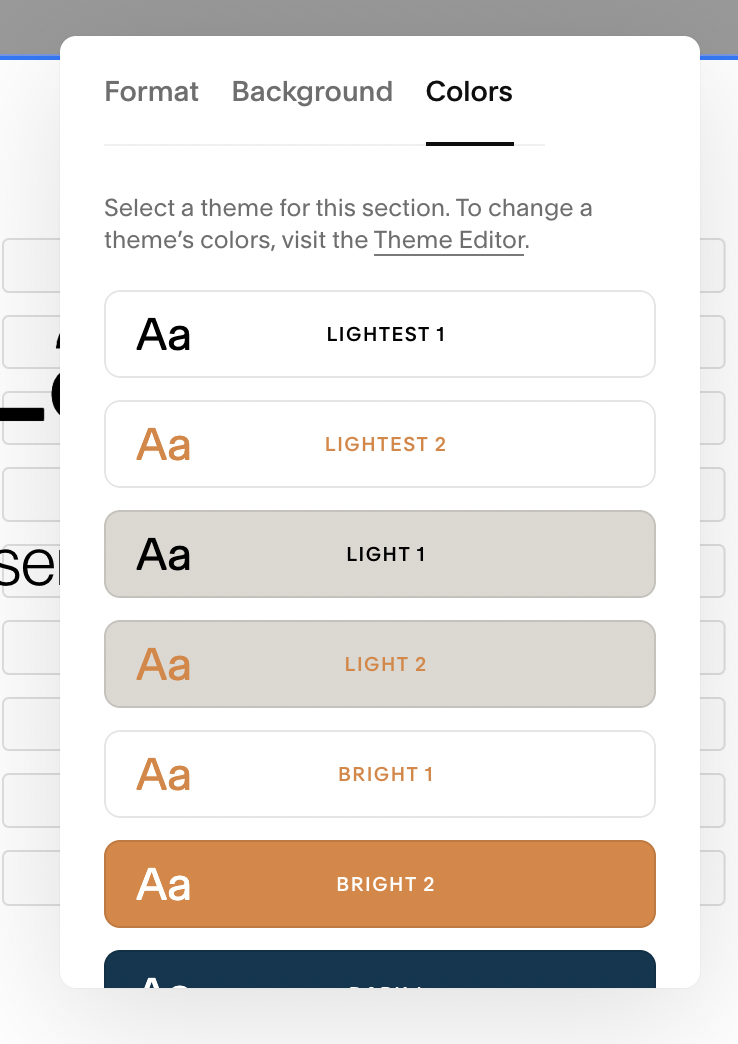
You can also edit the section background and color theme like you would with the 7.1 classic editor.

Frequently Asked Questions
I like the spacing consistency of the classic editor. How do I get things to have those clean lines like before?
To create consistent spacing with Fluid Engine you'll adjust the gap in the Format tab. This will allow you to control the spacing between blocks in these sections.
Do 3rd party Squarespace templates work with Fluid Engine?
Yes. Check with the designer first to be sure but most are built with fluid engine in mind.
How to control the order of blocks on mobile?
Blocks are added in mobile in the same order they are added on desktop.
How to optimize the tablet view?
Currently there’s no way to optimize the tablet view.
How does Fluid Engine affect accessibility and SEO
Fluid Engine prioritizes the block order from mobile.
How to get help with Squarespace Fluid Engine?
Want to learn more?
Check out this upcoming workshop from Inside the Square.

15 Things to Check Before Buying a Squarespace Theme

One of the best parts of Squarespace is the template flexibility it offers you. Squarespace themes include a ton of robust options for styling, layout, and functionality, all included by default with the price you pay to access the platform.
The trouble is, even within that flexibility, there's a certain lack of uniqueness to it. There are dozens of templates, with a lot of potential customizations available, but there are also millions of Squarespace users. It can be difficult to feel like you have something truly unique when you're operating within this framework.
This is a big reason why people tend to look for third-party themes; to find something more unique to them. I wrote a guide on whether or not it's a good idea to buy a Squarespace theme, so check that out if you're not convinced already.
Now, if you've decided that you want to buy a theme from a developer to install on your site, great! There are a ton of excellent options out there. Before buying one, though, there are some things you might want to check. Luckily for you, I've compiled a checklist you can use.
1: Squarespace Version
First and foremost, check to see which version of Squarespace the template uses. Squarespace 7.0 is more restrictive than 7.1, and you'll need to pick the correct base template to customize using a paid template that edits it. It also makes changing away from that template harder in the future.
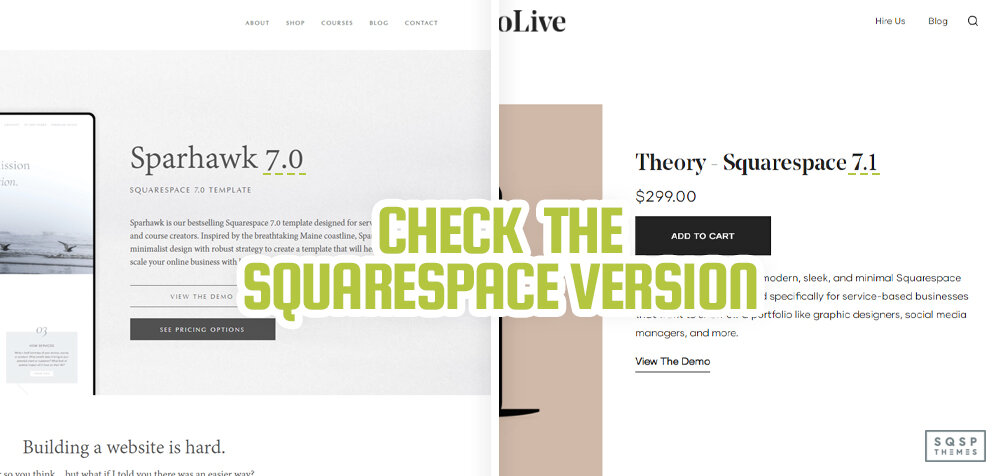
Luckily, the majority of Squarespace templates are either based on the 7.0 Brine family (which is the most popular and most flexible template family) or 7.1. In fact, at this point, it's almost all 7.1 templates. 7.1 is simply too flexible and customizable for developers to restrict themselves to 7.0 families.
If the template doesn't list what version it uses, you may need to ask the developer directly. Alternatively, just skip it, because a developer that leaves out critical information like that is unlikely to create a robust enough template for a serious business or blogger.
2: Site Type Focus
When you go to Squarespace to register a site, they ask you what kind of site you're planning to run. A blog? A portfolio? A store? A services page? Each of these recommends different templates that have different primary features. One might have a more image-focused grid or brick layout, while another might put more focus on written content and product pages.

The same goes for third-party templates. What is the focus of the template? What kind of site is it mostly designed for? The features that are, well, featured in a template for a fashion blog are going to be different from an artist's portfolio, which will be different from a content writer's blog. Make sure you know what kind of site you're making, and what features/layout/design elements you want, before choosing a template.
SQUARESPACE TEMPLATES BY CATEGORY
3: Font Choice and Options
Font choice is customizable on a website but look at the choice and presentation created by the person who developed the template. Does it look good? Does it have issues that might make your site, if you use their template as-is, a worse user experience? Some things I've seen:
The font is too small. Small font size is hard to read on modern devices and is a poor user experience.
Poor kerning, line spacing, or separation. If letters are blending into one another, it can be hard to read.
Poor color choices and low contrast between text and background. Use a contrast checker if you're not sure. Again, this can make text hard to read.

Why bother checking this if you can change it? Well, these are all elements of SEO and user experience, which Google cares about. If your base template doesn't consider these aspects of SEO, what other aspects under the hood is it ignoring or missing?
4: Image Location and Size
It can be tempting to look at the images on a template demo page and consider them representative, but the developer will have chosen images that work. What about YOUR images? Will they fit there? Think about the site design wireframe. Are the images in places you can consistently use and enjoy, or would you want them in a different place or alignment?

Here's an advanced trick you can try if you already have a site with images on it. Visit your site and pick an image, and copy the source URL, which will look something like "https://images.squarespace-cdn.com/content/v1/558ae872e4b06e5cac195ad7/1630661870943-UNUB68XOG5JJPDDEQHRF/Shipstation+Logo.jpg". Then, go to the demo template.

On the demo, use the Chrome/Firefox site inspector to view the code. Find an image, and double-click on the code segment that shows the image URL. Replace that URL with your URL. This will replace the image with your image (on your local display copy, this doesn't affect the demo version and the developer will never know you did it) so you can see how it looks. Does it look good?
5: Custom Page Support

Squarespace allows you to create pages that aren't quite within their usual template layouts. How well does the template support those custom page types? Does the demo the developer provides show off more than one, or do they only show the default templates? The primary concern here is that certain elements won't be styled, which can be an issue if you want to use those page types.
6: User Experience Features

There are a lot of small features of the user experience that are important to consider for SEO, usability, and general UX purposes. One that I find very useful is a sticky navigation bar. You want your users to always be able to find their way around your site, so making your navigation bar stick to the top is often a great idea. Of course, there are a bunch of other options as well; consider the best practices for user experience.
7: Comprehensive Styling

I mentioned in my post about paid templates that a common issue I see is some of the less commonly-used elements of a page aren't fully styled. For example, maybe you use H3 sub-sub headings in your blog content. Does the page you're looking at style those, or do they stop at H2? How about links, are the links styled, or are they the browser default? There are a lot of small elements that need to be styled on a site, and if a custom template doesn't do it, you'll have to do it yourself to cover the bases. It also has the same issue as above: if the developer didn't style it, what else didn't they think of?
8: Mobile Function
All Squarespace templates are based on the core Squarespace architecture, and that means they all have a mobile responsive design by default. However, that doesn't mean the developer made it look good or cared about it.

Try resizing your browser window. What elements disappear at what scale? How does it look at the traditional tablet and mobile viewport resolutions? You can also open the demo on your mobile device to see how it works.
9: Competitor Themes

Here's one you might not have thought of. Rather than checking your prospective theme, check your competitors. What templates are they using? How different does your chosen custom template look compared to theirs? Your goal is to stand out, while still having a highly functional, useful, well-designed site. If you pay for a template but find that it's very similar to what your competitors are using, it just looks like you're trying to copy them.
10: Reviews or Mentions
I always recommend looking up reviews of anything you're considering buying, especially if it's part of the core functionality of your website/business/blog.

Unfortunately, many developers have store pages for their templates that don't have comments or reviews sections, so you aren't going to be able to find anything on their site. My recommendation, in that case, is to simply search for the developer name and/or the template name. Use a – to filter out the developer's site and any other sites that are just reselling rather than reviewing. In particular, look for web forums, blog comments, and Reddit mentions, as these are more likely to have relevant commentary on the template.
A lot of times you won't find anything relevant, and that's fine. You're not necessarily looking for glowing positive reviews. Rather, you want to see if there's a common issue or complaint that people are bringing up.
11: 404 Page Customization

The 404 page is another one of those easy to overlook elements of a site. Does the template offer a customized or customizable 404 page? It should. Unless you plan to do a blanket redirect, which isn't usually the best idea for SEO purposes anyway. It doesn't necessarily have to be a GREAT 404 page since hopefully, it's not going to be seen very often, but if people do land on it, you want a good experience for them regardless.
12: Page Load Times and Core Web Vitals
This one is tricky. Site speed, load times, and the "core web vitals" are part of Google's current push for user experience, usability, and a fast-loading internet. They're becoming increasingly important parts of SEO, and that means they're exceedingly relevant.

The trick is, it's hard to judge them based on a demo page from a developer. Their page might be simulated, for example. You can, however, still, run it through the Core Web Vitals and PageSpeed checks.
Bear in mind that some of this will depend on the site hosting, and won't be the same for you. Still, it can be worth checking. You might also want to check the file size of the pages loaded by the template, in case they're unusually bloated in some way. There are some developers out there who are good at making very pretty sites that are hugely inefficient and bloated. Just be careful!
13: Developer Support
If you have an issue with the template, whether it's a problem installing it, a question about a page type, or instructions on how to tweak an element, how do you get support? Does the developer offer support, and if so, what channels do they use?

More importantly, how responsive is the support? One trick I recommend is coming up with a simple, reasonable question about the template (something like "hey, does your template support X custom page?" or the like) and sending an email to the developer to see how long it takes them to respond. Granted, you aren't able to use their priority support if they offer it this way, but it can still be a good indication of how available they are if you need them.
14: Scripting Errors
Above, I mentioned the inspection tool. Well, there are a lot of tools built into modern browsers that can help you identify what's going on behind the scenes in a website. One that can be very important is the console.
Load up the demo of the template, click Inspect, and click console. This will show you the logs for any scripts that are executing, as well as all the normal browser calls and responses. Look in this log for errors. Are there scripts that throw errors or don't work right? It's possible that the template has compatibility or scripting issues, and those can reflect poorly on you if you use the template.
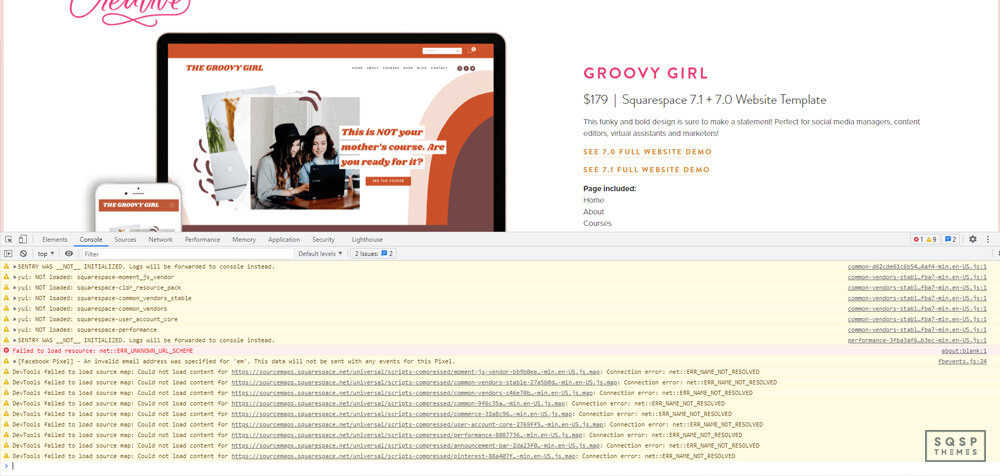
Just make sure to disable any script-blockers or adblockers (or anything else in your browser that might interfere with the template) before you try this, just to remove issues that are actually on your end.
15: Price
Let's be honest here; price is sometimes all that matters as long as the template looks good. In my experience most paid templates run between $150 and $300 for a license. Compare different templates to see what that cost covers. If the price is lower than that, try to figure out why. What are they leaving out? Conversely, if the price is higher, why are they charging more? Do they offer anything worth that value, or are they just trying to get as much as they can?

Ideally, if you run through this checklist on a template before you buy it, you can be fairly assured that it's a good one if it passes all the checks. Or, you can simply browse my curated selection, since I've done the work for you already. Happy shopping!
How to add your Squarespace products to Pinterest Catalog
The first step in getting your Squarespace product feed into your Pinterest catalog is to export a CSV file from Squarespace. To do this, go to your Commerce dashboard and then go to inventory. In the upper right-hand corner, you will see an option to click called “export all” which will generate a product CSV file. Once you have this file, open it in Google Sheets.
Pinterest has its own set of requirements for how this data needs to be organized. The spreadsheet will need to be processed in a way that Pinterest is happy with. To help you with this, Pinterest has a list of required fields that need to be filled in. These include ID, item group ID, title, description, link, image link, price, availability, variant names, and value names. You can find more information on what should be in these fields in Pinterest's formatting tips.
In the spreadsheet, you will need to change the first column to “item_group_id” and fill in any empty cells with the item group ID of the product above it. If you have a very big product catalog, there is a script available that can automate this process. You can sign up to be notified when it becomes available.
You will also need to change the “product URL” column to “link” and merge columns D and E into the URL. This will involve combining the shop URL from column D and the product URL from column E to create the final link.
Once you have made all of these changes, your Google sheet is ready for importing into your Pinterest catalog.
The next step is to publish the CSV file to the web. To do this, go to file > publish to web and change it from a web page to CSV and publish it.
This will create a link that can be used as your product feed. Any changes you make to the spreadsheet will automatically be reflected in your Pinterest catalog, although it may take up to 24 hours for Pinterest to refresh the feed.
The final step is to import the feed into Pinterest. On your business page, go to your catalog which is usually under the ads menu. Name your feed whatever you like and paste the product feed URL in the designated space.
Test your feed and validate it, you can then create pins and wait 24 hours to see the changes. Once your feed is verified, you will become a verified Pinterest merchant.
By following these steps, you will be able to successfully import your Squarespace product feed into your Pinterest catalog.