
What’s worth knowing in the Squarespace world.
For designers, developers, and people building businesses around Squarespace.

Squarespace Email Templates for your Newsletter
If you’re looking to preview Squarespace’s Email Templates, I’ve included some below but you’re better off checking them out by going into site dashboard to Marketing > Email Campaigns > Create > Blast
There are more than 80 to choose from and you can also create your own.
There are templates for
Promoting a product or service
Announcing a sale
Sharing an update
Sending a follow-up
Sharing your content
Writing a note
Asking for support
Saying thanks
I’ve used several email marketing services over the years, including Mailchimp, Flodesk and ConvertKit and Squarespace Email Campaigns has the best templates I’ve seen.
Here’s what I love about them,
You can apply your site styles instantly. That means the same logo, branding, fonts, and colors used on your site will be reflected in your email template.
You can embed blog posts and products.
Images have several layout styles so you can create something unique.
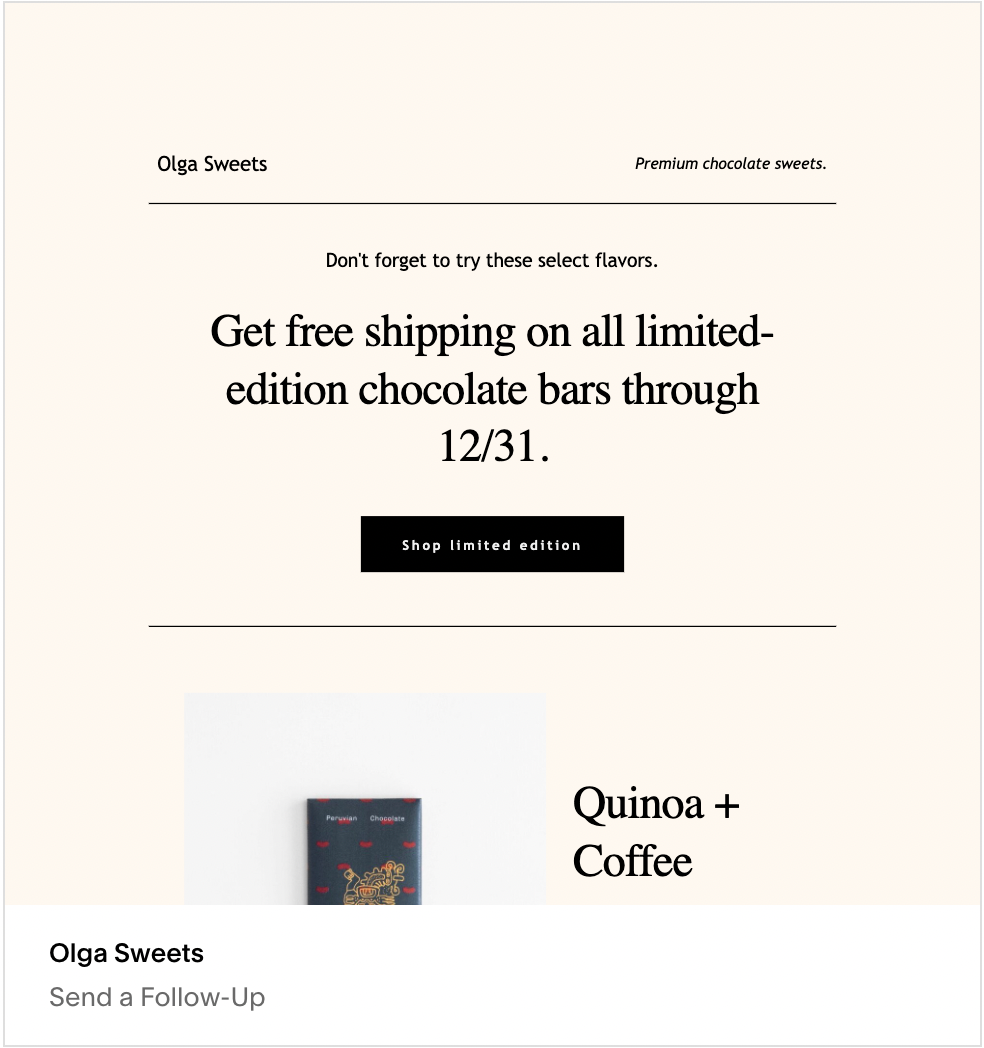

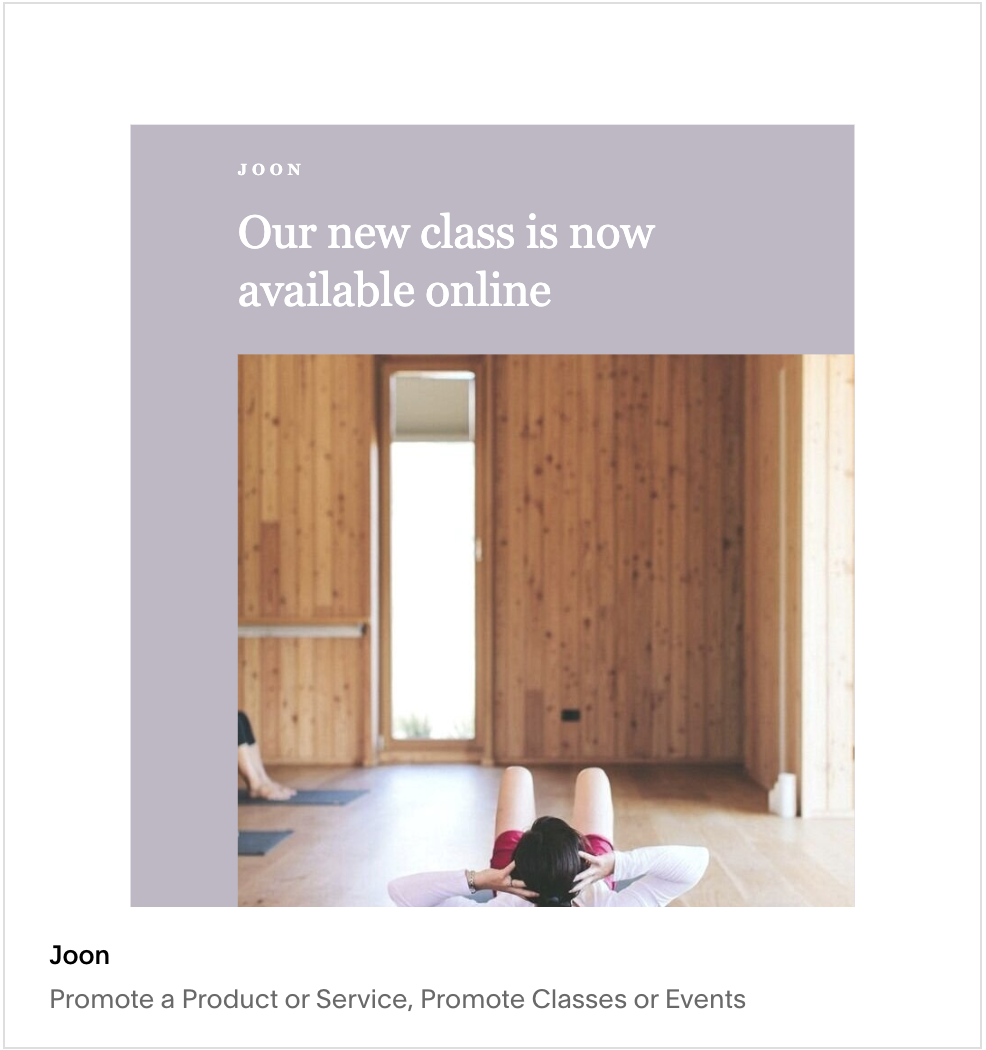
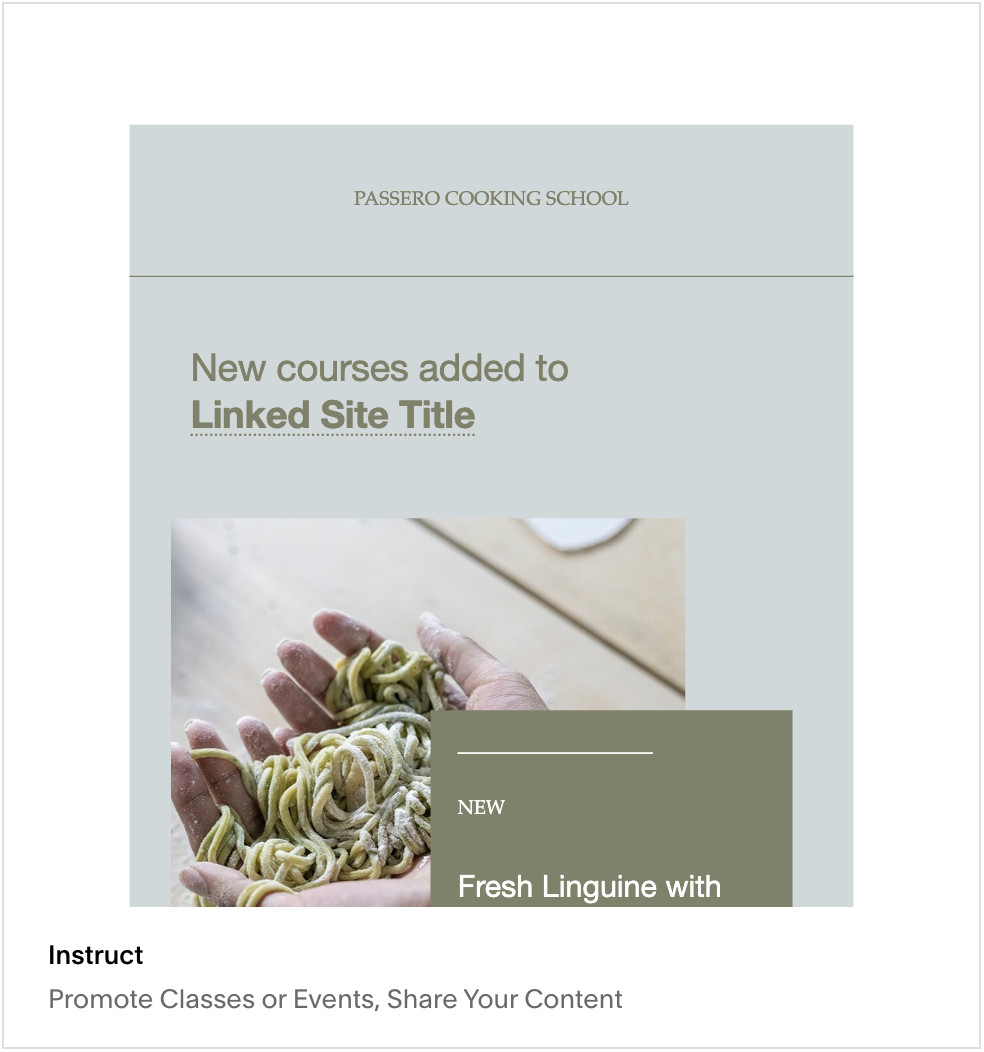
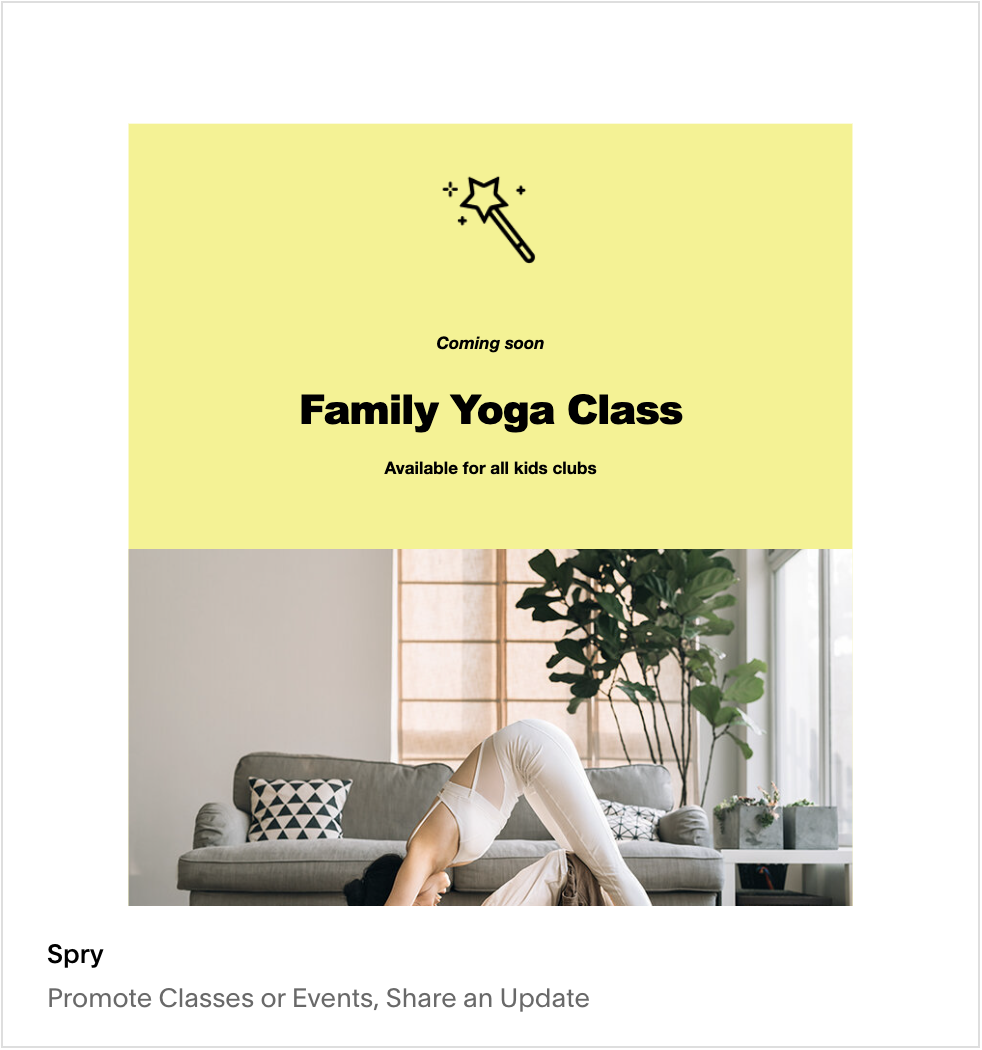
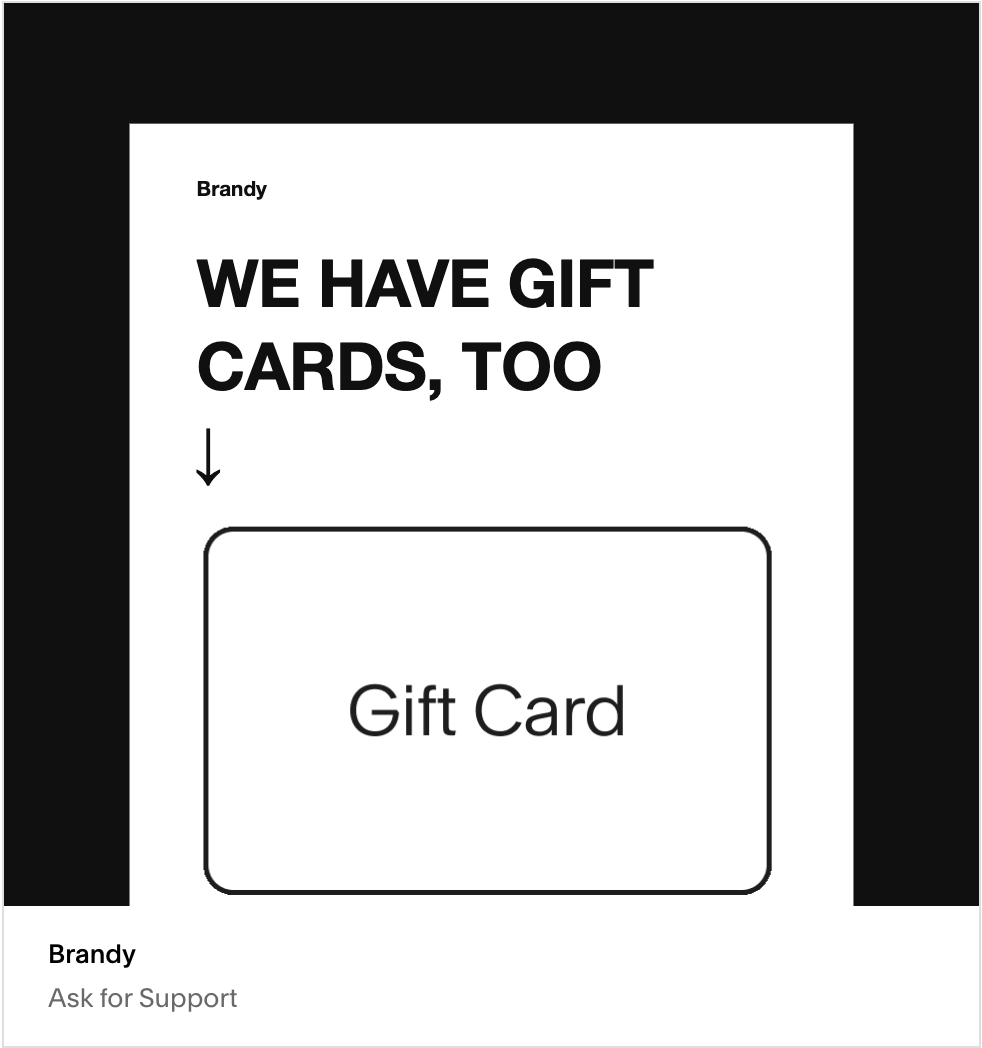
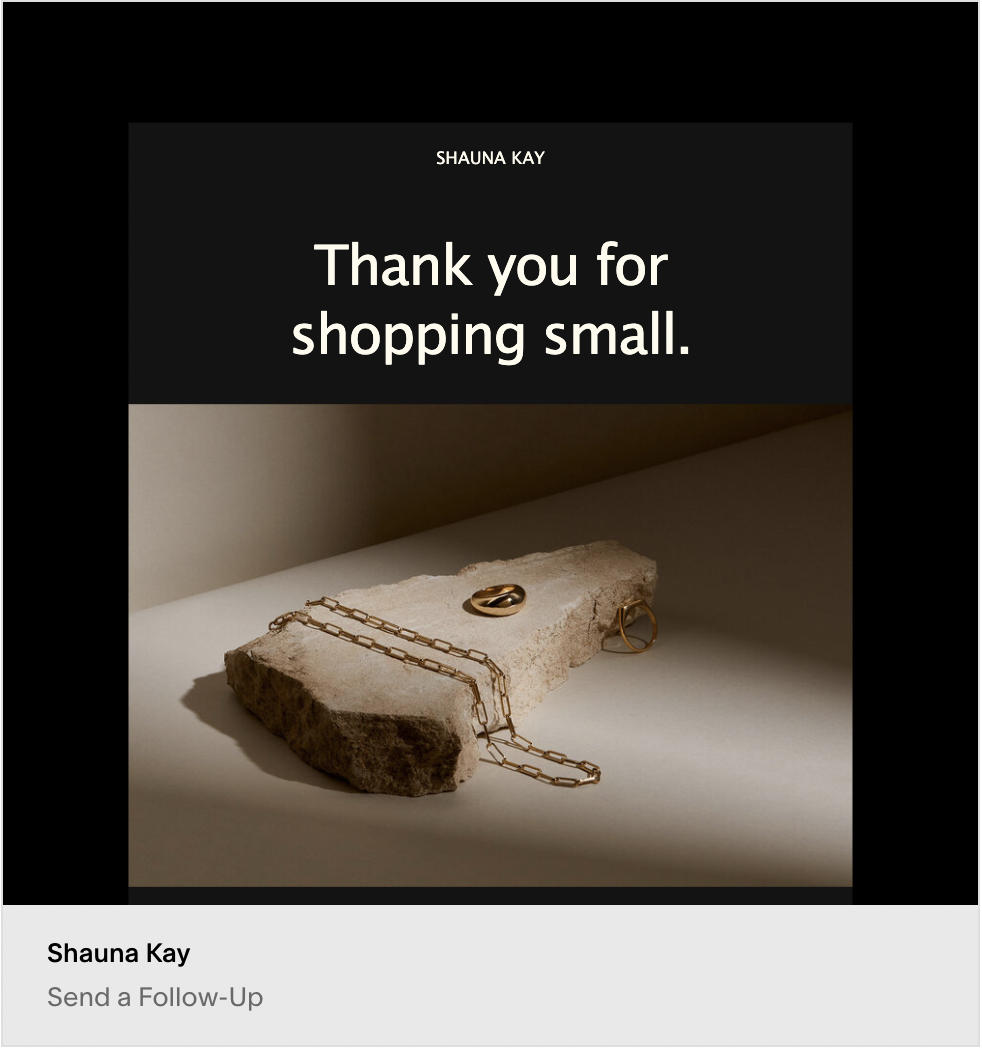
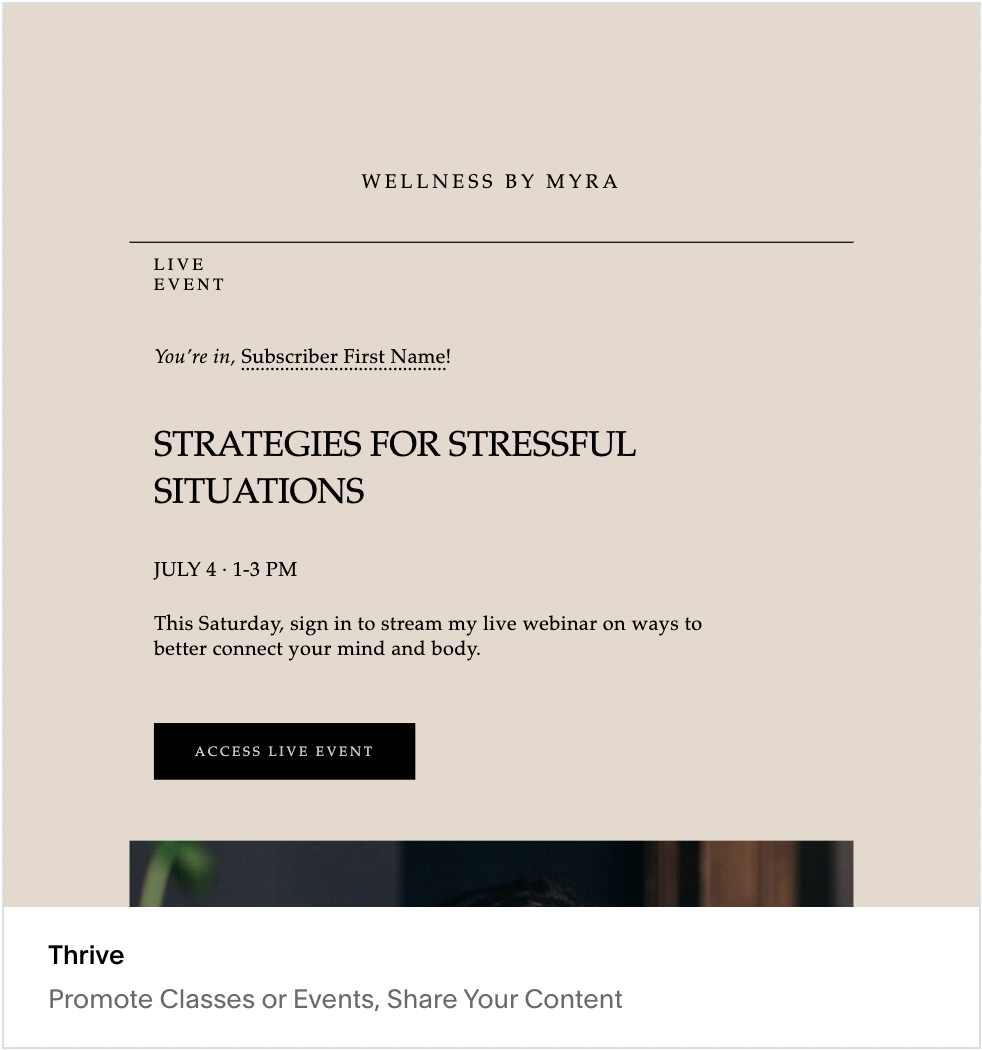

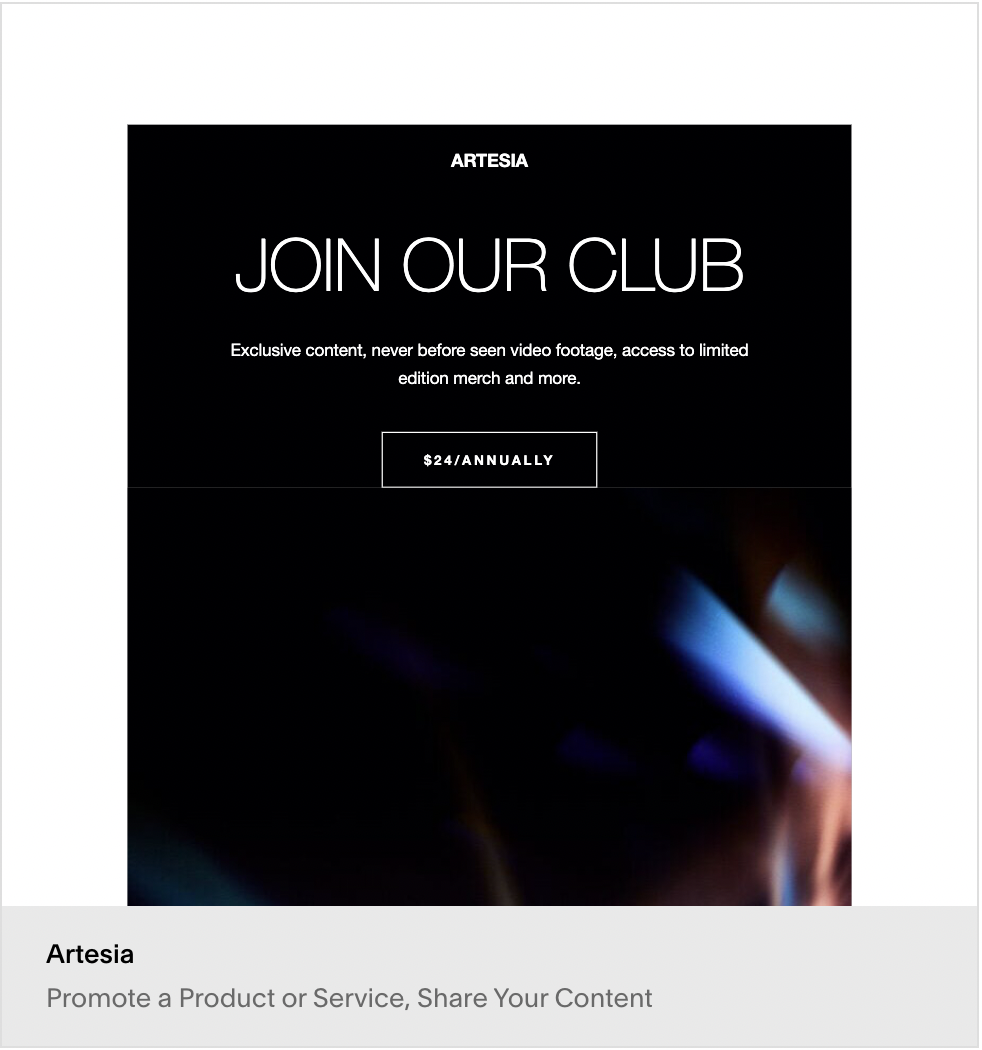
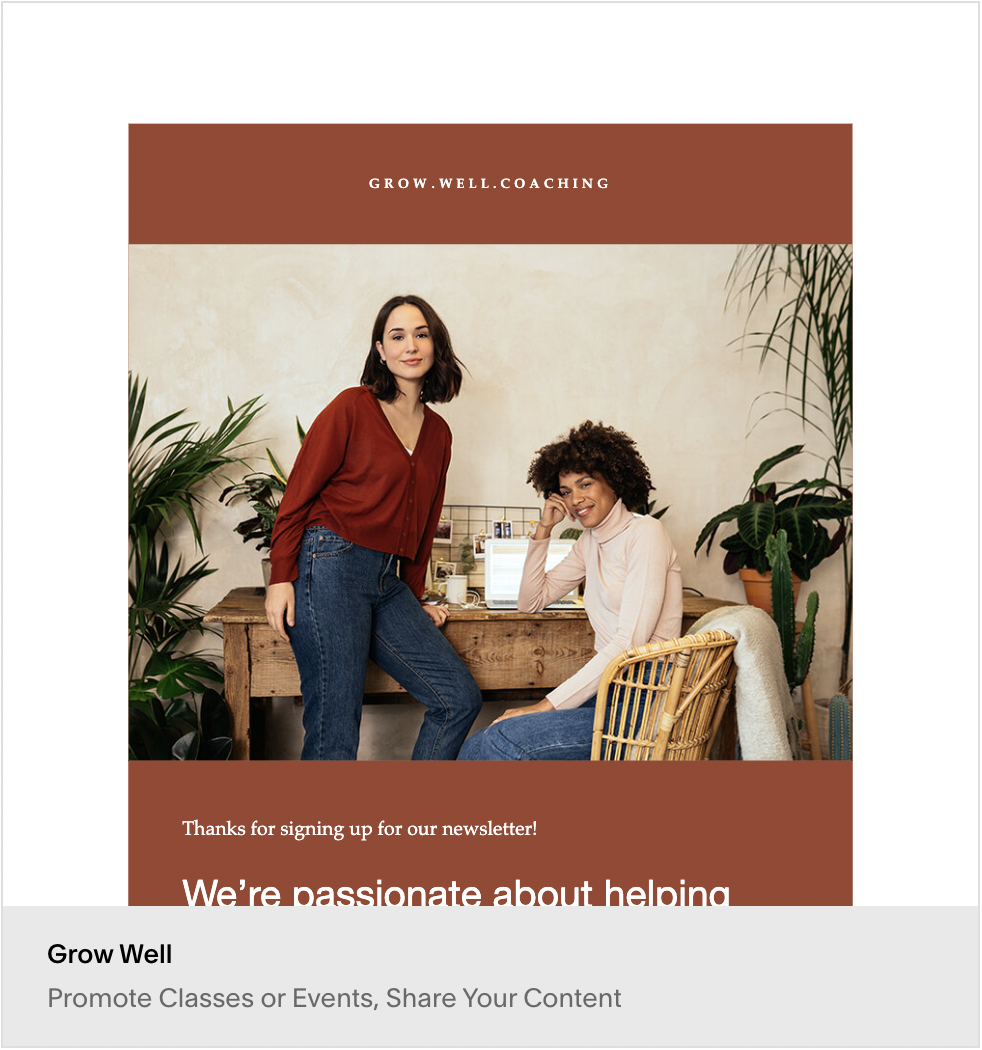
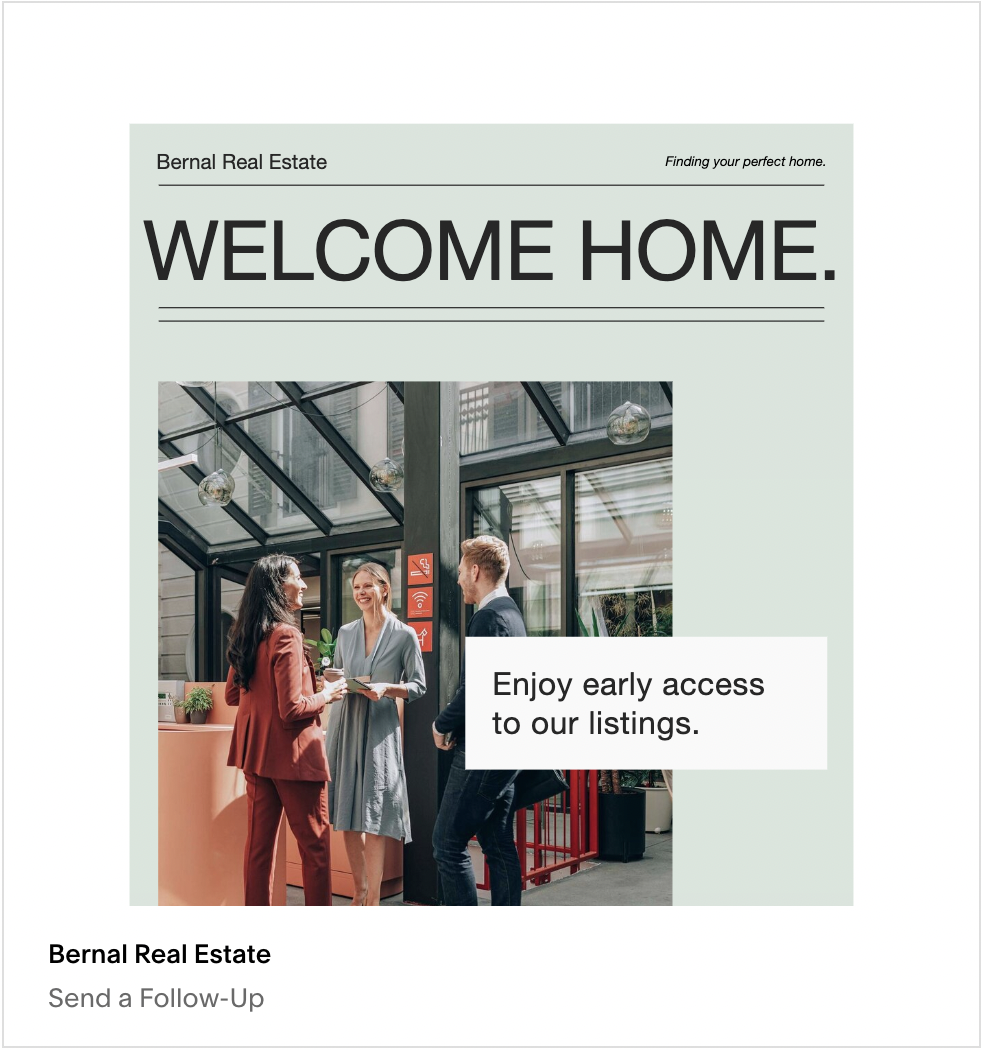
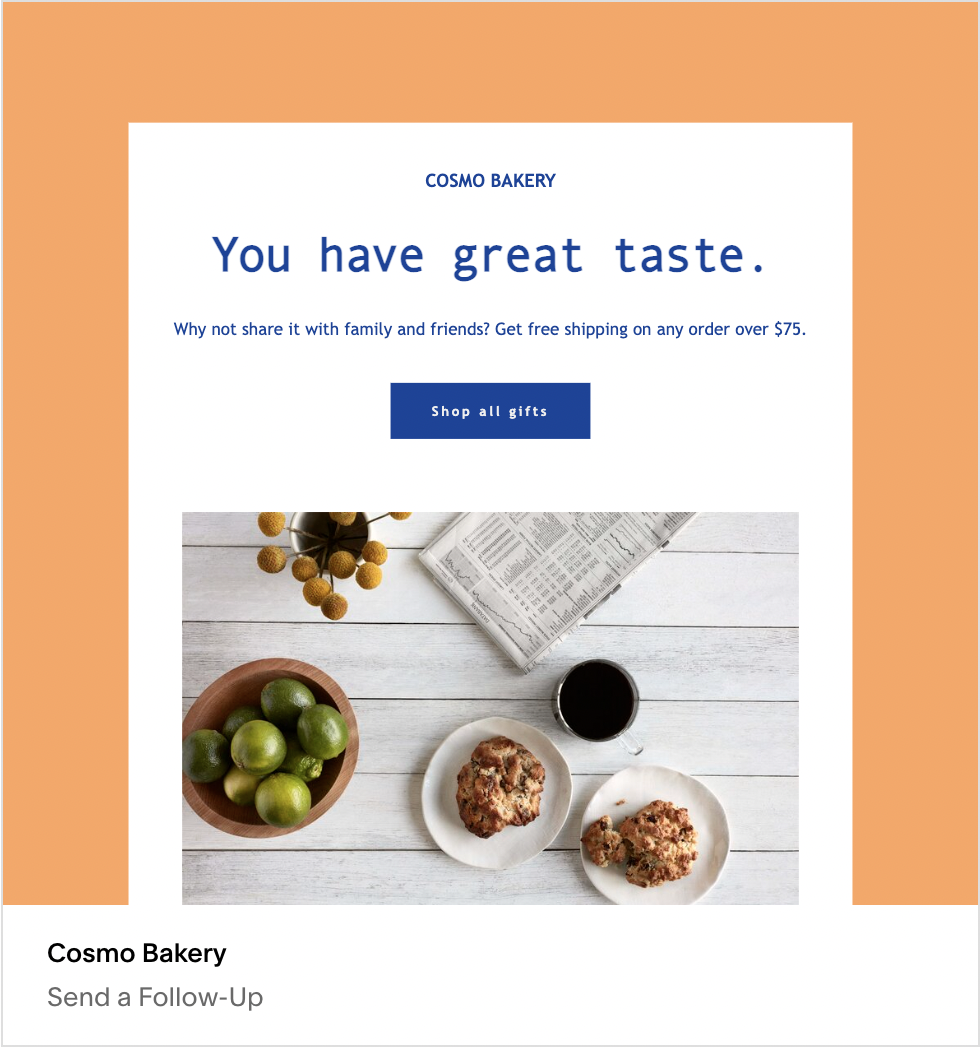
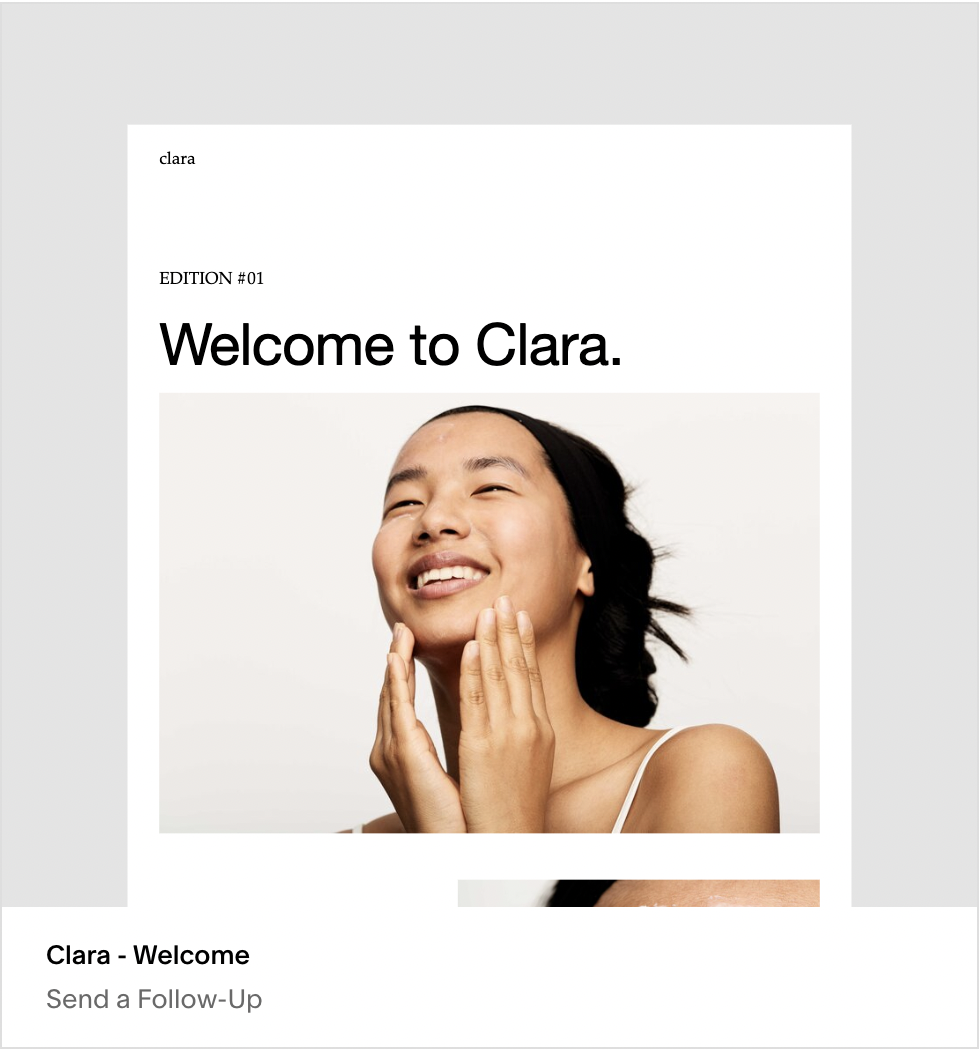
To see more go to Marketing > Email Campaigns > Create > Blast
How to create your own Squarespace Newsletter Template
Start with a blank template
Apply your site style. This should pull in your logo, font and color scheme.
Add the sections most relevant to your newsletter.

How to Find What Squarespace Template a Website is Using
2024 Update: Watch the video Below for the 10-second version
WHy it’s so hard to tell what template a Squarespace site is using
Three factors get in the way of simple identification.
1. The first is that templates are not publicly visible, at least, not on the site itself. You can’t always look at some name in the footer or a sidebar somewhere and identify the template a site is using. Most templates don’t advertise the template name on the front-facing design.
2. Second is the fact that you can expand the functionality of a Squarespace site with plugins and other third-party code. You can’t look at a lightbox and say “alright, it has to be one of the templates with a lightbox” because it could be a different template with a lightbox plugin.
3. The third is that there are third-party templates. A site using a third-party template might not look like other Squarespace sites. Fortunately, this isn’t necessarily an issue, simply because you might not know the site is a Squarespace site, so identifying the template might not be on your agenda.

Just keep that in mind if you’re not satisfied with any of the base Squarespace themes, you can always find a third-party template to buy instead.
The 7.0 And 7.1 Divide
One of the other issues you might run into is the divide between Squarespace sites using 7.0 and the sites using 7.1. When Squarespace released its new version, it changed how its site architecture works.

In 7.0, site owners have to pick a template and build their site based on that template. There are 21 different template families, many with variations within them. If you haven’t chosen a template for your site yet, it’s a simple matter to identify the template a site is using and pick the same one… as long as it’s not discontinued. Several old templates and template families have been discontinued over the years, so you can’t pick one of those to base your site on.
In 7.1, the idea of discrete template families was removed. Instead, there’s just one default architecture. Picking a template is, instead, more like picking a series of elements you want to be preconfigured on your site. You can add and remove those elements as you desire, which gives you much more flexibility. This does, however, make it harder to figure out what theme the site is using.
If the template that you fall in love with was designed for Squarespace 7.0, and your website is on Squarespace 7.1, that could pose an issue for you.
Identifying the Template of a Squarespace Site Manually
To identify the template a Squarespace site is using, you need to find the template ID code. Luckily, this is pretty easy to find.
1. Visit the website you want to check. It helps if you know the site is using Squarespace, but if you’re not sure, it’s pretty easy to tell; if the following steps don’t work, it’s not using Squarespace.
2. View the source code for the page. In Firefox or Chrome, you can right-click on the page and click “View Page Source” or click Tools in the menu bar, then Browser Tools, then Page Source. CTRL+U also works.

3. Use CTRL+F or click Edit – Find In Page, and type in “templateID”. This will search the source code for the templateID parameter, which is part of the Squarespace code base, and identifies which template the site is using. If no such code exists, the site isn’t using Squarespace.

You’re looking for a code string that looks like this:
“templateId”:” 55f0aac0e4b0f0a5b7e0b22e”
That string, the bit that starts with 55, is what you’re looking for.
Incidentally, you can tell whether the site is on 7.0 or 7.1 in the same string. Immediately after the templateID string is a version string. It looks like this:
"templateVersion":"7"
The 7 can also be 7.1, and there is a difference here.
This is cool, but how does it help us? Do you know what “55f0aac0e4b0f0a5b7e0b22e” means? I sure don’t.
What you need is a lookup table, something like this.
On that site, you’ll see a search bar and a list of strings. Copy the templateID and paste it into this search box, and you’ll be given a list of the templates that match that ID code.

Here are a few examples.
Site: www.sqspthemes.com
TemplateID: 55f0aac0e4b0f0a5b7e0b22e
Templates: Mercer, Nueva, Rover, Juke, Hunter, Sonora, Mojave, Heights, Keene, Motto, Hatch, Rally, Foster, Feed, Jaunt, Greenwich, Miller, Wav, West, Aria, Moksha, Maple, Fairfield, Mentor, Cacao, Sofia, Margot, Kin, Royce, Stella, Impact, Blend, Pursuit, Pedro, Vow, Hyde, Martha, Thorne, Brine, Clay
Here we have one of the most common problems: template families. All of the templates listed above are part of the Brine template family. Every site using any one of those templates will have the same ID number, and there’s nothing in the code that lets you identify which one of those templates is the one they’re using.

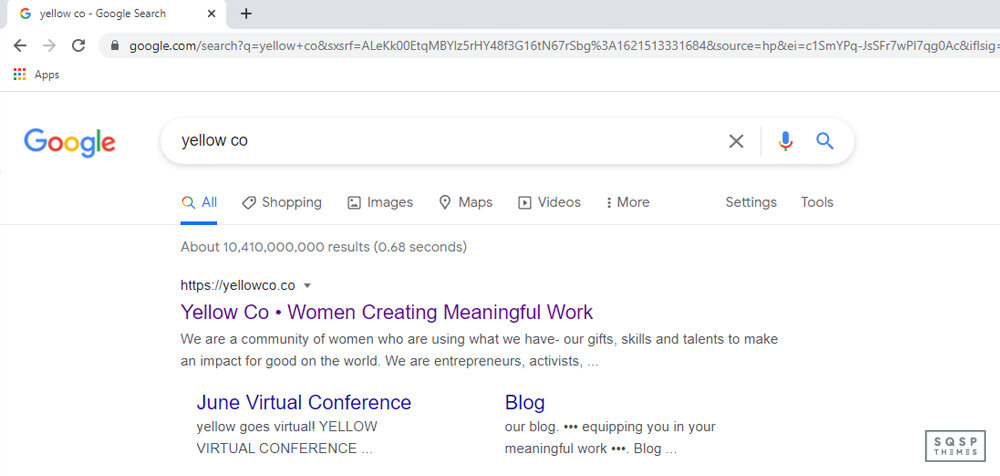
Site: https://yellowco.co/
TemplateID: 50521cf884aeb45fa5cfdb80
Templates: Montauk, Om, Kent, Julia
Here, we see a less broad template family. There are only four templates in this family, so it’s easier to identify which one is in use, though it still takes some back-and-forth comparisons.

Site: https://kale-seadragon-c93b.squarespace.com/?password=demo
TemplateID: 5c5a519771c10ba3470d8101
Templates: ???
Wait, what?
So, now we’re encountering a new problem. This third site (which is a demo site) is for a paid, third-party theme called Yoga. Since it’s a Squarespace theme, it has a template ID. However, since it’s a 7.1 template, it doesn’t show up in any of the template lookup lists. This is, as far as I can tell, the one code that simply means “7.1” and, since all 7.1 templates are based on the same core code, they all use the same templateID. So, if you see a template ID that matches that one, it’s a 7.1 site. You can verify this with the templateVersion flag right next to it, too.

Unfortunately, this means you can’t tell which variation of 7.1 is in use, or whether or not it’s a third-party template. On the other hand, since all 7.1 templates are the same, just using different modular elements, you can customize your own 7.1 version website to look the same as long as you can identify the elements you want to use.
Looking for a new template?
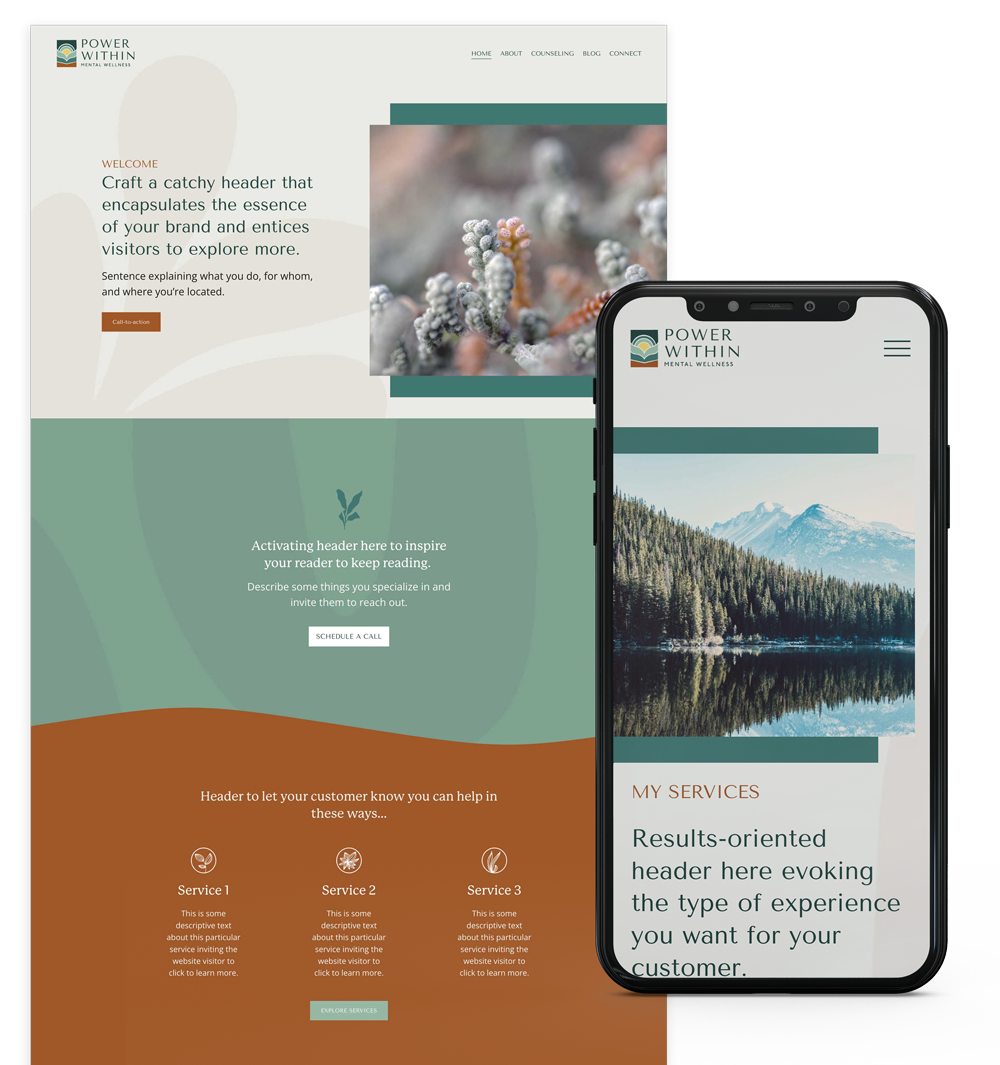
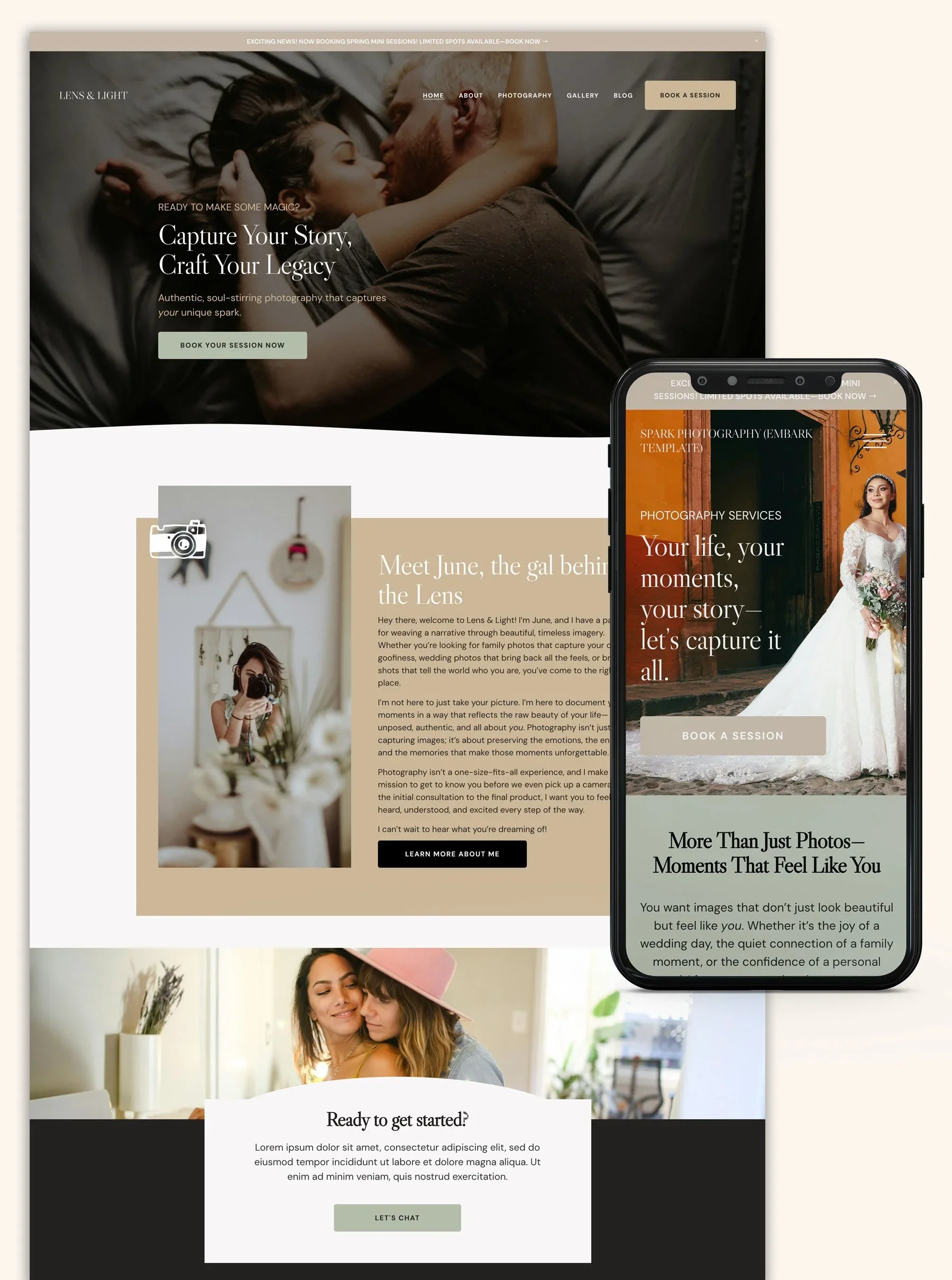
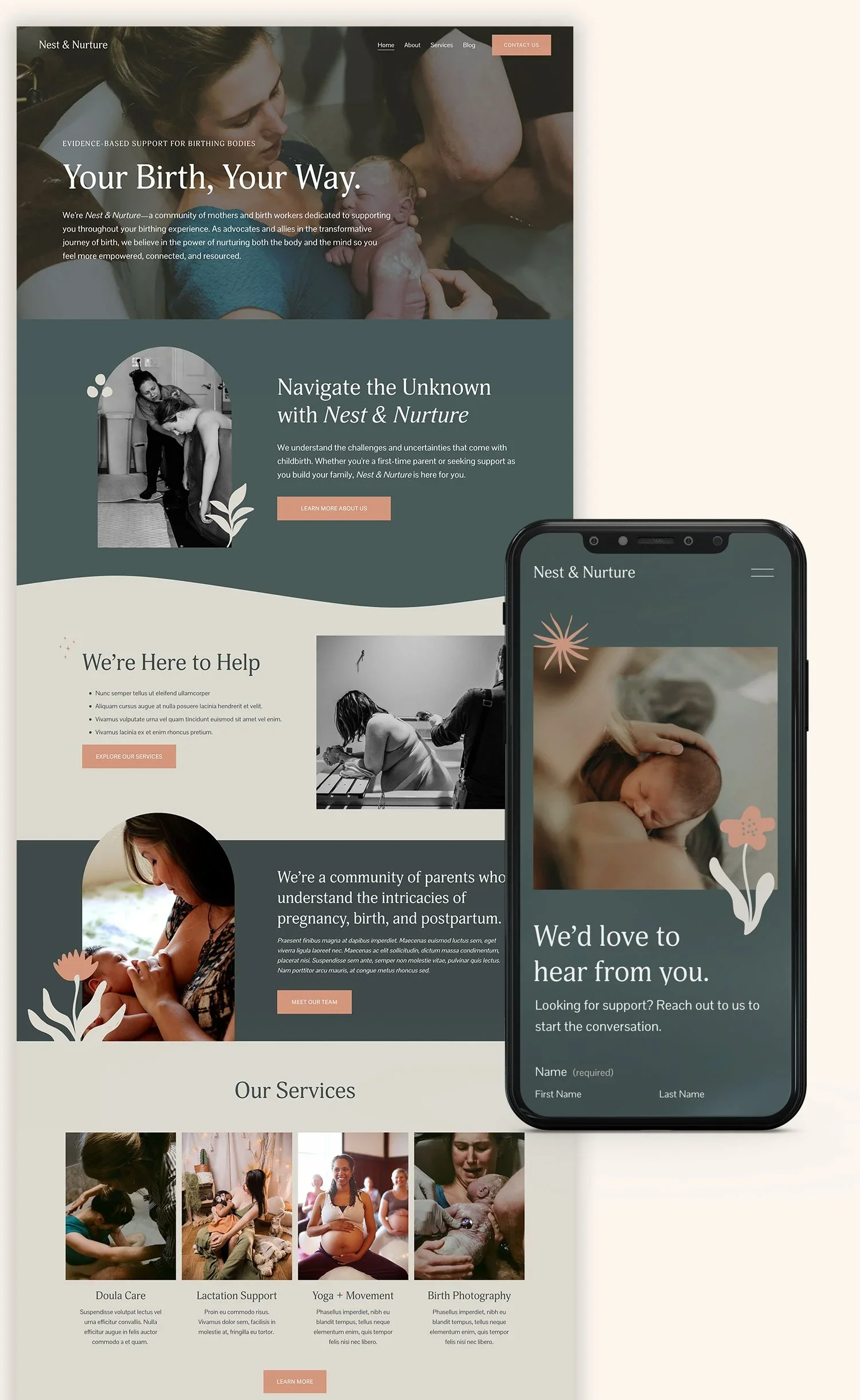
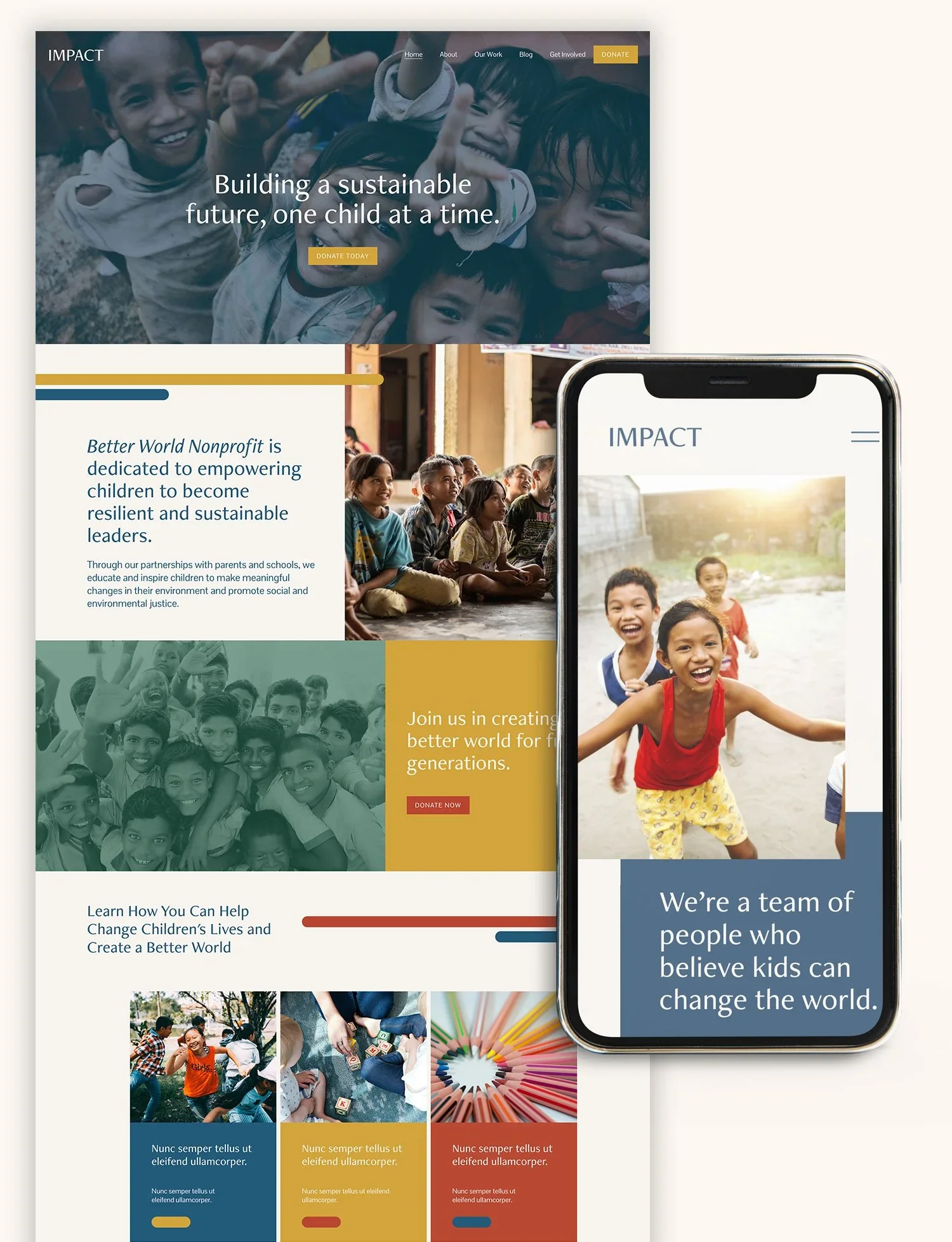
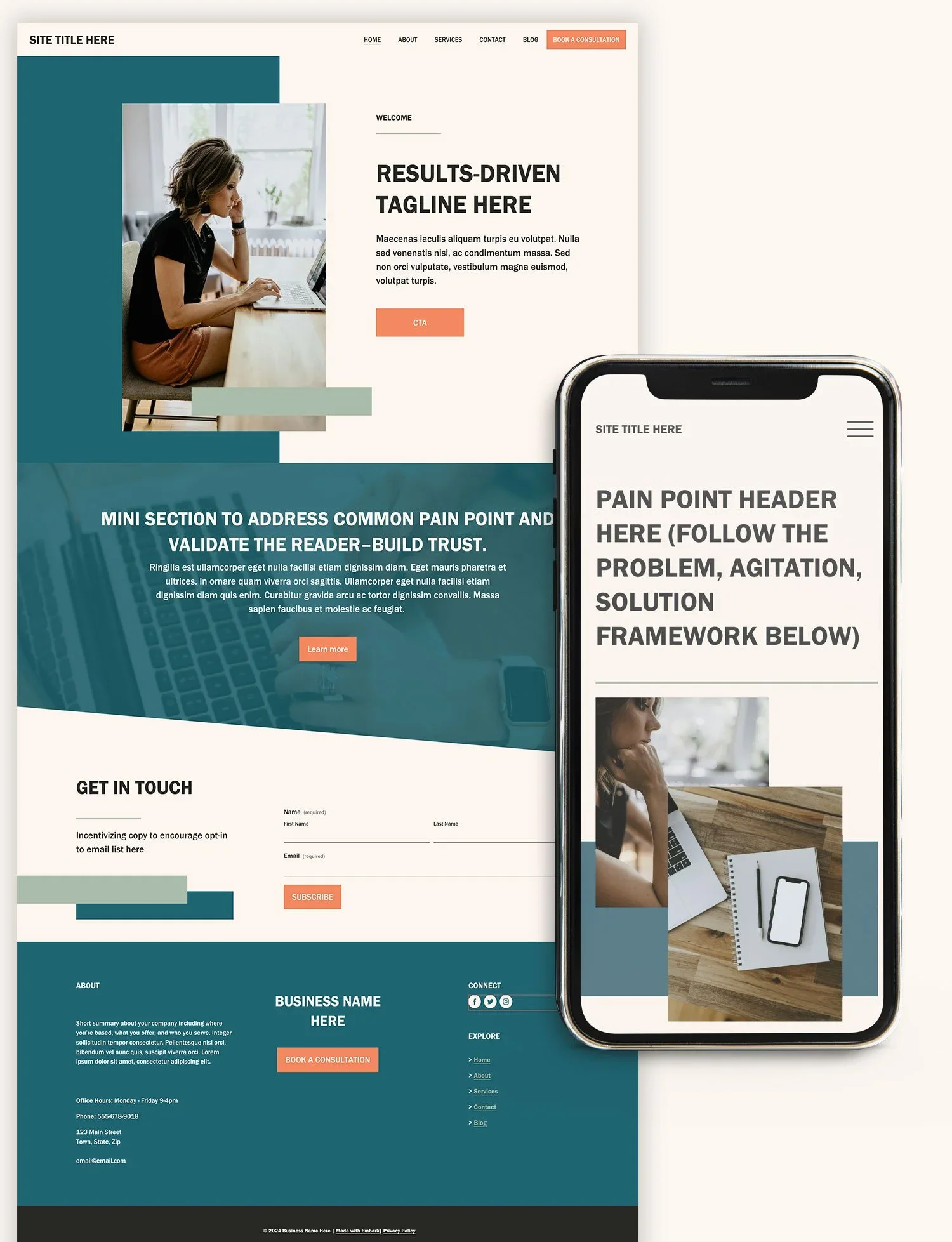
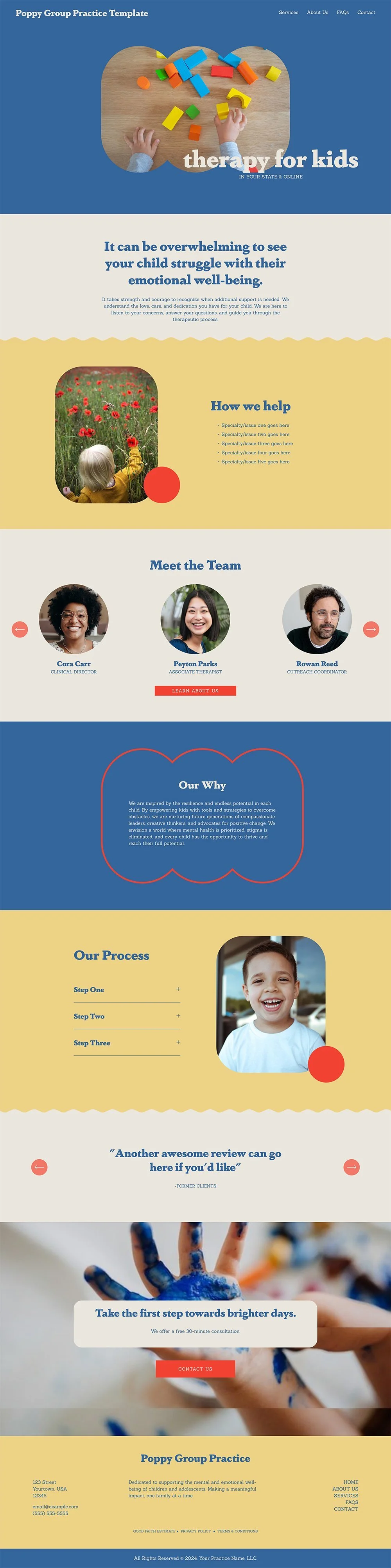
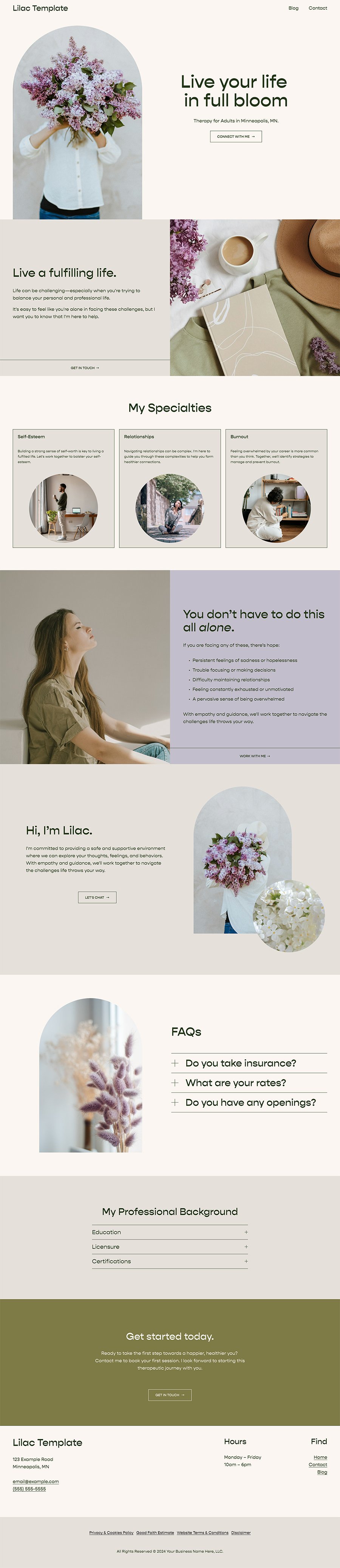
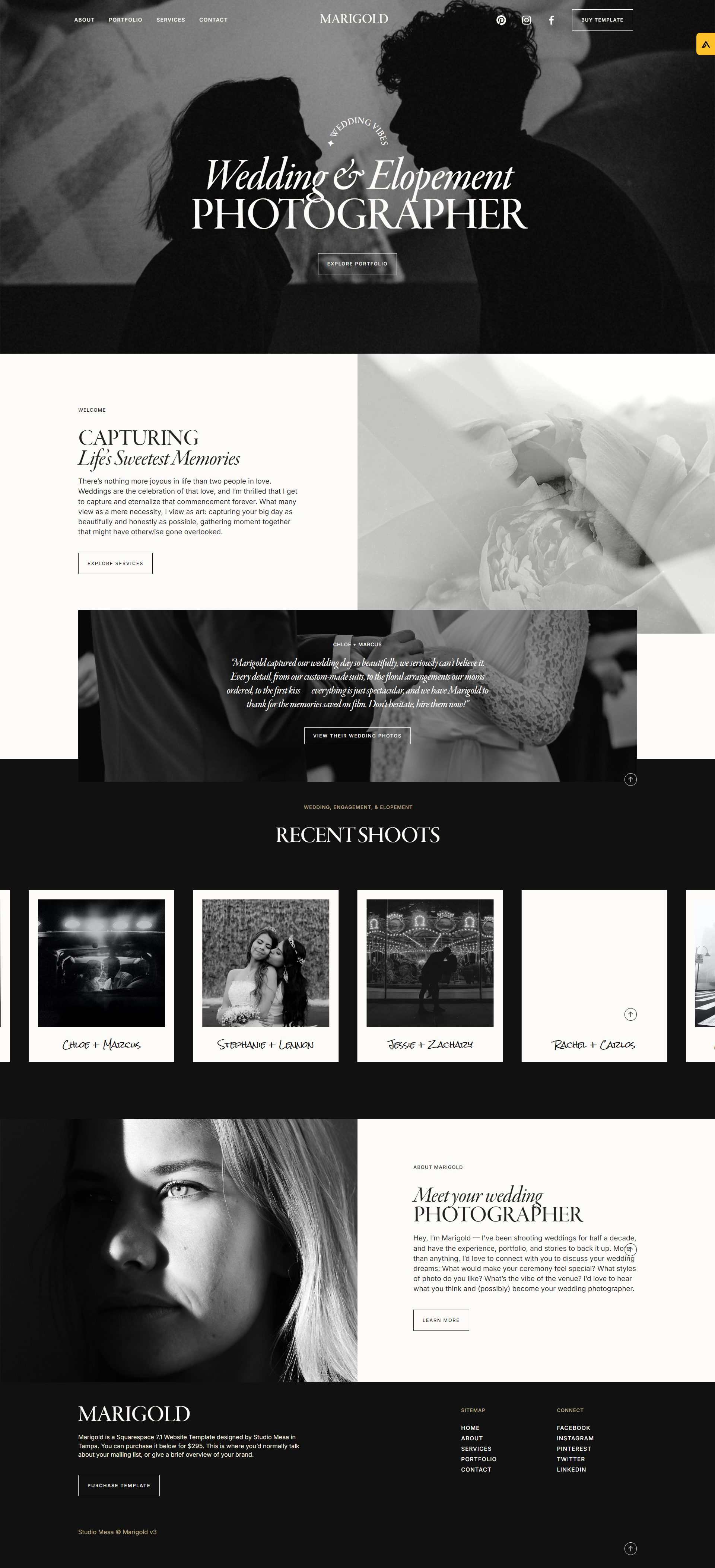
Checkout the latest from our directory











Cash on Delivery Workarounds for Squarespace
How to process payment methods with Squarespace
There are many instances where you might want to skip the payment options at checkout to invoice the customer a different way.
There are two solutions that I’ve used to handle this.
1. Using a special discount code
With Squarespace you can auto apply a discount to certain orders. So 100% off would mean your customer doesn’t pay and you can treat that order like COD.
You can also add an option at checkout for COD.
2. Integrating a 3rd party checkout
Another option would be to use a 3rd party checkout like Shopify Lite.
These integrations appear seamless to your end users.
147