
What’s worth knowing in the Squarespace world.
For designers, developers, and people building businesses around Squarespace.
Squarespace Plugin Types: What They Do and Why They Matter
Squarespace is powerful out of the box.
You can build a clean website, publish pages, sell products, create forms, write blog posts, and manage a lot of your online presence without touching code.
But eventually, most site owners run into the same moment:
“I like Squarespace… but I wish it could do this one extra thing.”
That’s where plugins come in.
A Squarespace plugin adds a feature, function, layout, or behavior that Squarespace does not include by default. Some plugins are small visual enhancements. Others add major functionality to product pages, blogs, portfolios, navigation, galleries, and ecommerce stores.
If you already know what you’re looking for, you can browse our full library of Squarespace plugins.
But if you’re still trying to understand what kind of plugin you need, this guide will walk you through the major plugin types and the key benefit of each one.
<! data-preserve-html-node="true"-- Optional hero image: Upload the generated “10 Types of Squarespace Plugins” graphic to Squarespace and insert it here. -->
Squarespace Plugins vs. Squarespace Extensions
Before we get into plugin types, it helps to clear up one common point of confusion.
Squarespace has official Squarespace Extensions. These are third-party tools that connect to Squarespace and help with things like sales tax, shipping, dropshipping, SEO, social media marketing, and other business operations.
Squarespace plugins, in the way most designers and site owners use the term, are usually different.
Plugins are often code-based enhancements that change what your site can do or how visitors experience it. A plugin might add a lightbox, accordion, sidebar, product swatches, related posts, custom gallery behavior, countdown timer, or navigation improvement.
Both can be useful.
Extensions usually help with business operations.
Plugins usually help with site experience.
1. Layout Plugins
Layout plugins help you organize content in ways Squarespace does not always make easy by default.
These include things like:
- Accordions
- Tabs
- Sidebars
- Content toggles
- Section enhancements
- Blog layout improvements
- Pricing tables
The main benefit is clarity.
A page can have the right information and still feel hard to use. Layout plugins help you take long, messy, or repetitive content and make it easier to scan.
For example, the Squarespace Accordion-Tabs Plugin lets you turn dense content into accordion menus or tabbed sections. That can be useful for FAQs, product details, service packages, course modules, pricing explanations, and long sales pages.
Instead of forcing visitors to scroll through everything at once, you let them open the part they care about.
That matters because a confused visitor does not usually take action.
They leave.
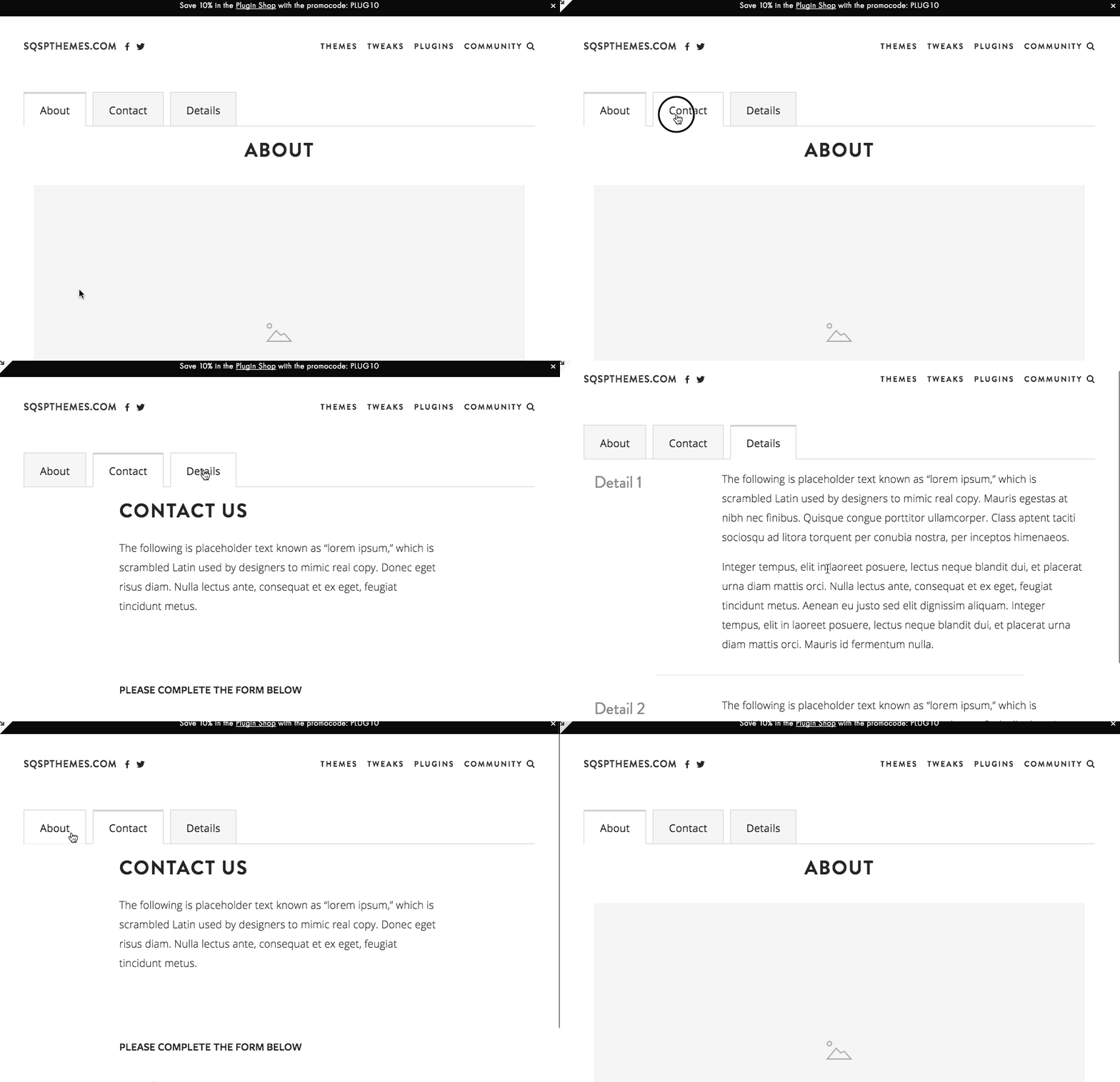
Best for: FAQ pages, service pages, sales pages, product details, course pages, and long-form content.
Key benefit: Makes dense information easier to understand.
2. Navigation Plugins
Navigation plugins help visitors move through your site more easily.
These can include:
- Mega menus
- Sidebar navigation
- Sticky navigation
- Mobile menu improvements
- Anchor link enhancements
- Dropdown improvements
The main benefit is orientation.
As your site grows, your default navigation can start doing too much. You may have products, services, blog categories, resources, case studies, tutorials, and contact pages all competing for attention.
A navigation plugin helps create a better path.
For example, the Squarespace Sidebar Plugin can add a customizable sidebar to your site. That can be useful for blogs, tutorials, documentation, resource libraries, long-form articles, and sites where readers need a persistent way to move through related content.
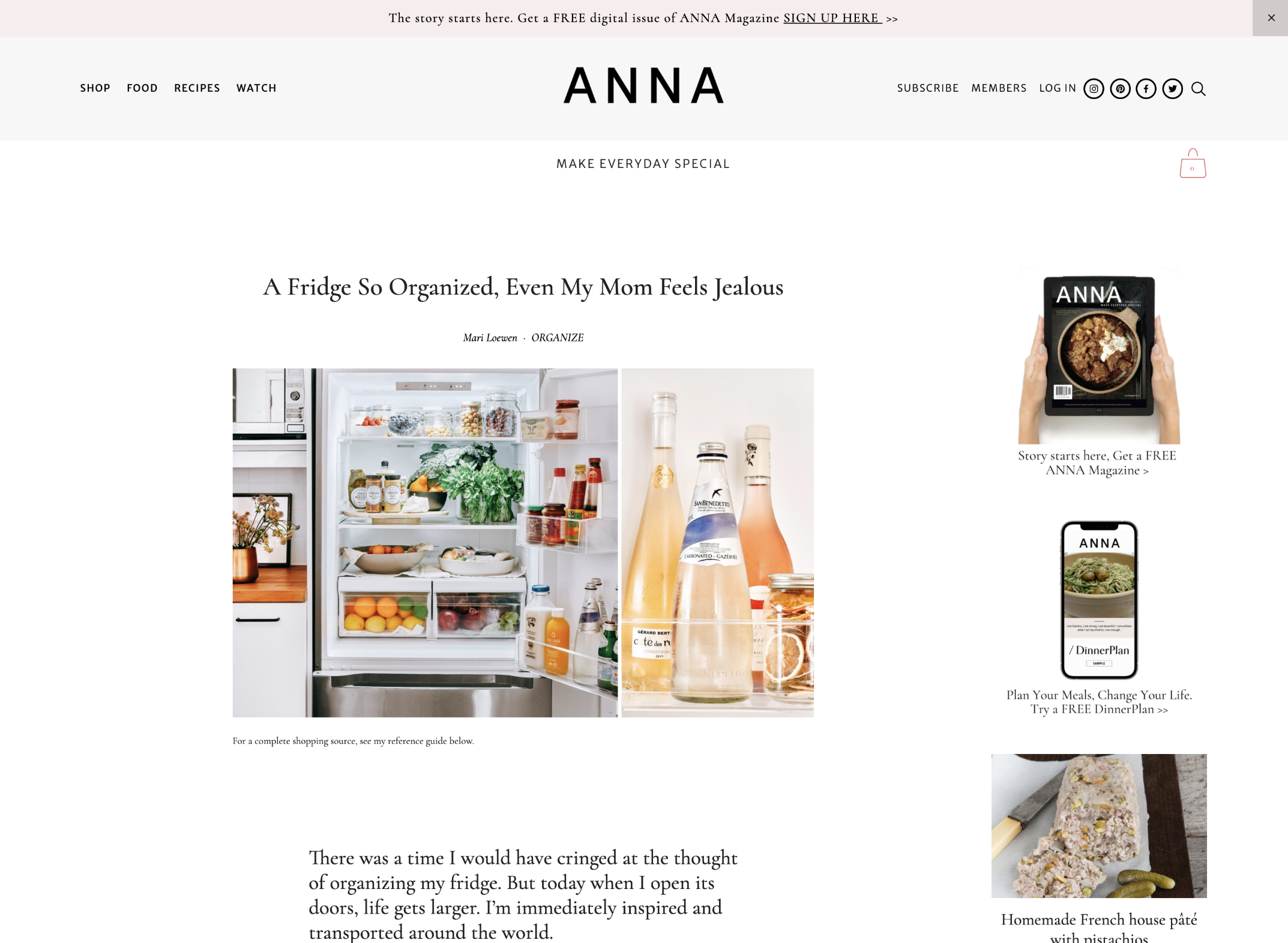
Mega menus can also help larger sites group related links together instead of hiding everything inside a basic dropdown. If you need that kind of expanded navigation, Will Myers has a Mega Menu for Squarespace 7.1 that is worth knowing about.
Best for: larger websites, blogs, product libraries, service businesses, education sites, and ecommerce stores.
Key benefit: Helps visitors find the right page faster.
3. Lightbox and Popup Plugins
Lightbox plugins let you open content in an overlay instead of sending the visitor to a new page.
This can include:
- Image lightboxes
- Video popups
- Form popups
- Size charts
- Product details
- Newsletter forms
- Portfolio previews
- Custom page sections
- Upsell offers
The main benefit is keeping visitors in context.
Instead of forcing someone to leave the page to watch a video, complete a form, or view extra details, a lightbox lets that content appear on top of the current page.
The Squarespace Lightbox Anything Plugin is useful because it gives you a flexible way to open custom content from buttons, images, text links, galleries, and other page elements.
That means you can use it for forms, videos, team bios, product details, portfolio items, promotions, gated content, and more.
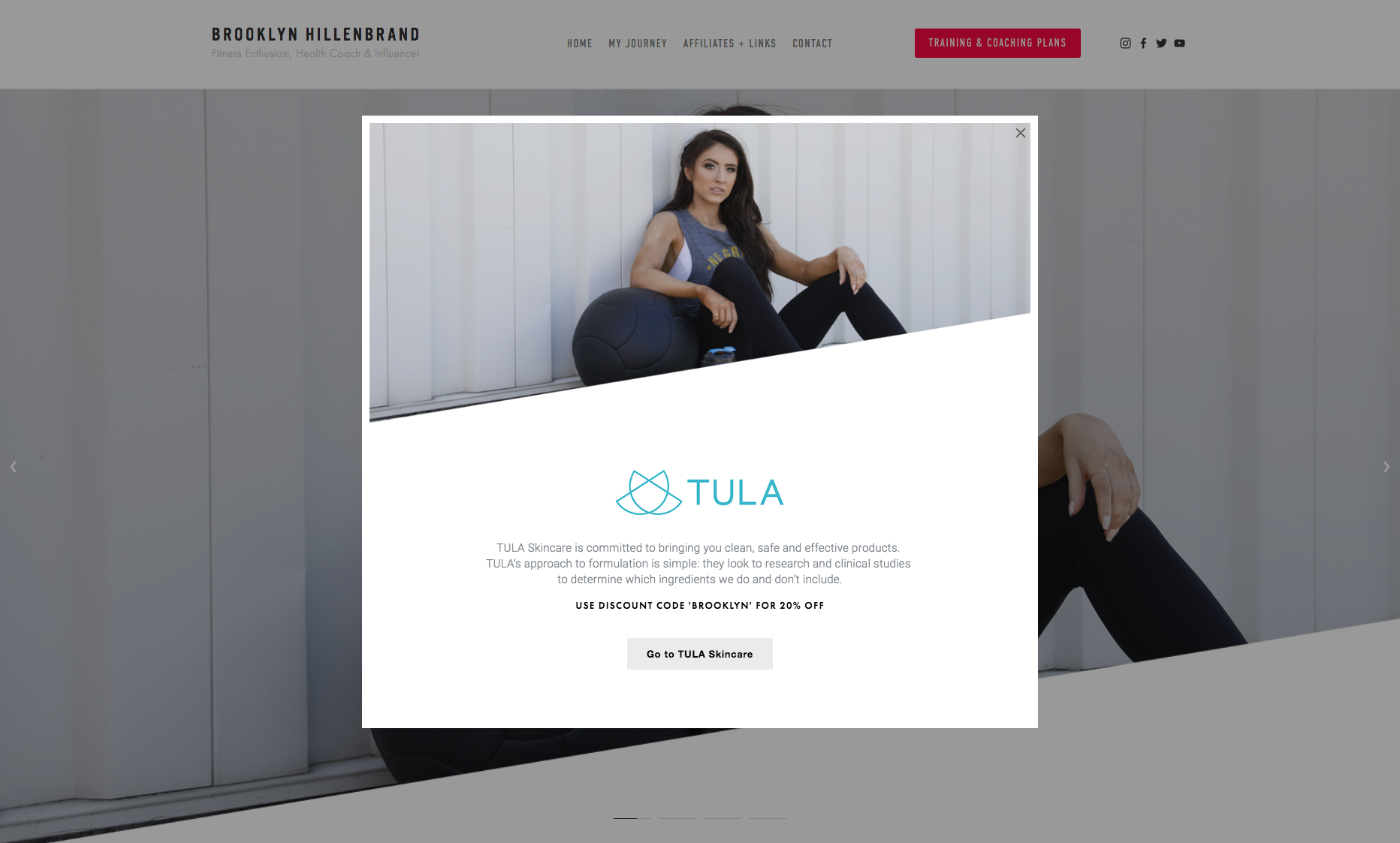
For video-specific use cases, the Squarespace Video Lightbox Button Plugin lets you turn a video link into a modal popup.
Best for: ecommerce stores, portfolios, lead generation pages, video content, image galleries, and product detail pages.
Key benefit: Shows extra content without interrupting the visitor’s path.
4. Ecommerce Plugins
Ecommerce plugins improve the shopping experience on Squarespace stores.
These can include:
- Product swatches
- Product videos
- Product tabs
- Related products
- Quick-view enhancements
- Cart improvements
- Countdown timers
- Upsell sections
- Size charts
- Custom product layouts
- Inventory indicators
The main benefit is buyer confidence.
A product page has one job: help the customer decide.
If the customer needs to understand color options, sizing, product details, use cases, related products, or how the item works, ecommerce plugins can make that information easier to see and act on.
For example, the Product Color/Image Swatch Variant Plugin replaces plain text variant dropdowns with visual swatches. That helps customers see color, size, pattern, or style options at a glance.
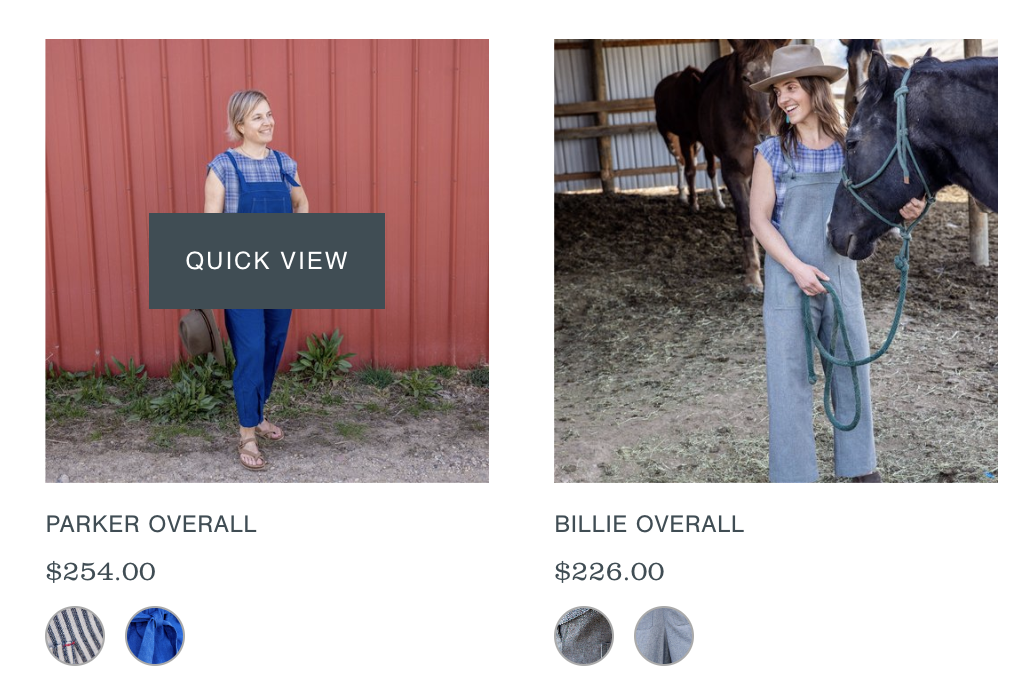
The Sync Product Variant Images plugin improves the relationship between product options and product images, so selecting a variant can update the product imagery in a more intuitive way.
The Squarespace Product Gallery Video Plugin lets you add video to a product gallery, which can help customers understand how a product looks, moves, works, or feels.
The Squarespace Show Inventory Plugin can also help when customers need to know how much stock is available before buying.
Best for: Squarespace stores, digital product shops, physical product stores, templates, courses, and service-product hybrids.
Key benefit: Helps shoppers understand the product and make decisions with more confidence.
5. Gallery and Portfolio Plugins
Gallery and portfolio plugins help you present visual work in a cleaner, more intentional way.
These can include:
- Gallery lightboxes
- Masonry layouts
- Before-and-after displays
- Portfolio filters
- Hover effects
- Image overlays
- Custom gallery grids
- Video galleries
- Image counters
- Randomized galleries
The main benefit is presentation.
Squarespace already gives you ways to display images, but designers, photographers, artists, architects, and creative businesses often need more control over how that work is experienced.
A gallery plugin can make a portfolio feel more polished. A lightbox can let someone view images without opening a new page. A filter plugin can help visitors sort projects by category, style, industry, location, or service type.
If you need gallery-specific enhancements, browse our Squarespace gallery plugins.
Best for: designers, photographers, artists, agencies, studios, real estate, architecture, interior design, and visual portfolios.
Key benefit: Makes visual work easier to browse and more persuasive.
6. Filtering and Search Plugins
Filtering plugins help visitors narrow down a collection of content.
These are useful for:
- Blog archives
- Resource libraries
- Portfolios
- Directories
- Product collections
- Case studies
- Event listings
- Team pages
The main benefit is control.
Once a site has a lot of content, visitors need a way to sort through it. Without filters, a resource library or portfolio can become difficult to use.
A filter plugin can let someone choose a category, tag, topic, service, location, or product type. Instead of scrolling through everything, they can quickly get to the content that matches what they came for.
For more advanced filtering, the Squarewebsites Universal Filter is one of the better-known Squarespace filtering plugins. It is built to filter and sort different types of Squarespace content, including blogs, products, galleries, events, albums, and other collections.
This matters more as your site becomes an asset.
The more useful content you publish, the more important it becomes to help people find the right thing.
Best for: blogs, directories, portfolios, product libraries, resource hubs, and content-heavy websites.
Key benefit: Helps visitors find relevant content faster.
7. Blog Enhancement Plugins
Blog plugins improve the way your posts are displayed, discovered, and connected.
These can include:
- Related posts
- Sidebar layouts
- Category filters
- Reading progress bars
- Custom summary block layouts
- Featured post sections
- Table of contents enhancements
- Author boxes
- Better pagination
The main benefit is deeper engagement.
A blog should not be a dead end.
If someone reads one helpful post, the site should naturally guide them to the next useful post, product, service, or resource.
The Squarespace Related Posts and Products Plugin automatically displays related posts or products based on categories and tags. That creates internal pathways between pieces of content and helps visitors keep moving through your site.
For blogs with larger archives, the Blog Pagination with Images Plugin can make post navigation more visual by adding image previews, custom titles, and post dates to pagination links.
Best for: blogs, tutorial sites, content marketing sites, education businesses, resource libraries, and niche publishers.
Key benefit: Turns individual posts into a connected content system.
8. Conversion Plugins
Conversion plugins help visitors take action.
These can include:
- Announcement bars
- Countdown timers
- Popups
- Sticky buttons
- Exit-intent offers
- Lead capture forms
- Call-to-action sections
- Pricing table enhancements
- Testimonial sliders
The main benefit is momentum.
A visitor may be interested, but interest alone does not create action. Conversion plugins help make the next step more visible, timely, and compelling.
For example, the Countdown Timer Plugin can support real deadlines for launches, promotions, webinars, seasonal offers, and limited-time sales.
The Testimonial Slider Plugin for Squarespace can help you display social proof in a more dynamic way, which is especially useful on sales pages, service pages, product pages, and landing pages.
Used well, conversion plugins do not need to feel pushy. They simply make the next step easier to see.
Best for: sales pages, landing pages, email list growth, product launches, promotions, webinars, and service inquiries.
Key benefit: Makes the next action clearer.
9. Design Enhancement Plugins
Design enhancement plugins change the look and feel of your Squarespace site.
These can include:
- Button effects
- Hover animations
- Custom cursors
- Text effects
- Image effects
- Section dividers
- Marquee text
- Custom fonts
- Icon enhancements
- Background effects
- Header effects
The main benefit is distinction.
Squarespace sites can start to feel similar when everyone uses the same built-in blocks and templates. Design plugins help create moments that feel more custom.
That said, design plugins work best when they support the message of the site.
A hover effect, animation, or visual treatment should help the visitor feel something, notice something, or understand something. It should not just be decoration for decoration’s sake.
For design-focused components and copy-paste enhancements, Ghost Plugins is another useful Squarespace plugin resource. Their library includes free and premium design components, plugins, templates, and flexible design systems for Squarespace websites.
Best for: personal brands, creative portfolios, agencies, event sites, landing pages, and brands that need a more custom visual presence.
Key benefit: Helps a site feel more distinctive and memorable.
10. Utility Plugins
Utility plugins solve small but important problems.
These can include:
- Smooth scroll
- Back-to-top buttons
- Custom search bars
- Cookie notices
- Mobile fixes
- Form enhancements
- Code helpers
- Accessibility improvements
- Embed improvements
- Social feed widgets
- Chat widgets
The main benefit is friction removal.
Not every plugin needs to transform the whole site. Some of the most useful plugins solve one annoying issue that keeps getting in the way.
A utility plugin might make a page easier to navigate, improve mobile behavior, add a small missing feature, or make the site feel more polished.
Some utility-style tools come from plugin shops. Others come from widget providers or official integrations. For example, Elfsight offers Squarespace widgets for things like Instagram feeds and all-in-one chat, while Squarespace’s own Extensions library connects your site with outside tools for operations, marketing, commerce, and fulfillment.
Best for: almost any Squarespace site.
Key benefit: Fixes small experience gaps that visitors may notice.
Plugin Marketplaces and Ecosystem Tools
Beyond individual plugins, there are also larger Squarespace plugin ecosystems worth knowing about.
SQSPThemes focuses on practical plugins for common Squarespace gaps: lightboxes, accordions, sidebars, product swatches, product videos, related posts, countdown timers, inventory indicators, gallery enhancements, and ecommerce improvements.
Other creators in the ecosystem solve different problems.
Squarewebsites is known for advanced tools like Universal Filter, which helps visitors sort and filter larger collections of content.
Will Myers offers a wide range of Squarespace plugins and mini-courses for designers who want layout, navigation, component, and customization tools.
Ghost Plugins offers design-focused components, templates, plugins, and systems for building more custom Squarespace websites.
Squarespace Extensions connect your site to external tools for shipping, tax, SEO, marketing, inventory, commerce, and other business operations.
The point is not to install everything.
The point is to understand what kind of problem you’re solving.
How to Choose the Right Squarespace Plugin
The best plugin is not always the flashiest one.
The best plugin is the one that solves the problem in front of you.
Before adding a plugin, ask:
- What is the visitor trying to do here?
- What is currently unclear, hidden, or hard to use?
- Is this plugin improving the path or adding noise?
- Will this help someone understand, trust, browse, buy, or take action?
- Does this feature belong on this page?
That last question matters.
A plugin should serve the page. It should not become the page.
If your product page needs more buyer confidence, use a plugin that improves product information.
If your blog has useful posts buried in the archive, use plugins that improve discovery.
If your service page feels too long, use tabs or accordions to organize the information.
If your navigation is overloaded, use a sidebar or mega menu to create a clearer path.
Start with the problem.
Then choose the plugin.
The Real Benefit of Squarespace Plugins
The real benefit of a plugin is not the feature itself.
The benefit is what the feature allows your visitor to do.
A lightbox helps them view more without leaving the page.
A filter helps them find the right content faster.
A product swatch helps them understand their options.
An accordion helps them move through information without overwhelm.
A related posts plugin helps them keep learning.
A countdown timer helps them understand when an offer ends.
A plugin is useful when it improves the relationship between your site and the person using it.
That is the point.
Not more code.
Not more decoration.
A better path.
Explore Squarespace Plugins
If you already know the problem you want to solve, browse our full library of Squarespace plugins.
You’ll find plugins for accordions, sidebars, lightboxes, product swatches, product videos, related posts, galleries, countdown timers, ecommerce improvements, and more.
Find the plugin for the Squarespace problem in front of you.
What Web Designers Get Wrong About Doubling Their Business
You already know the usual advice.
Get more leads.
Post more content.
Raise your prices.
Niche down.
Create a better offer.
And the frustrating part is that none of it is necessarily wrong.
Sometimes you do need more leads. Sometimes you do need to make your judgment more visible. Sometimes your prices are too low. Sometimes your positioning is too broad.
But the right tactic applied to the wrong constraint does not fix the business.
It just gives the same problem a new outfit.
You post more, but the wrong people still inquire.
You raise your prices, but buyers still do not understand why the work is worth it.
You pick a niche, but it feels like a costume because it did not come from your actual work.
You get more leads, but the calls still require too much explaining.
That is usually the sign that the tactic is not the issue.
The diagnosis is.
A web design business rarely doubles because the owner finally finds the perfect tactic.
It doubles when the real constraint becomes visible.
“I need more leads.”
Maybe.
But more leads are only helpful when the business is ready to receive the right ones.
If twice as many people found you this month, would the business actually improve?
Or would you get more vague projects, more budget friction, more wrong-fit calls, and more people who need you to explain the value of the work from scratch?
More leads amplify what is already happening.
If the path is clear, more leads can create more opportunity.
If the path is unclear, more leads can create more noise.
So before chasing visibility, ask a better question:
Do I need more people to find me, or do I need the right people to trust me faster?
That question changes the work.
Now the issue is not just traffic.
It might be positioning. It might be proof. It might be the kind of buyer your site is preparing before they ever reach out.
Sometimes the business does not need more people at the door.
It needs a clearer path for the right people to recognize themselves, trust the work, and take the next step.
“I need to post more content.”
Content can work.
I’ve built a lot of my own business through tutorials, emails, searchable content, and long-term visibility.
But the point of content is not to prove you are active.
The point is to make your judgment visible.
A lot of designers create content that shows they are posting, but not that they can lead.
A serious client does not only need to know that you exist. They need to see how you think.
They need to see how you diagnose a problem.
They need to see what you notice that they might miss.
They need to feel that you understand the situation they are in before they trust you with the work.
That is why case studies matter too.
A useful case study does not just show the finished website.
It shows why the old site was not working, what changed, what decisions mattered, and how your judgment shaped the outcome.
So before deciding you need to post more, ask:
Does my content help the right client trust my judgment before they ever speak to me?
Because that is the job.
Not more content for the sake of more content.
More visible judgment.
“I need to raise my prices.”
Maybe you do.
But price follows trust.
A client pays more when they believe the problem is expensive, the outcome matters, and your judgment reduces risk.
Without that trust, raising your prices just makes the same unclear offer cost more.
That is why “just charge more” can feel so frustrating.
It skips the conditions that make a higher price feel safe to the buyer.
A more useful question is:
What would need to be true for the right client to feel safer paying me more?
Your proof may need to show more than pretty screenshots.
The problem may need a sharper frame.
Your offer may need a stronger container.
The buyer may need to understand the cost of staying where they are.
Your process may need to make the decision feel less risky.
Higher pricing is not only a number.
It is a trust structure.
If the buyer cannot see why the work matters, why now matters, why you matter, and what risk you are helping them avoid, the higher price will feel unsupported.
So yes, raise your prices when the value is there.
But build the trust that helps the right buyer understand the price.
“I need to niche down.”
Niching can help.
But most designers are told to niche by picking a category of people.
Coaches.
Therapists.
Interior designers.
Restaurants.
Nonprofits.
Local service providers.
That can work.
But the better niche is often a situation.
A founder has outgrown their DIY site.
A consultant gets strong referrals, but their website weakens trust before the call.
A business has grown through word of mouth and now needs the website to carry more authority.
A service provider keeps attracting small projects when they are ready for more serious clients.
An organization has evolved, but the website still tells the old story.
That is where the money usually is.
In the moment of need.
So instead of asking, “Who do I design for?” try asking:
What situation am I especially good at recognizing and resolving?
That question usually gives you stronger positioning than a random industry label.
Because the right niche is not just a category.
It is a pattern you understand.
It comes from your past work, your strengths, and a real market need.
The thing you think you need is often the clue
More leads might be the right move.
So might more content.
So might higher prices.
So might a clearer niche.
But none of those moves can do the right job until you know what constraint they are meant to solve.
More leads will not fix a trust problem.
More content will not fix invisible judgment.
A higher price will not fix an unclear offer.
A niche will not help if it is chosen from the outside instead of discovered through the work.
That is why the real work starts with diagnosis.
You have to understand the actual shape of your business well enough to make the next right move.
Sometimes the issue is not that you need to do more.
It is that the work you have already done is not carrying enough of the business yet.
The proof is there, but it is not organized.
The experience is there, but it is not visible.
The best projects happened, but they have not become a path.
The client insight exists, but it has not become content, offer language, case studies, or follow-up.
So the question is not only:
What should I do next?
The better question is:
What is actually limiting the business right now?
Before you chase the next tactic, find the constraint.
That is the kind of work we do inside Double Your Squarespace Business.
We look at what is limiting the business internally, so you can stop guessing at the next tactic and start creating better conditions for growth.
It starts with finding your constraint.
If you want to diagnose yours, start here.
How to create a multilingual website on Squarespace
Creating a multilingual Squarespace website is possible, but the right setup depends on how much control you need, how much content you have, and whether SEO matters for each language.
There are three main ways to do it:
Use Weglot, Squarespace’s recommended multilingual integration
Manually create separate pages for each language
Use custom code or an older third-party multilingual plugin
For most Squarespace 7.1 sites, Weglot is the simplest option. For smaller sites, or sites where you already have your translations written, the manual method can also work. For more custom setups, you may need a plugin or developer.
Let’s walk through the options.
First: Squarespace Site Language Is Not the Same as a Multilingual Website
Squarespace has a site language setting, but this does not translate your whole website.
Changing your site language affects built-in Squarespace text, such as form labels, dates, navigation labels, checkout text, and other system-generated text. It does not automatically translate the text you wrote inside text blocks, page titles, blog posts, product descriptions, categories, tags, or custom content.
If you want more context on what Squarespace supports natively, read: Which Languages Does Squarespace Support?
So if you want your actual website content to appear in multiple languages, you need a multilingual setup.
Option 1: Use Weglot
Weglot is Squarespace’s recommended multilingual solution for Squarespace 7.1 websites.
It automatically detects your site content, creates translated versions of your pages, adds a language switcher, and gives you a dashboard where you can review and edit translations.
This is usually the best option if:
You want the fastest setup
You have a lot of pages or blog posts
SEO matters in each language
You want a language switcher in your site header
You want to manage translations from one place
You do not want to manually duplicate every page on your site
Weglot is especially useful when the website is active and likely to keep changing. If you publish new blog posts, update service pages, change product descriptions, or edit your navigation often, managing everything manually can become a lot of work.
With Weglot, you are paying for convenience, automation, translation management, and multilingual SEO support.
You can start here: Try Weglot for Squarespace
How to Add Weglot to Squarespace
In Squarespace, go to:
Settings → Site Languages → Multilingual
From there, connect Weglot, create or log into your Weglot account, select your original language, and choose the language or languages you want to add.
Once connected, Weglot adds a language switcher to your site and creates translated versions of your content. You can then review and edit those translations inside the Weglot dashboard.
You should still review the translations before treating the site as finished. Automatic translation can get you moving quickly, but brand voice, idioms, service names, product names, and local context often need a human pass.
For the official setup instructions, see Squarespace’s guide: Creating a multilingual site with Weglot
You can also review Weglot’s own Squarespace setup guide here: Weglot Squarespace Integration Setup
Important Weglot Limitations
Weglot is the cleanest option for many Squarespace users, but it is not magic.
Some parts of Squarespace may not translate through the integration, including certain third-party blocks, Acuity Scheduling, Email Campaigns, and member/customer account login screens.
You should also check pricing before you commit. Weglot pricing depends on word count, number of languages, and feature needs. A small brochure site may fit comfortably into a lower plan. A large blog, shop, or content-heavy site may need a paid plan.
Before you translate a large site, it is worth checking your word count. Weglot has a free word count tool here: Weglot Website Word Count
Option 2: Manually Create Pages for Each Language
The manual method means creating separate versions of your pages for each language.
For example, your navigation might have one dropdown for English and another dropdown for Spanish. Under each dropdown, you create matching pages:
English
Home
About
Services
Contact
Español
Inicio
Sobre nosotros
Servicios
Contacto
You can duplicate your original pages, translate the text yourself, and then link between the language versions.
This can work well for small sites.
It is usually a good fit if:
Your site only has a few pages
You already have human translations
You do not update the site very often
You do not want another monthly tool
You are comfortable managing duplicate pages
The main advantage is control. You decide exactly what each page says in each language.
The main drawback is maintenance. Every time you update a page in one language, you need to remember to update the matching page in the other language. On a five-page site, that may be fine. On a fifty-page site with blog posts, products, forms, and landing pages, it can become messy fast.
Squarespace has an official guide for this method here: Manually creating a multilingual site
Manual Multilingual Setup in Squarespace
A simple manual setup looks like this:
Create a homepage or landing page that lets visitors choose their language.
Create a navigation dropdown for each language.
Duplicate your main pages for each language.
Translate the duplicated pages.
Add links between matching language pages when needed.
Check all buttons, forms, navigation links, footer links, and SEO titles.
Update both language versions whenever you make future edits.
This method gives you control, but it does not give you the same automatic multilingual SEO structure that a dedicated multilingual tool can provide.
Option 3: Use Custom Code or an Older Multilingual Plugin
Before Weglot became the main Squarespace recommendation, a lot of multilingual Squarespace setups relied on CSS, scripts, duplicated content, or third-party tools.
These options may still make sense in certain cases, but I would not start there unless you have a specific reason.
CSS-only multilingual setups can be clever, but they are easy to make fragile. You may end up hiding and showing content instead of creating clean language-specific pages. That can create maintenance, accessibility, and SEO concerns.
A plugin or custom code setup may be worth considering if:
You have a very specific design requirement
You want a one-time setup instead of an ongoing translation platform
You already have all translations written
You are working with a developer who understands Squarespace
You do not need the same automation Weglot provides
For most site owners, I would compare Weglot and the manual method first.
Which Multilingual Squarespace Option Should You Choose?
Here is the simplest way to think about it.
Use Weglot if you want the easiest setup, automatic translation, translation management, a language switcher, and better multilingual SEO support.
Use the manual method if your site is small, your content does not change often, and you already have translated copy for each language.
Use custom code or a plugin if you have a specific design or technical requirement that Weglot and the manual method do not solve.
My Recommendation
For most Squarespace 7.1 websites, I would start with Weglot.
It is the most straightforward path, and it is the direction Squarespace points users toward for multilingual sites. It is especially useful for businesses with more than a few pages, content that changes often, or any serious need to appear in search results across multiple languages.
For a small, mostly static website, the manual page duplication method can still be perfectly fine. It takes more care, but it avoids another monthly tool and gives you full control over the translated content.
The main thing is to avoid choosing based only on setup cost.
A multilingual website is not just a translation project. It is a maintenance project. Before you choose a method, ask yourself who will update the second language version three months from now, six months from now, and a year from now.
That answer usually makes the right option obvious.
If you want the easiest path, start here: Try Weglot for Squarespace
Squarespace Multilingual Website FAQs
Does Squarespace support multilingual websites?
Yes, but Squarespace does not have a full native multilingual content manager built into the editor. You can use Weglot, manually create separate language pages, or use a custom/plugin solution.
Does changing the Squarespace site language translate my website?
No. Changing your site language only affects built-in Squarespace text. It does not translate the custom text you added to pages, blog posts, products, or other content areas.
What is the easiest way to make a Squarespace site multilingual?
For most Squarespace 7.1 sites, Weglot is the easiest option. It connects inside Squarespace, adds a language switcher, detects your content, and gives you a translation dashboard.
Can I create a multilingual Squarespace site for free?
You can manually create duplicate pages for each language without paying for a translation tool. This works best for small sites with limited content. You will still need to write or provide the translations yourself.
Is Weglot better than manually duplicating pages?
Weglot is usually better for larger sites, active sites, SEO-focused sites, and sites that need easier translation management. Manual duplication can be better for small, static sites where you want full control and do not want another monthly service.
Is Weglot good for Squarespace SEO?
Weglot is designed to support multilingual SEO by creating language-specific versions of your content and helping search engines understand the translated pages. If SEO is important in multiple languages, Weglot is usually easier than trying to manage everything manually.
Can I use different currencies for different languages in Squarespace?
Squarespace sites can only sell in one currency at a time. If you need different currencies for different markets, you may need separate sites or a more complex ecommerce setup.
Should I use CSS to create a bilingual Squarespace site?
CSS-only multilingual setups can work in some cases, but I would not recommend them as the first option for most site owners. They can be harder to maintain and may create SEO or accessibility issues if not handled carefully.