
Best Squarespace Plugins in 2026: Useful Picks by Site Goal
Squarespace can do a lot out of the box.
You can build pages, publish a blog, sell products, collect emails, manage appointments, and launch a clean site without touching code.
But eventually, most Squarespace users run into the same question:
Can I make Squarespace do this?
Maybe you want to add a sidebar to your blog. Maybe a client wants product color swatches instead of dropdowns. Maybe your shop needs better filtering. Maybe you want a popup, a mega menu, a testimonial slider, a better search experience, or a cleaner way to organize long product details.
That is where Squarespace plugins come in.
A good plugin helps you add a feature Squarespace does not include by default, without rebuilding the site or hiring a developer for every small improvement.
The key is choosing the right plugin for the problem in front of you.
This guide is organized by what you are trying to do, so you can find the plugin that fits your site, your client project, or the feature you need to add next.
Quick answer: best Squarespace plugins by need
| If you need to… | Start with… |
|---|---|
| Add custom popups, overlays, or lightboxes | Lightbox Anything |
| Add a sidebar to a blog or content site | Squarespace Sidebar Plugin |
| Organize FAQs, pricing, product details, or long content | Accordion-Tabs Plugin |
| Add product color or image swatches | Product Color/Image Swatch Plugin |
| Change product images when variants are selected | Sync Product Variant Images |
| Add filtering to products, blogs, galleries, or directories | Universal Filter |
| Add a mega menu to a larger site | Squarespace Mega Menu Plugin |
| Add video to a product gallery | Product Gallery Video Plugin |
| Show inventory or low-stock messages | Inventory Indicator |
| Add memberships or gated content | MemberSpace |
| Translate your Squarespace site | Weglot |
| Add design controls beyond native Squarespace | SquareKicker or Spark |
| Improve ecommerce or shipping workflows | Squarespace Extensions |
What are Squarespace plugins?
Squarespace plugins are third-party tools, code snippets, widgets, or integrations that add features Squarespace does not include by default.
Some plugins are small enhancements. They might add a lightbox, sidebar, accordion, product swatch, or gallery feature.
Others are larger tools that connect Squarespace with outside services for things like memberships, reviews, translation, shipping, email marketing, or order management.
The important thing is this:
A plugin should solve a real problem.
It should make the site easier to use, easier to manage, easier to shop, easier to navigate, or easier to trust.
If a plugin only adds decoration, be careful.
If it helps a visitor take the next step, helps a customer make a decision, or helps you manage the site more clearly, it may be worth considering.
How to choose the right Squarespace plugin
Before you add any plugin, start with the problem.
- What am I trying to make easier for the visitor?
- What am I trying to make easier for the site owner?
- Is this a design problem, content problem, ecommerce problem, navigation problem, or operations problem?
- Does the plugin work with Squarespace 7.1 and Fluid Engine?
- Does it require Code Injection or a Business plan?
- Is there a demo I can see before buying?
- Can I remove it later without breaking the page?
- Is the plugin still maintained and supported?
That last question matters.
A plugin can be useful and still not be right for your site. The best plugin is not the one with the most features. It is the one that solves the exact limitation you are running into without creating unnecessary complexity.
Best Squarespace plugins for layout and content

1. Accordion-Tabs Plugin
Best for: FAQs, pricing sections, service details, course pages, product information, and long content that needs structure.
The Accordion-Tabs Plugin helps you organize content into expandable sections or tabs, so visitors can find what they need without scrolling through a long wall of text.
Use it when a page has useful information, but the layout is starting to feel heavy.
This works well for FAQ pages, sales pages, product details, resource pages, service comparisons, onboarding information, and any section where people need to scan before they read deeply.
Good fit for: service providers, educators, ecommerce stores, course creators, designers, and content-heavy websites.
Watch out for: do not hide essential buying information too deeply. Accordions are best when they reduce clutter, not when they bury the point.
2. Squarespace Sidebar Plugin
Best for: blogs, resource libraries, article pages, directories, promos, author boxes, categories, and calls to action.
The Squarespace Sidebar Plugin adds a customizable sidebar to Squarespace sites, including templates that do not include native sidebar options.
This is useful when your content needs a guide rail.
A sidebar can help readers find popular posts, browse categories, join your newsletter, see a featured offer, or move deeper into your site instead of reaching the end of a post and leaving.
Good fit for: bloggers, educators, affiliate sites, resource hubs, coaches, content marketers, and designers building content-heavy client sites.
Watch out for: sidebars should support the page, not compete with it. Keep the sidebar focused.
3. Squarespace Mega Menu Plugin
Best for: larger sites with multiple categories, shop sections, services, resources, or featured links.
The Squarespace Mega Menu Plugin gives larger Squarespace sites a more useful navigation structure than a standard dropdown menu.
Use it when your site has grown beyond a simple top navigation.
A mega menu can help visitors understand the shape of your site quickly. Instead of hiding everything in a long dropdown, you can organize links into groups, feature important pages, and give people a clearer path.
Good fit for: ecommerce stores, larger blogs, education sites, directories, agencies, and businesses with multiple services.
Watch out for: a mega menu can still become cluttered. Use it to create order, not to show every page you have.
4. Synced Blocks
Best for: reusable content that needs to appear in multiple places across a Squarespace site.
Synced Blocks by BeyondSpace helps you manage repeat content from one place, so updates can be reflected across multiple pages.
This is useful when you have the same content appearing in different parts of a site: announcements, pricing notes, disclaimers, calls to action, recurring sections, or reusable design blocks.
Good fit for: designers, agencies, large content sites, service businesses, and anyone managing repeat sections across a Squarespace site.
Watch out for: use reusable content where consistency matters. Not every section needs to be synced.
Best Squarespace plugins for ecommerce

5. Product Color/Image Swatch Plugin
Best for: products with visual options like colors, fabrics, finishes, patterns, or styles.
The Product Color/Image Swatch Plugin replaces plain variant dropdowns with visual swatches, making product options easier for shoppers to understand.
If a customer is choosing between colors or finishes, a dropdown can feel too abstract. A swatch lets the shopper see the option before selecting it.
That can make the buying experience feel more natural.
Good fit for: clothing stores, home goods, jewelry, art prints, beauty products, furniture, accessories, and any store where the visual difference matters.
Watch out for: swatches work best when the product options are clear and consistent. If the options are confusing in the store setup, the swatches will not fix that by themselves.
6. Sync Product Variant Images
Best for: changing the product image when a shopper selects a variant.
The Sync Product Variant Images plugin solves a common Squarespace store problem: a shopper selects a color, size, or option, and the product image should change with it.
This matters because customers want confidence before they buy.
If someone chooses the walnut finish, blue fabric, or large size, the product image should help confirm that choice.
This is also a good example of when a plugin meets active need. Someone is usually not searching for this because they are casually browsing. They are trying to fix a real store experience.
For more context, see our guide on how to change the product image when selecting a variant in Squarespace.
Good fit for: ecommerce stores with color, material, style, size, or finish variations.
Watch out for: make sure your product variants and images are organized clearly before installing.
7. Inventory Indicator
Best for: showing stock levels, low-stock messages, remaining quantities, or urgency on product pages.
The Inventory Indicator helps shoppers see product availability without guessing.
This can be useful when inventory affects the buying decision. If there are only a few items left, showing that information can help customers decide sooner. If something is sold out, clear messaging can reduce confusion.
Good fit for: small ecommerce stores, limited drops, handmade goods, event products, seasonal collections, and inventory-sensitive shops.
Watch out for: use inventory messages honestly. Fake urgency hurts trust.
8. Product Gallery Video Plugin

Best for: showing product videos directly inside the product gallery.
The Product Gallery Video Plugin lets you add video to the main product gallery area on Squarespace commerce pages.
This is useful when a static image does not tell the whole story.
If a product moves, unfolds, fits, shines, opens, stretches, or has details that are hard to capture in still photos, video can help the shopper understand what they are buying.
Good fit for: apparel, accessories, furniture, physical products, art, home goods, beauty products, and anything that benefits from motion or demonstration.
Watch out for: use video to answer buying questions, not just to decorate the page.
9. Product Details Accordion
Best for: organizing long ecommerce product descriptions.
A product page often needs more information than the first screen can comfortably hold: sizing, shipping, returns, ingredients, care instructions, specifications, FAQs, and usage notes.
A product details accordion helps you organize that information so the page feels clean while still giving serious shoppers what they need.
Good fit for: ecommerce stores with detailed products, technical products, beauty products, apparel, furniture, courses, and digital products.
Watch out for: keep the most important buying information visible. Use accordions for details, not for the core reason to buy.
10. Cart Slideout
Best for: letting customers review their cart without leaving the page.
A cart slideout can make the shopping experience feel smoother by letting visitors check their cart while staying in the flow of browsing.
This is especially useful for stores where customers may add multiple items before checking out.
Good fit for: ecommerce stores with multiple products, bundles, accessories, or repeat add-to-cart behavior.
Watch out for: test carefully on mobile. Cart behavior needs to feel smooth on smaller screens.
Best Squarespace plugins for popups, conversion, and trust

11. Lightbox Anything
Best for: popups, overlays, videos, forms, gated content, product details, promos, team bios, galleries, and custom content.
Lightbox Anything lets you open custom Squarespace content in a popup from buttons, links, images, galleries, and other triggers.
Use it when visitors need more information, but you do not want to clutter the page or send them somewhere else.
That might mean opening an email signup form, showing product details, displaying a video, creating a promo popup, adding gated content, or giving visitors a cleaner way to interact with extra information.
Good fit for: ecommerce stores, service businesses, course creators, designers, portfolio sites, and anyone who needs more flexible popup behavior.
Watch out for: do not add popups just because you can. A lightbox should help the visitor make a decision or complete an action.
12. Testimonial Slider
Best for: showing reviews, testimonials, client results, or social proof in a compact section.
A testimonial slider can help you show proof without taking over the whole page.
This is useful when you want visitors to see that other people have trusted your work, used your product, hired your service, or had a good experience.
Good fit for: service providers, coaches, agencies, ecommerce shops, course creators, and local businesses.
Watch out for: the best testimonials are specific. A slider full of vague praise will not do much.
13. Wiremo Product Reviews
Best for: collecting and displaying product reviews on Squarespace stores.
Wiremo helps ecommerce stores add product reviews and social proof to the buying experience.
Reviews matter when shoppers need confidence. A product page can explain what something does, but reviews help customers see how other people experienced it.
Good fit for: ecommerce stores, product businesses, and shops where customer feedback can help reduce hesitation.
Watch out for: reviews need to be actively collected. Installing a review plugin does not create social proof by itself.
14. Google Reviews or Facebook Reviews widgets
Best for: local businesses that already have strong reviews on public platforms.
If your business has strong Google or Facebook reviews, adding them to your Squarespace site can help visitors trust you faster.
This is especially useful for service businesses where credibility matters before someone books, calls, or fills out a form.
Good fit for: restaurants, salons, consultants, home services, local businesses, studios, and professional services.
Watch out for: do not overload the site with third-party widgets. Choose the reviews that matter most.
15. Live Chat
Best for: answering questions while visitors are still deciding.
Live chat can help when visitors often need quick answers before buying, booking, or submitting a form.
This can be useful for ecommerce, services, event businesses, and higher-touch offers where a small question can block the sale.
Good fit for: ecommerce stores, service businesses, course sites, SaaS-style offers, and businesses with support capacity.
Watch out for: live chat only works if someone can respond. An abandoned chat widget creates frustration.
Best Squarespace plugins for search, filtering, and discovery
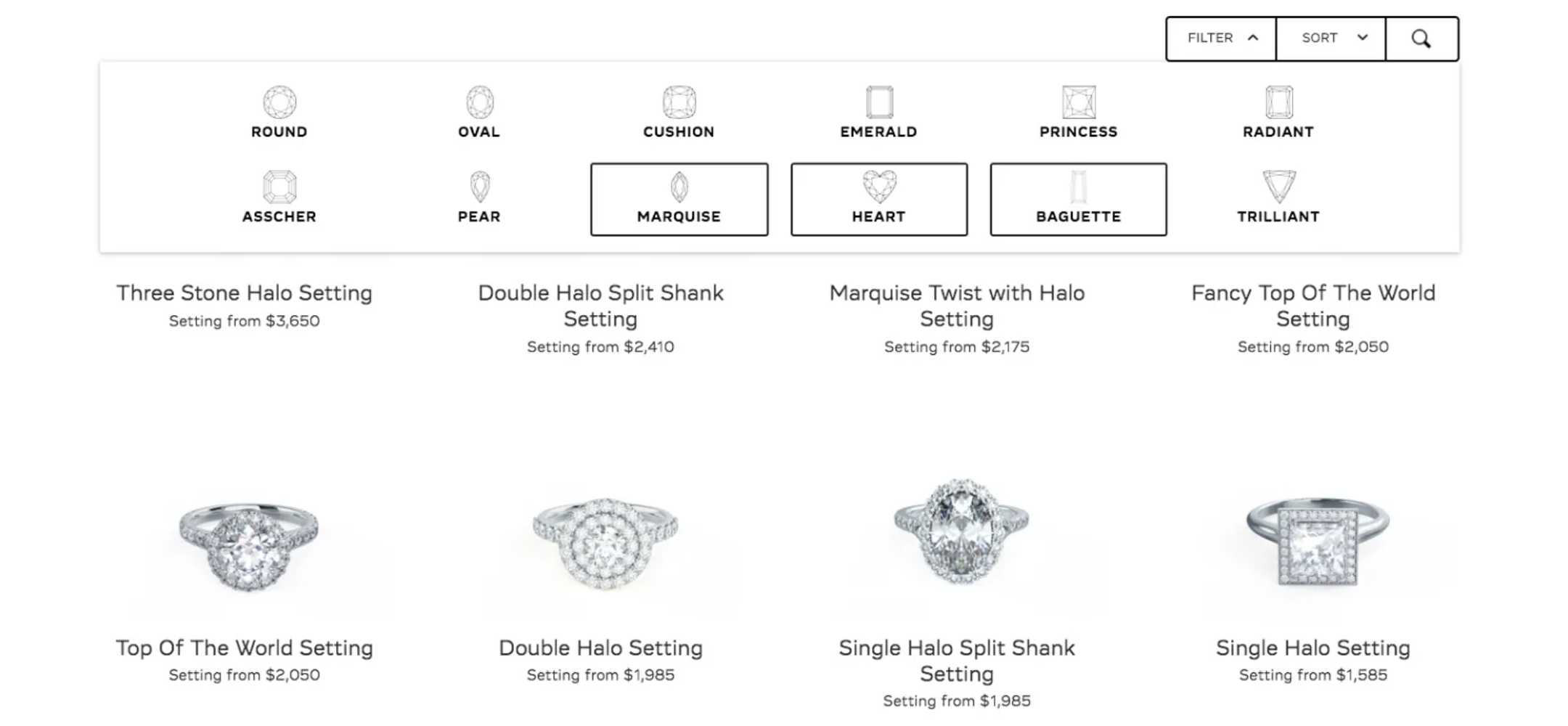
16. Universal Filter
Best for: filtering and sorting products, blog posts, galleries, events, albums, directories, and other collections.
Universal Filter is one of the most useful Squarespace plugins for content-heavy sites.
It helps visitors narrow down what they are looking for by category, tag, dropdown, price, title, or search field, depending on the setup.
Use it when the page has too many items for visitors to browse manually.
Good fit for: ecommerce shops, directories, recipe blogs, portfolio archives, resource libraries, event listings, and large content collections.
Watch out for: filtering adds complexity. Plan your categories and tags before installing.
17. Monocle Site Search
Best for: improving search on content-heavy Squarespace sites.
If your site has a lot of posts, products, or resources, better search can help visitors find what they came for faster.
A search plugin is especially useful when your site has grown into a library and the native navigation is no longer enough.
Good fit for: blogs, resource hubs, ecommerce stores, directories, documentation sites, and education sites.
Watch out for: search works best when your content titles, categories, and structure are already clear.
18. Related Posts and Products
Best for: keeping visitors moving through related content or products.
A Related Posts and Products plugin helps connect one page to the next.
For blogs, it can send readers to related articles. For shops, it can point customers toward related products. Either way, the goal is to keep visitors from reaching a dead end.
Good fit for: blogs, ecommerce stores, resource hubs, affiliate sites, and content-driven businesses.
Watch out for: related content should actually be related. Random links do not help the visitor.
Best Squarespace plugins and tools for business operations
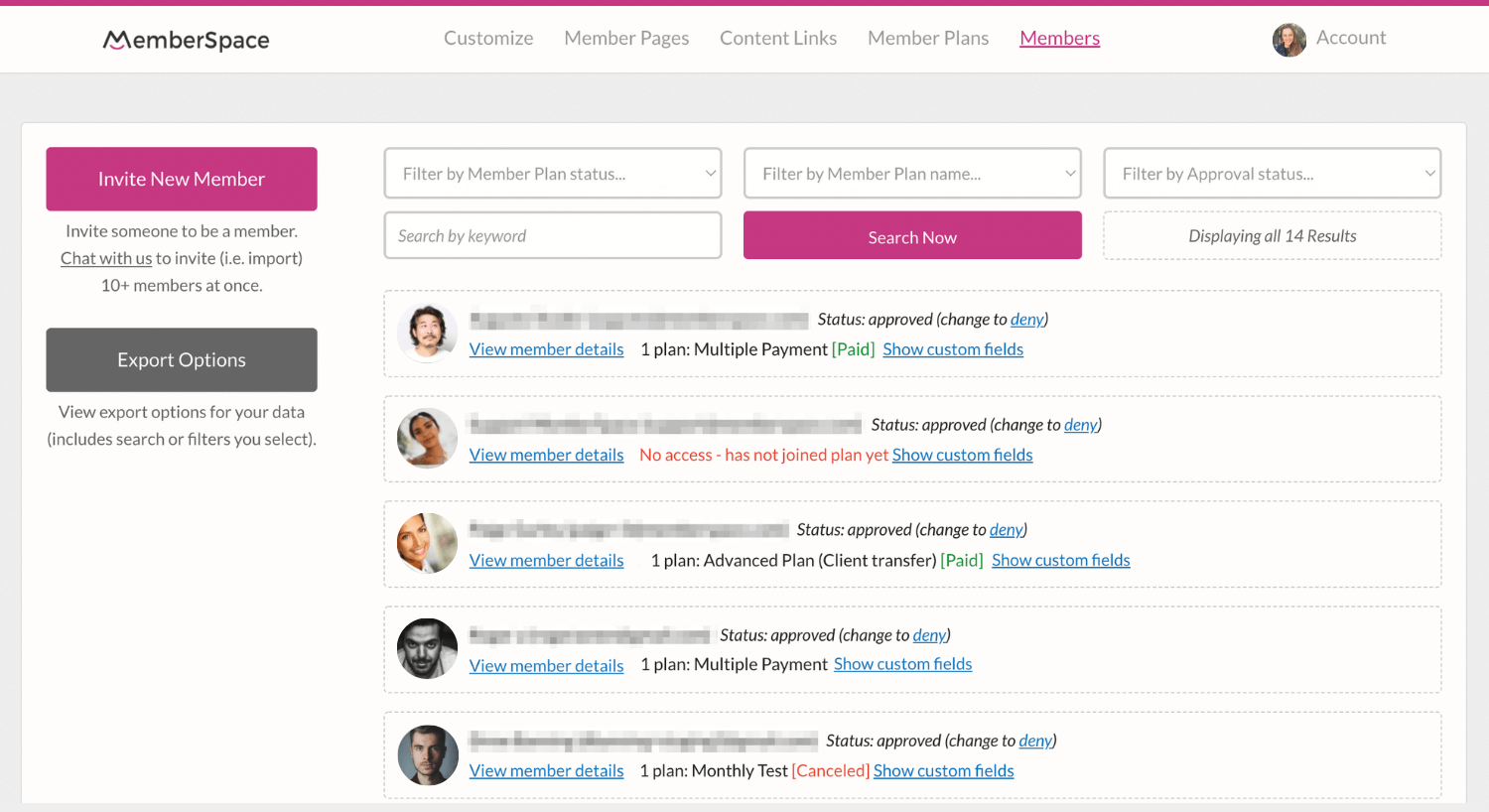
19. MemberSpace
Best for: memberships, gated content, paid communities, courses, private resources, and subscriber-only pages.
MemberSpace is a strong option when you want to build a membership layer on top of your Squarespace site.
Use it when access control is the real need: paid content, private downloads, member dashboards, protected pages, or recurring subscriptions.
Good fit for: educators, creators, coaches, communities, paid newsletters, digital product businesses, and resource libraries.
Watch out for: a membership tool will not create the membership model for you. Make sure the offer and retention plan are clear.
20. Weglot
Best for: translating a Squarespace site into multiple languages.
Weglot helps make a Squarespace site multilingual without rebuilding the site manually for each language.
This is useful when your audience, customers, or clients need to browse in more than one language.
Good fit for: international businesses, tourism, hospitality, education, ecommerce, nonprofits, and service businesses with multilingual audiences.
Watch out for: automatic translation still needs review. Important pages should be checked by a fluent human.
21. SquareKicker
Best for: advanced design control without fully custom code.
SquareKicker gives designers and site owners more visual control inside Squarespace.
It can be useful when you want more styling options than native Squarespace provides, but you do not want to write custom CSS for every adjustment.
Good fit for: Squarespace designers, agencies, visual brands, and site owners who want more control over design details.
Watch out for: more control can also mean more complexity. Use it to support the design system, not to over-style every block.
22. Spark Plugin
Best for: animations, effects, and visual enhancements.
Spark helps add motion and visual effects to Squarespace sites without writing custom animation code.
This can add polish when used lightly.
Good fit for: portfolios, creative businesses, agencies, designers, launch pages, and visual brands.
Watch out for: animation should support the visitor experience. Too much movement can make a site feel slower or harder to use.
23. SEOSpace
Best for: Squarespace SEO guidance, checklists, and optimization workflows.
SEOSpace is built for people who want more help improving search visibility on Squarespace.
It can be useful if you need a more structured way to review page titles, descriptions, content, technical issues, and optimization opportunities.
Good fit for: business owners, designers, bloggers, ecommerce stores, and anyone trying to grow organic search traffic.
Watch out for: no SEO plugin replaces clear content, useful pages, and a real understanding of search intent.
24. SuperJack
Best for: exporting or syncing Squarespace order data.
SuperJack helps Squarespace store owners work with order data outside of Squarespace.
This can be useful if you need to export orders, analyze sales, build reports, or connect store data to a workflow in Google Sheets or another tool.
Good fit for: ecommerce stores, operations-heavy businesses, fulfillment workflows, and businesses that need better reporting.
Watch out for: make sure you know what data you actually need before adding another tool to the stack.
Free vs paid Squarespace plugins
Some Squarespace plugins are free. Others are one-time purchases, subscriptions, or paid integrations.
Free plugins can be useful for small enhancements, but they are not always better. A paid plugin may save hours of setup time, include support, offer better documentation, or handle edge cases more reliably.
Before choosing based on price, ask:
- Is this for a live client site?
- Is support important?
- Does the plugin include setup instructions?
- Is the developer active?
- Will the plugin save enough time to justify the cost?
- Is this solving a real limitation or just adding a nice-to-have effect?
For client work, the cheapest option is not always the best option. The best option is the one you can trust on the real site in front of you.
Do Squarespace plugins slow down your site?
They can.
Any plugin, script, widget, or third-party integration can affect performance if it adds extra code, external requests, images, animations, or tracking scripts.
That does not mean you should avoid plugins altogether.
It means you should use them intentionally.
A good rule:
Use the plugin if it helps the visitor do something important.
Avoid the plugin if it only adds visual noise.
After installing a plugin, test your site on desktop and mobile. Check the page where the plugin appears. Make sure the page still loads well, the layout still works, and the feature is actually helping the visitor.
Squarespace plugins vs Squarespace Extensions
The word “plugin” can mean a few different things in the Squarespace world.
A Squarespace plugin usually refers to a code-based enhancement or third-party tool that adds a feature to your site.
A Squarespace Extension usually refers to an official third-party integration listed in the Squarespace Extensions marketplace. These tools often connect Squarespace to outside services for shipping, accounting, inventory, marketing, fulfillment, reviews, and other business workflows.
Both can be useful.
The difference is the type of problem you are solving.
Use a plugin when you need to change what visitors see or how the site behaves.
Use an extension when you need to connect Squarespace to another business tool.
Final thoughts
The best Squarespace plugin is not the one with the longest feature list.
It is the one that solves the problem in front of you.
If your blog needs better navigation, add a sidebar.
If your product page needs clearer details, use accordions.
If shoppers need to see color options, add swatches.
If your site has too much content to browse manually, add filtering or better search.
If the visitor needs more information before deciding, use a lightbox, demo, review widget, or clearer product section.
Start with the moment of need.
What is the visitor trying to do?
What is the site owner trying to manage?
What is Squarespace not giving you by default?
Then choose the plugin that brings the site back into order.
Squarespace plugin FAQs
Are Squarespace plugins compatible with Squarespace 7.1?
Many modern Squarespace plugins support Squarespace 7.1, but compatibility depends on the plugin. Always check the product page before buying or installing. Some plugins also work with Squarespace 7.0, while others are built specifically for 7.1.
Do I need a Squarespace Business plan to use plugins?
Some plugins require Code Injection, which usually means you need a Squarespace Business plan or higher. Other plugins may work through code blocks, markdown blocks, or external integrations. Check the plugin instructions before purchasing.
Can I use Squarespace plugins if I do not know code?
Usually, yes. Many plugins include copy-and-paste instructions. You do not need to be a developer, but you should be comfortable following setup steps. If you are building a client site, test the plugin before relying on it for an important launch.
Are Squarespace plugins safe?
A well-built plugin from a reputable developer can be safe and useful. The risk comes from installing code you do not understand, using outdated scripts, or adding too many third-party tools without testing. Use plugins from trusted sources, read the documentation, and keep a record of what you installed.
Can I use multiple plugins on the same Squarespace site?
Yes, but use restraint. Multiple plugins can sometimes conflict or slow down a page. Add the plugins you actually need, test them together, and avoid installing features just because they look interesting.
What is the difference between a plugin, widget, and extension?
A plugin usually adds a feature or behavior to your Squarespace site. A widget often embeds a third-party feature, like reviews, chat, forms, or feeds. An extension usually connects Squarespace to an outside business tool through the official Squarespace Extensions marketplace.
Where can I find more Squarespace plugins?
You can browse the full SQSPThemes plugin library for plugins built around common Squarespace limitations, including lightboxes, sidebars, accordions, mega menus, product swatches, product videos, inventory indicators, related posts, galleries, and more.